Tip #81 – Turn every session into a story with Session Highlights – 'Insider Insights'
Hello Zoho Assist Community!
Picture this: your team wraps up dozens of remote support sessions every week. Each one involved troubleshooting, tools, fixes, and back-and-forth with customers. But when it's time to review what actually happened across all those sessions, you're left sorting through raw logs with no clear picture of patterns, recurring issues, or the applications your technicians rely on most.
That's exactly the gap Session Highlights is designed to close.
What is Session Highlights?
Session Highlights is an AI-powered reporting feature in Zoho Assist that automatically analyzes each completed support session and turns it into a structured, searchable insight. No manual documentation required. Every concluded session is broken down into key actions taken, issues identified, applications accessed, and an overall session summary.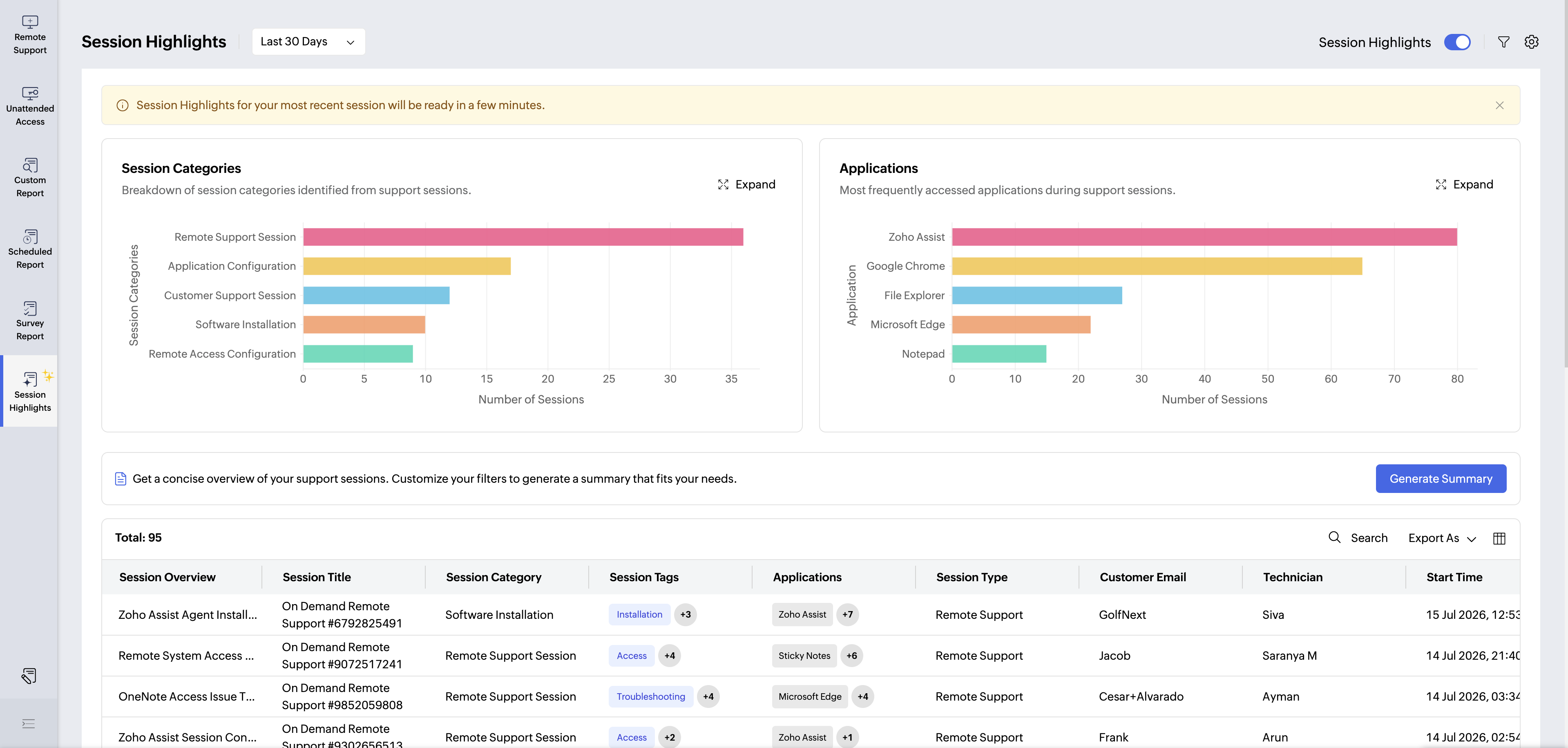
How to enable it
Only admins can configure Session Highlights for the organization. To get started, navigate to Reports > Session Highlights and click Configure.
Review the legal notice, click Agree & Continue, and you're set. Once enabled, highlights are generated for all concluded sessions.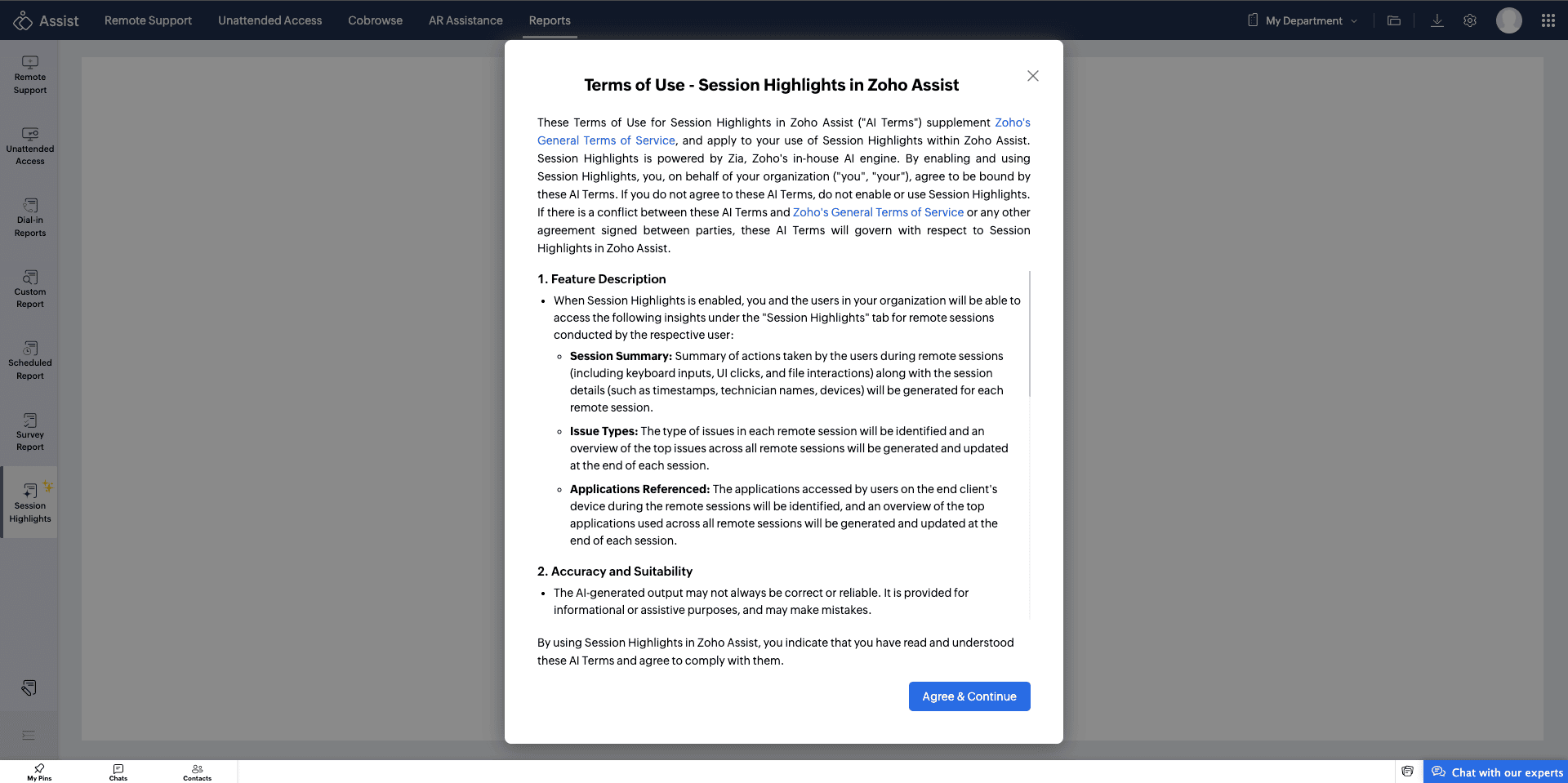
What you'll see on the dashboard
The Session Highlights dashboard gives you three key views:
Session Category - A breakdown of the top issue categories identified across your sessions. Expand for detail or export the data.
Applications - The most frequently accessed applications during support sessions, giving you a clear view of your team's toolset.
Session Highlights Table - A detailed, filterable list of session insights including session overview, type, tags, category, applications used, duration, customer email, department, and technician name.
You can search across all highlights or export the full table as a CSV or PDF.
Filtering to find what matters
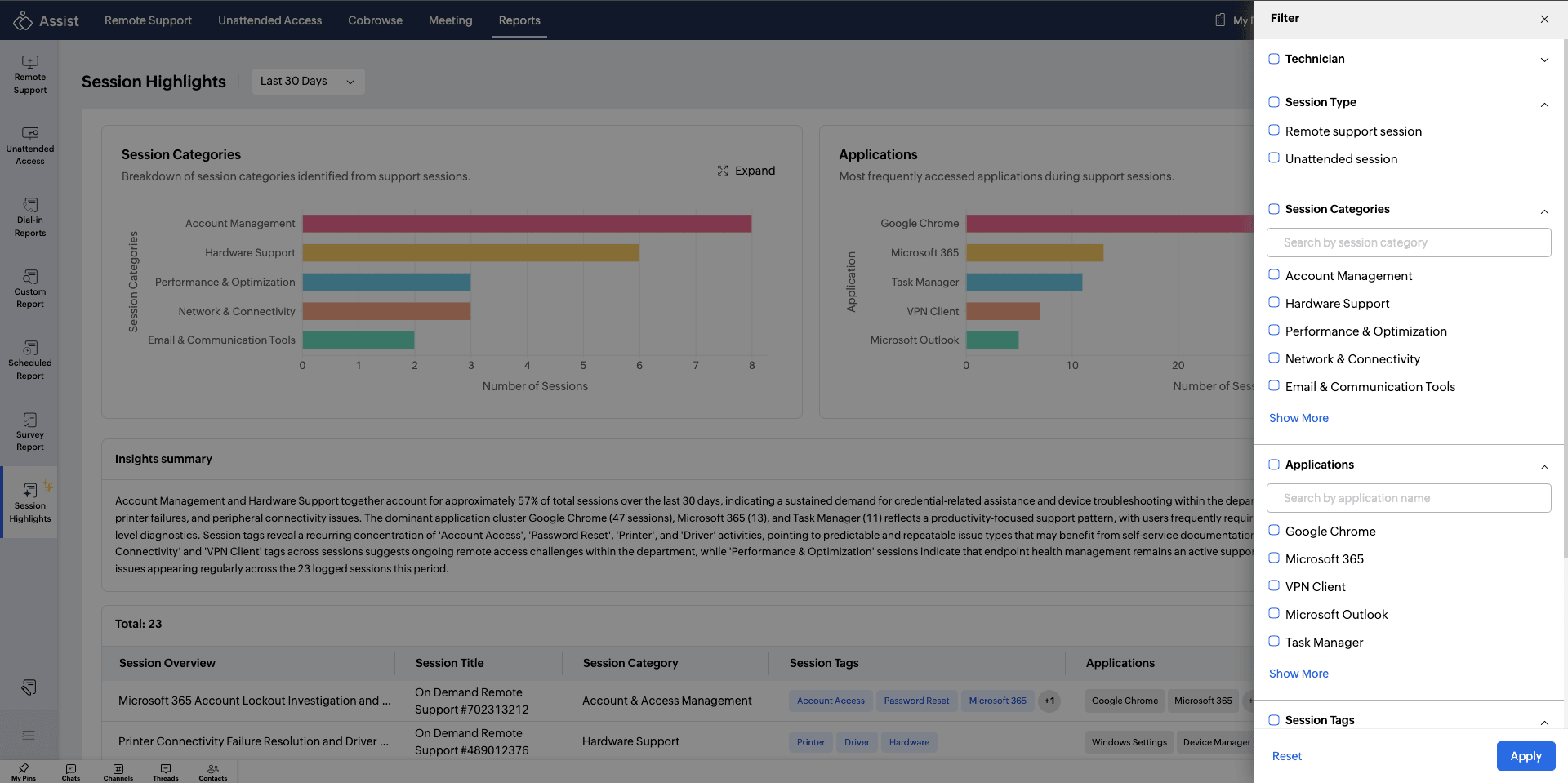
Use the date range filter to narrow your view by time period. Additional filters let you drill down by Session Type, Technician, Applications, Session Category, and Session Tags, so you can zero in on exactly the data you need.
Generating a Session Summary
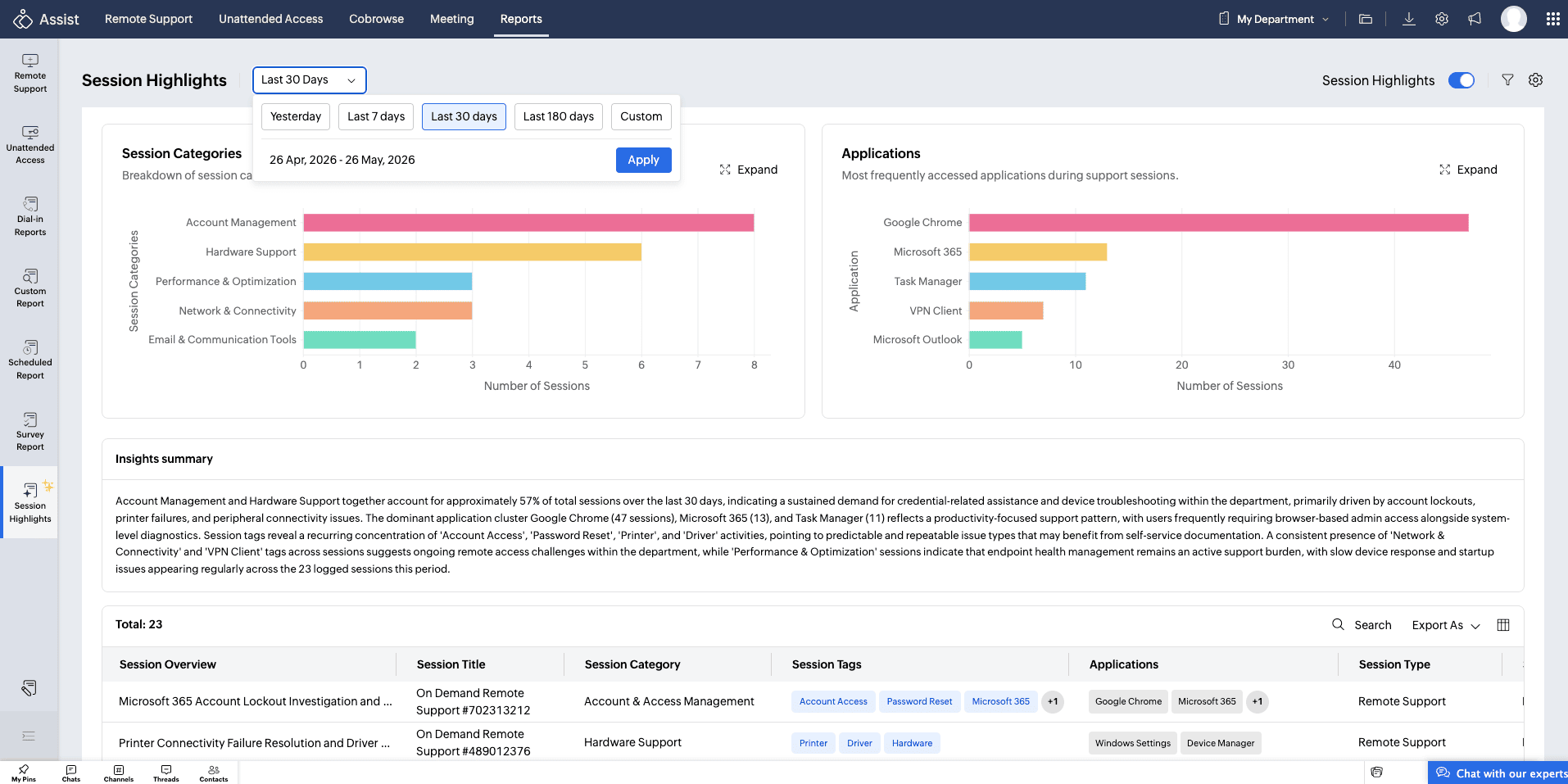
Need a broader picture? Apply your filters and click Generate Summary to get a consolidated overview of all the sessions that match your criteria. For a closer look at any individual session, click its Session Overview entry to view the session details, tags, overall summary, applications used, and a full list of session actions.
Whether you're an IT manager looking to identify recurring issues, a support lead tracking technician activity, or an admin focused on continuous improvement, Session Highlights brings clarity to the work your team does every day.
For more details, check out the Session Highlights help documentation.
Give it a try and let us know what insights you uncover. For help or questions, reach out to us at support@zohoassist.com. We're always happy to help!