Creator Simplified #11: Create a custom button to download files
Hey there!
This time, let's see how to create custom buttons to download the files uploaded in the file upload field.
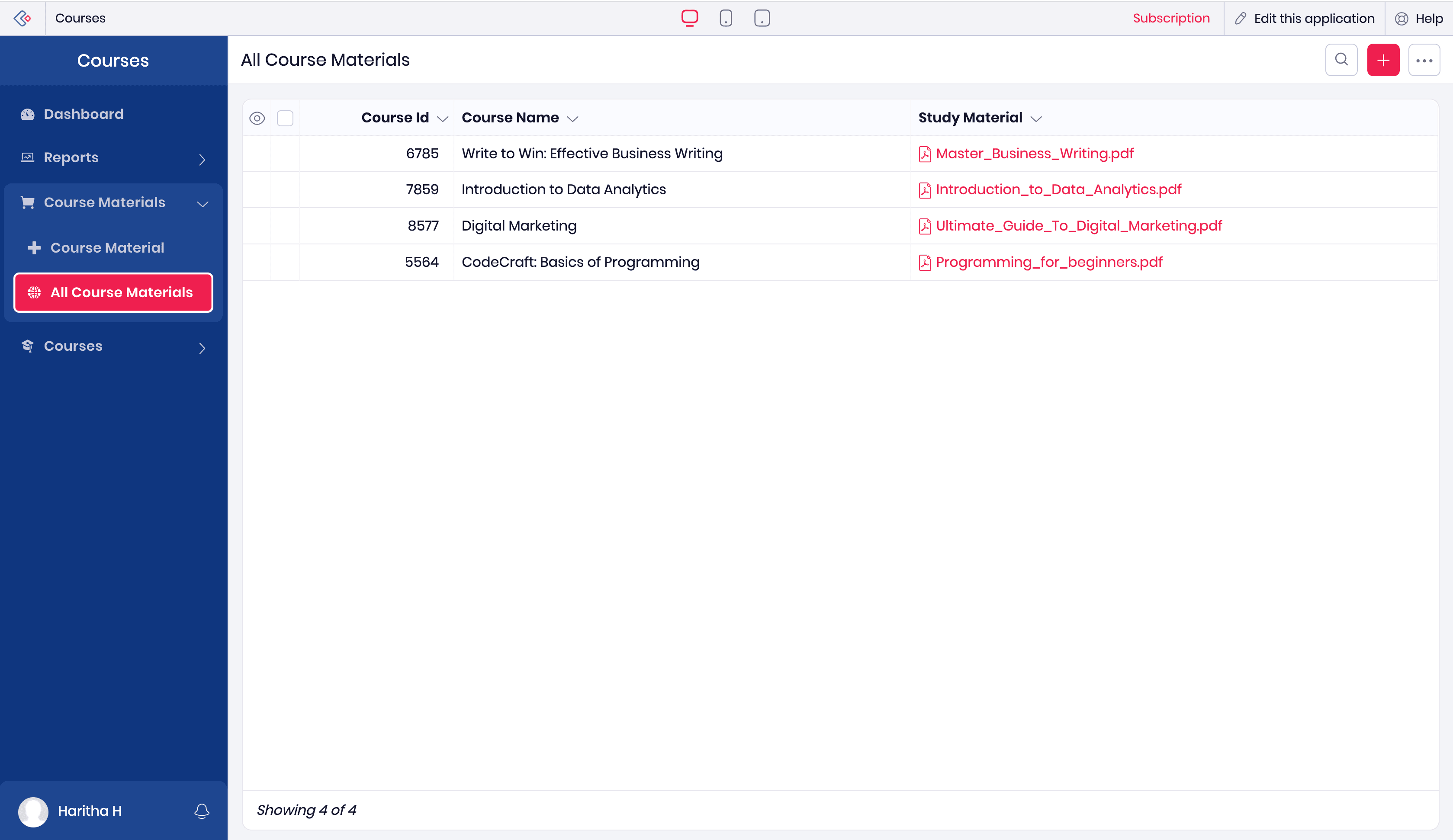
This report (All Course Materials) has a file upload field (Study Material).
Publish the report from the Operations module under the Manage section. Save the file path from the permalink generated.

Create a custom button for a single record.

Add an action using the deluge script and create a new function. Copy the code given below.
- openUrl("https://creatorapp.zohopublic.in/file" + zoho.appuri + "All_Course_Materials/" + input.ID + "/Study_Material/download/p5zQbOv7VkYtqsXd2uwBWHrzf5ZtyqfZ46N6FxP95ZR2EGHx7eJjv7YHkg4eMqSFdEqVWmVdhztSs7gRagBFAaddpkA5hJQRANkO?filepath=/" + input.Study_Material,"same window");
Here, the OpenURL () task redirects to a URL that allows you to download a file in the same window.
Let's break down the components of the URL.
creatorapp.zohopublic.in is the base URL to public components of Zoho Creator accounts in India. Change the domain as per your DC.
zoho.appuri populates the admin username and app link name in the URL.
All_Course_Materials is the report link name and input.ID dynamically fetches the ID of the record, and Study_Material is the field link name of the file upload field.
Paste the file path taken from the perma link, in this case it is p5zQbOv7VkYtqsXd2uwBWHrzf5ZtyqfZ46N6FxP95ZR2EGHx7eJjv7YHkg4eMqSFdEqVWmVdhztSs7gRagBFAaddpkA5hJQRANkO.
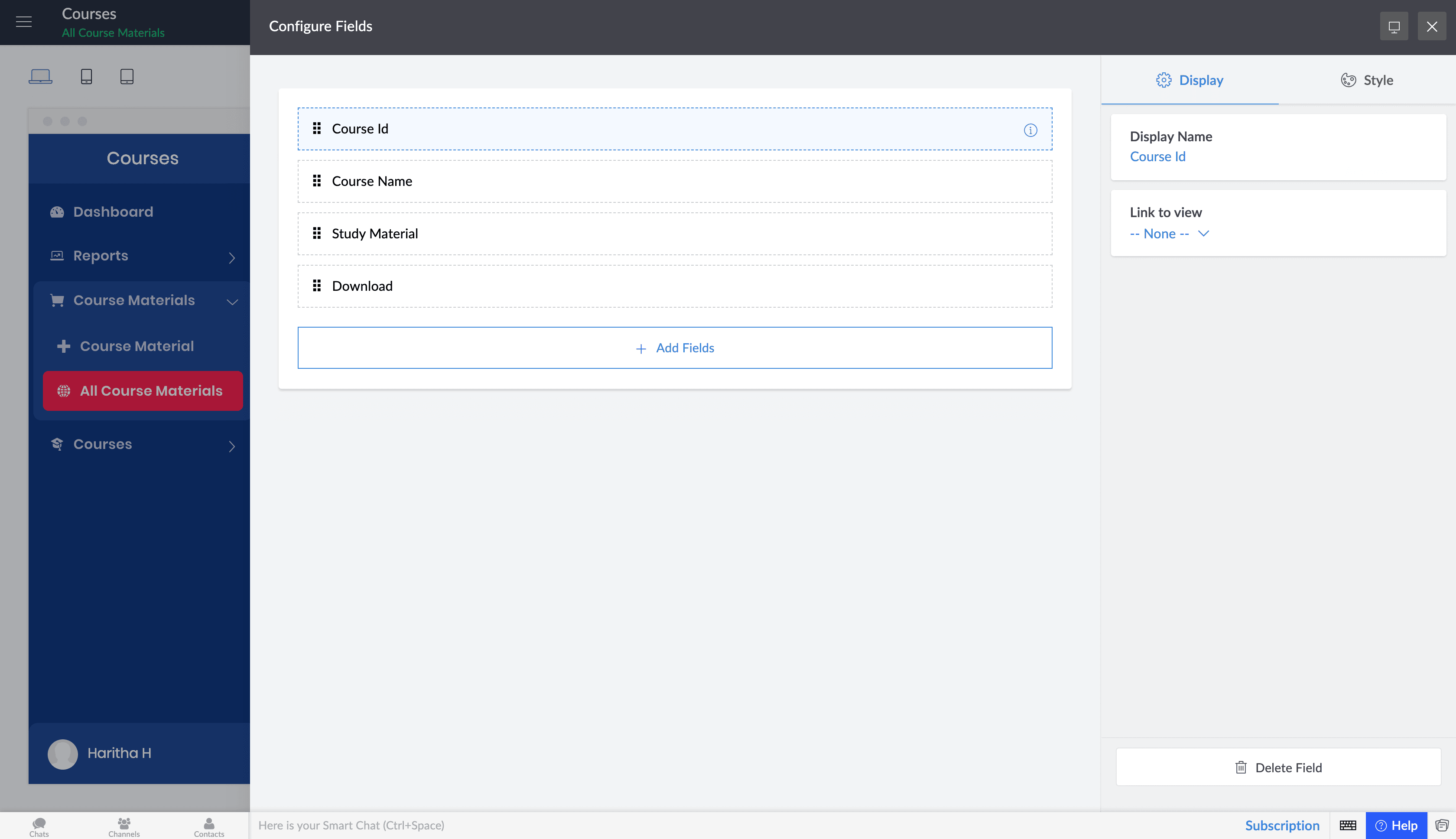
Finally, add the button to your report's quick view.

That's it! As easy as that!