Determine agent work hours and break timings with Desk's agent availability report
Hello everyone,
We are excited to tell you about updates to the agent availability report, designed to enhance efficiency in tracking agents’ activities.
What is the agent availability report?
The agent availability report helps managers monitor team performance by tracking agent activity, availability, and session information. This report is crucial for teams that rely on real-time data to understand how agents spend their time, whether they're available for assignments, and how long they remain logged in during shifts.
Support leads can review agent activity to optimize shift coverage by tracking when each agent logs in, logs out, and takes a break.
This data helps with several tasks:
- Managing team schedules
- Balancing workloads
- Optimizing ticket allocation during peak hours
Here’s what’s new:
- View the agent's role (designation) in the report
- Track total work hours by calculating the time difference between login and logout
- Monitor the number of daily sessions
- View session records to get a breakdown of break timings
- Choose between Summary and Session views for tailored insights
These updates make it easier to manage and optimize agent productivity.
Designation and work hours
- Role: The agent's designation can be viewed right within the report.
- Hours worked: Managers can easily track the total work hours of an agent by referencing the Hours Worked column, which calculates the time difference between login and logout.
In addition, managers can also track the hours worked for each agent who is part of a specific team.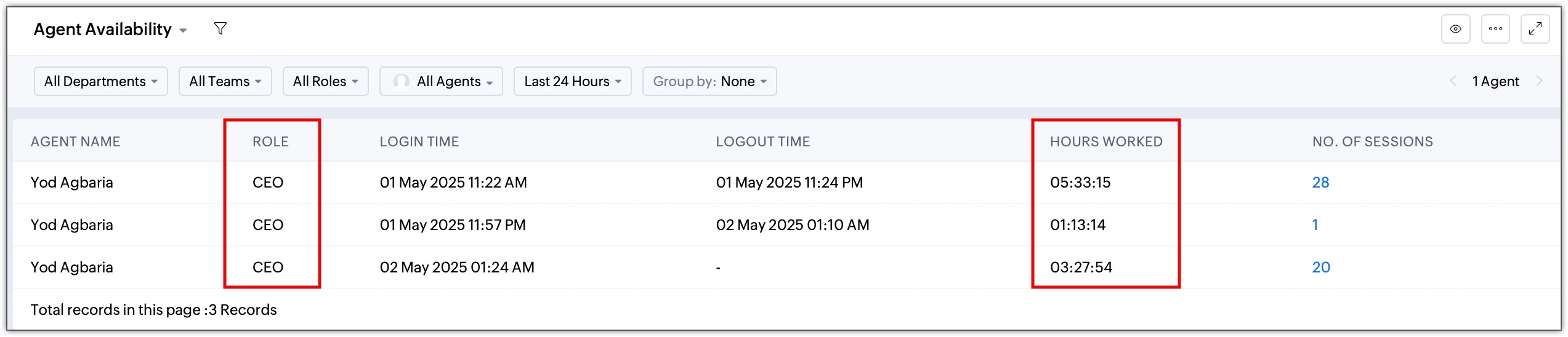
Tracking number of sessions
Managers can quickly check the total number of times an agent logged in and actively worked during the day to represent their overall active periods of assisting customers or completing tasks.
For example, if an agent, logs in from 9:00 AM to 12:00 PM, takes a lunch break, logs back in from 1:00 PM to 3:00 PM, then takes another break and logs in once more from 3:30 PM to 5:00 PM, the agent availability report would show a total of 6.5 hours worked across 3 sessions for the day.

Note:
An active session in Desk is recorded when an agent logs in and engages with their account.
Here's how login and logout scenarios determine session activity:
- Login Time: An agent's session begins as soon as they log in to Desk and actively start working (e.g., handling tickets or navigating the system).
- Logout Time:
- Manual Logout: When an agent logs out of Desk, the session is marked as ended.
- Idle Logout: If an agent remains idle for a prolonged period, Desk will automatically log them out. This marks the end of the session.
- System or Connection Interruptions: If the agent's internet disconnects or their system goes into sleep mode, Desk considers this a logout after a specific idle threshold.

Dual view options
The Agent Availability Report provides two distinct views: Summary and Session, each offering specific insights tailored to different reporting needs:
- Summary View: This view provides an overview of each agent's daily attendance activity, including their first login time, last logout time, total hours worked, and the number of sessions.
For instance, if a manager wants to monitor overall agent attendance for a day at a glance, the Summary View serves as a better report.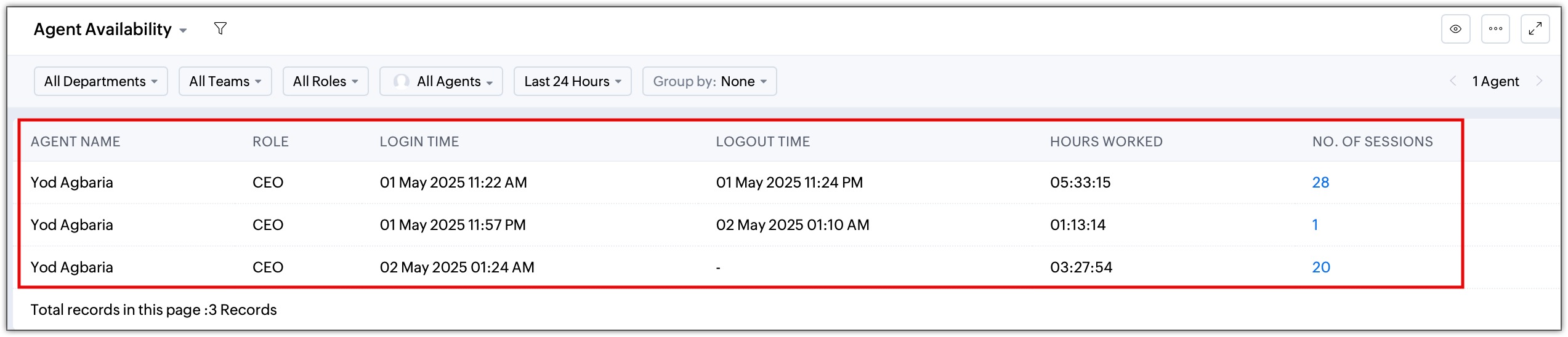
- Session View: The Session View offers a more detailed breakdown of the login and logout times for each session an agent worked in a day. It provides insights into how often an agent logged in and out and the duration of each session. Managers can identify frequent session interruptions or duration of inactivity.
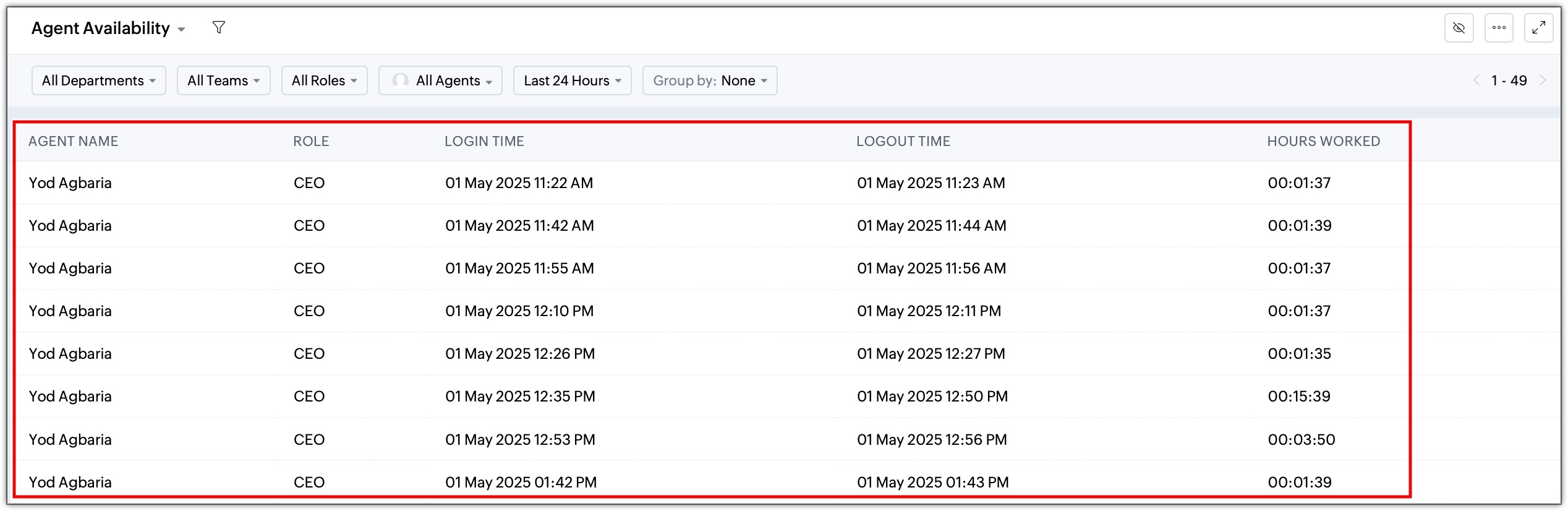
This update is available to all users across all data centers.
For more information, please refer to the help doc Understanding Agent Availability Report.
Regards,
Akshaya. B | Zoho Desk - User Education