Ensure every user starts right with Welcome Email Templates
Adding a new user to your organization extends beyond account creation–it requires delivering the right information at the right time to ensure a productive start. New users typically require key details upon joining, such as login instructions, security guidelines, and links to essential resources.
What is the Welcome Email Template?
Key use cases
Smooth onboarding: Direct new users to essential resources, documentation, and guides from their very first interaction.
Brand consistency: Apply your organization's logo, tone, and visual identity to ensure a professional first impression.
Guided next steps: Define clear next steps such as "Complete your profile," "Join your team channel," or "Schedule an onboarding session."
Policy and compliance: Communicate acceptable-use policies, data privacy notices, and security requirements at the point of registration.
Why it matters for admins
Consistency in communication: Every user receives the same structured onboarding message, regardless of when or how they were added.
Time-saving automation: Eliminates manual email drafting per user, reducing administrative effort.
Improved user readiness: Consolidates essential information into a single, timely communication, enabling users to onboard efficiently without delays.
Reduced support requests: Addresses common onboarding questions proactively, minimizing first-day support volume.
Customizable messaging: Allows admins to align the template with organizational tone, internal policies, and branding.
Steps to configure Welcome Email Template in Zoho Mail Admin Console
- Log in to Zoho Mail Admin Console.
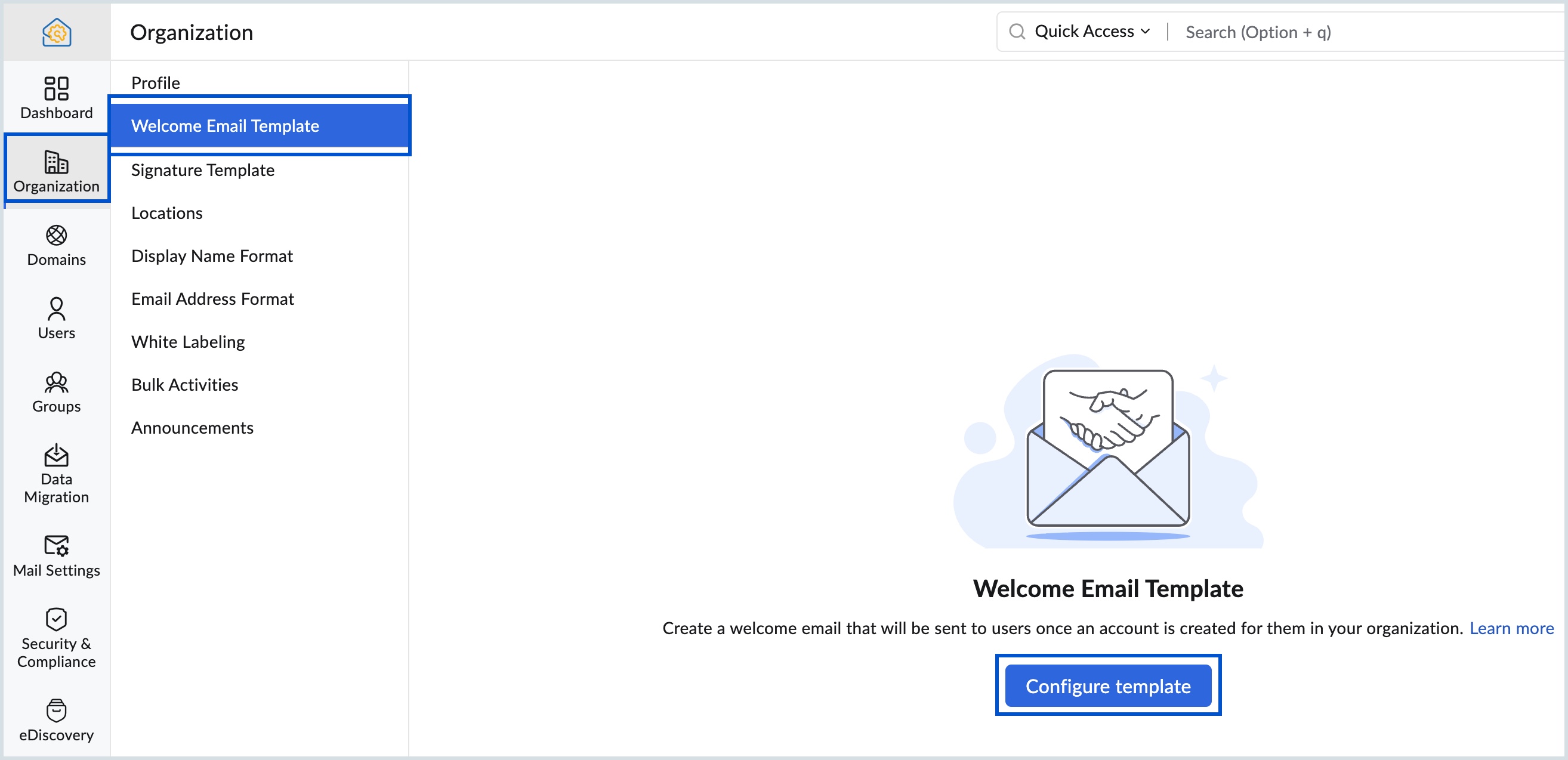
- Go to the Organization section in the left pane and select Welcome Email Template from the submenu.
- Click Configure template.
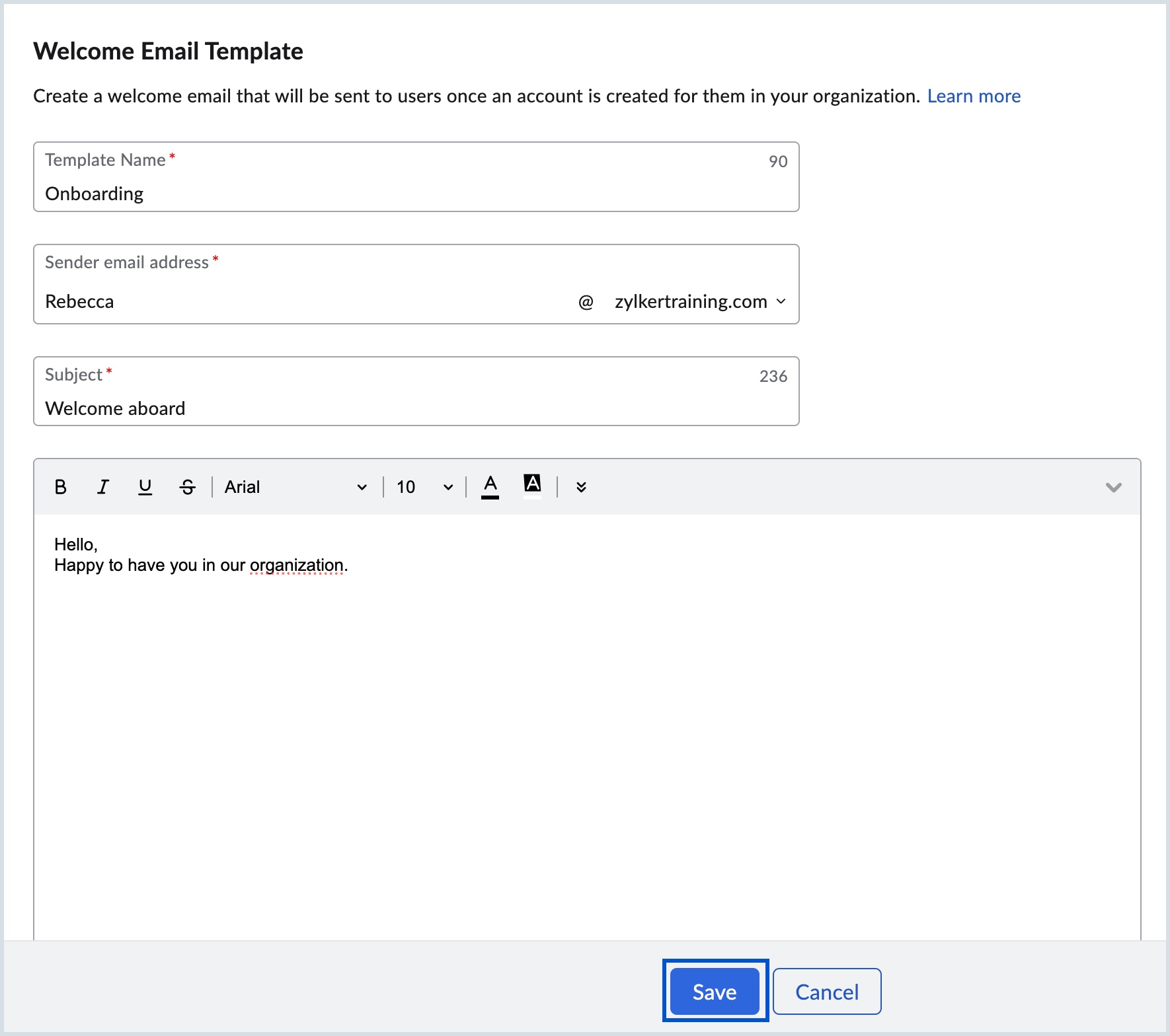
- Enter the template, format it according to your requirements, and click Save.