Group Moderation Settings in Zoho Mail: Review and control emails before they reach your group
Email groups in your organization often receive emails from various senders. Not all of these emails may be relevant or authorized for direct delivery to group members. Zoho Mail's Moderation Settings give group moderators the ability to review, approve, or reject emails before they are delivered to group members, ensuring that only relevant communication reaches your group.
What are Moderation Settings in Zoho Mail?
Moderation Settings is a dedicated section within the Group Settings of each email group in Zoho Mail. Depending on the type of group (public, organization, private, or moderated), emails from users who do not have the required permissions are not delivered directly to the group. Instead, they are routed to the Moderation queue, where group moderators can review them and decide whether to approve or reject them.
Approved emails are delivered to the group members, while rejected emails are bounced back to the sender. This ensures that group communication remains structured and aligned with your organization's policies.
Who is a Group Moderator?
A group moderator is a member assigned with the responsibility of managing group communication and membership. Moderators can add members to the group, moderate emails in the moderation queue, and access the group's notifications and advanced settings. A group can have multiple moderators, allowing administrators to distribute moderation responsibilities across the team.
How can administrators use Moderation Settings effectively in Zoho Mail Admin Console?
Moderation Settings in Zoho Mail give administrators and moderators control over what gets delivered to the group. This ensures accountability, reduces the risk of unwanted or unauthorized emails reaching group members, and maintains structured communication within the organization.
Approve emails: Emails approved by the moderator are delivered to all group members. For example, if an external vendor sends a project update to your internal team group, a moderator can review and approve it before it reaches the team.
Reject emails: Emails rejected by the moderator are bounced back to the sender and will not be delivered to the group. This is useful when emails from unauthorized senders or irrelevant sources need to be filtered out before reaching the group.
Steps to configure Moderation settings in Zoho Mail Admin Console
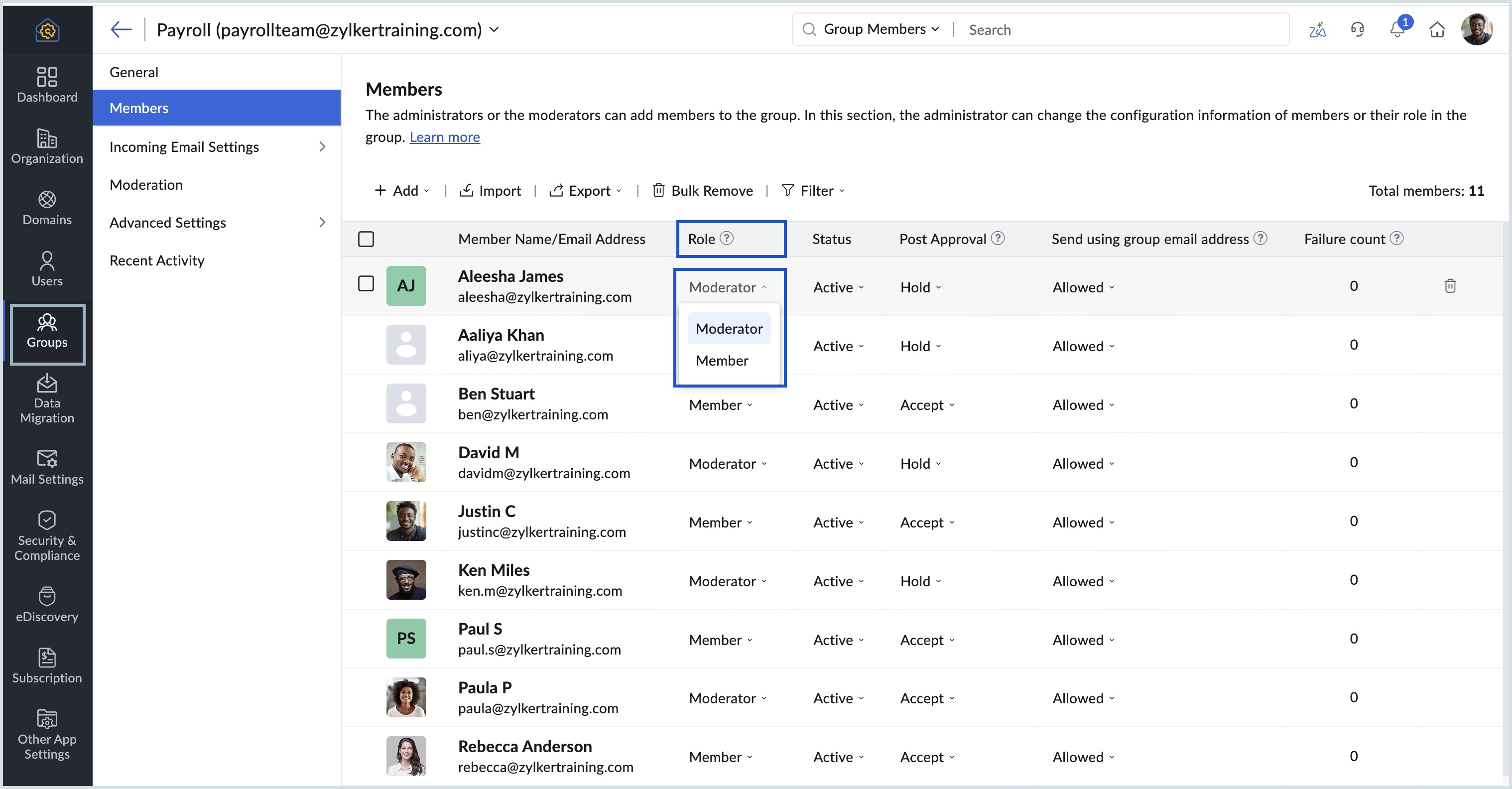
Follow the below steps to change the permission of a user from a member to a moderator:
Login to Zoho Mail Admin Console.
Navigate to Groups in the left pane. All the groups you have created under your Organization in Zoho Mail will be listed.
Click on the group in which you'd like to add moderators.
Navigate to the Members section and locate the user whom you want as a group moderator.
In the Role column, click the drop-down next to Member.
Select Moderator and now the user will be a group moderator and he/she can add new members.