Mailbox delegation - A secure way to enable collaboration
Admins often encounter scenarios where a user needs another team member to access and manage their mailbox during extended leave, role transitions, or while handling high email volumes.
In such situations, ensuring business continuity without sharing login credentials or compromising security is critical.
Before enabling access, admins should consider:
Sharing mailbox passwords creates serious security and compliance risks.
Emails may be missed or delayed if access is not provided promptly.
Delegates usually require specific permissions, not full account access.
Administrators need visibility into delegation mappings and access controls.
To address these needs, the Mailbox delegation feature in the Zoho Mail Admin Console allows users to securely access and manage emails on behalf of a mailbox owner within the organization.
When a mailbox is delegated:
The delegate can read, respond to, and manage emails.
No password sharing is required.
The delegate does not need to log in as the mailbox owner.
Admins can define the level of permissions granted.
Why use mailbox delegation?
Executive assistance & shared responsibility
Team-based email handling
Temporary coverage during absence
Steps to enable mailbox delegation
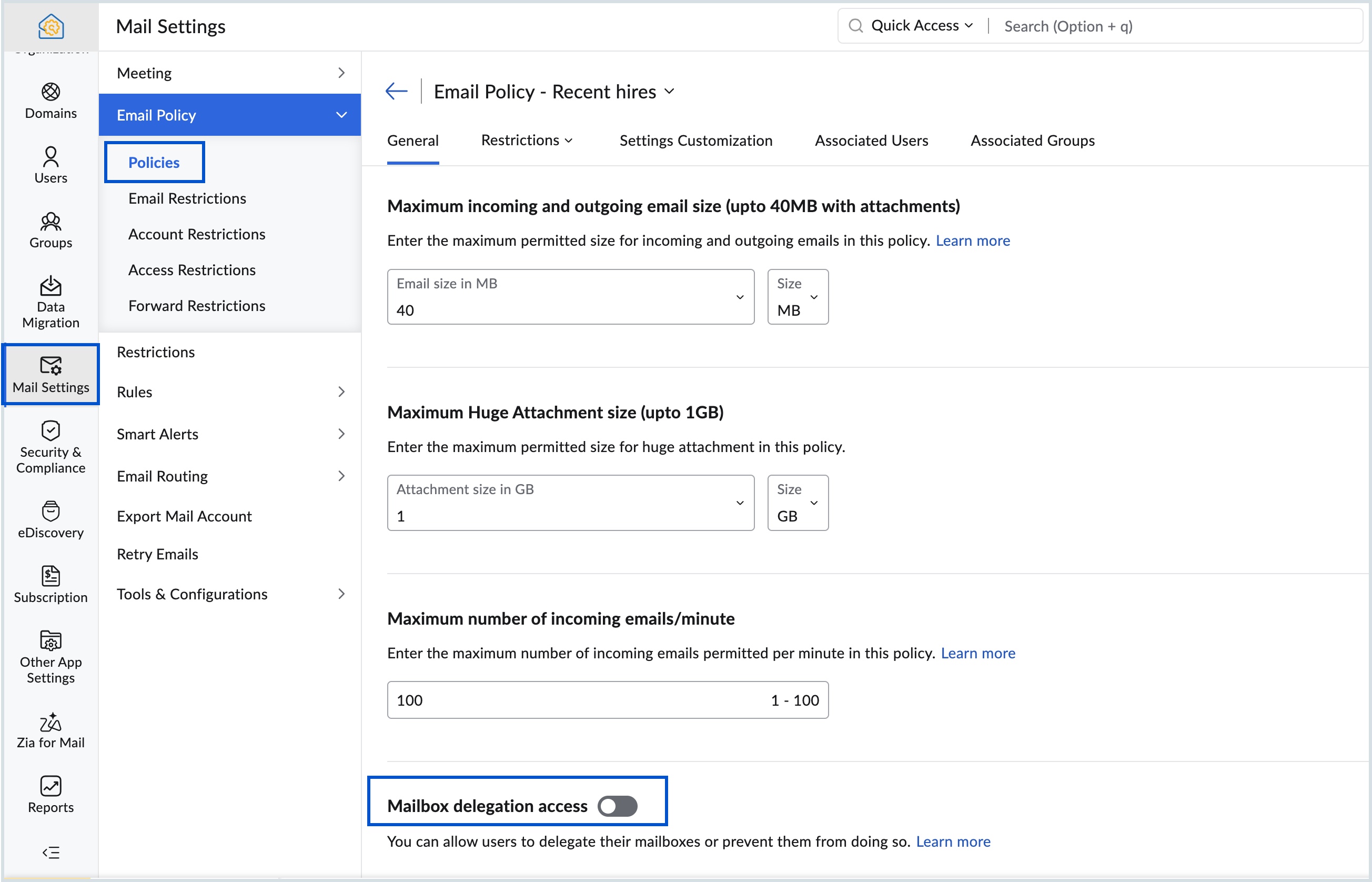
To enable or disable mailbox delegation in an email policy:
Log in to Zoho Mail Admin Console.
Navigate to Mail Settings > Email policy > Policies.
Choose the policy for which you want to enable/ disable Mailbox delegation access.
Navigate to General > Mailbox delegation access.
Turn On/ Off the toggle switch to enable/ disable the access.
Know more about the steps to delegate a user's mailbox.