Tip #83- Give Customers a Faster Way to Reach You with the Quick Support Plugin – 'Insider Insights'
Hello Zoho Assist Community!
Think about the last time a customer needed urgent support. They emailed in, waited for a response, got a session link, couldn't find it in their inbox, called back, and by the time the session actually started, a good chunk of time had already been lost. The issue was simple. Getting to it wasn't.
Now imagine that same customer just double-clicks an icon on their desktop, enters a session ID, and they're in. No inbox hunting. No back and forth. Just instant access to support.
That's exactly what the Quick Support Plugin is designed to do.
What is the Quick Support Plugin?
Quick Support is a desktop plugin for Zoho Assist that lets customers join remote support sessions instantly or raise support requests directly from their device, without needing to visit a website or wait for an email invite. It's available on Windows, Mac, Linux, and Raspberry Pi.
Organizations can deploy it across customer devices so end users always have a direct line to support, right from their desktop. IT teams can also brand the plugin with their organization's logo and messaging for a consistent, professional experience at every customer touchpoint.
Creating a Custom Quick Support Plugin
Go to Settings > Remote Support > Quick Support and click Add Plugin. From here, you can customize:
Plugin Name and Title
Customer Join Preference – Choose whether customers can Join Session, Raise a Request, or both.
Departments – Configure one or more departments so customers can select the right team when raising a request.
Theme Color – Match the plugin's look to your brand.
Banner/Logo – Upload a JPG, JPEG, or PNG image under 5 MB.
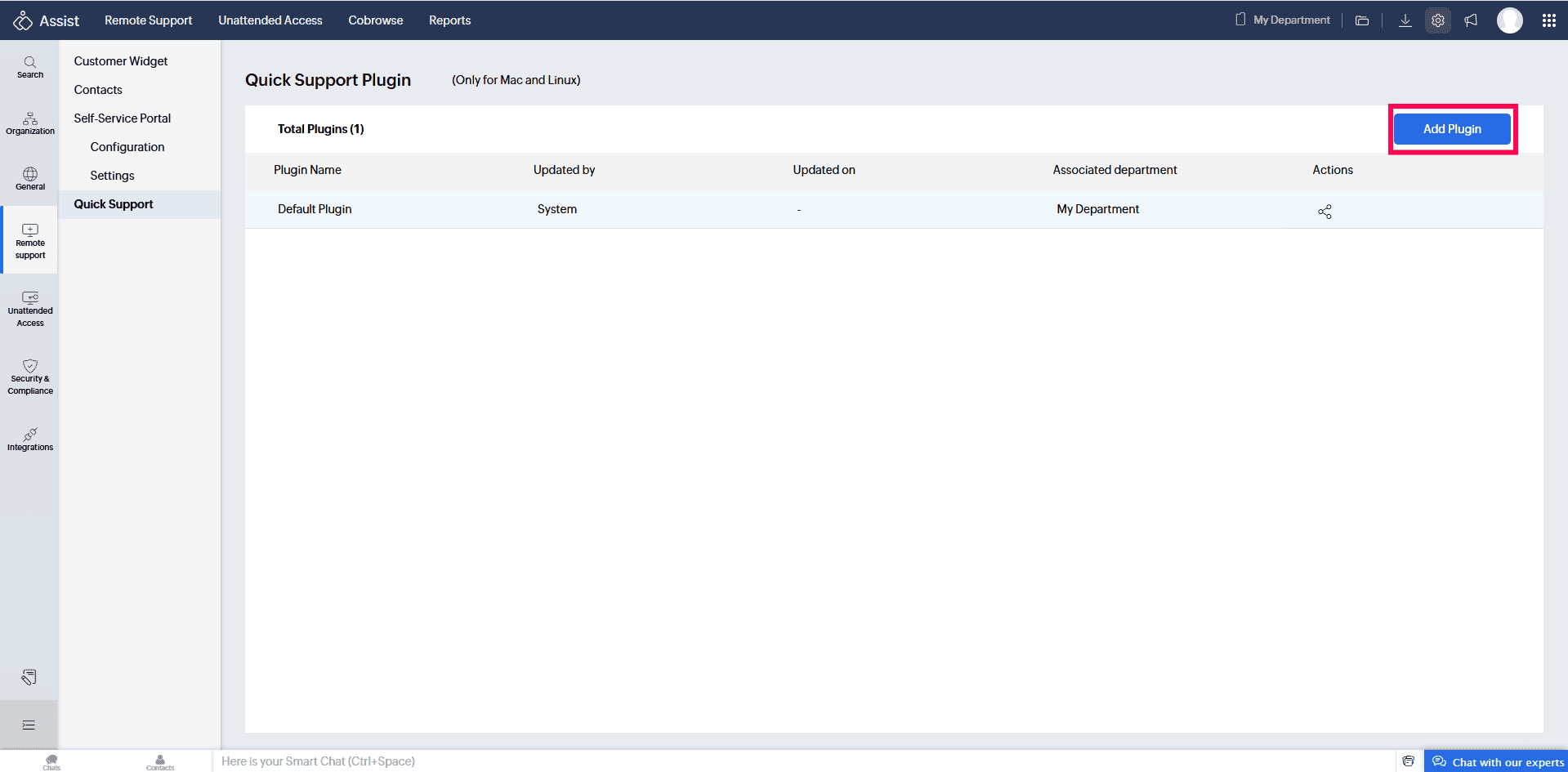
Use the Preview panel on the right to see your customizations in real time, then click Create Plugin to generate it.
Click the Share icon to copy or email the plugin download link to customers. They open the link, select their OS, and download the installer. First-time users enter their Name, Company, and Email ID, and the plugin is ready to use from their device.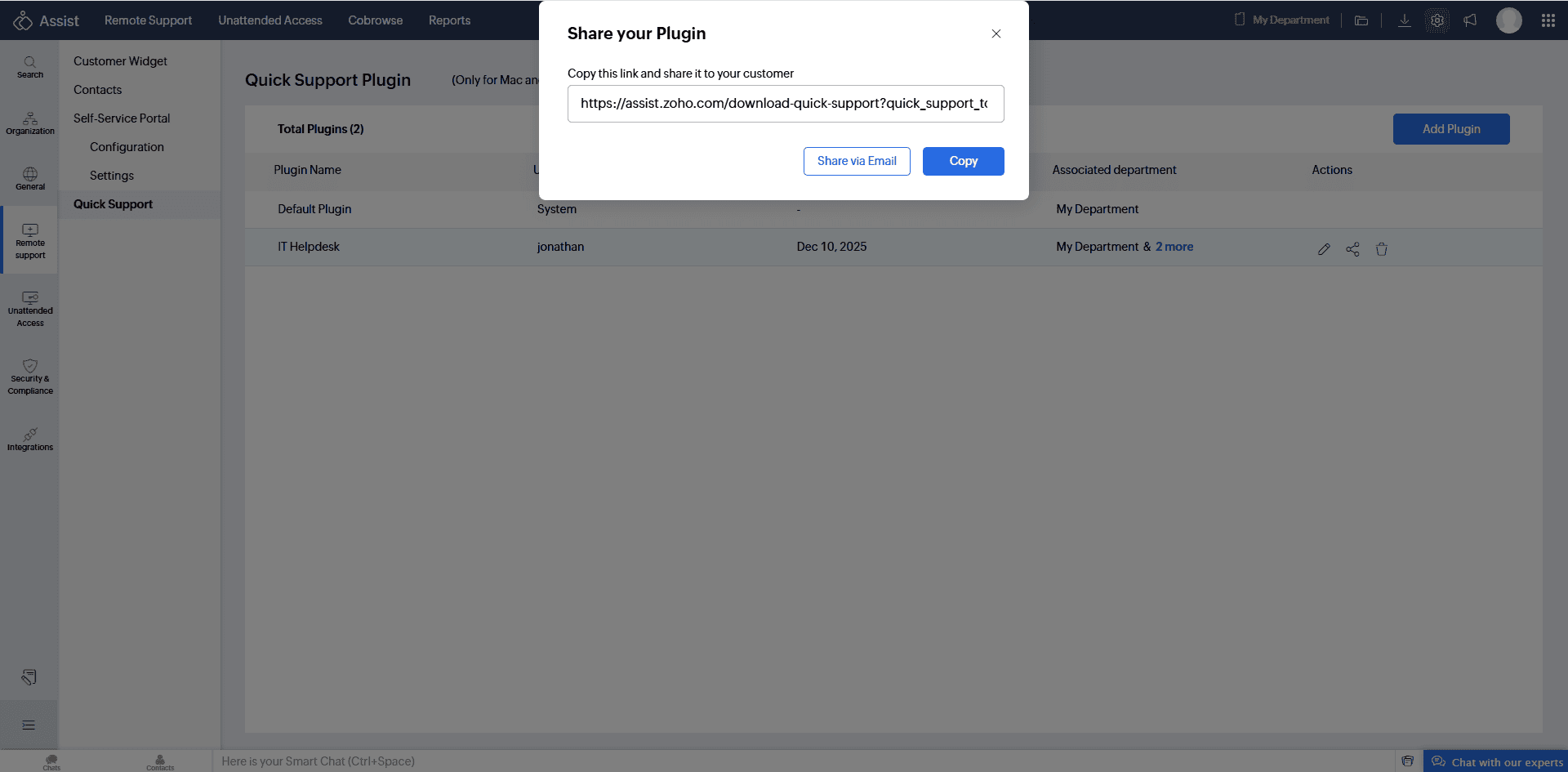
Customers can connect via two ways customers can connect: Join Session and Raise a Request.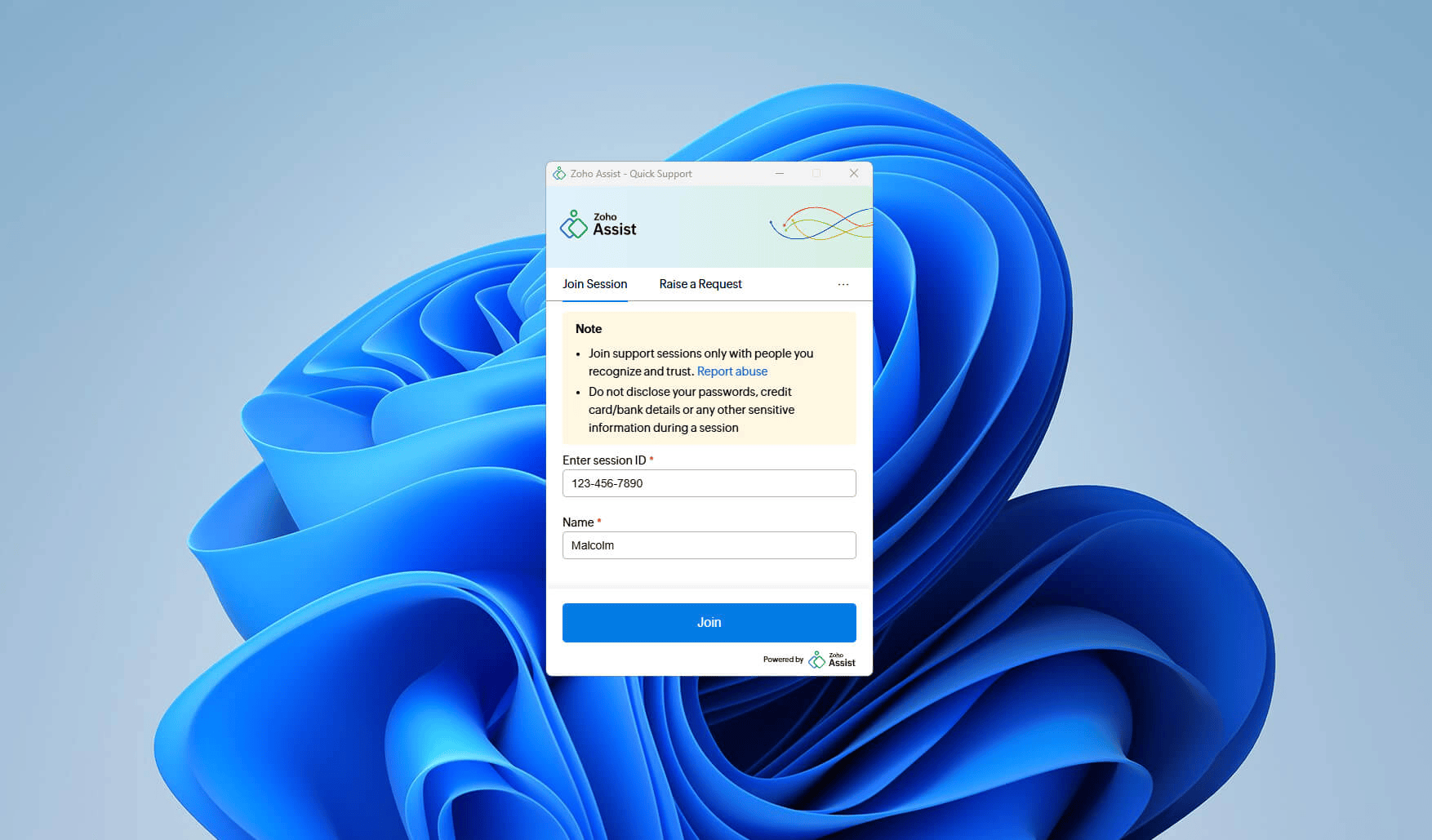
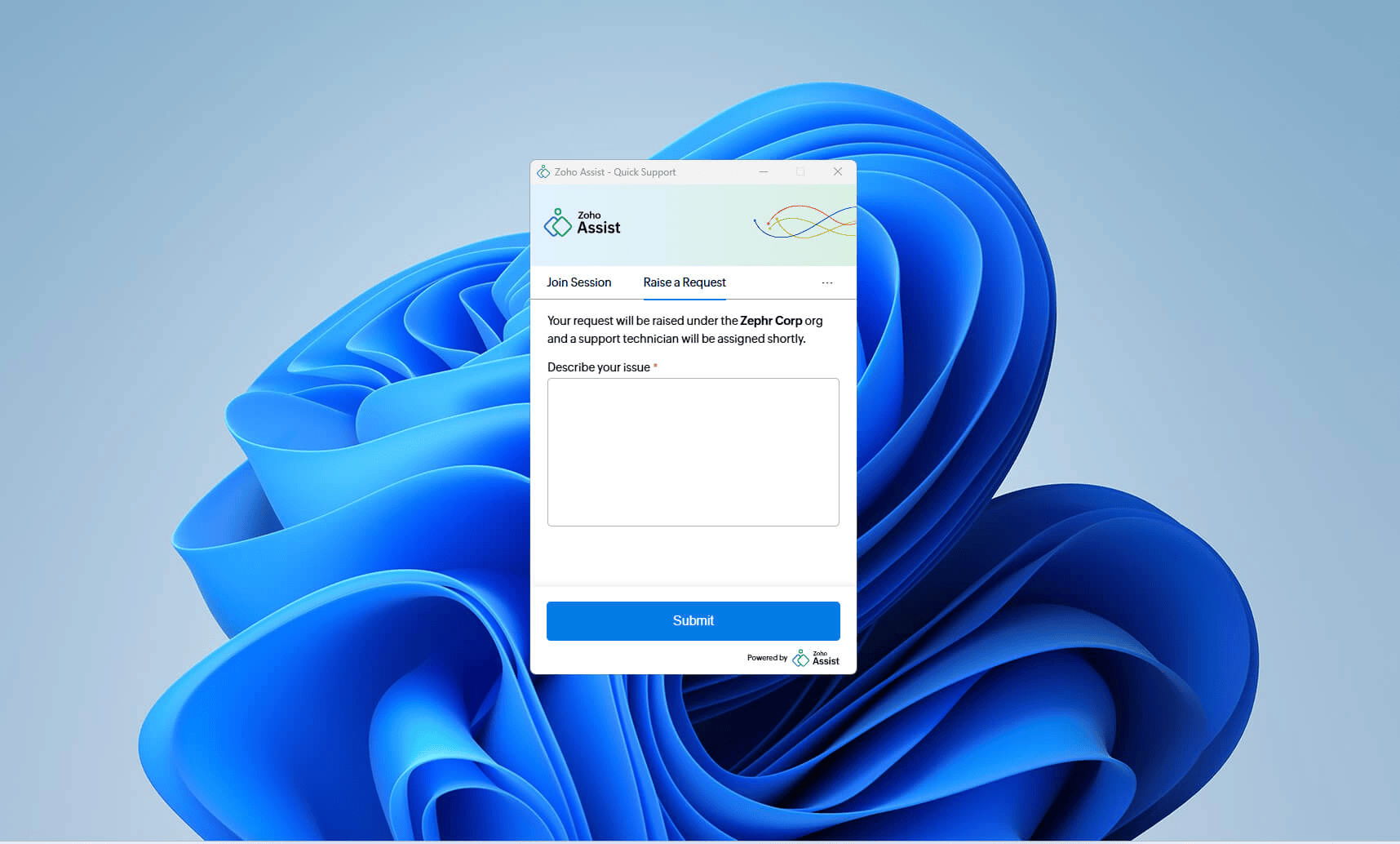
Note: If Raise a Request is unavailable, ensure the Self-Service Portal is enabled under Settings > Remote Support > Self-Service Portal > Configurations.
If you haven't set up the Quick Support Plugin yet, it's a straightforward way to cut down the time between a customer reporting an issue and a technician actually being in the session. We'd love to hear how it's working for your team. Share your experience in the comments below!
For help or questions, reach out to us at support@zohoassist.com. We're always happy to help!