Tip #88 – Manage Incoming Support Requests Efficiently with the Service Queue – 'Insider Insights'
Hello Zoho Assist Community!
Not every team has a dedicated IT department or a fully built-out sysadmin setup. For smaller teams, when something breaks, there's no internal ticket system to log into, no helpdesk queue to route through, and no clear way to reach someone who can help quickly. Someone has to stop what they're doing, track down a technician, explain the issue from scratch, and hope they're available.
For smaller teams that need fast, direct access to support without the overhead of a complex setup, that process needs to be as simple as possible.
That's exactly what the Service Queue in Zoho Assist makes possible. A straightforward portal where users can raise a request and get connected to a technician quickly, without the infrastructure of a full IT operation behind it.
What is the Service Queue?
The Service Queue gives customers and internal users a direct way to raise a remote support request through a custom Self-Service Portal URL. Once submitted, the request is routed immediately to the queue where technicians can view and access it in real time, prioritize based on urgency, and launch a remote session to address the issue. Technicians can pick up requests based on their role and availability, or admins can assign them directly. No scheduling, no back and forth, no waiting around.
Setting it up
Navigate to Settings > Remote Support > Self-Service Portal > Configuration. Enter your company portal URL and click Save. Choose your preferred authentication mode:
SAML Authentication – Restricts access to directory users only, ensuring only authorized personnel can raise requests.
Unauthenticated – Allows anyone with the portal link to raise a request, suitable for broader customer-facing support.
Once configured, click Enable Self-Service Portal to start receiving inbound requests.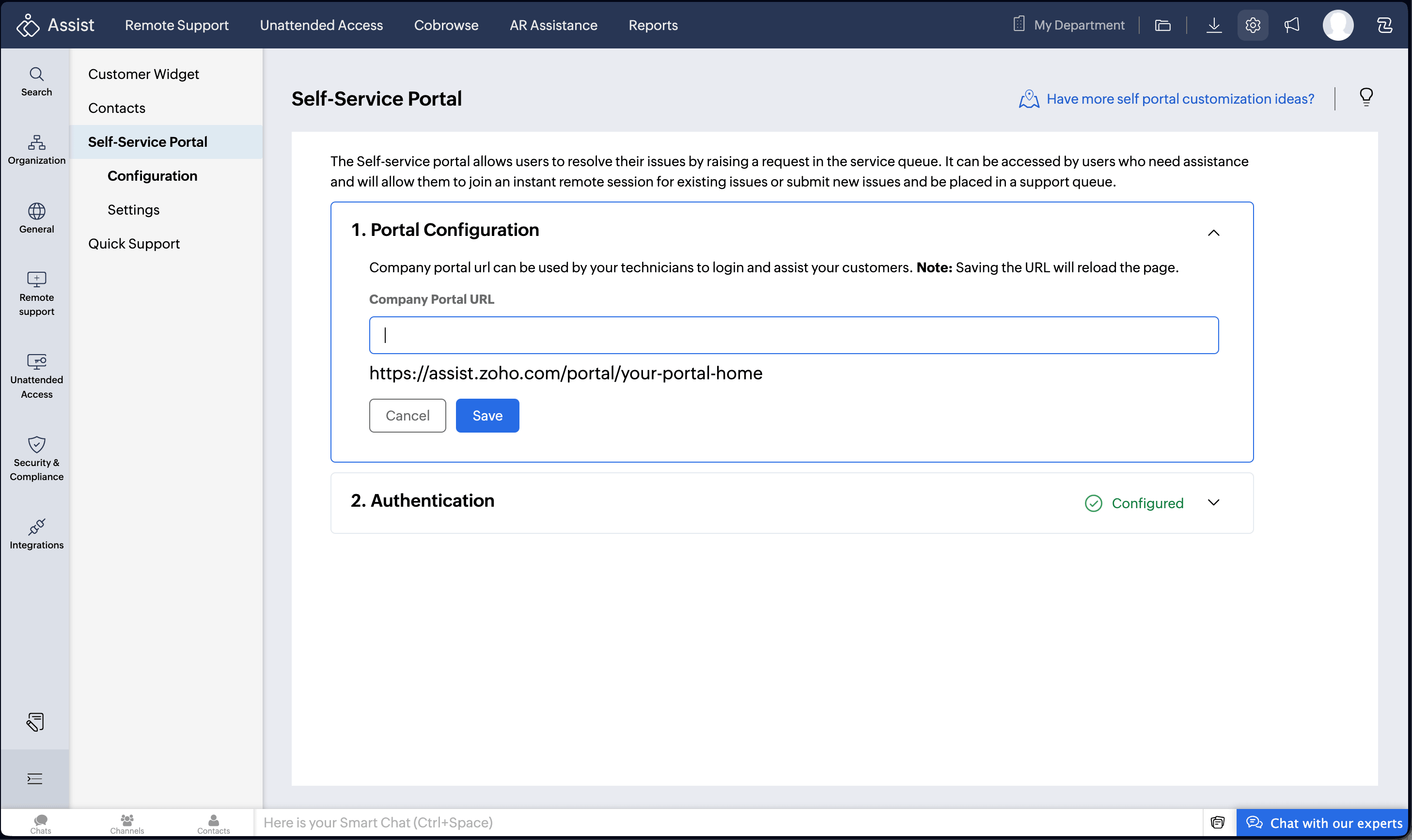
To transfer requests between departments, navigate to Remote Support > Service Queue, hover over the inbound request, click Move, select the destination department, and confirm.
For an even more direct route, the Quick Support Plugin lets users raise a support request straight from a lightweight desktop application on their device. No browser, no link hunting. The request goes directly into the Service Queue the moment they submit it.
Whether your team handles a steady stream of support requests or just needs a simple, reliable way to connect users with help when things go wrong, the Service Queue ensures every request is visible, organized, and attended to without anything slipping through the cracks.
Have you set up the Service Queue in your organization? We'd love to hear how it's helping your team manage incoming requests. Share your experience in the comments below!
For help or questions, reach out to us at support@zohoassist.com. We're always happy to help!