Tip #53- Remote Billing: Your End-to-End Billing Solution in Zoho Assist- 'Insider Insights'
Manual invoicing, after every remote support session, can be time-consuming and often error-prone. As an MSP, IT admin, or even a freelance support technician, it may become overwhelming to keep track of session time, service rates, and client invoices.
With Zoho Assist Remote Billing, you will now be able to automate billing, manage invoicing more efficiently, and follow up on payments from the same place that you conduct your remote support operations.
What is Remote Billing in Zoho Assist
Remote Billing lets you:
Define billing plans — based on session count, session hours, or unattended devices.
Assign clients (and optionally departments) to billing plans, complete with billing address, billing cycle, and start date.
Automatically generate invoices after sessions or per billing cycle, without having to export data or use a separate billing tool.
Manage invoices: send them by email or download, mark payments received, and add adjustments (discounts or additional charges) when needed.
How to Set Up Remote Billing
Log into your Zoho Assist account and navigate to Settings → Organization → Billing.
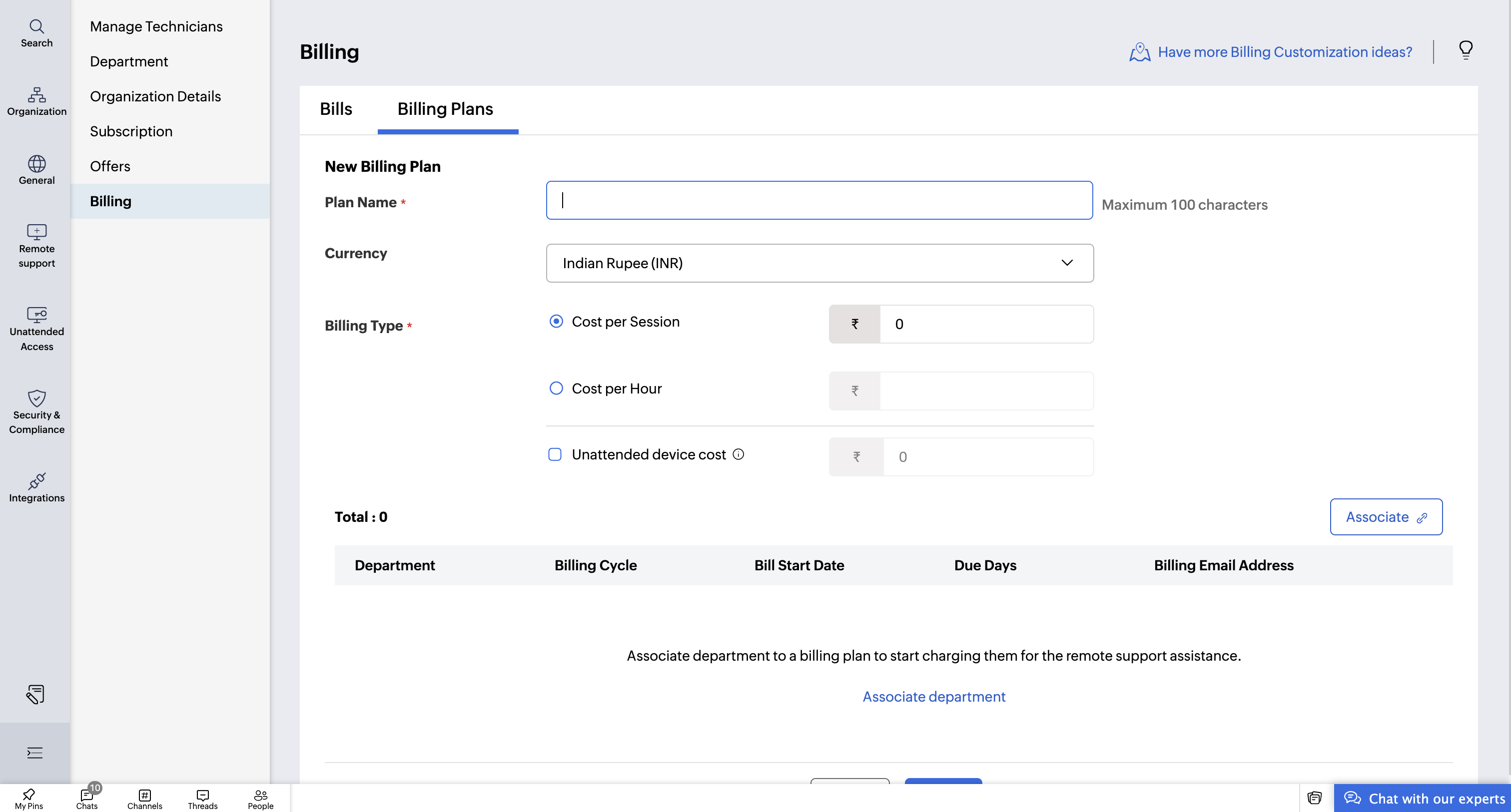
Under the Billing Plans tab, create a new plan by entering:
Billing Plan Name
Currency
Billing Type
Associate customers immediately—or add them later as needed.
Key Highlights of Remote Billing
Create Custom Billing Plans
Build billing plans based on your services. Set the plan name, currency, billing type, and rates—tailored to individual clients or departments.
Flexible Billing Rates
Pick how you want to charge:
By session
By hour
By number of unattended devices
Associate Customers Easily
Assign each customer to a billing plan with details like:
Billing cycle
Billing start date
Payment due date
Department
Billing address
Edit or Delete Billing Plans
Need to make changes? Update your billing plans anytime as your service or pricing evolves.
Manage Invoices Effortlessly
Once a customer is linked to a plan, Zoho Assist generates bills automatically. You can:
Organize bills by plan
Track billing cycles
View charge details
Update Payment Status
Mark invoices as paid once the customer completes payment. Keep your billing dashboard clean and up to date.
Add Charges or Discounts
Apply additional fees or custom discounts to fine-tune final invoice amounts.
Download or Email Bills
Send invoices directly to your customers or download them for your records—all from within Zoho Assist.
Try it out and let us know how it’s helping your team! If you need help setting up or have any questions, feel free to reach out to us at support@zohoassist.com — we’re here to help.