Tip #68- Exploring technician console: Remote Audio- 'Insider Insights'
Hello Zoho Assist Community!
Imagine being in the middle of a remote support session for a media production studio. The editor reports that their audio mixing software is behaving strangely, exported files sound distorted, and a persistent error tone keeps firing during playback. They try to describe it over chat, but words only go so far. You need to hear the problem to solve it. But you're miles away with no way to listen in. Frustrating, right?
That's exactly the gap the Remote Audio feature in Zoho Assist is built to bridge. With just a click from the Technician Console, you can stream the audio output from the remote machine directly to your device. No guesswork, no back-and-forth descriptions from the customer.
This feature is especially valuable for IT support teams, managed service providers (MSPs), helpdesk technicians, and AV/multimedia specialists who regularly assist users in audio-sensitive environments, from creative agencies and broadcast studios to corporate conferencing setups and e-learning platforms.
What is the Remote Audio feature?
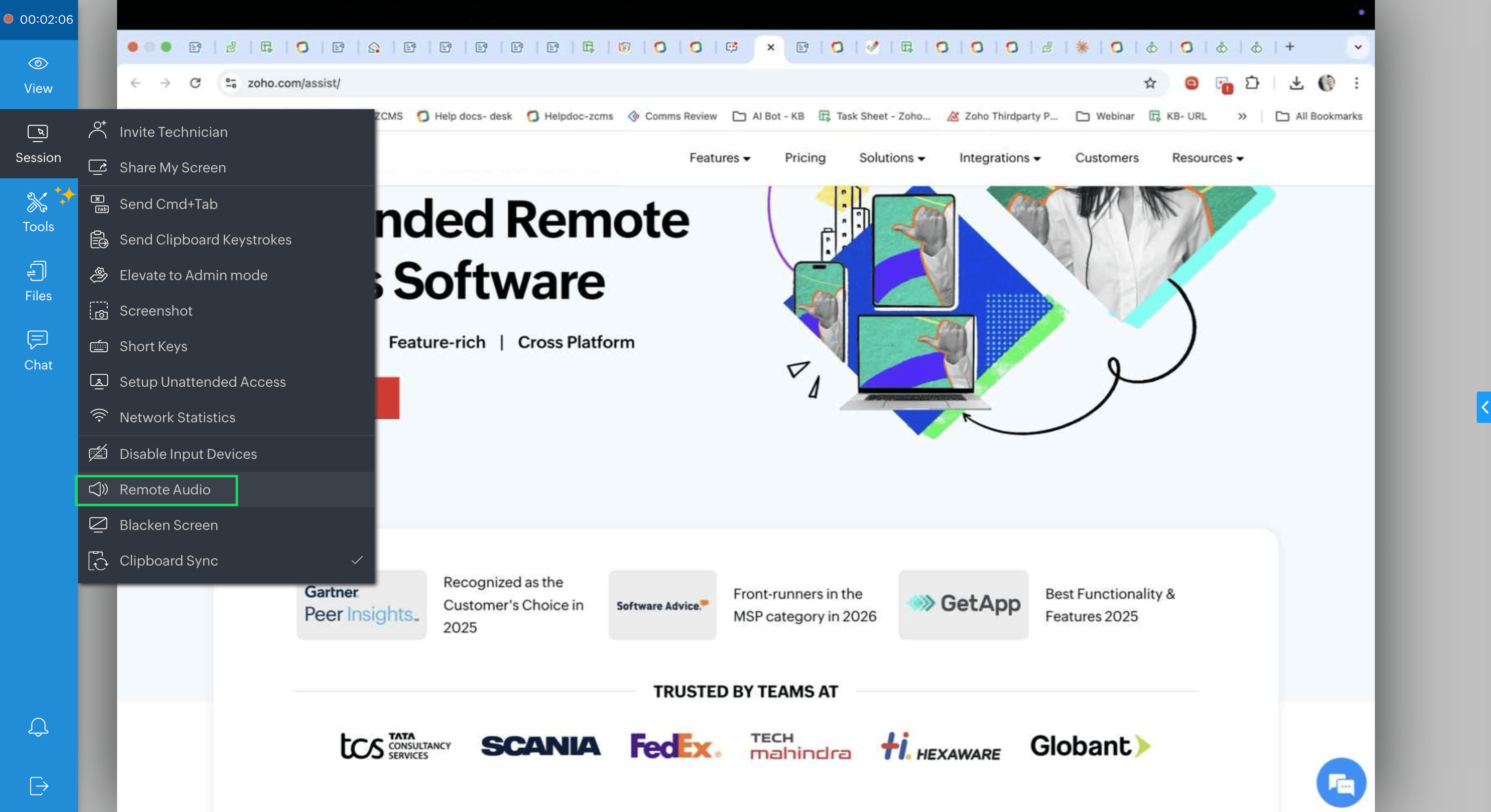
The Remote Audio option in Zoho Assist allows technicians to listen to the audio output of the customer's remote machine in real time during an active remote support session. It is accessible directly from the Sessions the Technician Console (as shown in the screenshot). When enabled, any sound played on the remote device, including system alerts, application audio, error tones, or media, is streamed live to the technician's end.
Once your diagnostic or support task is complete, you can disable Remote Audio just as easily, restoring normal session operation.
Note: Remote Audio streams the output audio of the remote machine to the technician. It does not capture microphone input from the customer's side.
How to enable Remote Audio during a session
Start a remote support session and navigate to the Technician Console. Click on Sessions in the left sidebar and select Remote Audio from the dropdown menu. Audio from the customer's machine will begin streaming to your device immediately, allowing you to hear exactly what's happening on their end.
Why is this feature useful?
Remote Audio is a powerful diagnostic tool that gives technicians a fuller picture of the remote environment, not just what they can see, but what they can hear. Here's why it matters:
Accurate audio diagnostics: Identify audio-related issues first-hand, including driver failures, sound card errors, and misconfigured output devices, without relying on the customer's description.
Richer troubleshooting context: Hear system alerts, application sounds, and error tones in real time, so nothing gets lost in translation.
Faster resolution: Diagnose audio problems on the spot instead of asking the customer to describe what they're hearing, saving valuable session time.
Seamless collaboration: When walking a customer through a multimedia or conferencing setup, you can verify audio output quality live without ending the session.
Improved customer experience: Customers feel more confident knowing the technician can directly experience the issue rather than working blind.
If you have used the Remote Audio feature during a remote session, whether to troubleshoot a sound issue, verify a configuration, or simply gain better situational awareness, we would love to hear how it fits into your workflow!
Drop your experience, tips, or questions in the comments below. And if you ever need help or have questions about the feature, feel free to reach out to us at support@zohoassist.com. We are always here to help!