Updating transaction number series for fiscal year 2026-2027 in Zoho POS
A fiscal year or financial year is a 12-month period that businesses follow to manage and track their financial activities such as expenses, revenue, and taxes. This doesn't need to match the calendar year (JAN-DEC) and varies based on region, and tax laws.
For example, in India, the fiscal year is from April to March. i.e., 1 April 2025 to 31 March 2026. This works well for retail businesses because major festivals and holiday sales are between October and March when sales are usually high. As the financial year closes in March, businesses get a real picture of their sales, and evaluate their profit.
Country | Fiscal Year |
🇮🇳 India | 1 April – 31 March |
🇺🇸 USA (Federal Govt) | 1 October – 30 September |
🇬🇧 UK | 6 April – 5 April |
🇨🇦 Canada | 1 April – 31 March |
🇦🇪 UAE | 1 January – 31 December |
🇸🇦 Saudi Arabia | 1 January – 31 December |
Starting a new fiscal year in Zoho POS
All transactions processed in Zoho POS such as sales orders, invoices, sales returns, purchase orders, and so on have a unique identifier that's assigned based on the prefix and starting number defined in your organization. This helps businesses track, organize, and reference transactions easily for accounting, reporting, auditing, and customer service purposes.
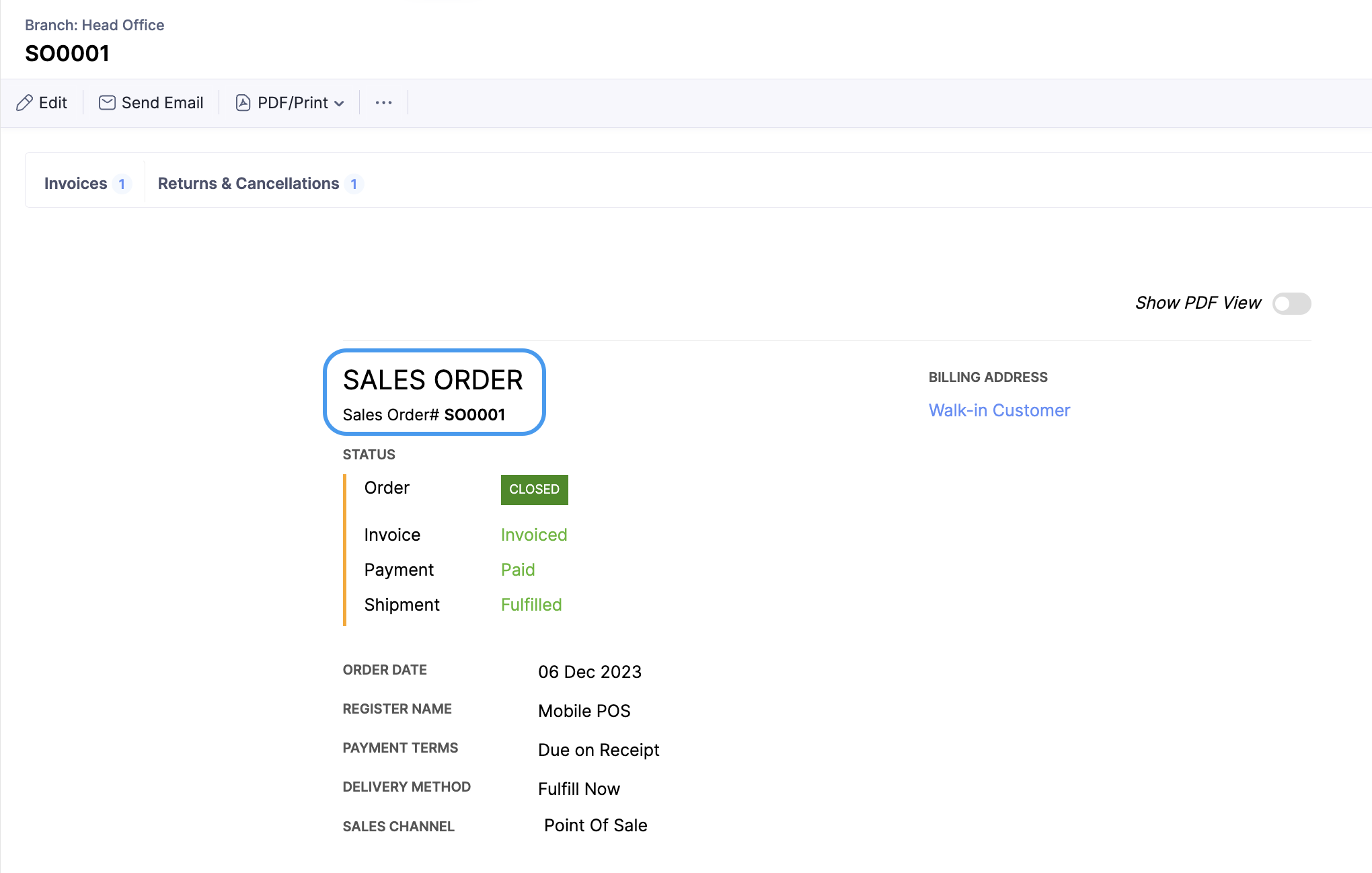
When you start a new fiscal year, it's best if the transaction series is updated so that identifying all the transactions in the new fiscal year becomes easy for you in the long run.
For example, all sales orders created in FY 2025-2026 follow the series SO25001, SO25002, SO25003, and so on. When this transaction number is updated for the new FY 2026-2027, it will follow the new series such as SO26001, SO26002, SO26003, and so on, making it easy for you to distinguish and categorize the records in the respective fiscal years.
Changing the transaction number series in Zoho POS
Zoho POS lets you change the transaction number series for the following modules in a single place.
- Credit Note
- Customer Payment
- Vendor Payment
- Purchase Order
- Sales Order
- Vendor Credits
- Bill of Supply
- Invoice
- Session
Step 1: Synchronize data and log out from the sales applications on March 31

Important: Update your Zoho POS app to the latest version on Windows, Android, and iOS, before you synchronize data and log out.
To synchronize and log out
Windows
- Click the Sync icon at the top menu.
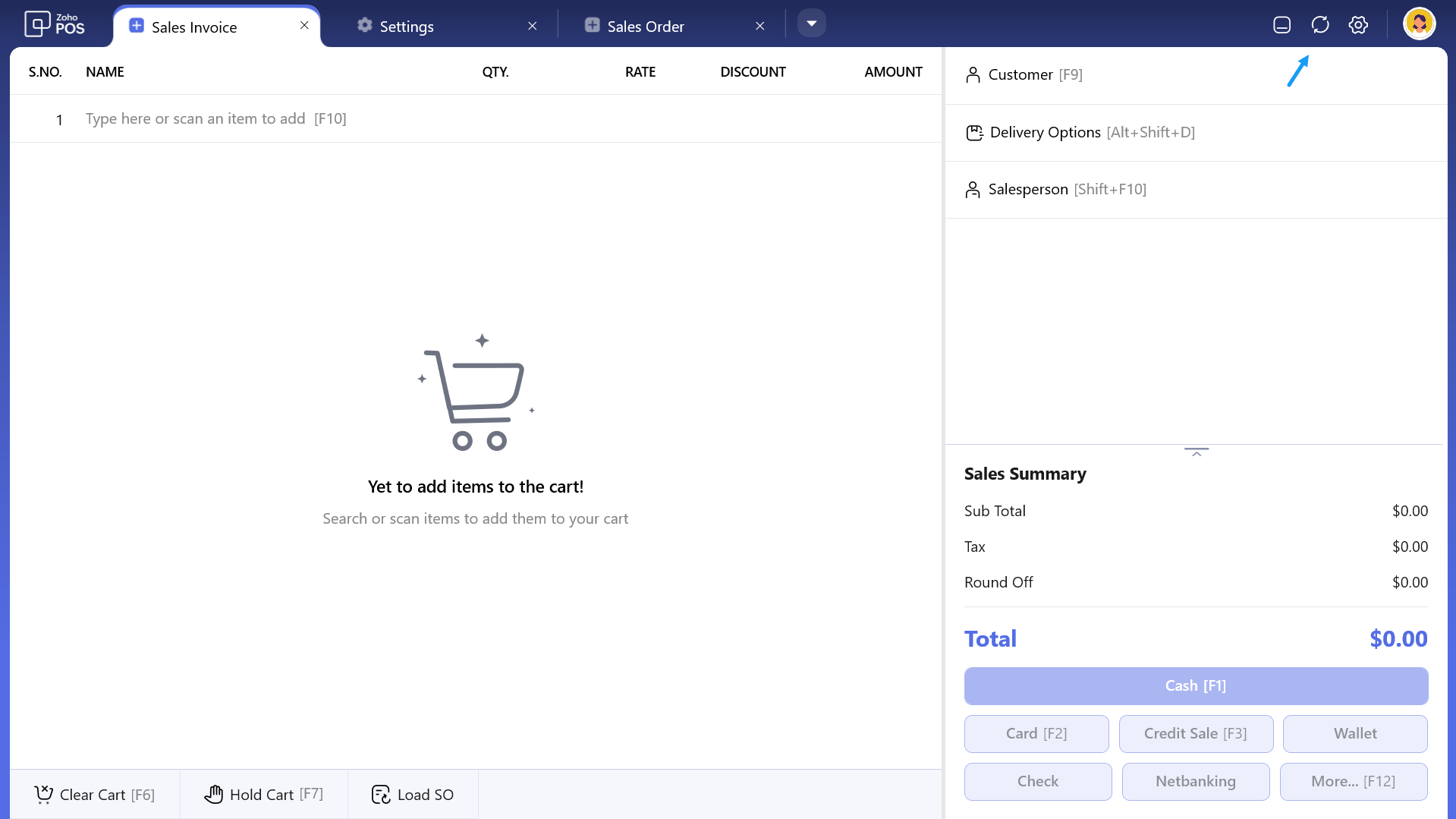
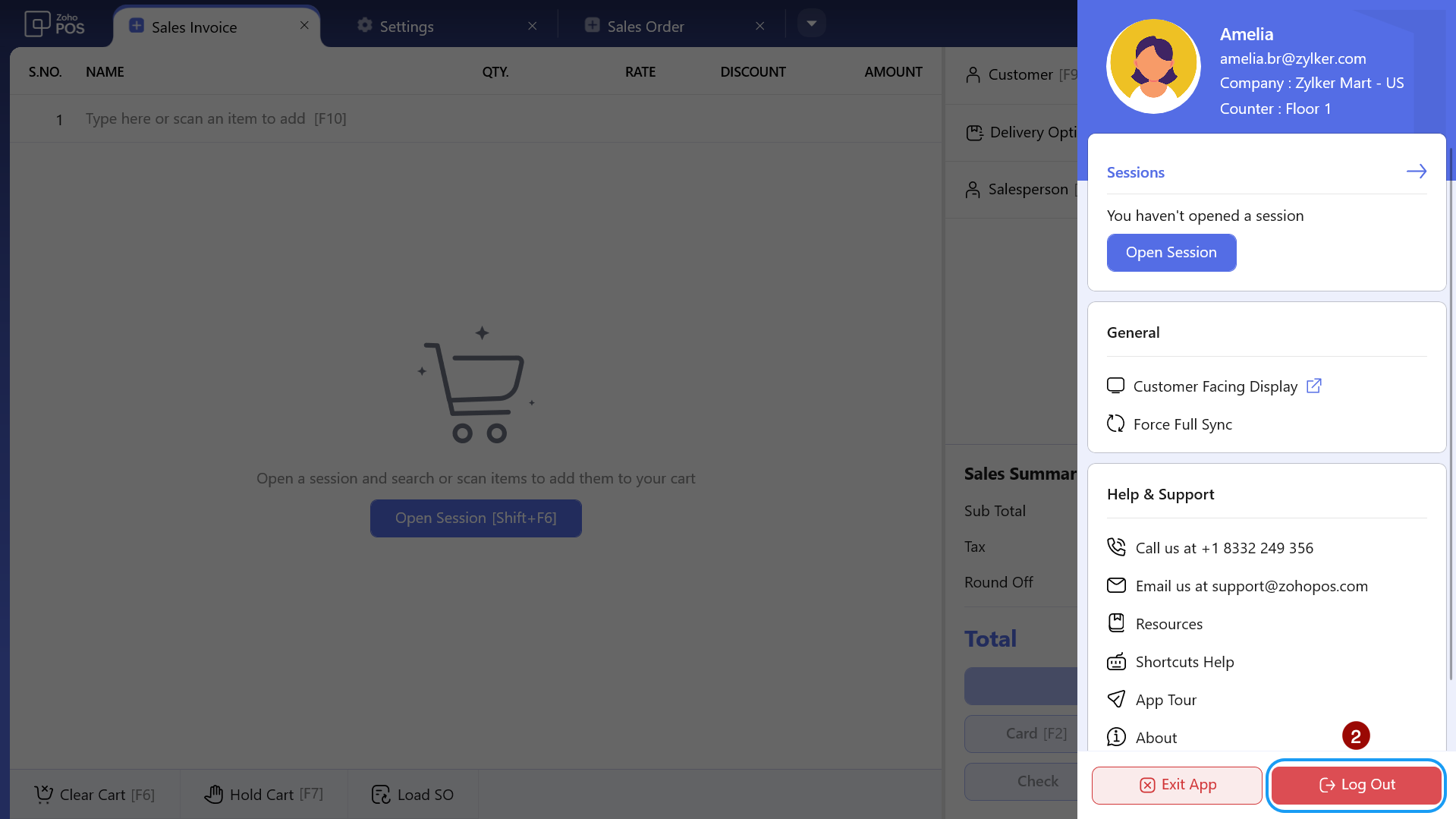
- Once the data is synchronized, go to your Profile again and click Log Out.
Android and iOS
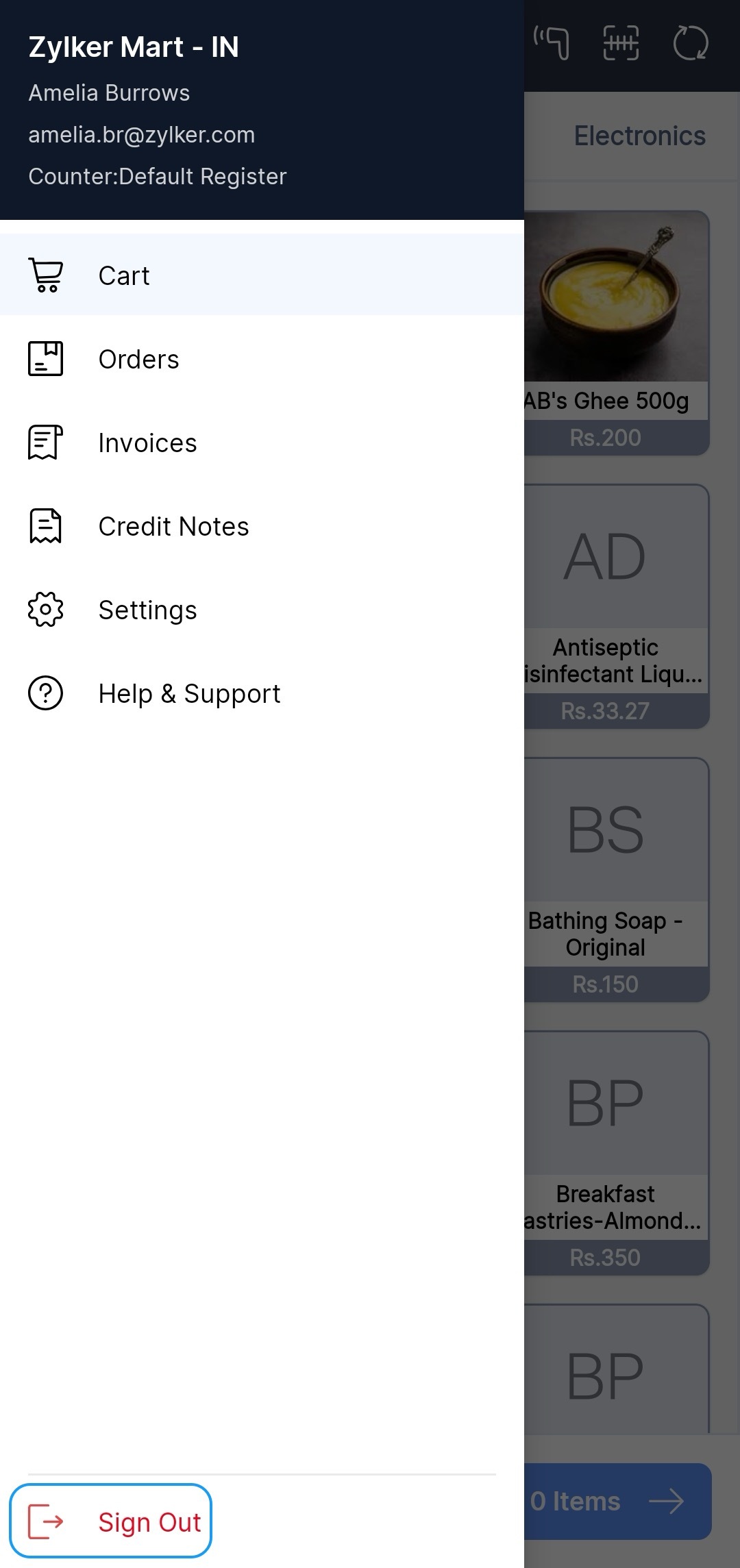
- Tap the Sync icon on the top right corner to synchronize the data.

- Go to Menu > Sign Out.
Step 2. Update prefix and number format in the web application
In the web application, you can change the Prefix and the number format for sales order, sales invoice, sales return, credit note, and session. Before updating, ensure that all users have logged out of the register, or you can do so by clicking More > Logout user.
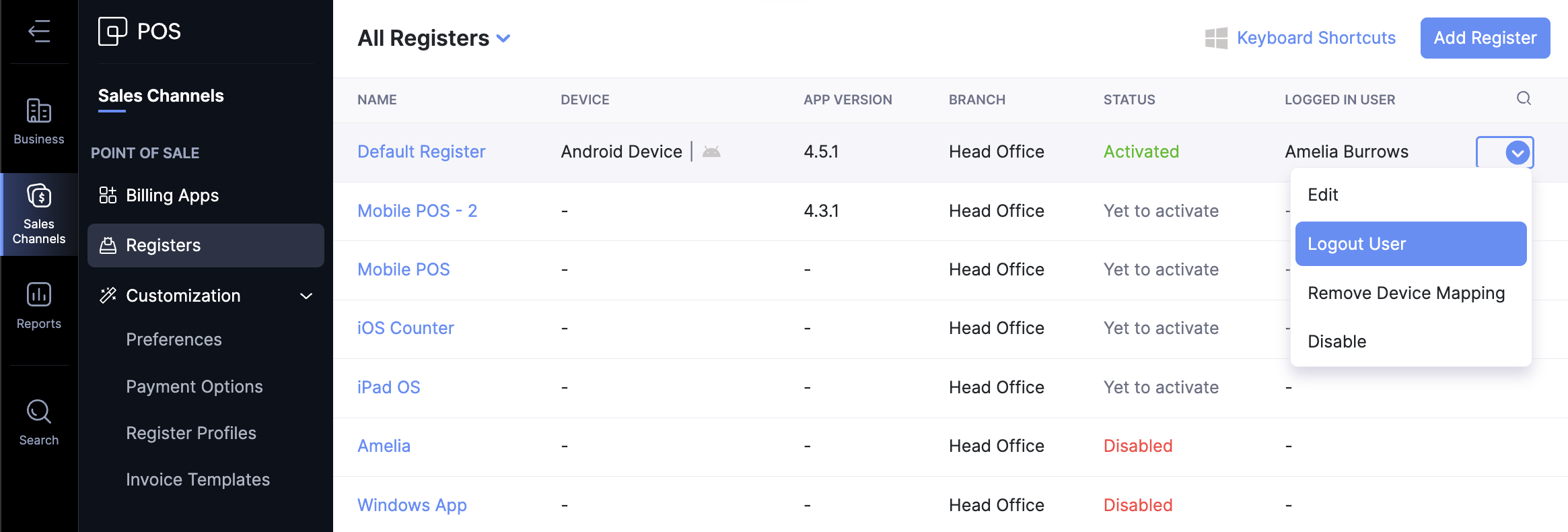
To update prefix and number format for transactions from registers (counters)
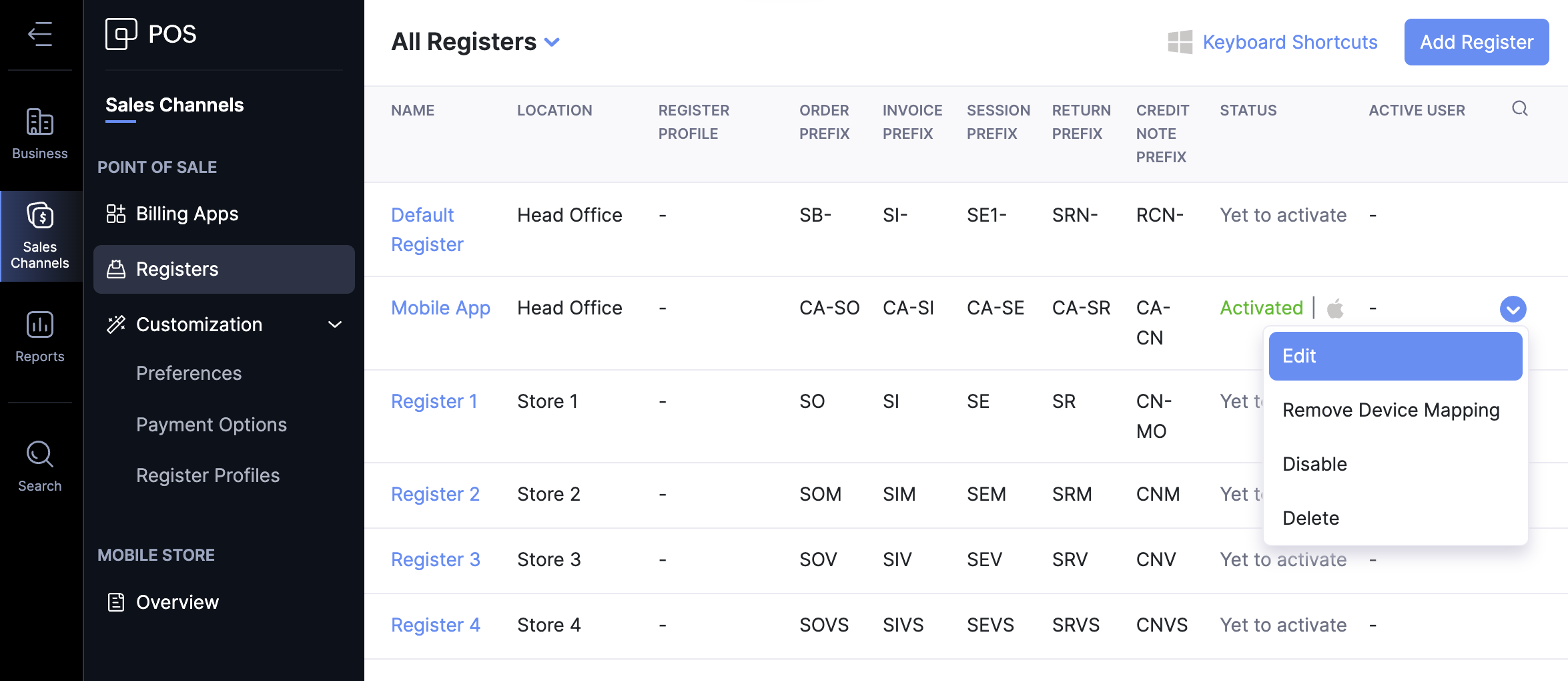
- Go to Sales Channels > Registers.
- Click More > Edit.
- Enter the new Prefix and Sequence No in the respective column and click Save.
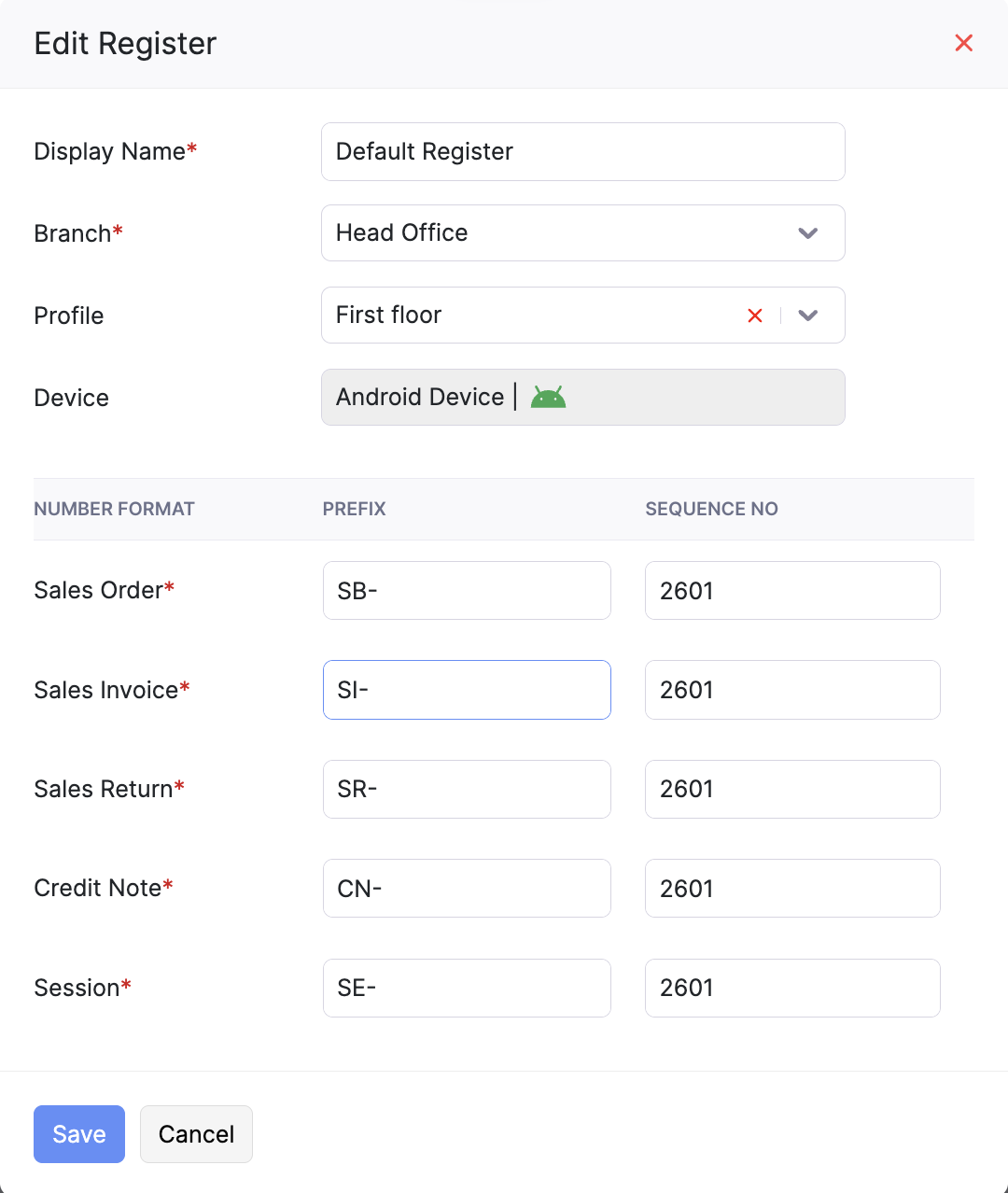
- Repeat the steps for all the available Registers.
To update prefix and number format for transactions created from web application
- Go to Settings > Preferences > Transaction Number Series.
- Click + New Series.
- Enter the Series Name, and select the Locations from the drop down list where the new series has to be applied.
- Enter the Prefix and Starting Number.
You can see a preview of the transaction number series.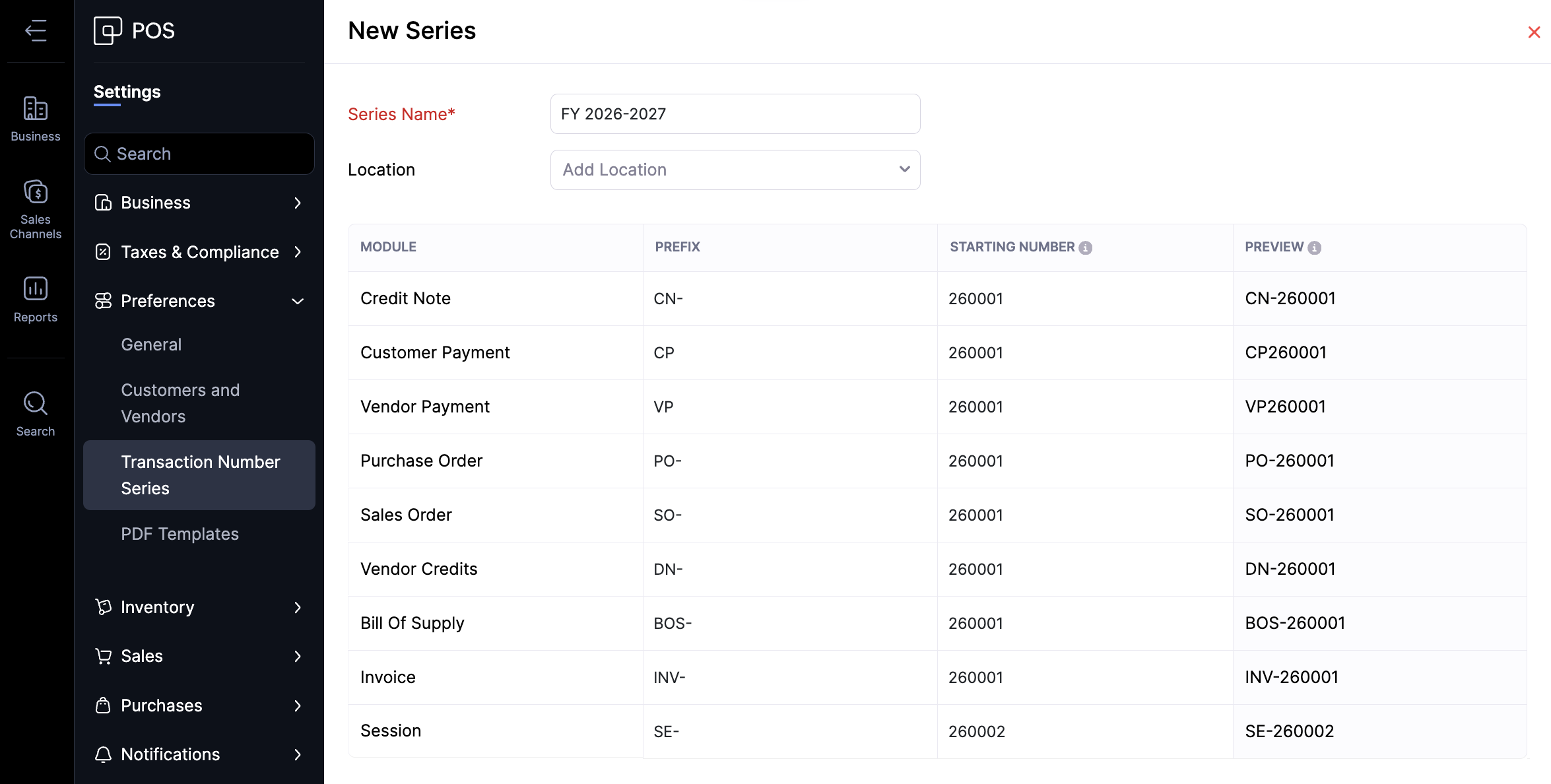
- Click Save.
Log in to the POS registers via the Windows, Android, and iOS app on April 1, starting a new fiscal year, and every transaction created will reflect these changes.