New Updates to Zoho Desk Notification Center
We've made a series of updates to the Zoho Desk notification center to improve how agents manage and respond to notifications. These updates address common challenges faced by agents, such as not being able to apply a filter to view notifications where they've been mentioned or a filter to view unread ones only.
Agents must work on multiple tickets and activities simultaneously, and it can be challenging for them to stay on top of all the projects. For instance, if an agent wants to see all unread notifications for a particular ticket, it can be difficult to find the right one amidst a long list of updates from various tickets. It's much simpler if the agent can filter the notifications to find the right one!
In an attempt to improve agent productivity, we have introduced several options within the notification center that make it more intuitive.
What’s new in the notification center?
1. Multiple ways to filter notifications
Agents can use filters to view specific types of notifications, eliminating the need to scroll endlessly through long lists of updates.
Available filters:
- Unread Notifications: This filter displays all notifications that have not been read by the agent.
Example: Imagine an agent returns from a meal break and has several notifications. Instead of scrolling through each one, they can use the Unread Notifications filter to immediately catch up on the latest developments.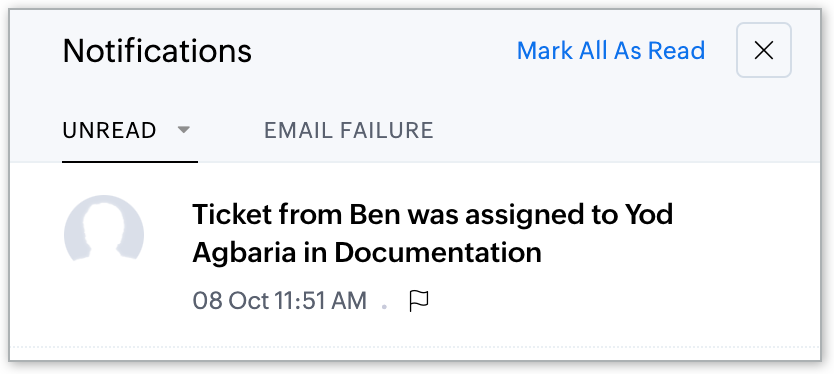
- @ Mentions: Agents will receive notifications when they are mentioned directly, or when their team is mentioned in a conversation. This filter helps agents keep track of collaborative tasks that require their attention.
Example: When an agent is tagged in a ticket discussion using @mentions by teammates or agents from other teams or departments, he can easily find those specific notifications by using the @mentions filter.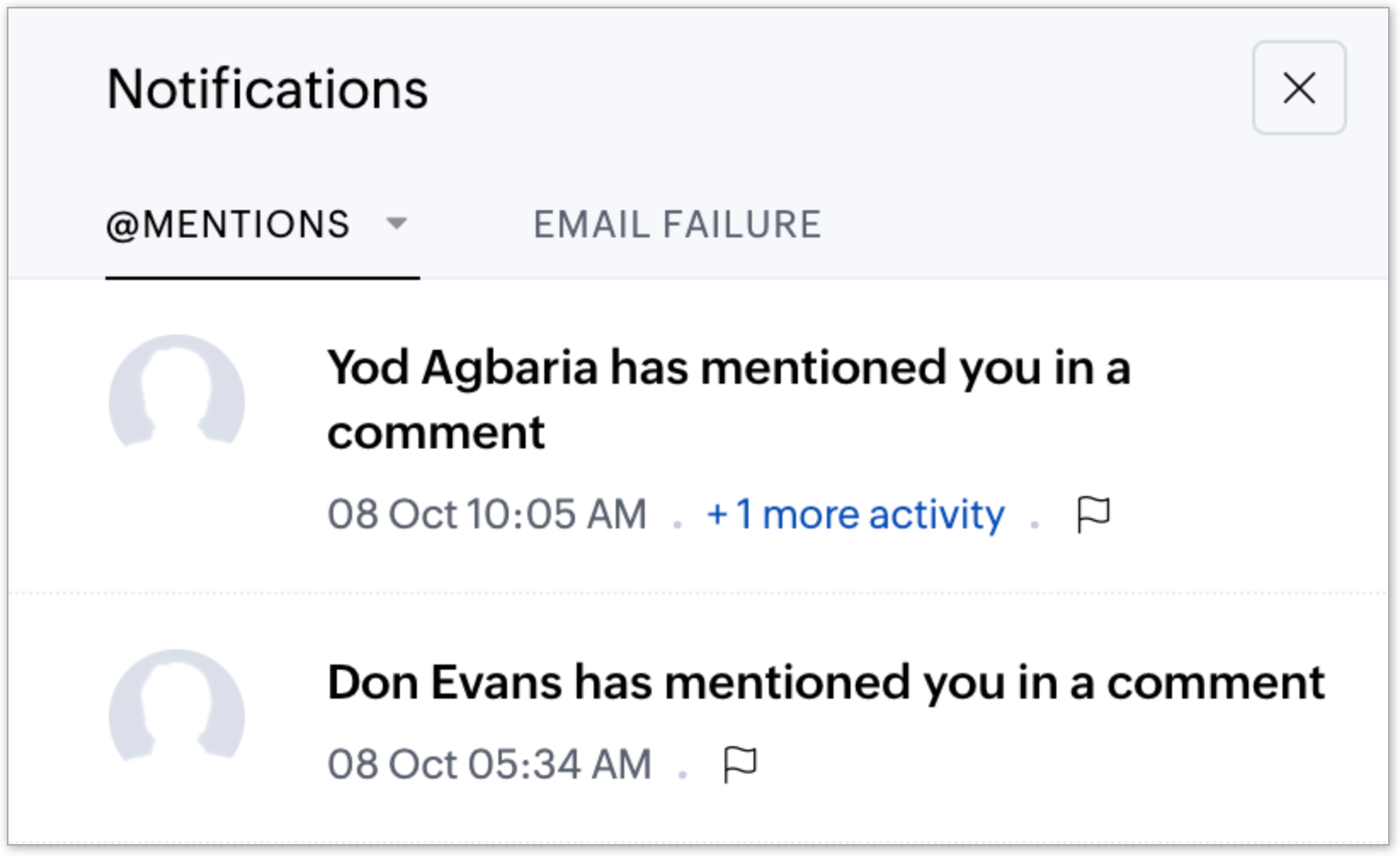
- Flagged Notifications: Agents can flag important notifications for follow-up, which allows them to be easily retrieved when needed.
Example: While handling multiple tickets, an agent may flag a high-priority ticket or phone call reminder to visit later. They can then easily access it later using the Flagged Notifications filter when they are ready to address it.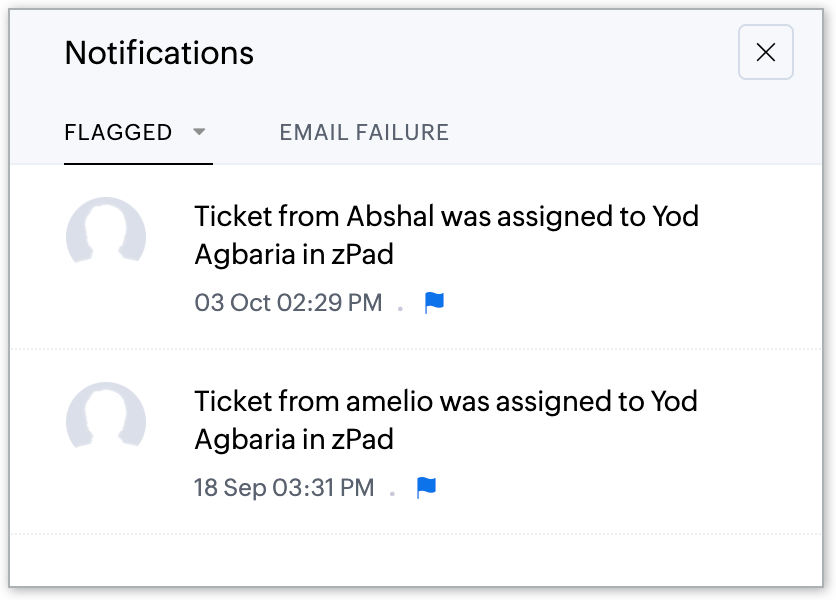
2. Mark all as read
With the Mark All as Read option, agents can mark all the notifications as read to maintain an organized notification inbox.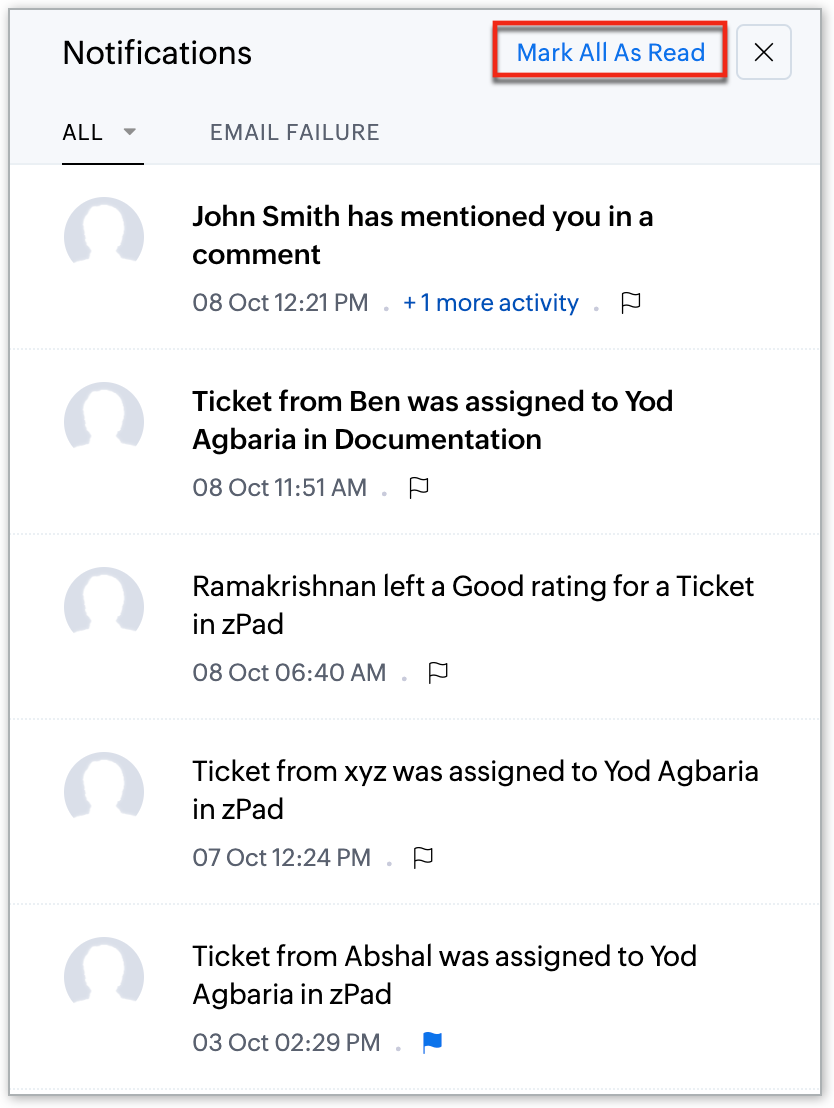
3. Email failure notifications
To keep agents updated on the status of emails they've sent through Zoho Desk, the email failure notifications tab will be shown by default, even if there are no email failures. This provides full transparency and allows agents to act quickly if there’s a problem with any email communication they have sent.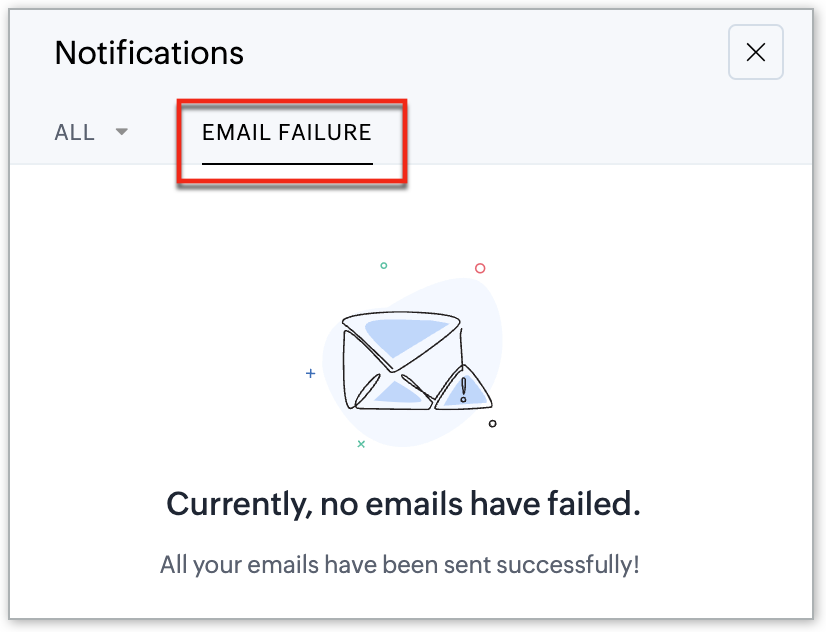
To learn more about how to work on the notification center, refer to the help document.
These updates are available to all users across all data centers. For any questions or feedback, feel free to comment below or reach out to our support team.
Thanks, and have a great day!
Regards,
Varsha P | Zoho Desk - User education