Accounting on the Go Series-49: Effortless Bank Integration-Sync and Manage Your Finances with Plaid in Zoho Books Android app
Hello everyone,
Today, we're here to discuss an exciting feature in the Zoho Books mobile app that will make managing your finances even easier. You already know that Zoho Books offers robust banking integrations to help you seamlessly sync your bank feeds, eliminating the need for tedious data entry. This feature allows you to easily track the money flowing in and out of your business.But that’s not all—now, we’ve made it even more convenient to manage your bank accounts directly from your mobile device.
Today, we're here to discuss an exciting feature in the Zoho Books mobile app that will make managing your finances even easier. You already know that Zoho Books offers robust banking integrations to help you seamlessly sync your bank feeds, eliminating the need for tedious data entry. This feature allows you to easily track the money flowing in and out of your business.But that’s not all—now, we’ve made it even more convenient to manage your bank accounts directly from your mobile device.
Supported OS: Android
We’ve introduced an option to add bank accounts in the Zoho Books Android app. For users in the US and Canada editions, you can now connect your bank accounts using the third-party service provider, Plaid, making it a breeze to fetch and sync your bank statements automatically.
For Free Plan Users:
If you're on the Zoho Books Free Plan, you can manually create bank or credit card accounts by entering the account details. However, please note that bank statements will not be fetched automatically for these manually created accounts. You’ll still have to enter or upload transactions manually, but you can manage everything right from your mobile app.
For Paid Plan Users:
For those on Zoho Books' Paid Plans, you can enjoy the full power of automatic bank account creation and syncing. Through Plaid, a trusted third-party service provider, you can automatically add bank accounts to Zoho Books. Once connected, your bank statements will be fetched and synced automatically, saving you the hassle of manual updates. You can then easily match or categorise these transactions with your records in Zoho Books, simplifying the reconciliation process. You can visit this link to know how to match / categorise your statements in the mobile application.
How it works in Zoho Books Android app:
➤ Open the Zoho Books Android app.
➤ Open the Zoho Books Android app.
➤ Navigate to the left-side menu and go to Banking.
➤ Tap the “+” button located at the bottom right corner.
➤ Select “Add manually” to manually enter your bank details, or click on “Connect Now” to integrate your bank account.
➤ Read the end-user terms carefully and proceed.
➤ Search for your bank by typing its name in the search bar.
➤ Enter your banking credentials to connect your account.
➤ Choose the accounts you wish to connect from the list provided.
➤ Select the date from which the feeds should be fetched.
➤ Click on Add to finish the process and successfully connect your bank account.
 |  |  |  |  |
To watch a video guide on these steps, click here.
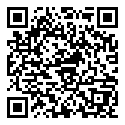
If you haven’t tried it yet, download the Zoho Books mobile app by clicking on this link or simply scan the QR code below.
Should you have any questions, let us know at support+mobile@zohobooks.com.
Regards,
Tanisha Choudhury
Zoho Books
Regards,
Tanisha Choudhury
Zoho Books