Advanced Group Settings: Customize and manage your email groups in Zoho Mail
Email groups in your organization often require more than basic configurations to function effectively. With Zoho Mail's Advanced Group Settings, administrators can configure and manage policies, notifications, and more with greater precision. This gives you the flexibility and control needed to ensure your groups align with your organization's communication requirements.
What are Advanced Group Settings in Zoho Mail Admin Console?
Advanced Group Settings is a dedicated configuration section available for each email group in Zoho Mail. It provides administrators with specific controls to manage how a group sends, receives, and responds to emails. From setting auto-responses to restricting emails by address or domain, every setting can be customized to suit your organization's needs.
How can admins efficiently use Advanced Group Settings?
Advanced Group Settings in Zoho Mail enables administrators to manage every email group behaviour effortlessly. This ensures structured group management, clear accountability, and reduced risk of miscommunication across the organization.
Permissions: Control who can send emails to the group and define the action to be taken when unauthorized senders attempt to reach the group.
Notifications: Set up notifications to alert moderators when emails are held for moderation, approved, or rejected. Additionally, you can suppress notifications for member additions or deletions to avoid unnecessary alerts.
Auto Response: Set up automatic reply templates based on who is sending the email, whether they are organization members or external senders, and whether they are part of the group or not.
Failure Threshold: Define a threshold (between 1–100) for failed email deliveries. If a member's email repeatedly bounces beyond the set limit, future emails to that member will be automatically skipped.
Email Restrictions: Add specific email addresses and define whether emails from those addresses should be allowed, held for approval, or rejected.
Steps to access Advanced Group Settings in Zoho Mail Admin Console
Log in to Zoho Mail Admin Console.
Select Groups from the left menu.
All the groups you are a part of will be listed here. Click on any group from the list.
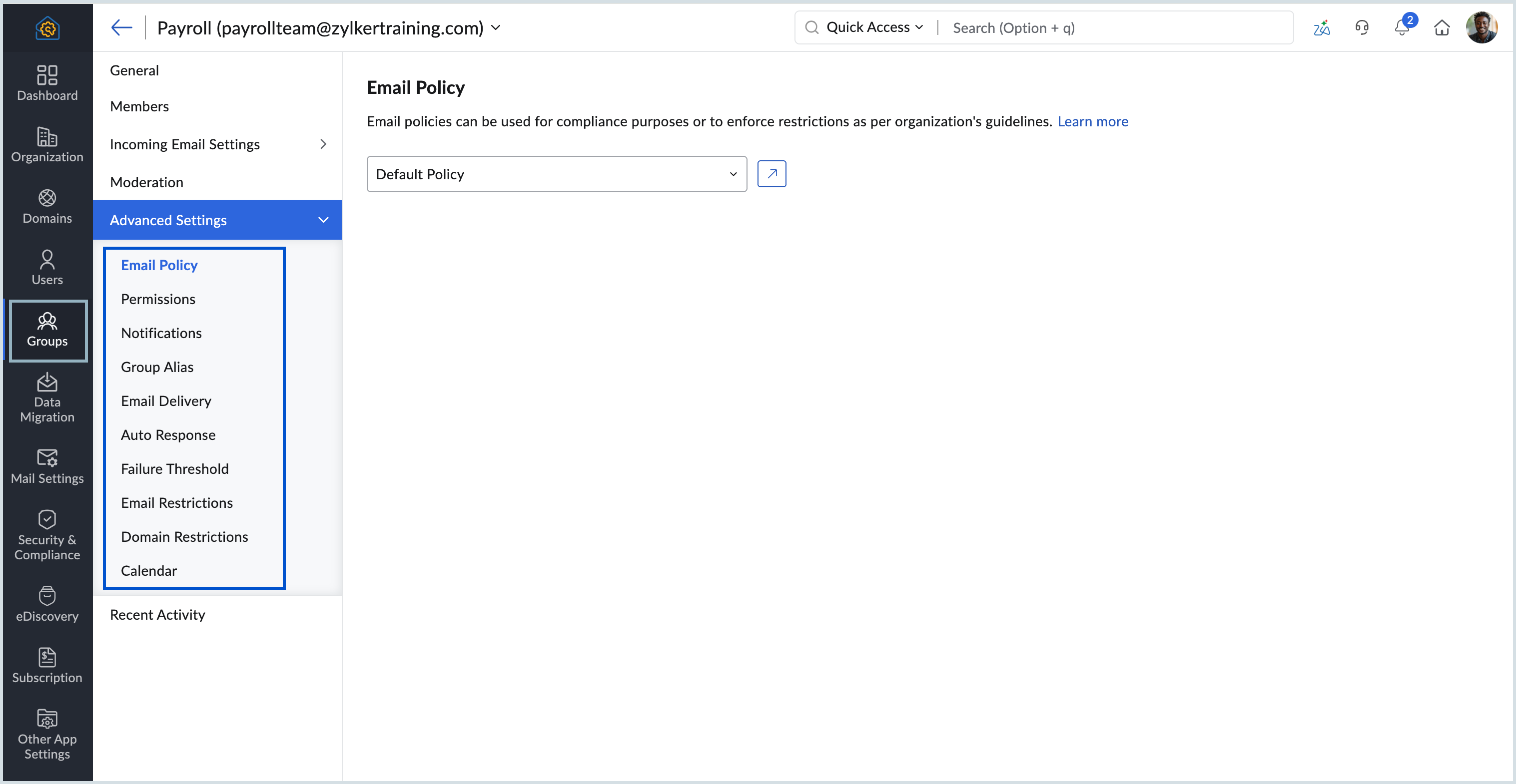
Click on the Advanced Settings section from the left pane.