Attention: Display Issues on Chromium Browsers with Intel® Core™ Ultra Processors
Dear Customers,
We've recently identified a display-related issue that may affect some of our Zoho Assist users, particularly technicians using devices powered by Intel® Core™ Ultra Processors.
What’s Happening?
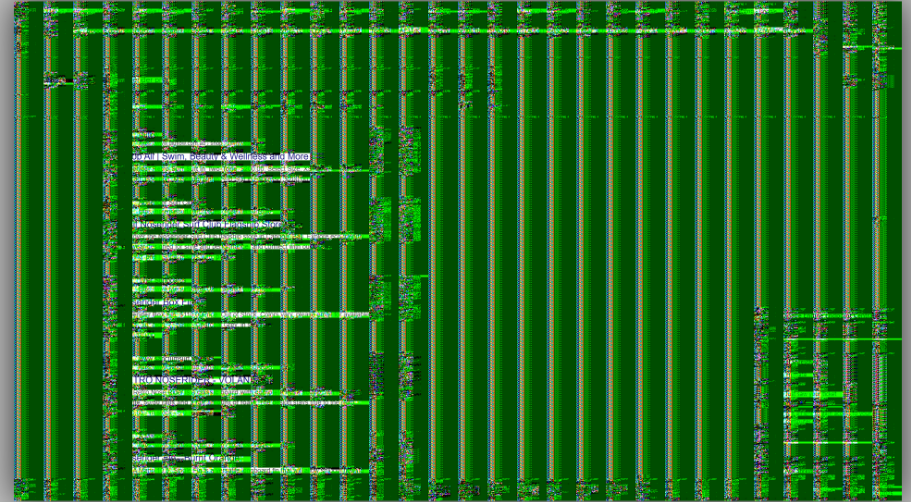
If you're running a Chromium-based browser (like Chrome, Edge, or Brave) on a system with an Intel® Core™ Ultra Processor, you might notice screen artifacting or unexpected color flashes during remote support sessions. This issue only affects the technician’s view—not the end user’s experience. Here is a screenshot of how the screen would look like if you are affected by this issue:
Why Is This Happening?
Chromium browsers utilize hardware acceleration to boost performance by offloading graphics-intensive tasks—like video rendering or complex animations—to your system's GPU. While this generally enhances browsing speed and responsiveness, it can sometimes lead to compatibility issues between your browser, GPU, and specific hardware configurations—like the Intel® Core™ Ultra series.
We’ve discovered that when hardware acceleration is enabled, the Zoho Assist session rendering may be disrupted, resulting in graphical glitches for technicians initiating the session.
Who Is Affected?
- Affected: Technicians running remote sessions via Chromium browsers on Intel® Core™ Ultra Processors with hardware acceleration enabled.
- Not affected: End users—even those on the same hardware—or technicians using other CPU models or browsers without hardware acceleration.
Temporary Workaround
To avoid this issue, we recommend disabling hardware acceleration in your Chromium browser. Here's how:
- Open your browser settings.
- Search for “hardware acceleration.”
- Toggle off the option that says “Use hardware acceleration when available.” or " Use graphics acceleration when available."
- Restart your browser.
- Start a new Zoho Assist session and try connecting to your devices.
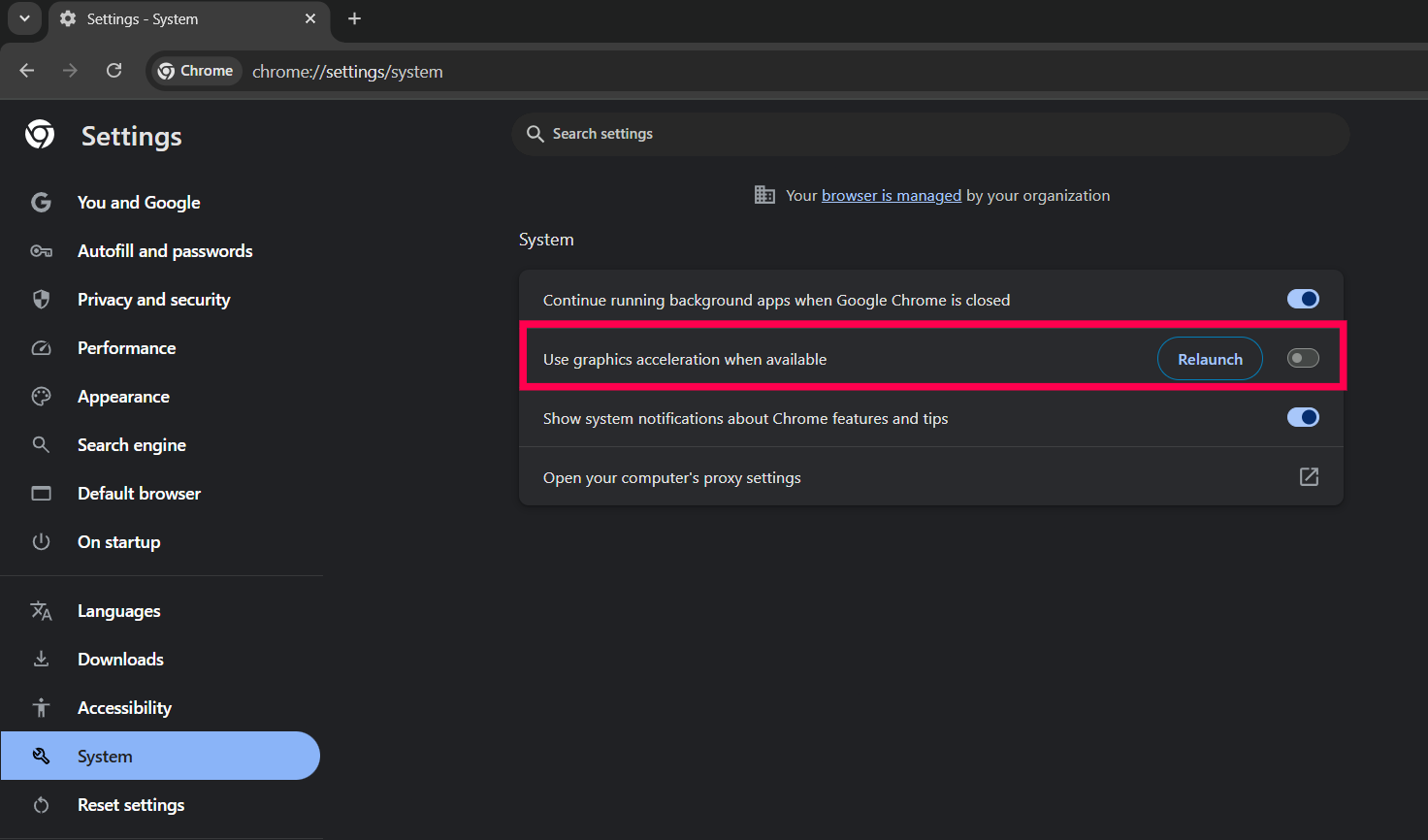
Disabling this feature ensures smoother Zoho Assist session rendering on affected devices.
We appreciate your patience and understanding as we work to provide a long-term solution. If you have any questions or need assistance adjusting your browser settings, feel free to reach out to our support team at support@zohoassist.com
Sincerely,
The Zoho Assist Team