Automation Series: Auto-assign Task Followers
As task progresses, several users are required to stay aware of the updates to plan their upcoming work items efficiently. Manually adding users as followers for an active task might create additional overhead. With this automation, followers can be added automatically when users are selected in a User Picklist field while creating the task. This ensures the followers are informed of task updates as they happen.
Consider an interior design firm managing a property renovation. Each design task is assigned to a lead designer, but the procurement coordinator needs visibility into the design task even though they are not active contributors. By doing so, the coordinator can plan the raw material collection before proceeding with upcoming procurement tasks.
When the task owner adds relevant members to the User Picklist field, the Workflow Rule triggers and executes the associated Custom Function. This custom function adds the users from the Picklist as followers automatically.
To configure this flow in your Zoho Projects portal,
1. Navigate to the upper-right corner of the page and click  → Customization → Layouts and Fields → Tasks.
2. Click on the required layout and drag-and-drop fields to create the following custom field:
- Task Collaborators - User Picklist field to select the users who will be added as followers to the task.

3. Click Save.
4. Navigate to → Developer Space → Connections.
5. Click Create Connection, choose Zoho Projects as the service, and add the following scopes:
- ZohoProjects.tasks.CREATE
- ZohoProjects.tasks.READ
- ZohoProjects.tasks.UPDATE

6. Navigate to Custom Functions under Developer Space.
7. Click the Tasks tab in the top panel.
8. Create a new custom function and add the following Deluge script.

Ensure that the portal URL aligns with your data centre. If not, the function may not execute as expected.
- //Scopes : ZohoProjects.tasks.CREATE, ZohoProjects.tasks.READ, ZohoProjects.tasks.UPDATE
- projectsV3APIEndPoint = "https://projectsapi.zoho.in/api/v3";
- userPicklistAPIName = "task_cf_0001";
- //Replace the userpicklist API name here
- getTaskDetails = invokeurl
- [
- url :projectsV3APIEndPoint + "/portal/" + portalId + "/projects/" + projectId + "/tasks/" + taskId
- type :GET
- connection:"taskfollowers"
- ];
- if(getTaskDetails.containsKey(userPicklistAPIName))
- {
- followers = List();
- for each members in getTaskDetails.get(userPicklistAPIName)
- {
- followers.add({"zpuid":members.get("zpuid")});
- }
- if(followers.size() > 0)
- {
- params = Map();
- params.put("followers",followers);
- addFollower = invokeurl
- [
- url :projectsV3APIEndPoint + "/portal/" + portalId + "/projects/" + projectId + "/tasks/" + taskId + "/followers"
- type :POST
- parameters:params.toString()
- connection:"taskfollowers"
- ];
- }
- }
- return "success";

Line 2: Replace the domain in the endpoint URL to match your data centre.
Line 3: Replace "task_cf_0001" with the API name of your User Picklist field.
Lines 9 and 27: Replace "taskfollowers" with your Zoho Projects connection name.
9. Add the following arguments during configuration.

10. Click Save.
11. Navigate to → Automation → Workflow Rules.
12. Click the Tasks tab in the top panel and click New Workflow Rule.
13. Select Based on User Action as the execution condition and execute the rule when a Task is Updated. Select Task Collaborators custom field from the dropdown.
14. Click +Add Action and select Associate Custom Function. Select the custom function created previously.

15. Click Save Rule.
16. Toggle the Workflow Rule Status on to enable it.
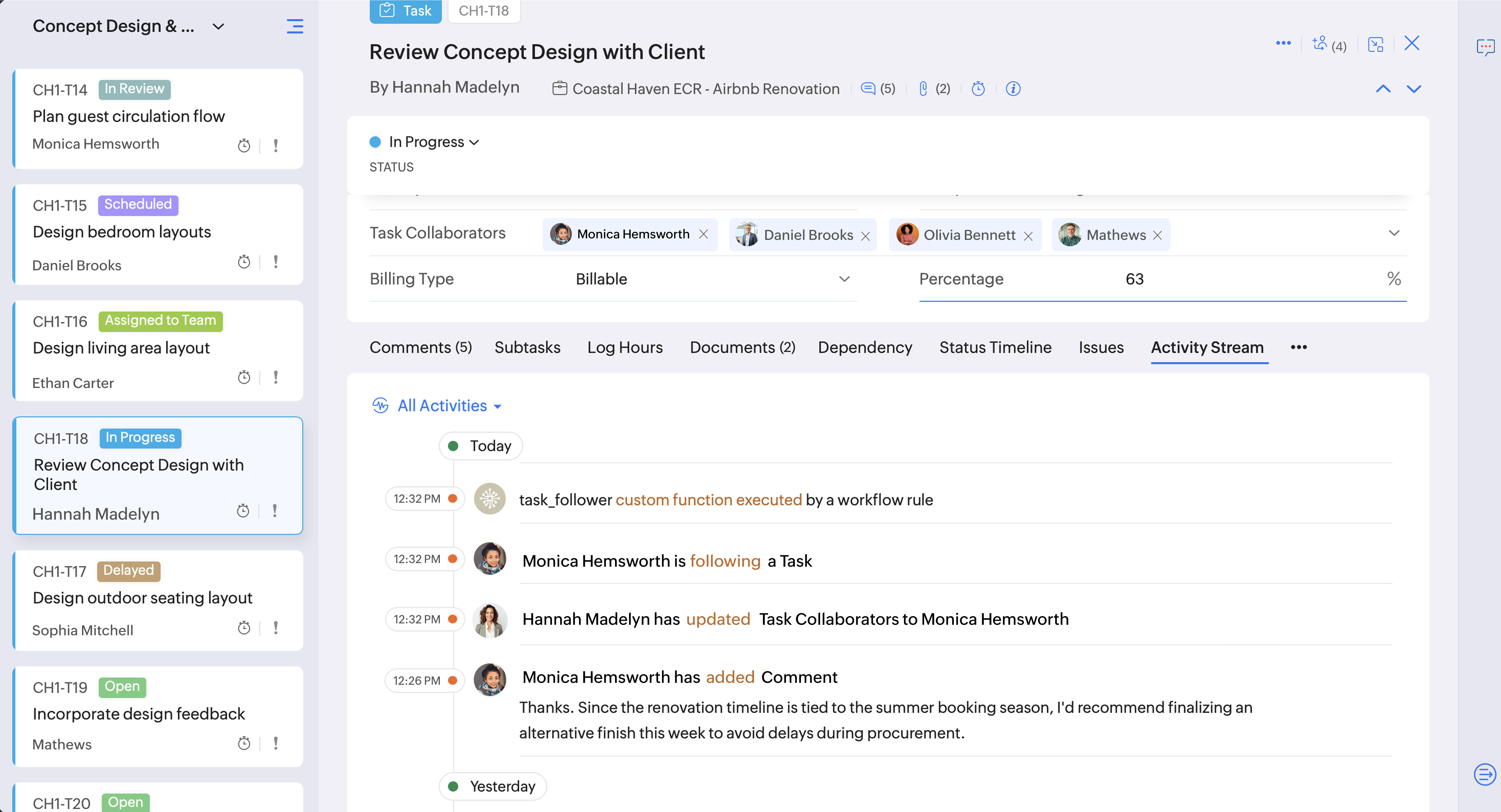
With this automation, users selected in the User Picklist field are automatically added as followers to the task, keeping followers informed without manual follow-ups.
If you have any questions, feel free to drop a comment below or reach out to us at support@zohoprojects.com.