Beyond Email: #3 Organize effortlessly with Bookmarks
With her team’s details now neatly saved under Contacts, Sarah is feeling more settled in Zoho Mail. As she begins exploring her new workspace, she remembers the collection of useful links she has saved on her browser—project trackers, client portals, and team documents. Wanting to bring that same convenience into Zoho Mail, Sarah discovers Bookmarks in Zoho Mail.
Bookmarks in Zoho Mail
Bookmarks in Zoho Mail allows you save, access, and manage your favorite and frequently accessed web links right from your inbox. Whether it is a shared team document, a frequently used tool, or a reference article, you can bookmark it for quick access anytime. You can also organize your bookmarks into folders, making it easier to find what you need when required.
Access Bookmarks
Bookmarks in Zoho Mail is available in the left pane of the Zoho Mail interface for easy and better access. In the Bookmarks tab, all your saved links and categorized folders will be displayed for quick reference and organization. You can effortlessly create a new Bookmark in Zoho Mail using the New Bookmark option or by clicking the + icon in the top pane of the Bookmarks UI. You can also:
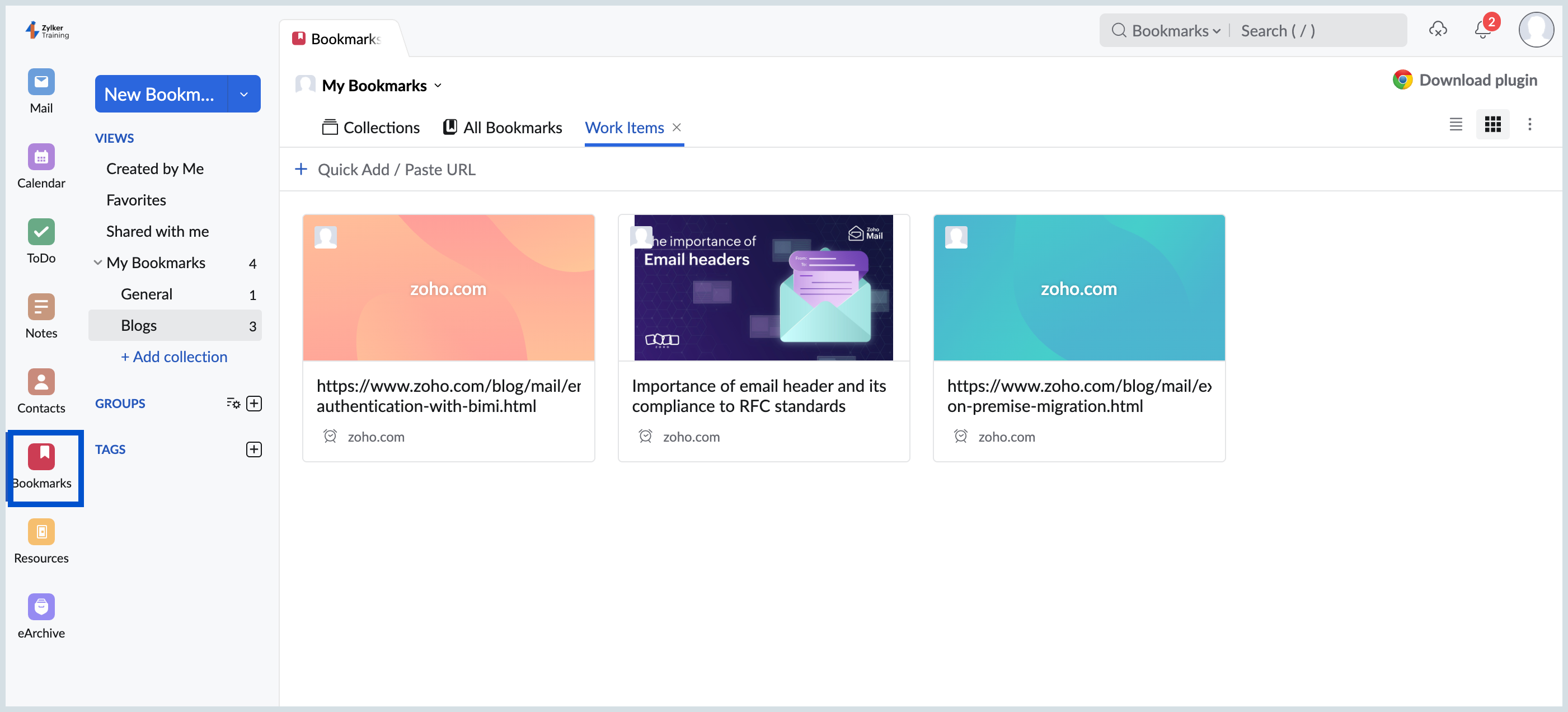
- Add bookmarks manually by entering a title, URL, and optional description.
- Bookmark emails directly from the Mail view using the Add to Bookmarks option in the Mail’s More Actions menu.
- Organize bookmarks into folders.
- Search bookmarks using for faster retrieval.
- Edit or delete bookmarks by selecting a bookmark and choosing the appropriate option from the top bar.
- Import and Export Bookmarks.
Sarah is organizing important project resources by creating folders and saving useful links in Bookmarks starting now.
Keep following this series to discover more ways Zoho Mail’s productivity apps can transform your workflow!