Bring more clarity to your blueprints with color-coded transitions
What's new
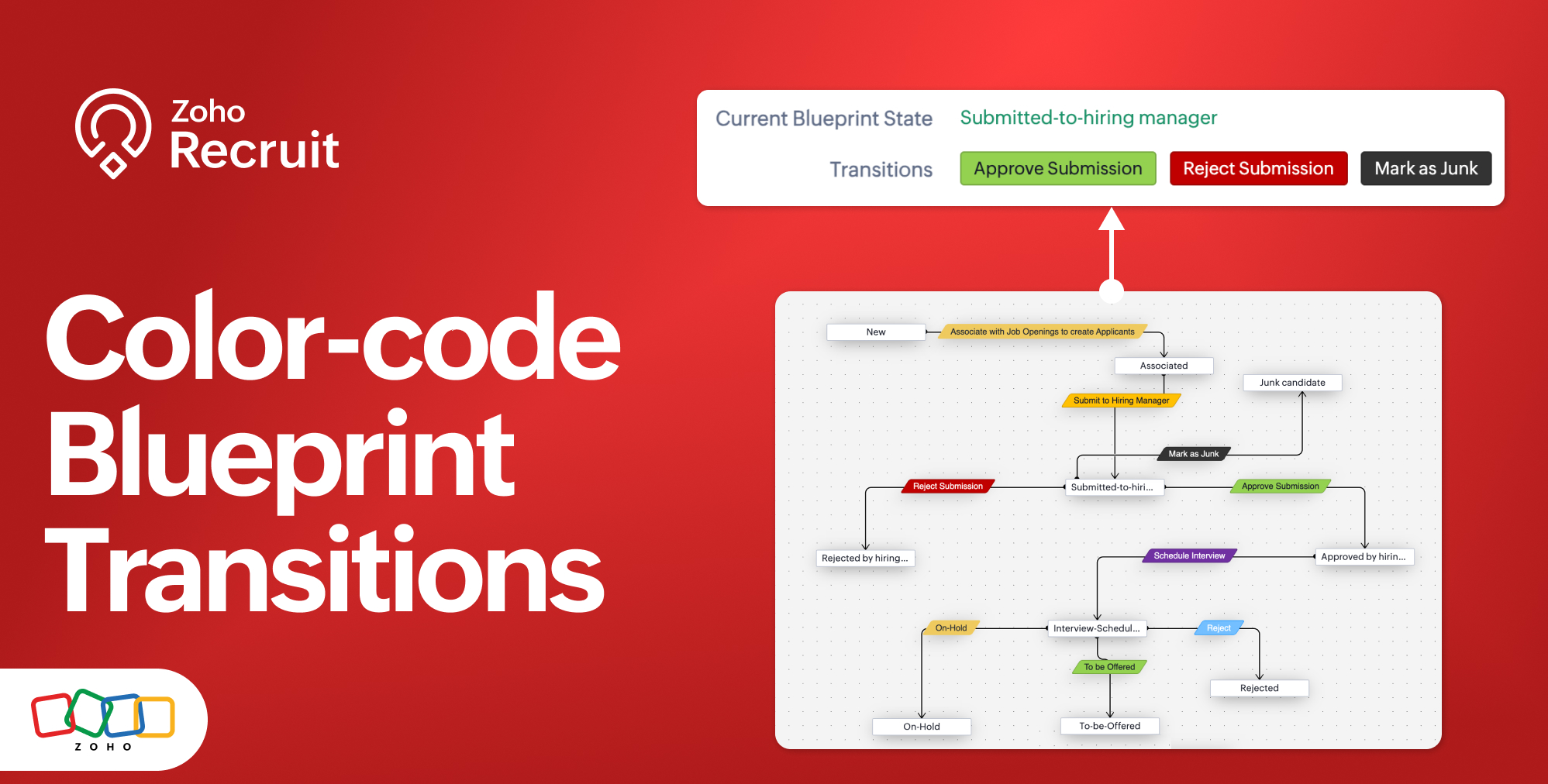
You can now assign colors to individual blueprint transitions directly from the blueprint designer.

Choose from a set of preset colors or use Advanced Colors to define your own. The selected color is immediately reflected on the blueprint canvas, making transitions easier to distinguish while designing your workflow.
Note: Transition colors are purely visual and do not affect blueprint execution.
Problems solved
Makes complex blueprints easier to scan and understand.
Helps visually distinguish different types of transitions, such as approvals, rejections, or review steps.
Improves readability when multiple transitions originate from the same state.
Enables teams to follow a consistent visual convention across their blueprint designs.
How it works
Open or create a blueprint.
Select the transition you want to customize.
Under the Transitions tab, click the Color icon beside the transition name.
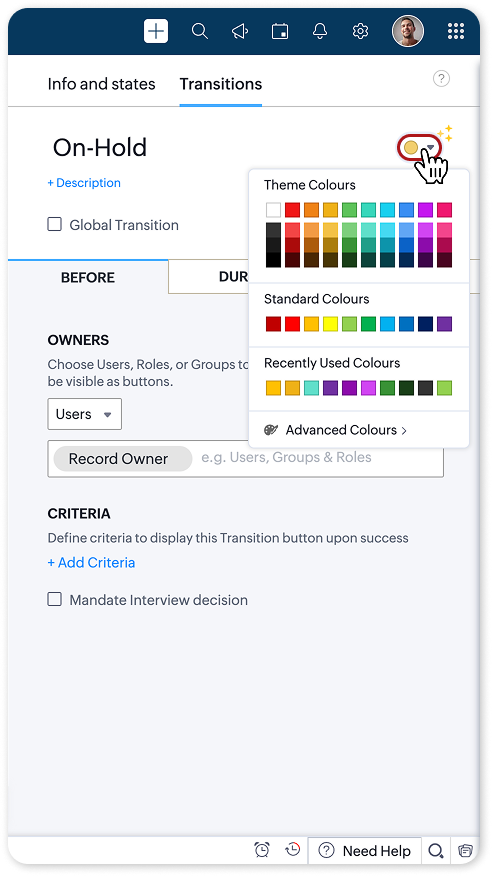
Choose a color from the palette or select Advanced Colors to define a custom color.
Click Done to apply the color.
See your color choices in action
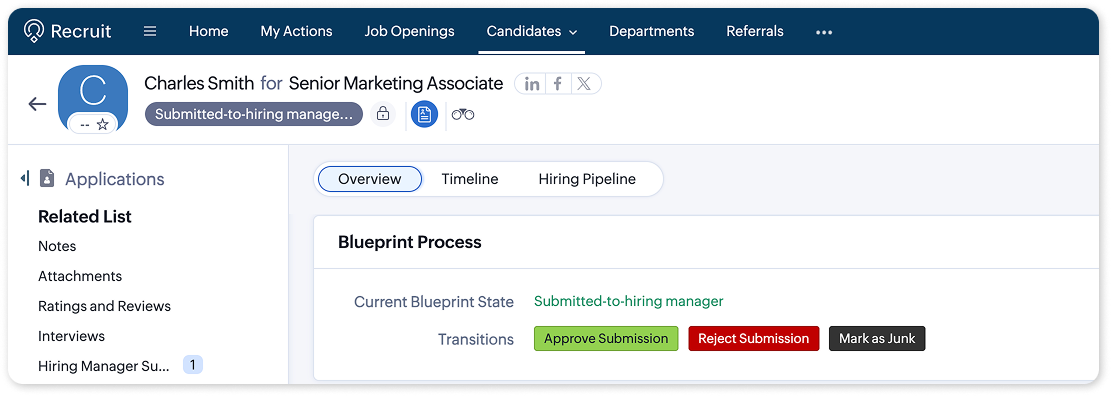
The colors you assign aren't just visible while designing your blueprint—they're also reflected in the Blueprint Process section of your records. This makes it easier for recruiters and hiring managers to spot the right action at a glance, especially when multiple transitions are available.
Try it out
Start organizing your blueprint transitions with colors that best represent your workflow
For step-by-step instructions, refer to the help documentation.
Tell us what you think
We'd love to hear how color-coded transitions improve your blueprint design experience. Share your thoughts in the comments below or write to us at support@zohorecruit.com.