Building Toppings | signals | Building real-time notifications between Bigin and Zoho Desk | Webhook
Hello Biginners!
In our previous post, we covered Bigin Variables and Widgets. In this post, we'll explore another component: Signals.
To show how Signals work, we will build a real-time use case integrating Bigin and Zoho Desk. It connects Zoho Desk and Bigin so that when an existing Bigin customer raises a support ticket in Zoho Desk, a real-time notification appears on their contact record inside Bigin automatically.
By the end of this post, you will know what Signals are, how they are defined and raised, and how a third-party application can trigger them by registering the REST API Function URL as a webhook.
What are Signals?
Signals in Bigin are real-time notifications that appear within Bigin. Signals are supported in the Contacts module, so real-time notifications can be handled for contacts. Bigin supports two types: Default Signals from native integrations like email, and calls, and Custom Signals created by topping developers. This post covers Custom Signals. For a full overview, refer to the Signals documentation.
Creating a Custom Signal involves two parts:
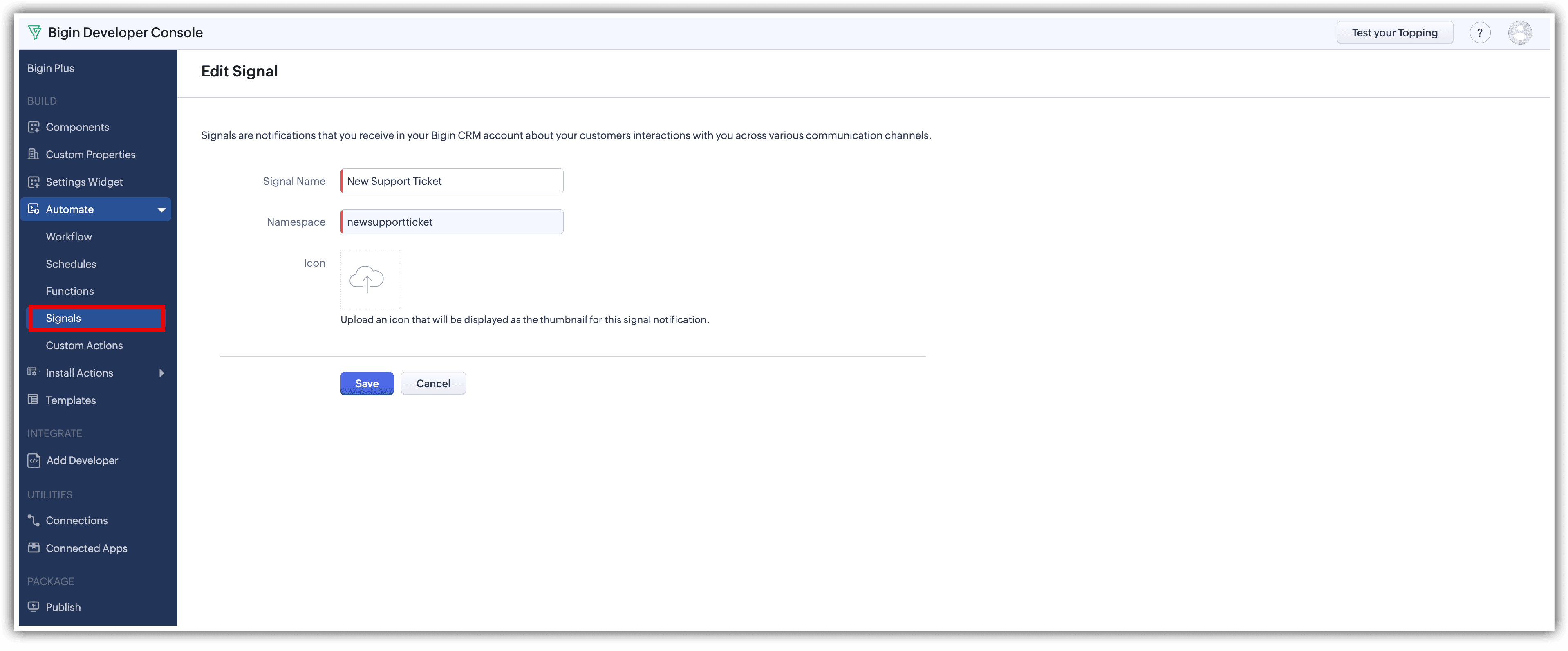
- Define the Signal: In the Bigin Developer Console, go to Automate > Signals, and define the signal. Provide a name and upload an icon for it. A unique namespace is generated automatically.
- Raise the Signal: From a Deluge function, use the namespace and zoho.bigin.raiseSignals() to raise the Signal.
When the Deluge function is set to "Invoke as REST API," Bigin generates a publicly accessible URL for it. A third-party application can register this URL as a webhook URL. When an event occurs in that application, the webhook calls the function, and the function raises the Signal on the matching contact record.

Note: Signals can only be raised on the Contacts module. You must specify either the email or the ID of a contact record in the Signal payload. The Signal will not be raised if neither is provided or if no matching contact is found.
The use case: Bigin with Zoho Desk
Sales reps managing accounts in Bigin often have no visibility into what is happening in support. When a customer raises a ticket in Zoho Desk, the sales rep usually finds out only when the support team informs them or when they check the Desk dashboard manually. By then, the customer may already be frustrated, and the opportunity to intervene early has passed.
Bigin with Zoho Desk solves this by triggering a real-time notification in Bigin the moment a support ticket is created in Zoho Desk. The sales rep sees the ticket subject, priority, and status in the Signal notification, or they jump directly to the ticket in Zoho Desk from the notification itself. There is no tab switching or manual check of the Desk dashboard.
This topping uses five components from the Bigin Developer Console: Connections, a Bigin Variable, a Signal, a REST API Function, and an Install Action. The next section explains what each one does and how they fit together.
How the components work together
Before we get into the setup, it helps to understand what each component does.
Connections provide a secure way for your topping to authenticate and communicate with other applications' APIs.
The Bigin Variable is a hidden variable that stores the REST API Function URL registered in Zoho Desk.
The Signal defines the name and icon of the custom notification and generates a unique namespace. The namespace is used to raise the Signal from the REST API Function.
The REST API Function is the webhook receiver. Zoho Desk calls its URL every time a ticket is created, and the function raises the Signal on the matching contact record.
The Install Action runs automatically when the topping is installed. It registers the REST API Function URL as a webhook in Zoho Desk, so no manual setup is needed in Zoho Desk.
Here is how it works, end to end. When the topping is installed, the Install Action creates a webhook in Zoho Desk that points to the REST API Function URL. After that, whenever a ticket is created in Zoho Desk, the webhook sends the ticket details to that URL. The function reads the contact email and ticket details from the request and raises the Signal on the contact record that has the same email in Bigin.
Setting up the topping
To build and test Bigin with Desk Signal, follow these steps.
Step 1: Create the Connections
Create two Connections in the Bigin Developer Console. The first is a default Bigin service connection with the scopes ZohoBigin.modules.ALL, ZohoBigin.signals.ALL, ZohoBigin.settings.widgets.READ, and ZohoBigin.settings.widgets.CREATE.
The second is a default Zoho Desk service connection with the scopes Desk.basic.READ and Desk.webhooks.CREATE.
Note down the connection link names of both connections, as you will use them in the Deluge code in the later steps. For step-by-step instructions, refer to the post on setting up default service connections.
Step 2: Create the Bigin Variable
In the Developer Console, go to Custom Properties and create one Bigin Variable. Set the Variable Name to Desk Webhook URL. Set the Variable Type to Single Line and the Permission to Hidden. Leave the Value field empty. The Install Action populates it automatically when the topping is installed. For more information on Bigin Variables, refer to the post on Bigin Variables and Widgets.
Note: The Developer Console adds your topping namespace as a prefix to the API name automatically. Use the full prefixed name in your Deluge code.
Step 3: Define the Signal
In the Developer Console, go to Automate and click Signals. Click Define Signal. Provide a name and upload an icon. The namespace is generated automatically. Click Save.
Note: Copy the namespace exactly as it appears. You will pass it to zoho.bigin.raiseSignals() in the REST API function in the next step.
Step 4: Create the REST API Function
In the Developer Console, go to Automate and click Functions. Create a new function with Invoke as REST API set to Yes. This makes Bigin generate a publicly accessible URL for the function that Zoho Desk will call every time a ticket is created. Paste the code from the attached file, desk_ticket_signal. Replace the Signal namespace and the Bigin connection link name in the code with the ones from your topping.
When a ticket is created in Zoho Desk, the webhook sends the ticket details to the deluge function. The function extracts the contact email and ticket details from the request, and calls zoho.bigin.raiseSignals() to raise the Signal on the matching contact record. The Signal includes the ticket number, subject, and status, with an action link to open the ticket directly in Zoho Desk.
Note down the API name of this function, including the topping namespace prefix. The Install Action uses it in the next step to build the function URL.
Step 4: Configure the Install Action
In the Developer Console, go to Install Actions and click On Installation. Paste the code from the attached file, On Installation script. Replace the portal name (available in the Developer Console URL), topping namespace (available on the Edit Topping page), connection link names, Bigin variable API name, and function API name used in the code with the ones from your topping.
The Install Action runs automatically when the topping is installed. In this topping, it registers the REST API Function URL as a webhook in Zoho Desk, so the admin does not have to set up anything in Zoho Desk manually.
- The script first fetches the zapikey of the installing organization using zoho.bigin.InvokeConnector with the crm.zapikey namespace and builds the full REST API Function URL. The zapikey is unique to each Bigin organization, which is why the URL is built during installation and not hardcoded.
- The script then stores the REST API function URL in the Bigin variable created in Step 2. After that, it fetches the Zoho Desk org ID and calls the Zoho Desk Webhooks API to create a webhook that points to the function URL and fires when a ticket is created.
For more information on install actions, refer to the post on Install and Uninstall Actions.
With all the components in place, the topping is ready for testing and publishing. For detailed instructions, refer to our post on testing and publishing Bigin toppings in this series.
What happens when the topping is installed
When the topping is installed, the Install Action runs automatically and the webhook is created in Zoho Desk without any manual steps. To test it, go to Zoho Desk and create a new ticket using the email of a contact that already exists in your Bigin account. Within a few seconds, open the contact record in Bigin. A Signal appears in the activity timeline with the ticket number, subject, and status, and an action link to open the ticket in Zoho Desk.
For a detailed walkthrough of the topping in action, watch our screen recording:
In this post, we built Bigin with a live Signal and used it to show how Signals work in a real topping. We covered what Signals are, how to define them in the Developer Console, how to raise them, and how the Install Action can register the REST API Function URL as a webhook in a third-party application automatically on installation.
The same pattern works for any third-party application that supports webhook URL registration via an API. The Install Action handles the setup. The REST API Function acts as the receiver. The Signal surfaces the result on the right contact record at the right time.
We hope you found this post helpful. Stay tuned for more!