Cousin Domain Verification in Zoho Mail: Identify and block look-alike domains
Phishing attacks often rely on domain names that closely resemble legitimate ones. This makes it difficult for users to identify fraudulent emails at first glance.
Zoho Mail's Cousin Domain Verification feature allows administrators to define trusted domains and automatically flag or quarantine emails from any look-alike variations. By this, users are protected from domain impersonation attempts.
What are Cousin Domains in Zoho Mail?
Cousin Domains are domain names that are identical to a legitimate domain name but are not the same. They are commonly used in phishing attacks to trick recipients into trusting fraudulent emails by making the sender's domain appear genuine.
For example, if payroll@zylker.com regularly sends salary-related emails to your organization, an attacker could use payroll@zy1ker.com, replacing the letter 'l' with the number '1'. By this, the attacker sends fraudulent emails that appear to come from a trusted internal source, tricking users into sharing sensitive information.
How can administrators use Cousin Domain Verification effectively in Zoho Mail Admin Console?
Cousin Domain Verification in Zoho Mail gives administrators the ability to define how emails from look-alike domain variations are handled, before they reach users' inboxes.
Consider a scenario where your organization regularly receives emails from zylker.com. An attacker could use zylker1.com to send fraudulent emails that appear to come from a trusted source. By adding zylker.com to the Cousin Domains list, administrators can ensure that any email arriving from variations of zylker.com is automatically moved to spam or quarantine for further review.
Move to spam: Emails arriving from look-alike domain variations are automatically moved to the spam folder of the recipient, preventing them from reaching the inbox.
Move to quarantine: Emails arriving from look-alike domain variations are moved to the quarantine list, where the administrator can review and process them further.
Include internal domains: Enable this option to automatically apply the cousin domain check to all of your organization's domains, ensuring that any look-alike variation of your own domain is also flagged.
Steps to configure Cousin Domain Verification in Zoho Mail Admin Console
Log in to Zoho Mail Admin Console.
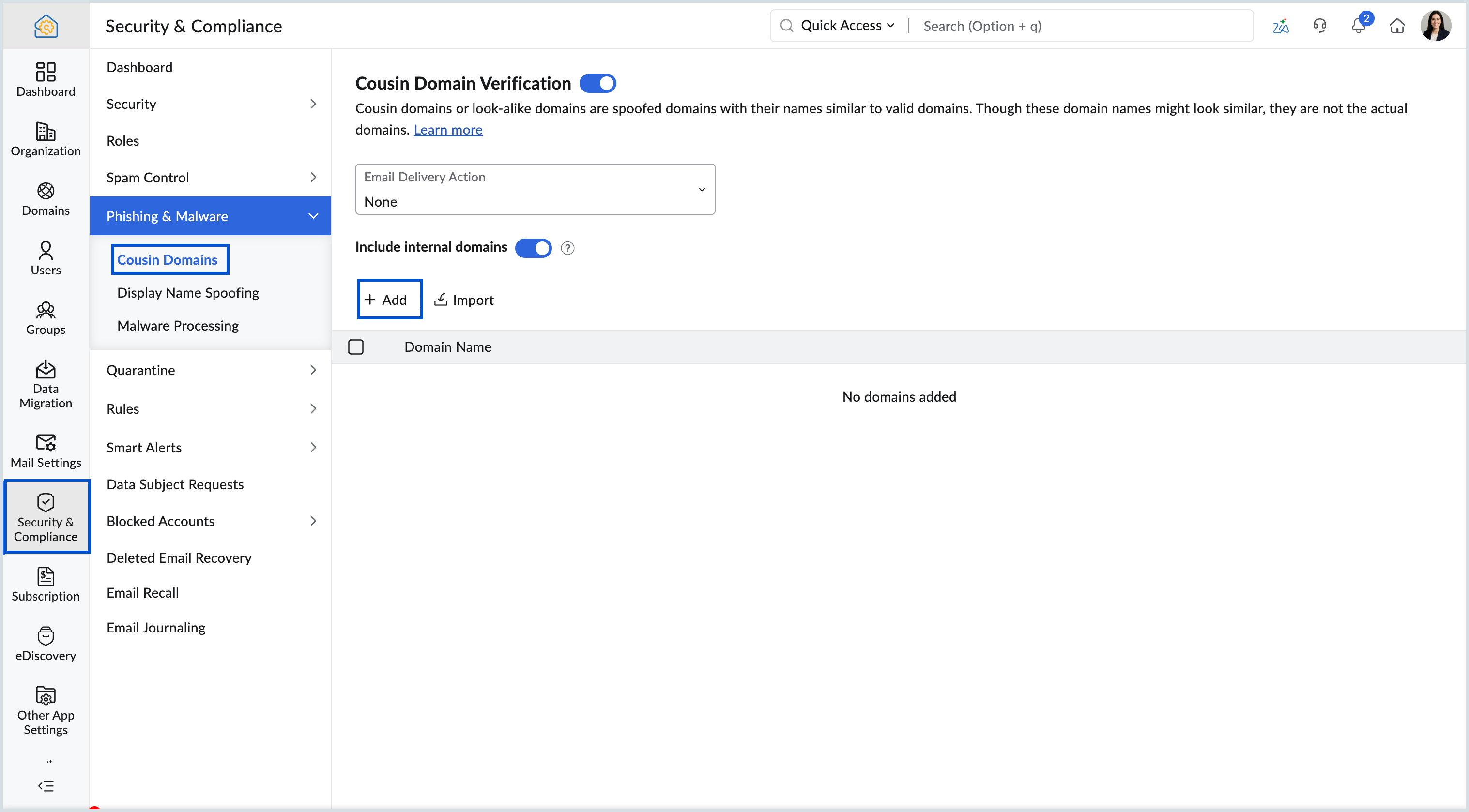
Go to the Security & Compliance menu, and select Phishing & Malware .
Select the Cousin Domains option.
In the Email Delivery Action dropdown, select the actions for emails that have look-alike domain names:
If you select None, no action will be taken.
If you select Move to spam, the email will be moved to the spam folder of the email recipient.
If you select Move to quarantine, the email will be moved to the quarantine list, from where the admin will have to process if further.
You can also choose to Include internal domains, which means that all of your organization's domains will undergo the cousin domains check by default. So, any domain name that is similar to yours will undergo the specified action.
Now, click Add, enter the domain names for which cousin domain check has to be done, and click Add.
You can also choose to include the domain names by click on Import, and selecting a CSV file which has all the domain names.
All the added domains will be listed under Domain Name section.