Creator Simplified #9: Automatically Sending Uploaded Files as Email Attachments
Hey Creators,
Welcome back to the Creator Simplified series!
Today, we’ll explore how to automate file uploads as email attachments in Zoho Creator—a handy feature that saves time and reduces manual effort in your business processes.
Use Case:
In a typical reimbursement process, employees submit a form and upload their expense receipts. These receipts, along with the details, are forwarded to the concerned department for approval.
To simplify this process, we can implement a workflow that triggers automatically when the form is submitted. This workflow will send the expense details along with uploaded receipts as email attachments directly to the relevant department.
Configuration:To simplify this process, we can implement a workflow that triggers automatically when the form is submitted. This workflow will send the expense details along with uploaded receipts as email attachments directly to the relevant department.
1. Create a workflow based on the Reimbursement form, and set the workflow to trigger upon form submission.
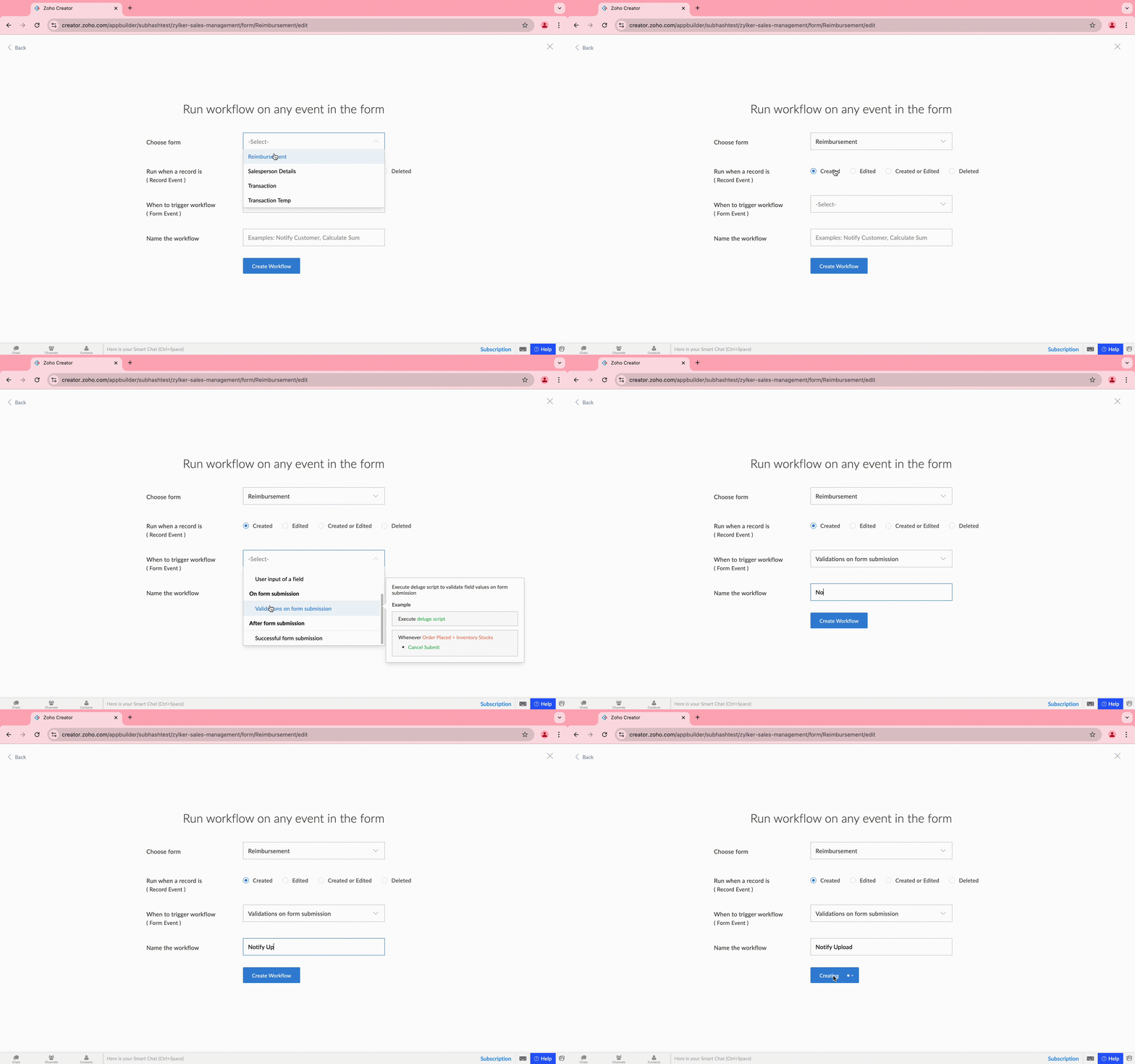
2. Write the following script using the Send Email task to automatically email the form data and uploaded receipt to the accounting team:
- sendemail
- [
- from: zoho.loginuserid // Sender is the logged-in user
- to: "accountsteam@zylker.com" // Recipient (e.g., accounting team)
- subject: zoho.loginuserid + " has submitted a reimbursement request" // Subject line
- message: "<div>Hello Accounting Team,<br><br>Please find the attached receipt from " + input.Employee_Name + " for reimbursement.<br><br>Best,<br>The System</div>" // Body content with a message
- Attachments :file:input.File_Upload // Retrieves the file uploaded in the form field 'File_Upload' to attach it to the email
- ]
Result:
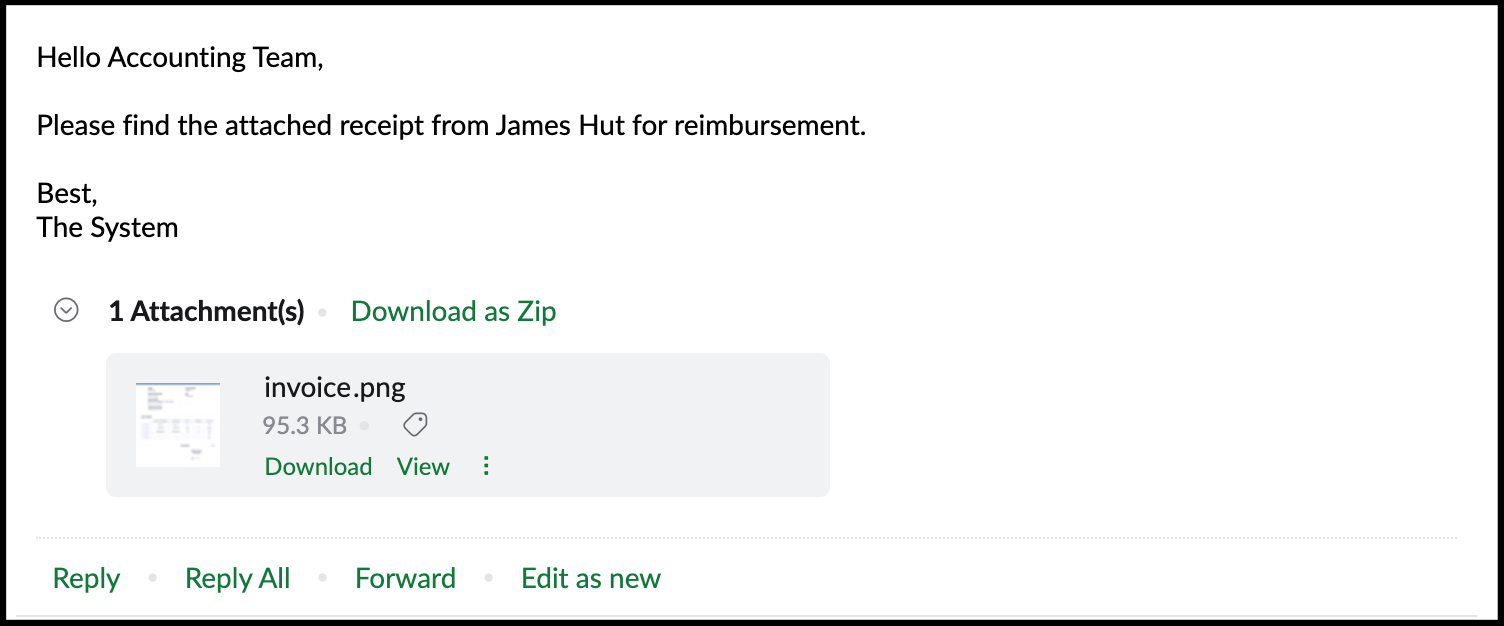
With this workflow in place, every submitted form automatically sends the uploaded file and relevant details to the designated recipient, eliminating manual follow-ups and ensuring critical documents reach the right destination.
That's a wrap for today’s tip! If you have any questions or helpful tips of your own, feel free to share them in the comments below. Be sure to stay tuned for more valuable insights in the Creator Simplified series!