Email Journaling in Zoho Mail: Maintain a complete record of your organization’s email communication
Organizations often need a complete record of their email communication for audits, legal reviews, or internal investigations.
Email Journaling in Zoho Mail captures a copy of emails sent and received in your organization and forwards it to a destination address of your choice.
What is Email Journaling in Zoho Mail?
Email Journaling is a system-level feature that automatically captures a copy of the emails your organization sends and receives. Each copy includes the entire message along with its metadata, so the record remains complete and unaltered. The captured emails are forwarded to an external email address, which is set while creating the journal.
How can administrators use Email Journaling effectively?
Email Journaling lets administrators define the type of emails to capture and the users or groups to apply it to. This helps organizations meet their legal and compliance requirements without manual effort.
Choose what to capture: Set the scope to all emails, incoming emails only, or outgoing emails only, based on your requirement.
Apply to the right people: Apply a journal to all users and groups, or limit it to selected users and groups. For example, a separate journal can be created to cover only the finance team’s mailboxes for audit purposes.
Add multiple forward addresses: Add up to 3 forward addresses, of which at least one must be verified.
Stay informed about delivery failures: Set a Non-delivery report (NDR) address to receive an email whenever the forward address cannot receive journaled emails.
Manage journals as needed: Enable, disable, or delete a journal at any time, and create up to 5 journals for different requirements.
Steps to create an Email Journal
Log in to Zoho Mail Admin Console.
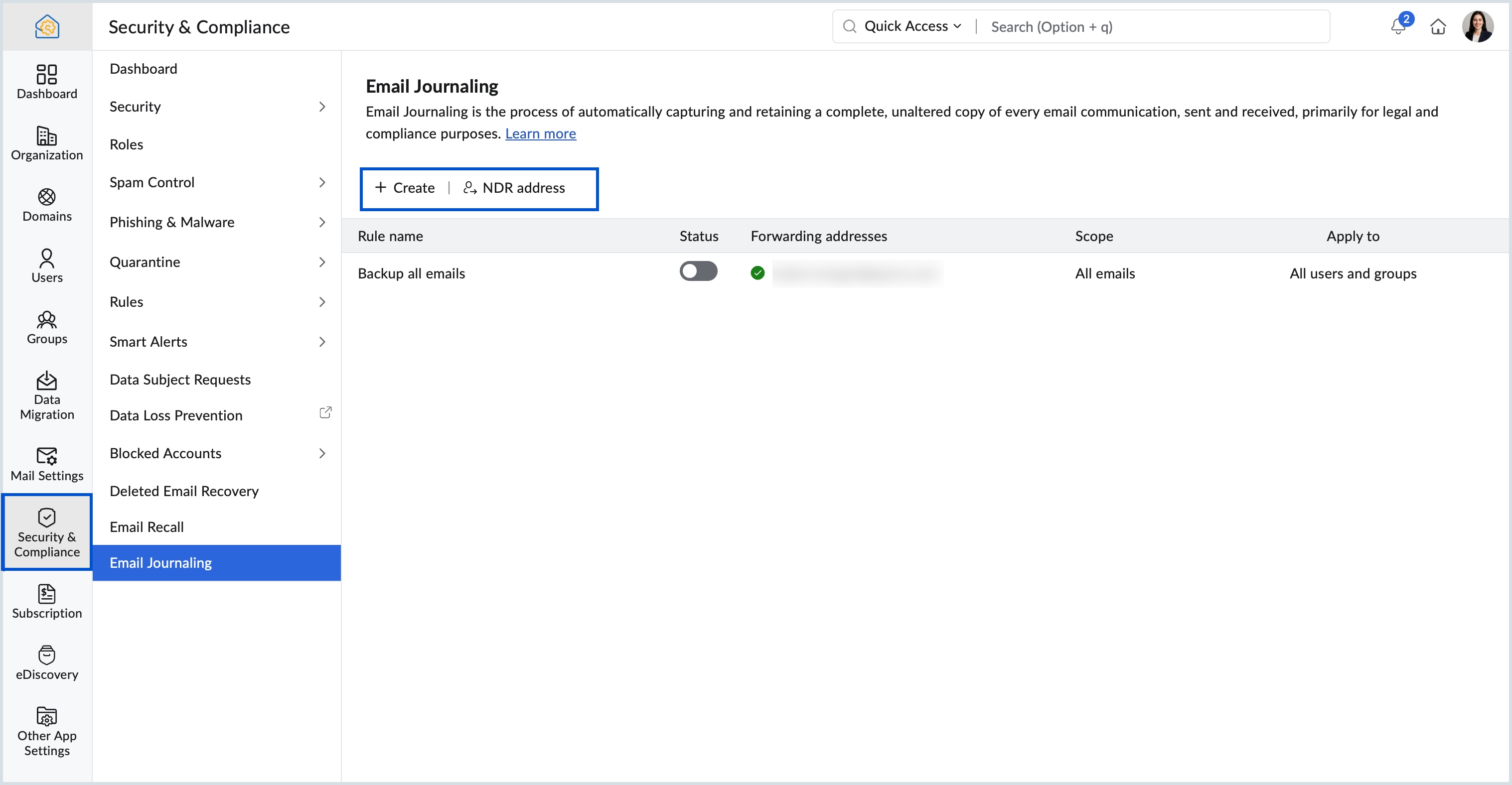
Navigate to Security & Compliance > Email Journaling.
Click + Create or Create Email Journal on the home page.
Enter the Name and Description field in the Create Email Journal dialog box.
Select any one of the following values under the Scope field:
All emails - If you wish to capture both incoming and outgoing emails.
Incoming emails only - If incoming emails alone needs to be captured.
Outgoing emails only - If outgoing emails alone needs to be captured.
Enter the destination email address where you wish to save the captured emails in the Forward Addresses field.
Select the required values in the Apply To section.
Enter the Reporting address in the Non-delivery report address field. This email address will receive an email whenever the Forward address entered is unable to receive the mails due to any discrepancies like storage issue, or failed email delivery.
The forward address cannot be on the same mail server (MX) as your organization.
The NDR address must be a user email address within the organization, not a group address, and should have no email restrictions applied.
The NDR address can hold up to 50 delivery failure emails. After that, Email Journaling is disabled and the admins are notified.
Learn more about Email Journaling in Zoho Mail Admin Console.