Email Recall in Zoho Mail: Retract sent emails within your organization
Emails can go out with the wrong recipient, an incorrect attachment, or information that was not meant to be shared. Email Recall in Zoho Mail lets you take such emails back from the inboxes of recipients within your organization.
What is Email Recall in Zoho Mail?
Email Recall allows users to take back an email even after it has been sent. When the recall is successful, the original email in the recipient’s inbox is replaced with a notification that the sender has recalled it, and the original message can no longer be read.
Users can recall an email from their own mailbox within 30 minutes of sending it. Administrators can also recall emails sent by any member of the organization from the Admin Console, within 24 hours of sending.
How can administrators use Email Recall effectively?
Once an administrator recalls an email, it is removed from the mailboxes of all recipients within the organization.
- Correct accidental sends: Recall emails sent to unintended recipients before they are read.
- Protect confidential data: Remove emails that contain sensitive information from recipients’ mailboxes.
- Fix errors in content: Retract emails with wrong details, broken links, or incorrect attachments.
- Locate emails easily: Search for the email to be recalled by sender, recipient, or message ID, from the Admin Console.
Steps to recall an email as an administrator
Log in to the Zoho Mail Admin Console.
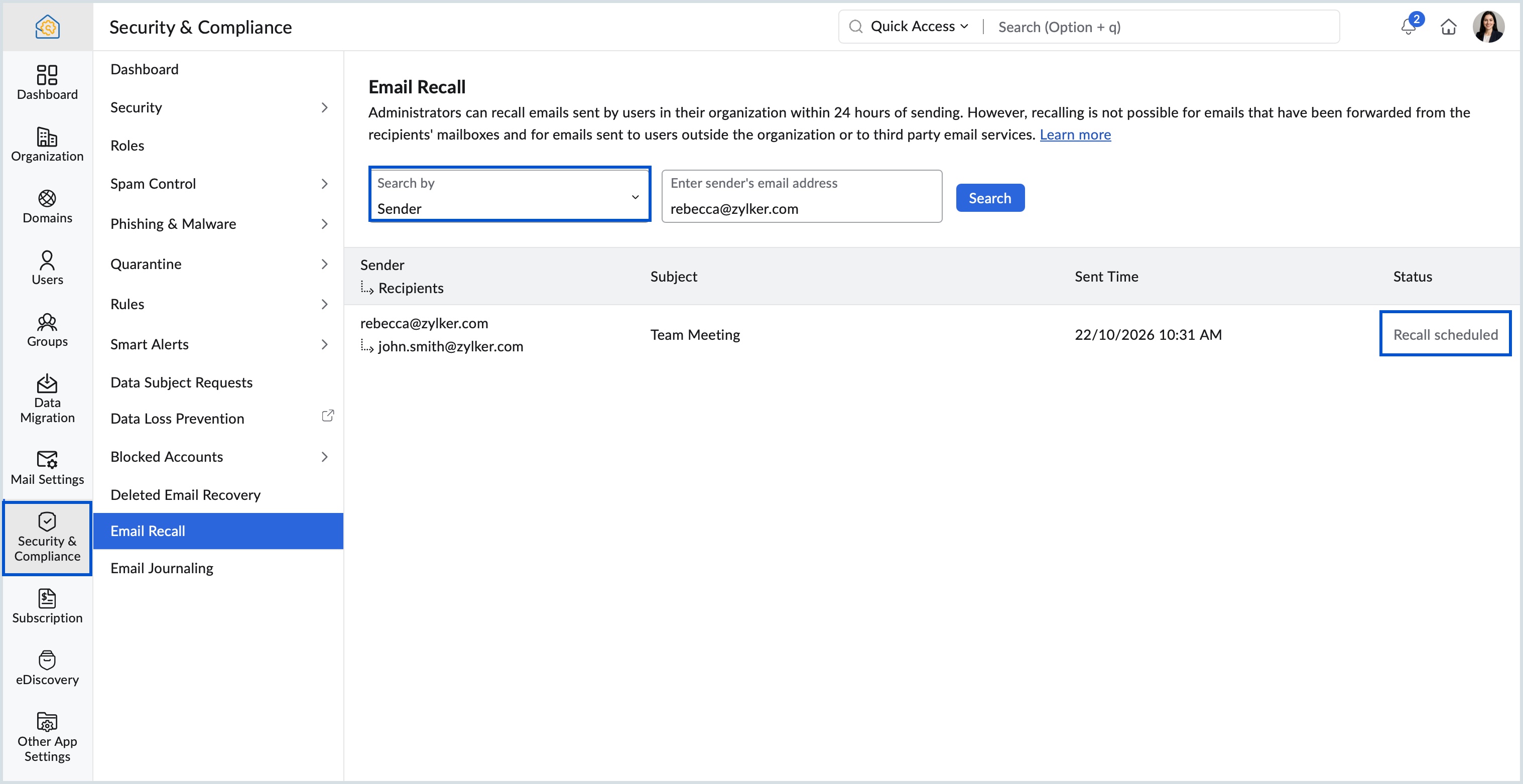
Select Security & Compliance from the left menu and click Email Recall.
Choose Sender, Recipient, or Message-ID from the Search by drop-down.
Enter the email address or message ID and click Search.
Hover over the email and click Recall.
Click Recall in the confirmation dialog.
Steps to recall an email as a user
Log in to Zoho Mail and go to the Sent folder.
Click the Mail Delivery Status (MDS) icon on the email.
Click Recall this email.
Click Proceed in the confirmation pop-up.

Points to note:
Emails sent to recipients outside the organization cannot be recalled.
Emails fetched through POP or IMAP accounts cannot be recalled.
Emails sent to a shared mailbox or group email address cannot recalled.