Enhanced access controls and smoother authentication for organization emails

Available to customers in all DCs.
Hello everyone,
We've improved how organization emails work in Zoho CRM, which are used when multiple users need to send emails from a common address, like sales@company.com or support@company.com. Admins can set up these shared emails and decide who can use them.
This update improves three major areas:
- More flexible ways to assign permissions
- A clearer, step-by-step authentication flow
- Easier authentication for organization emails used in custom functions
Let's take a closer look at each.
More flexible user permissions
Previously, admins could only assign shared email addresses to users based on profiles, which made setups complicated for large or multi-country teams. For example, an organization might operate across multiple teams or locations, with each team using its own shared mailbox. Only using profiles meant admins had to create separate profiles for every region just to assign email access, which was messy and hard to manage.
So here's what this update adds: Admins can now assign access with more precision. Along with profiles, you can now choose:
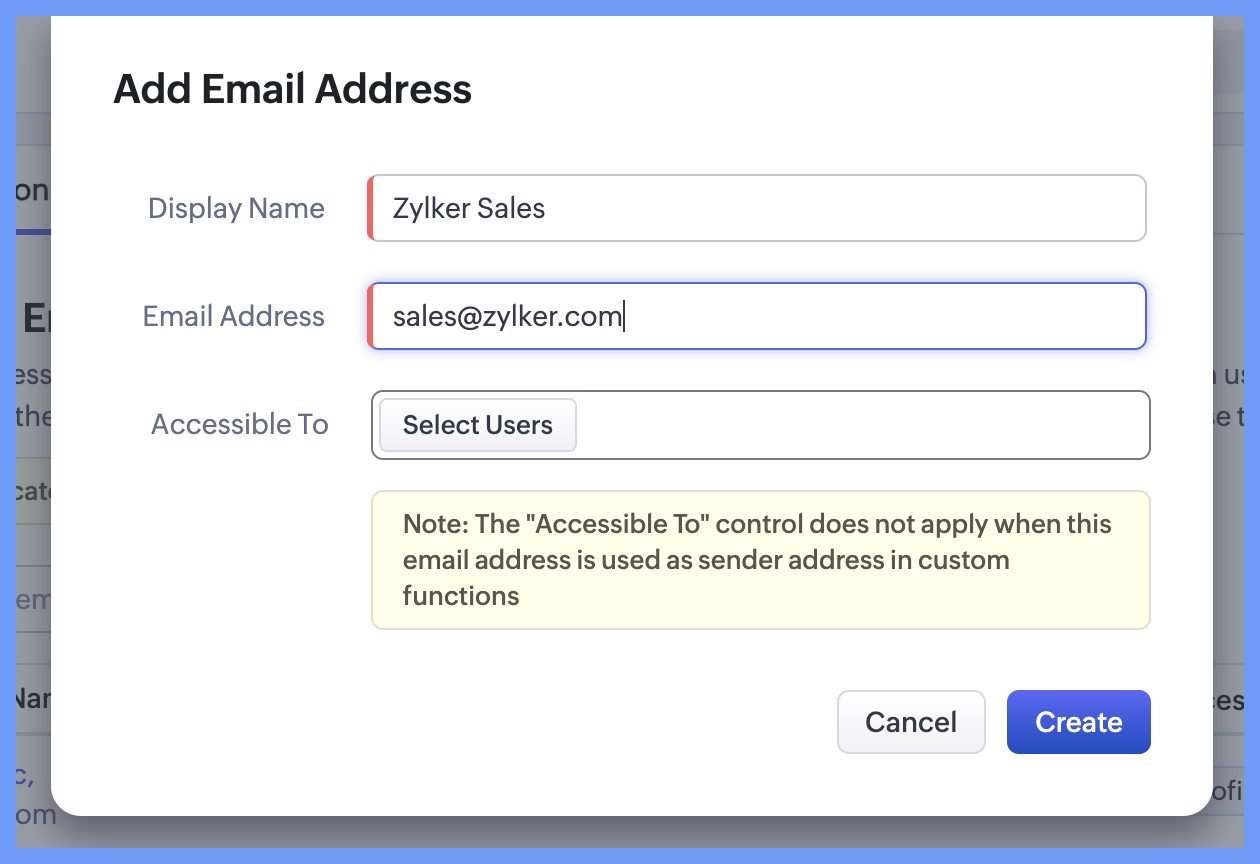
- Individual users
- Roles
- User groups
- Territories

This makes the setup far more natural because the permission type can match how your team is actually structured.
Now, when you add a new organization email, under the "Select Users" section, you can pick from all these categories. This lets admins control who can send emails from that shared address without changing profiles or duplicating permissions.
A smoother, guided authentication process
Previously, setup progress was shown in two separate status columns. The new unified status column combines this information into one clear view, reducing information overload and showing exactly what matters at each step.
The new status stages are as follows:
- Verification required: The email has been added, but the ownership hasn't been confirmed yet. You need to enter the verification code sent to that mailbox.
- Authentication pending: Verification is done, but the mailbox still needs to be authenticated using the correct method (for example, OAuth or SMTP).
- Authentication required: Verification is completed, but authentication isn't finished.The email can't be used until you complete this step.
- Authenticated: Both verification and authentication are complete.The shared email is now fully active and ready for use by the assigned users.
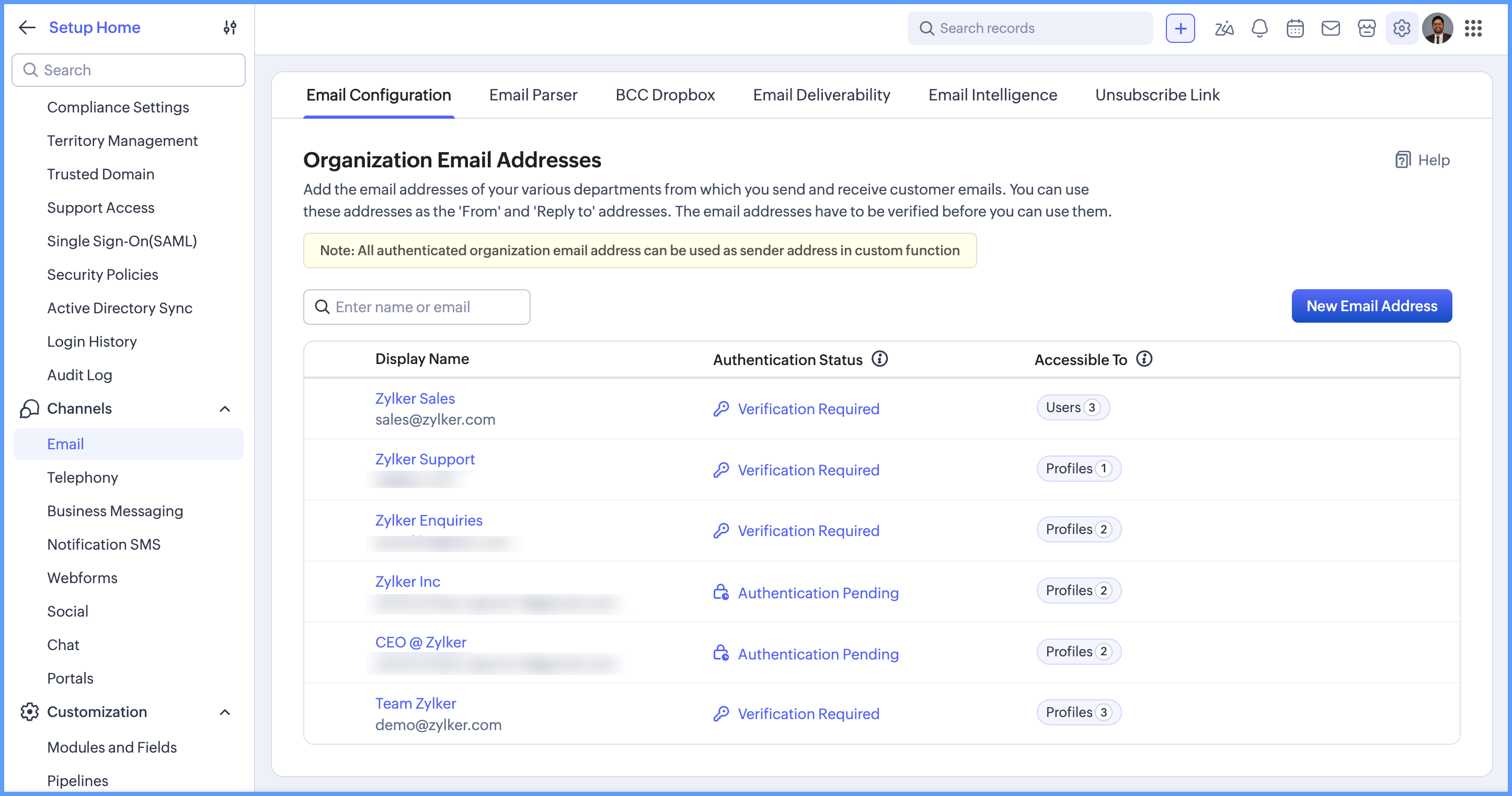
This linear flow makes the setup easier to understand and ensures that nothing gets missed.
Use authenticated organization emails in custom functions
Previously, if a custom function needed to send an email, the sender address had to be manually verified and authenticated by contacting Zoho support.
With this enhancement, admins can simply add the sender address as an organization email address. Once the email address is authenticated (with at least DKIM authentication), it can be used as the sender address for emails sent from custom functions—eliminating the need to reach out to support.
To support this change, the Accessible To field is now optional when adding an organization email address. This allows admins to authenticate organization email addresses even if they aren't intended to be shared with other users.
These enhancements make organization emails more flexible and easier to manage. Admins now have finer control over who can use shared email addresses, the authentication experience is clearer with a guided status flow, and authenticated organization email addresses can be used directly in custom functions without involving support.
Together, these updates make it simpler and more efficient for large teams and multi-region organizations to manage shared emails at scale.
For more information, see Organization Email Address.