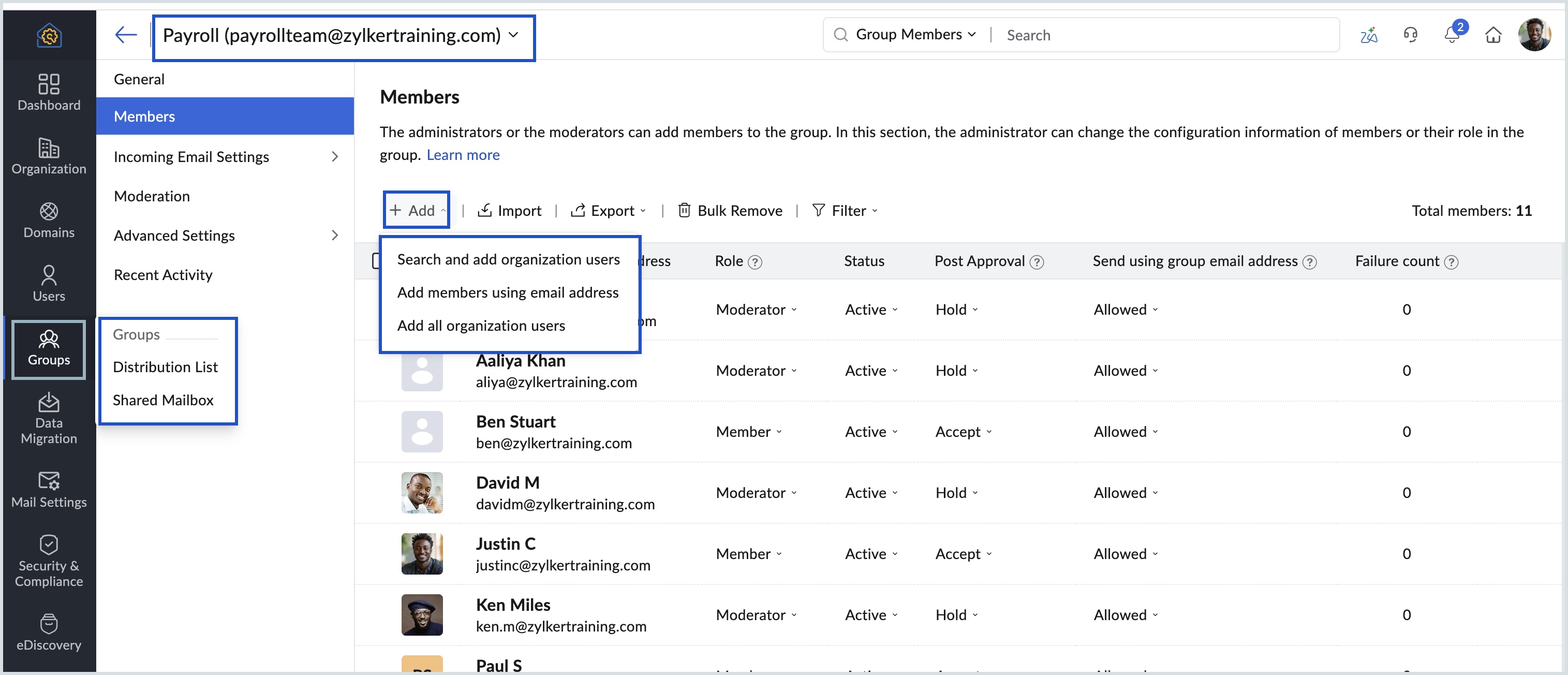
Group settings in Zoho Mail Admin Console
When teams rely on group email addresses like team@org.com, hr@org.com, or sales@org.com, managing them without clear controls leads to unapproved senders, flooded inboxes, and no accountability over what gets delivered.
Zoho Mail's Group settings in the Admin Console lets admins to manage everything about a group. This includes member management, anti-spam controls, and email moderation, without needing to manage individual mailboxes.
What are Group settings in Zoho Mail Admin Console?
How can admins efficiently use Group settings?
Group settings in Zoho Mail enables administrators to manage group email communication with structure and control. From adding members in bulk to delegating moderation, here's what admins can do:
Flexible member management: Add members individually, search and add organization users, or add all organization users at once. For large teams, import up to 2000 members at a time via CSV, and remove them in bulk the same way.
Anti-spam controls at group level: Add specific email addresses or entire domains to the group's Allowed or Blocked list to control which senders can reach the group. Entries can be moved between lists or imported and exported via CSV.
Email moderation: Emails that breach the group's permission settings are held in the Moderation tab rather than delivered directly. Moderators can review and approve or reject each email from here, keeping unwanted messages out of the group inbox.
Delegate with Group Moderators: Admins don't have to manage everything themselves. By assigning any group member as a Moderator, admins can delegate responsibilities such as adding new members, moderating emails, and accessing group notifications and advanced settings. A group can have multiple moderators, making it easy to distribute responsibility across large teams.
Steps to add members to the group
Log in to Zoho Mail Admin Console.
Navigate to Groups on the left pane and select Shared Mailbox or Distribution List based on your preference.
Select the group for which you want to Add a user.
Navigate to the Member settings page of the relevant group.
You can choose one of the following options to add members to the group :
Search and add organization users
Add all organization users
Add members using email address