Insert and manage images in your PDFs with ease
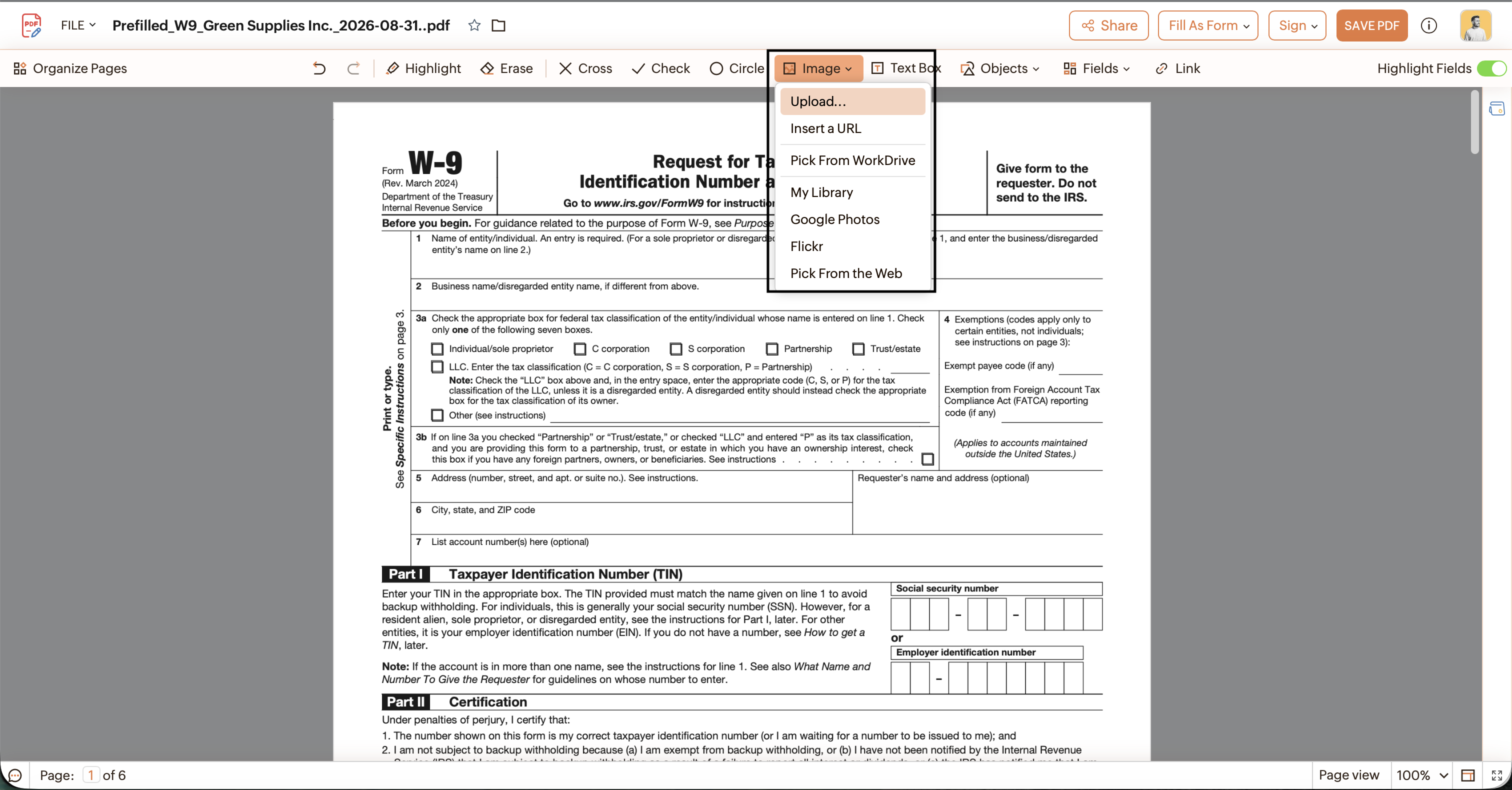
Visuals make documents more effective, whether it's a logo on a business proposal, a diagram in a technical report or a product photo in a brochure. Zoho PDF Editor lets you overlay images on your PDF and manage them directly within the editor, so you can present your content exactly the way you want.
Highlights
- Insert images:Add images from your device or cloud drives anywhere on a page.
- Crop: Crop images to fit or fill the space in your layout.
- Annotate: Mark up images to draw attention to specific areas. You can:
- Add shapes and arrows
- Draw freehand
- Add text
- Tag areas of the image
- Blur or smudge sensitive details
- Remove images: Delete images you no longer need from your PDF.
Note: These options apply to images you overlay on the PDF. Images already in the PDF can't be edited.
You can add the right visuals to your PDFs and adjust them as needed, all without switching between tools.
Learn more about adding and managing images in Zoho PDF Editor in our step-by-step user guide.
Try the image overlay in Zoho PDF Editor and share your feedback and suggestions with us at support@zohopdf.com or support@eu.zohopdf.com.
See you soon with another Zoho PDF Editor update.