Introducing Custom Actions Gallery for Zoho Desk
In addition to the actions that you can automate with a workflow rule, we provide some more actions to automate. For example, when you receive multiple tickets of the same type you may want to track and sort them. You can do so by adding tags to the tickets and instead of doing the tedious task of adding tags manually, you can automate this action by incorporating the action 'Add Tags' to your workflow rule. Similarly, you can also remove the applied tags by incorporating the action 'Remove Tags'.
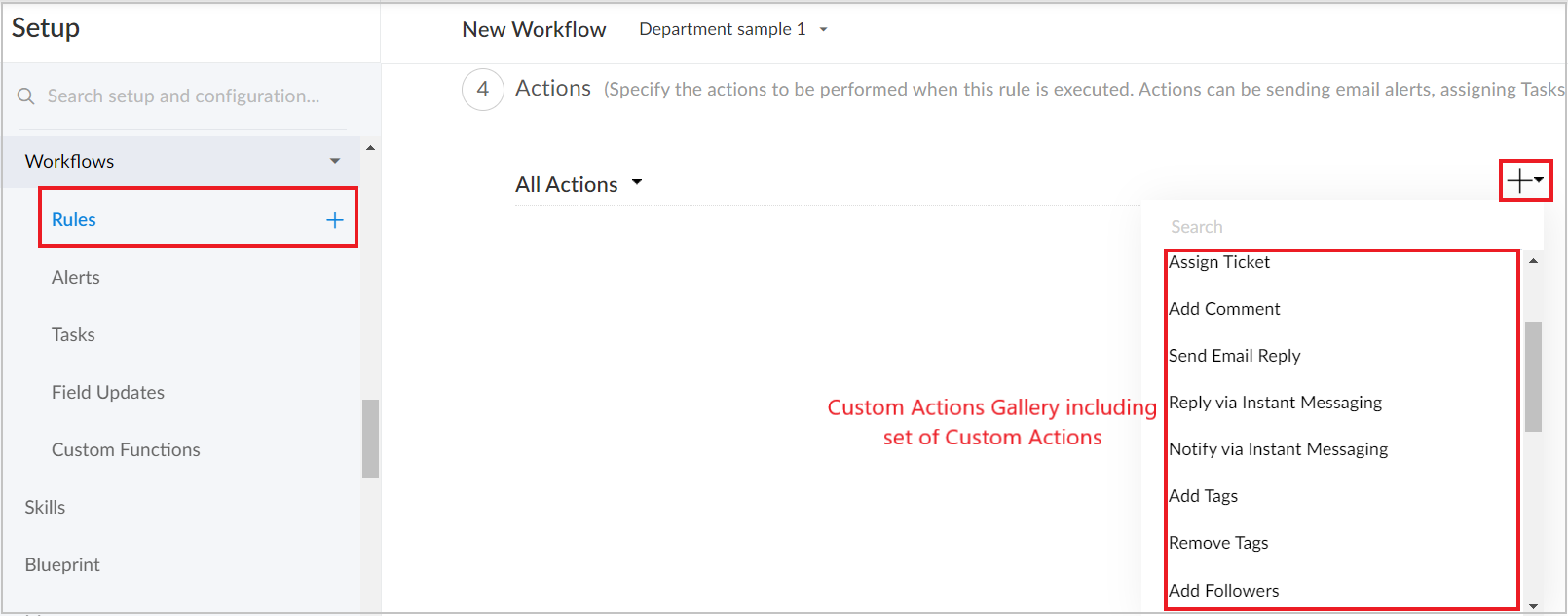
Custom Actions Gallery includes a set of custom actions that help you to automate key tasks like assigning tickets, adding/removing tags, adding followers/comments, sending email replies, etc., when deployed in the workflow rules in addition to the existing actions such as alerts, tasks, field updates, and custom functions. The deployed actions will be triggered once the workflow rule is executed.
- Assign Ticket - Assigns ticket to an agent or a team as per the rule execution
- Add Comment - Adds either a public or private comment in a module
- Send Email Reply - Triggers automatic email replies to your customer tickets
- Add Tags - Adds tags to a specific ticket
- Remove Tags - Removes the tags associated with a ticket
- Add Followers - Adds followers to a specific ticket
- Mark Ticket as Spam - Marks a ticket and its associated contact as spam
- Share Ticket - Shares tickets with a department
- Send Cliq Notification - Sends a Zoho Cliq notification using an incoming webhook URL
- Reply and Notify via Instant Messaging - Sends automatic responses to the the tickets and notification to customers through IM channels
These custom actions support placeholders for temporarily holding the place to insert actual data. You can check the execution status of these actions in ticket history. And, you can also create custom actions in the event of extension installation.
To work with the Custom Actions Gallery, click here.