Kaizen 239 - Audit Log Monitoring with Proactive Alerts

Hello, CRM Wizards!
Welcome to a fresh week of Kaizen.
In this post, we will look at how to track system and user activity in your CRM using audit logs and broadcast actionable alerts across the organization when something goes wrong.
Business Problem
In most CRM setups, issues are identified only after they affect outcomes.
- Deals remain untouched for long periods.
- Automation failures are missed.
- Teams lack visibility into system activity.
Audit logs capture all of this information, but they are rarely monitored regularly.
Solution
We recommend building a simple monitoring flow using:
- CRM Audit Logs API to fetch activity.
- A scheduled function to process the data periodically.
- A team communication tool to send alerts.
In this example, we use Zoho Cliq to send notifications. You can use any team communication platform that supports webhooks or APIs.
For this walkthrough, we will detect automation execution failures and notify the team.
Prerequisites
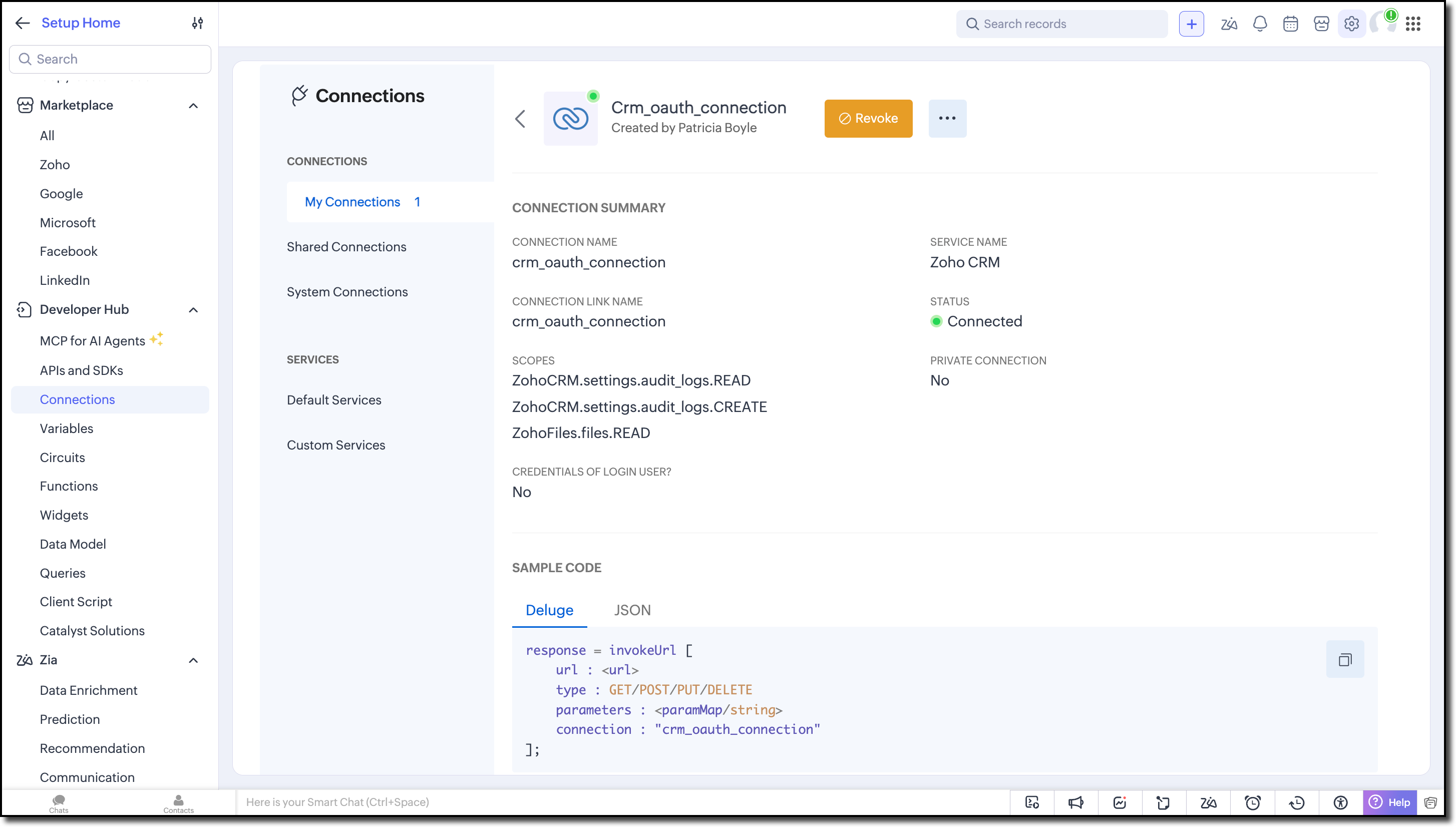
1. Create Connections in Zoho CRM
Follow the connection setup guide and create the following:
Zoho CRM connection with ZohoFiles.files.READ,ZohoCRM.settings.audit_logs.CREATE,ZohoCRM.settings.audit_logs.READ scopes.
Zoho Cliq connection with ZohoCliq.Webhooks.CREATE scope.
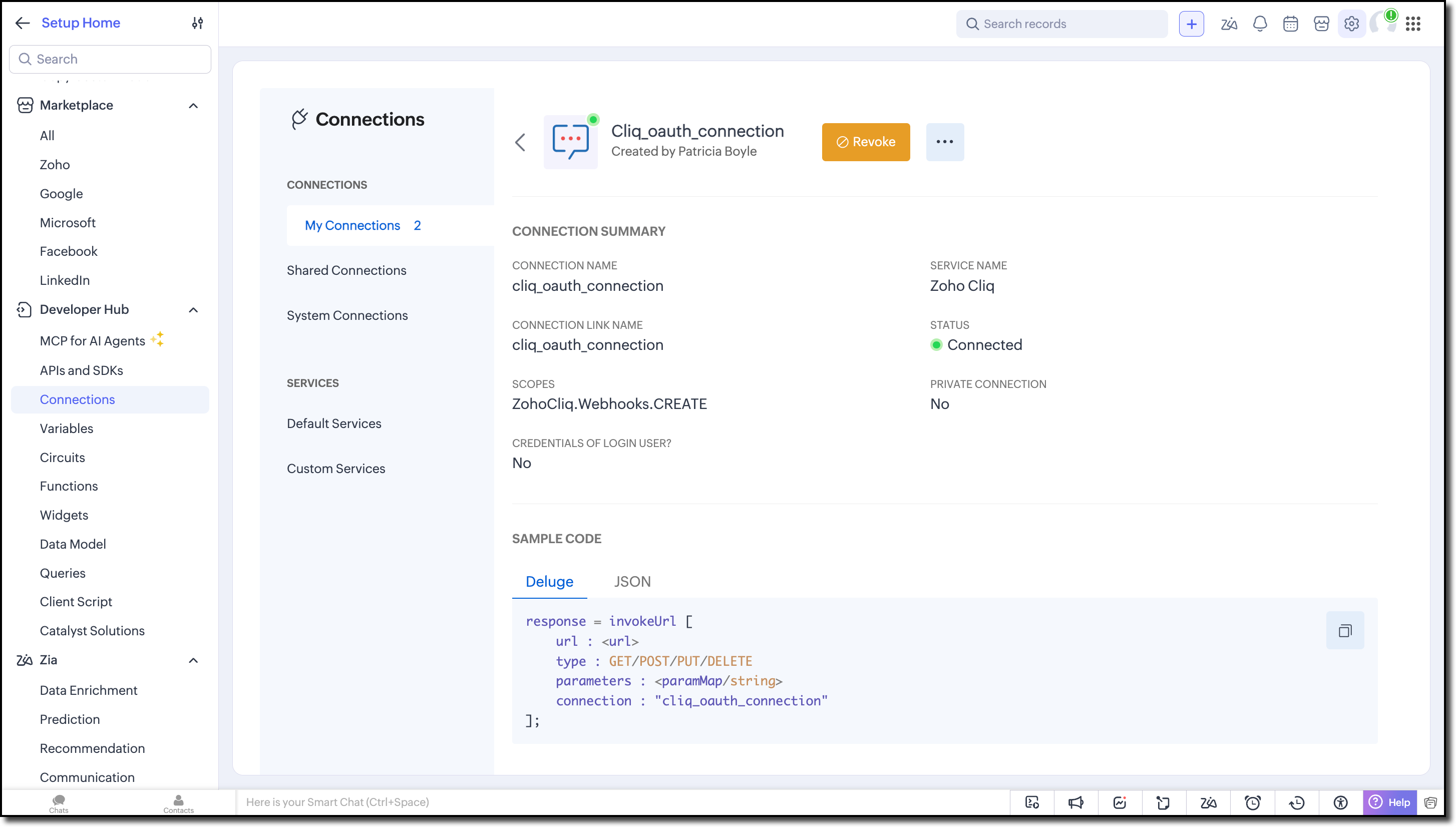
Store the Connection link name of the both the connections to use them in the function.
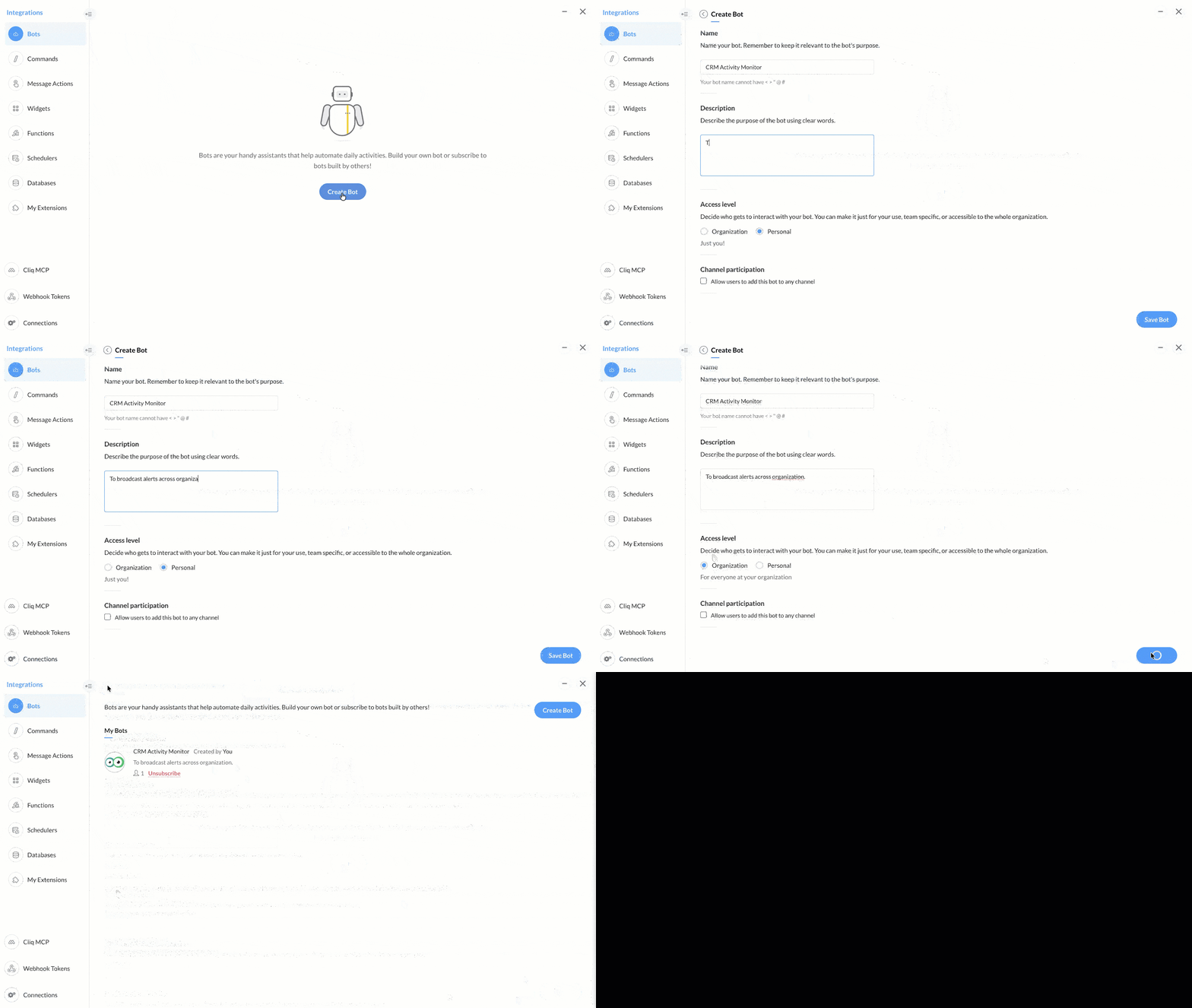
2. Create a Zoho Cliq Bot
Refer to the Managing Bots help resource and build a cliq bot to which we will share the alerts.
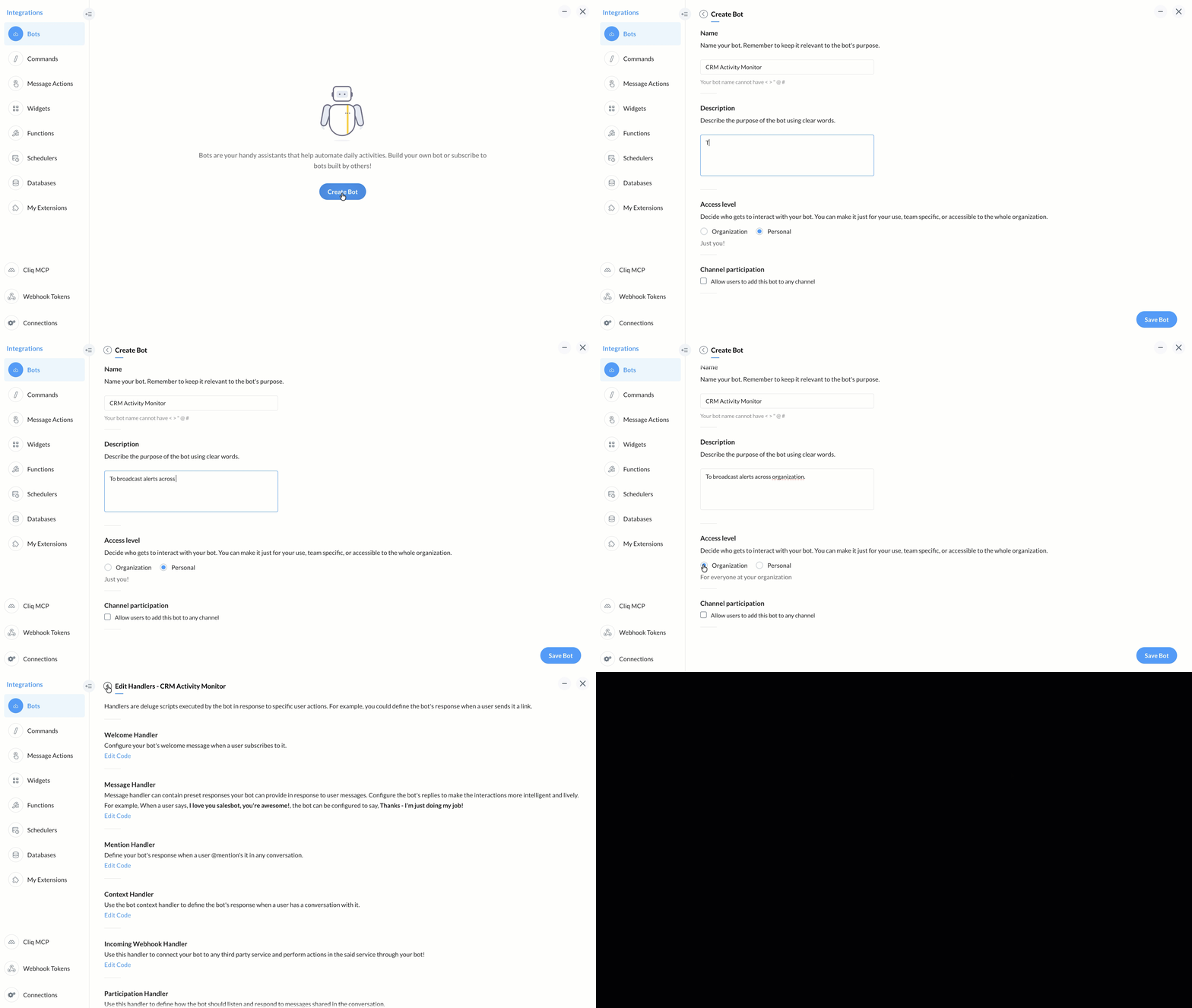
Store the Cliq Bot's unique name to use in the functions.
Step 1: Create a Scheduled Function
- Go to Setup → Automation → Schedules and click Create New Schedule.
- Enter a Schedule Name and Description.
- In Function to be executed, select Writing Function.
- Provide the following in the pop-up:
- Display Name
- Function Name
- Description
- Click Create.
Step 2: Code the function
I. Fetch Audit Log
Use the invokeUrl() function to make calls to the Export Audit Log APIs. While constructing the Create Export Audit Log API, filter the records using the audited_time field to retrieve data from the last 7 days.
- Use zoho.currenttime system variable as the end time.
- Calculate the start time by subtracting 7 days from the current time.
endTime = zoho.currenttime; startTime = endTime.addDay(-7); endTime = endTime.addDay(1); startStr = startTime.toString("yyyy-MM-dd'T'00:00:00XXX"); endStr = endTime.toString("yyyy-MM-dd'T'23:59:59XXX"); |
Apply this time range in the request body as a filter to limit the results to recent activity. The audit log response will be returned as CSV file(s).
auditLogFile = invokeurl [ url :downloadUrl //fetched from the Audit Log Job Status API call type :GET connection:"zylker_oauth_connection" ]; info auditLogFile; |

Note
When downloading and processing files using APIs in Deluge, the supported file size depends on the API source:
- Up to 5 MB for files fetched from external (non-Zoho) APIs.
- Up to 15 MB for files fetched from Zoho domain APIs.
II. Process the Logs
Convert the CSV data to string and iterate through each row to check for execution.failure to identify the failures.
csvData = auditLogFile.toString(); // Split rows: every row ends with AM" or PM", use ||| as row separator csvData = csvData.replaceAll("AM\"", "AM\"|||", true); csvData = csvData.replaceAll("PM\"", "PM\"|||", true); rows = csvData.toList("|||"); info "Total rows: " + rows.size(); failureList = List(); for each row in rows { //Loop and search for the required data } |
II. Build the Alert
Get the count of number of failures and construct a message stating it along with a URL that redirects the user to the Audit Log.
if(failureList.size() > 0) { info "--- Failure Summary (" + failureList.size() + " failures) ---"; failureCount = failureList.size(); cliqMessage = failureCount + " executions have failed in automation. Kindly check the"; info cliqMessage; cliqMessage = cliqMessage + "https://crm.zoho.in/crm/org<your_org_ID>/settings/auditlog"; } |
IV. Send Notification
Use the Post to Bot Cliq integration Deluge task to share the message to your communication platform. Here we are pushing the message to a cliq bot using Zoho Cliq API.
cliqResponse = zoho.cliq.postToBot("crmactivitykaize", cliqMessage, "cliq_oauth_connection"); info "Cliq Response: " + cliqResponse; |
Step 3: Set Frequency for the scheduler
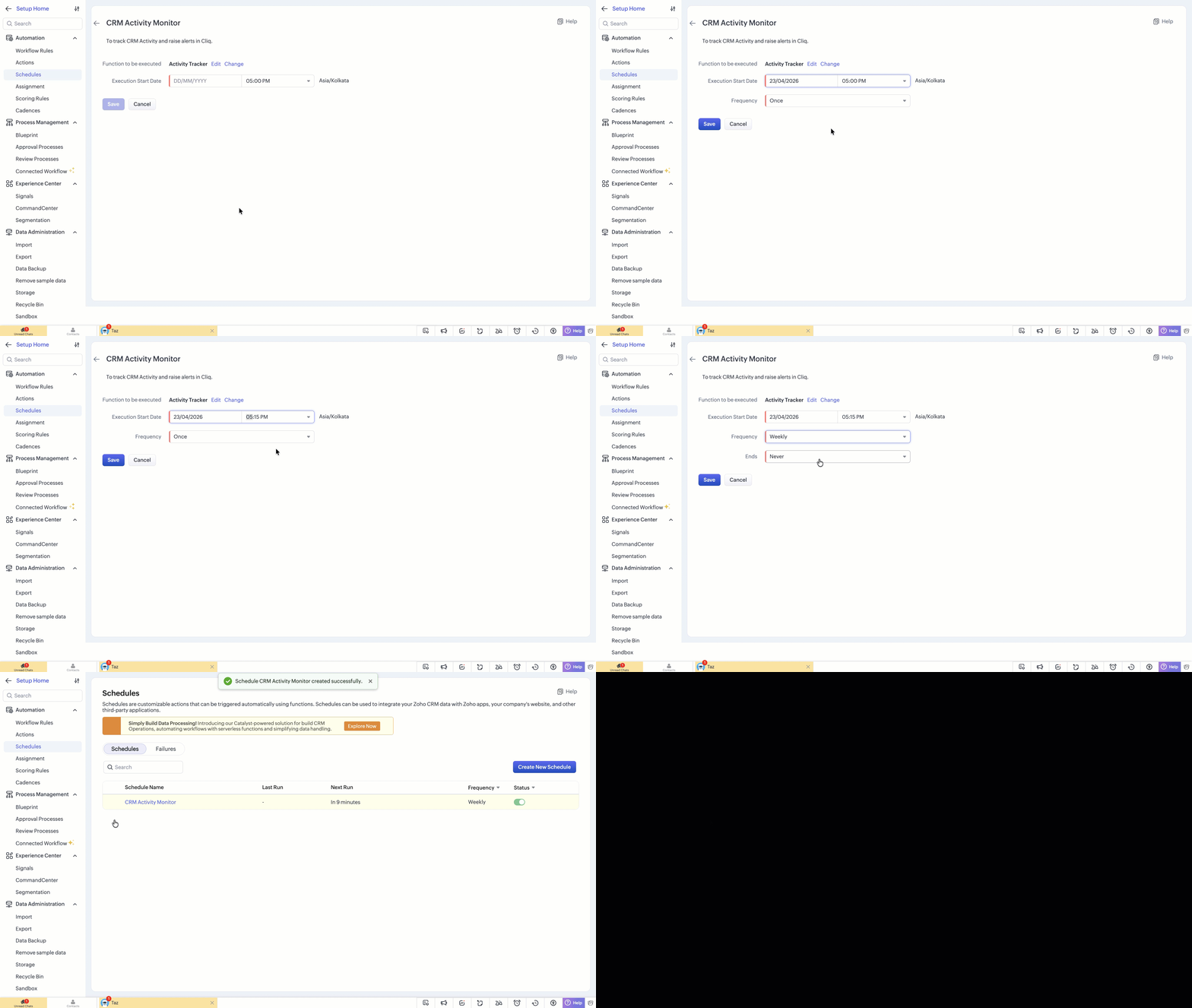
- Click Save and provide the Execution Start Date.
- Set the Frequency to weekly and Ends as Never. You can configure the frequency based on your business needs.
- Save the Schedule.
Try it Out!
Trigger a workflow failure for testing and run the function.
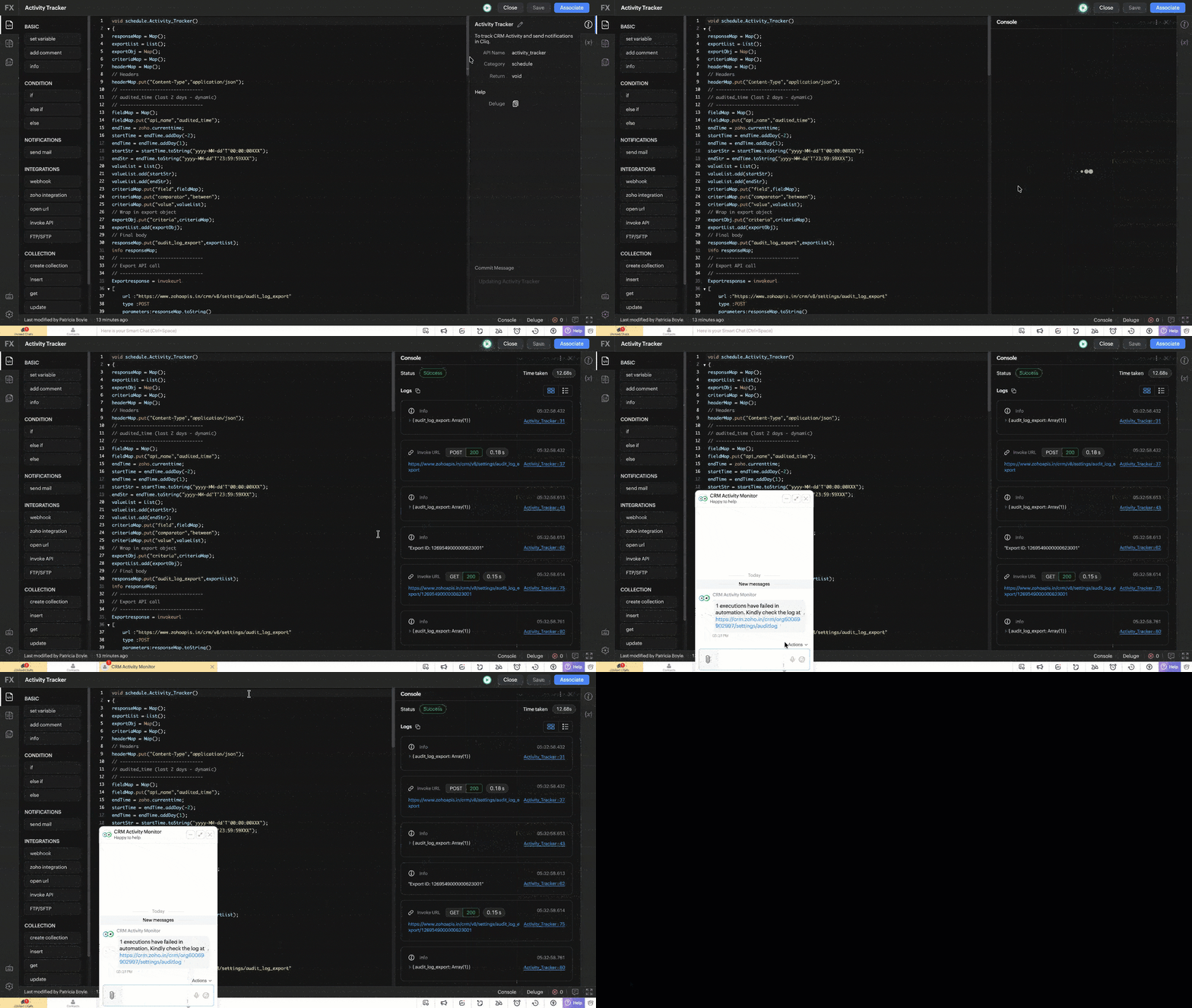
The sample code is provided at the end of this post for your reference.
Similar Scenarios
You can extend this approach to:
- Identify inactive (silent) deals
- Track activity gaps
- Monitor repeated failures
- Analyze usage patterns
We hope this kaizen helped you to build monitoring and alert system with minimal setup.
Have questions or suggestions? Drop them in the comments or write to us at support@zohocrm.com.
On to Better Building!
-------------------------------------------------------------------------------------------------------------
-------------------------------------------------------------------------------------------------------------

Previous Kaizen: Fetching Data from Microsoft SQL Server Using Queries | Kaizen Collection: Home