Visualizing Blueprint Transition Criteria Using Zoho CRM REST API Queries

Hello Everyone,
Welcome back to another edition of the Kaizen series, where we uncover powerful ways to extend and customize Zoho CRM.
Have you ever asked , "Why can't I see the blueprint transition button on this record, why it failed, and how can I know whether the criteria is nested or not?". And the Admin answered: "Hold on, let me open the Blueprint setup and check the criteria", only to spend the next ten minutes navigating through setup, finding the transition, and decoding a wall of flat conditions with no visible AND/OR nesting.
Business Scenario

Zylker, a financial institution, processes loan applications through a rigorous multi-stage approval life cycle. The organization uses Zoho CRM to manage all applications in a custom module called Loan Applications.
The loan approval process is governed by a Blueprint that enforces structured state transitions. Each transition contains specific eligibility criteria that must be satisfied before a loan officer or approval manager can move the application to the next stage.
The Operational Problem
The most complex transition in this Blueprint is Approve Loan. It contains multiple nested criteria conditions organized using grouped AND/OR logic.
When this transition becomes unavailable to a loan manager, they typically check the View Configured Actions section available in the record detail page, where Blueprint transitions are displayed. However, the criteria shown for each upcoming transition are presented only as a flat list of conditions.
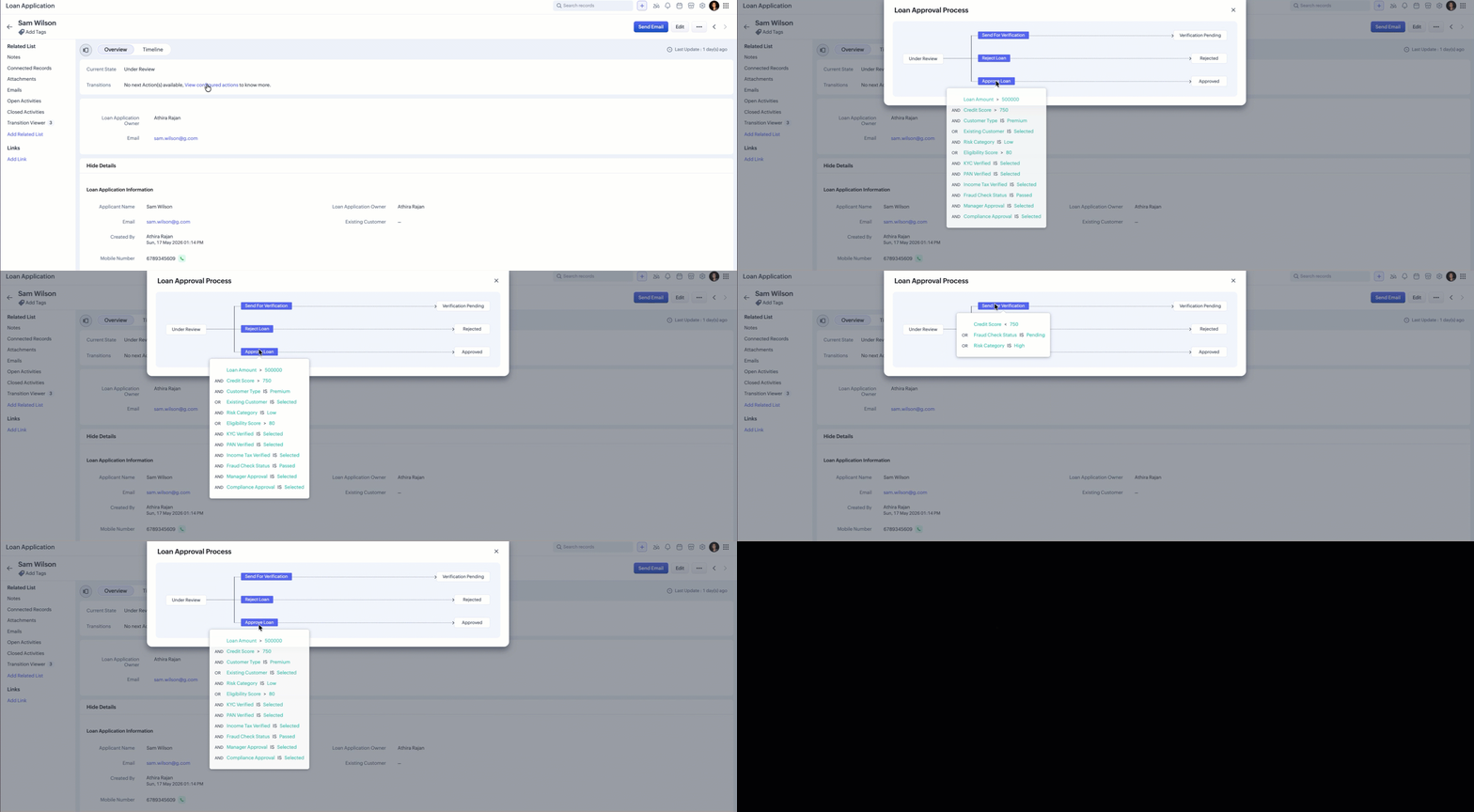
Because of this, the loan manager cannot clearly understand:
- how the conditions are grouped,
- which AND/OR combinations are being evaluated,
- or which exact nested condition is preventing the transition.
Currently, there is no way for users to visualize the actual nested criteria structure without contacting a CRM administrator to inspect the Blueprint configuration manually. This creates an operational bottleneck. A loan application that is otherwise ready for approval may remain delayed simply because the loan manager could not identify the blocking condition and had to wait for clarification from the CRM administrator.
Solution Overview
In this Kaizen post, we will walk you through how to build a Blueprint Criteria Viewer directly inside the record detail page using the newly released Zoho CRM REST API default source in Queries.
Yes! You heard that right. We can now invoke Zoho CRM API endpoints directly through Queries.
Using this approach, you can:
- Retrieve Blueprint transition metadata dynamically
- Fetch nested transition criteria using the CRM REST API default source
- Parse grouped AND/OR conditions
- Help business users instantly understand why a transition is unavailable without involving CRM administrators.
This improves operational transparency, reduces approval delays, and enables faster decision-making for loan processing teams.
Before diving into the implementation, here's a quick overview of the new source type that makes this possible.
The New "Zoho CRM REST API" Source
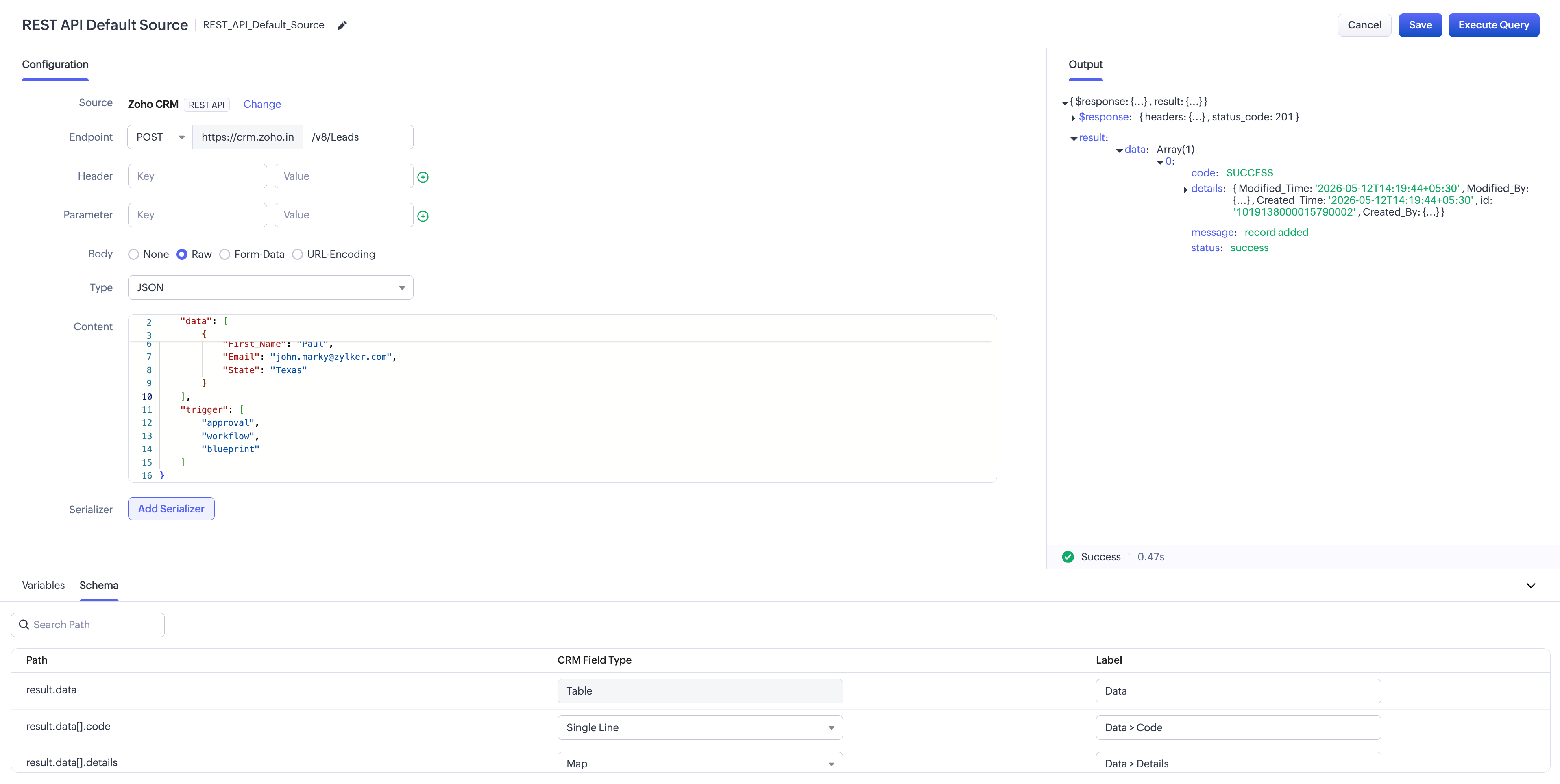
The Zoho CRM REST API source is a built-in default source available in Queries. It provides native access to Zoho CRM REST API endpoints directly within the Query Workbench, using the currently logged-in user's session for authentication. No additional connection or OAuth configuration is required.
While the Module and COQL source types are designed for CRM record retrieval, the Zoho CRM REST API source enables access to CRM metadata. This includes module definitions, field configurations, page layouts, user records, profiles, pipelines, related list settings and so on.
Implementation
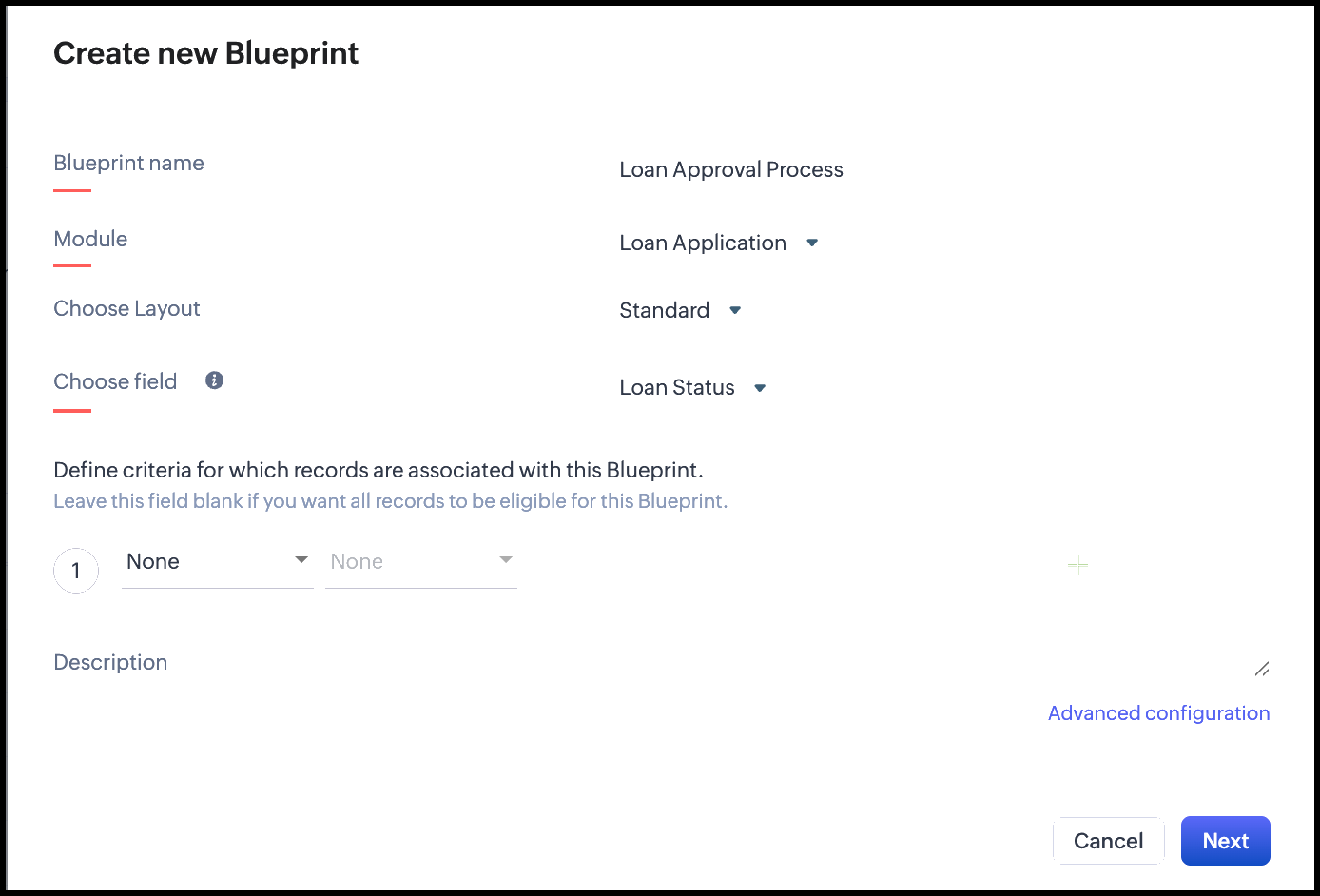
Step 1: Create a Blueprint for module "Loan Applications"
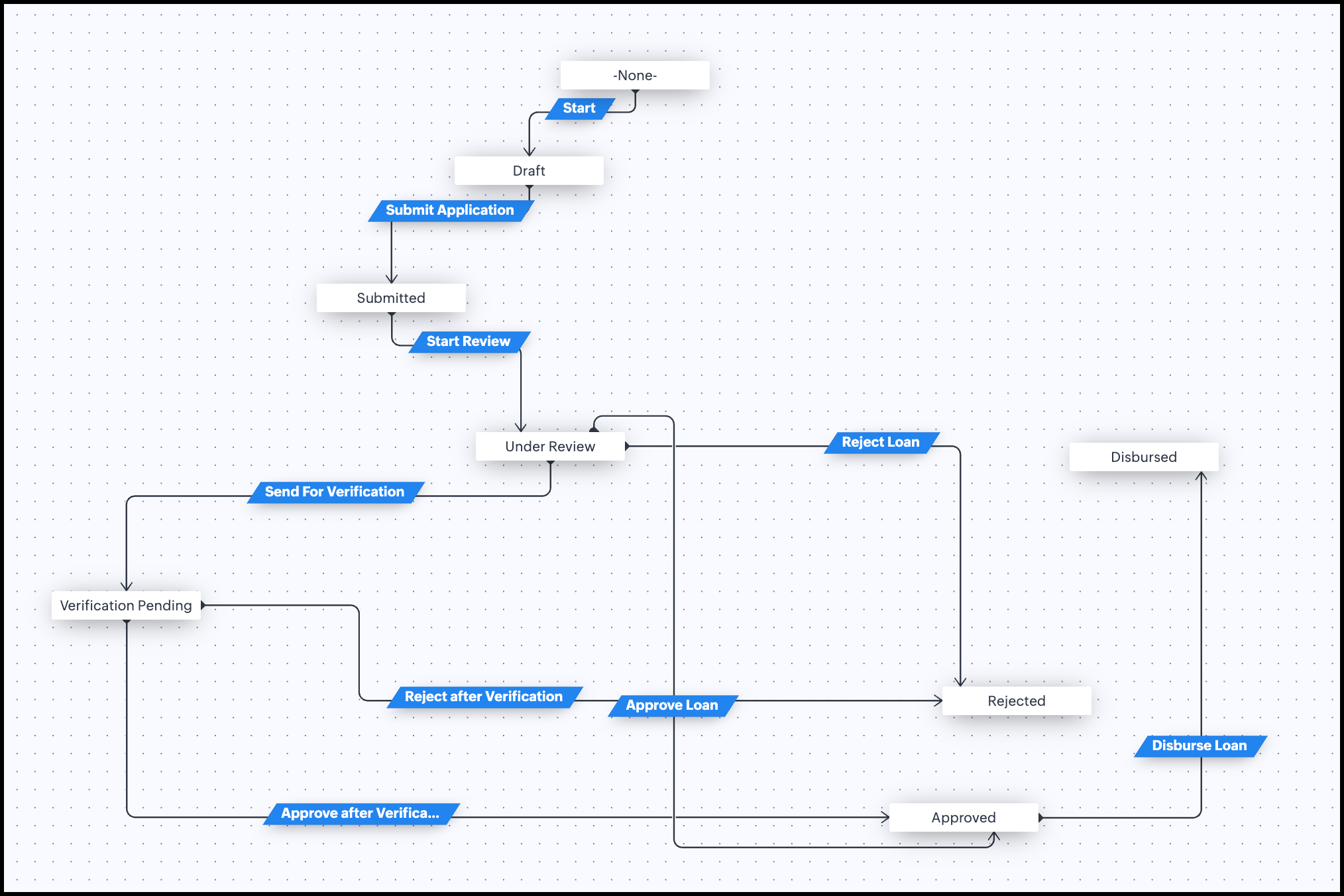
Add the states and transitions and configure the criteria for each tran
sition.
sition.
Step 2: Create a Query to fetch the Blueprint transition criteria.
- Go to Setup > Developer Hub > Queries.
- Click Create Query, provide the Query Name and click Next.
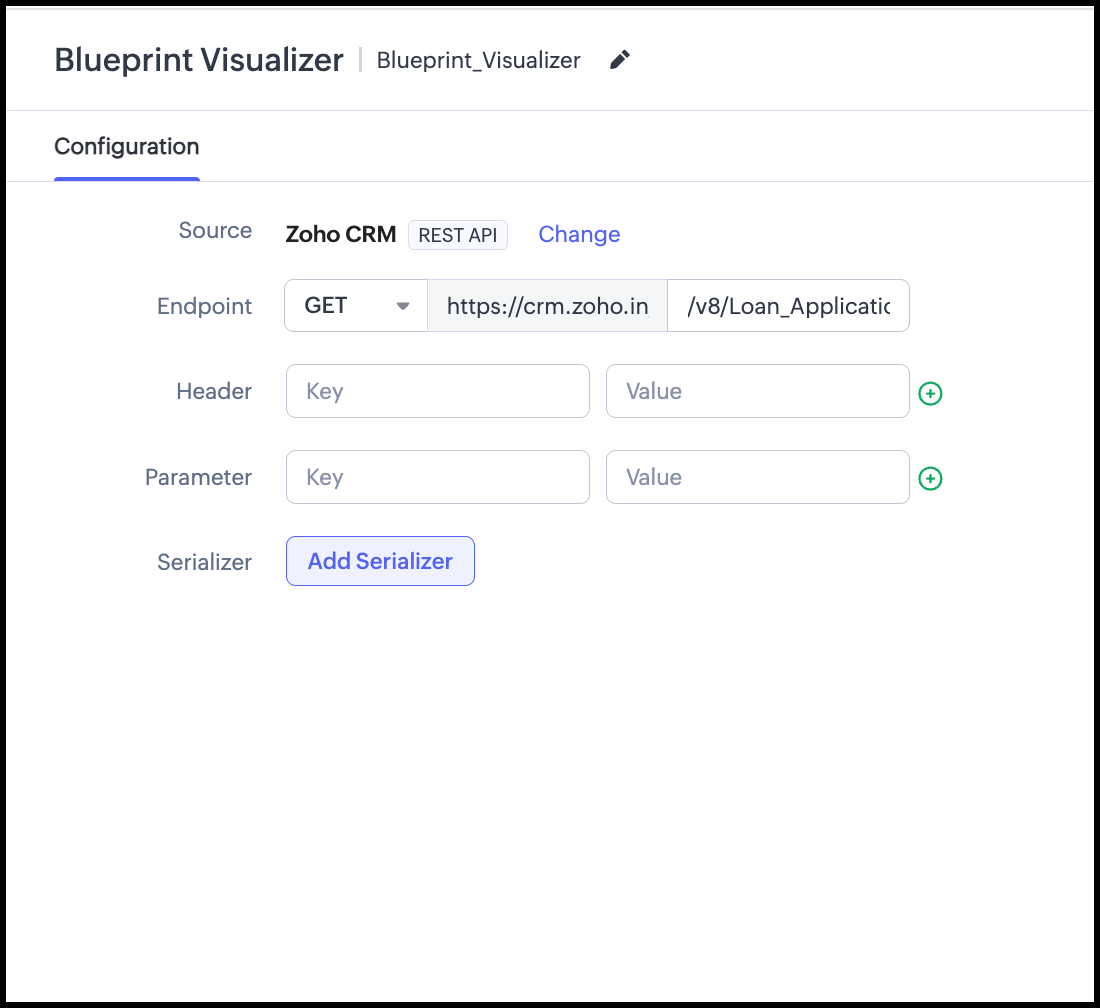
- In the Query Workbench, change the Source to Zoho CRM REST API.
- Provide the GET Blueprint API endpoint relative path and pass the record ID as variable in the Query./v8/Loan_Application/{{application_record_id}}/actions/blueprint
5. If you click Execute Query, then the query will return the following.
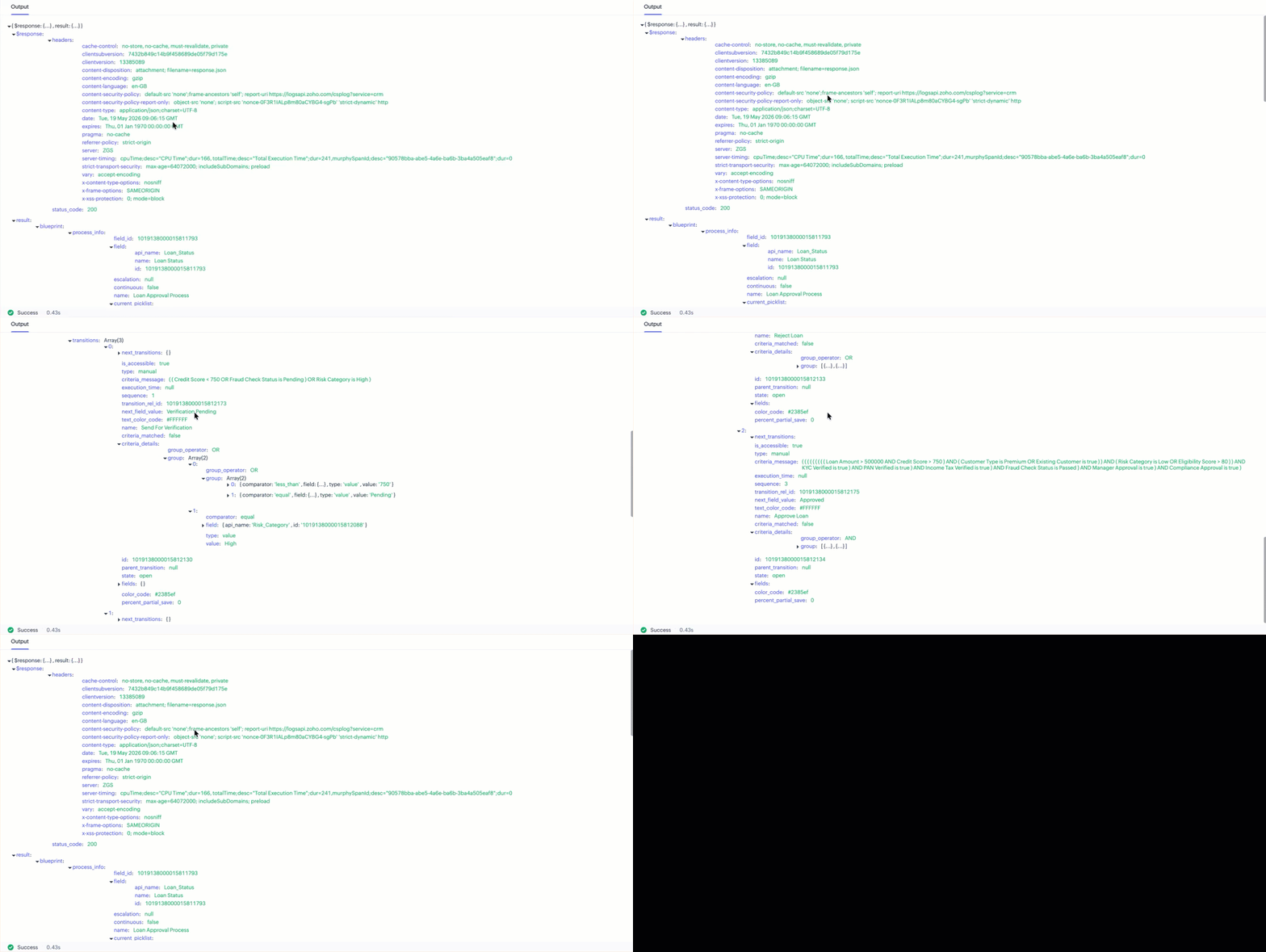
6. Provide the code to the Serializer to format the response according to your requirements.

Refer the Serializer code here.
The above code will return the response with the transition criteria details, current state, next state and whether the criteria matched or not.
7. Click Execute Query to test the response, then and click Save.
The Serializer returns the following response:
[ { "current_state": "Under Review", "transition_name": "Send For Verification", "next_state": "Verification Pending", "criteria_matched": "false", "criteria": "( ( Credit Score < 750 OR Fraud Check Status is Pending ) OR Risk Category is High )" }, { "current_state": "Under Review", "transition_name": "Reject Loan", "next_state": "Rejected", "criteria_matched": "false", "criteria": "( ( Fraud Check Status is Failed OR Risk Category is High ) OR Credit Score < 500 )" }, { "current_state": "Under Review", "transition_name": "Approve Loan", "next_state": "Approved", "criteria_matched": "false", "criteria": "( ( ( ( ( ( ( ( ( Loan Amount > 500000 AND Credit Score > 750 ) AND ( Customer Type is Premium OR Existing Customer is true ) ) AND ( Risk Category is Low OR Eligibility Score > 80 ) ) AND KYC Verified is true ) AND PAN Verified is true ) AND Income Tax Verified is true ) AND Fraud Check Status is Passed ) AND Manager Approval is true ) AND Compliance Approval is true )" } ] |
Step 3 : Associate the query with a Related List on the record detail page of the Loan Applications module.
- Open a record, click Add Related List, and select Queries from the list.
- Associate your Query from the list of queries displayed on the following screen.
- Provide the Related List name and map the record ID variable to the query.
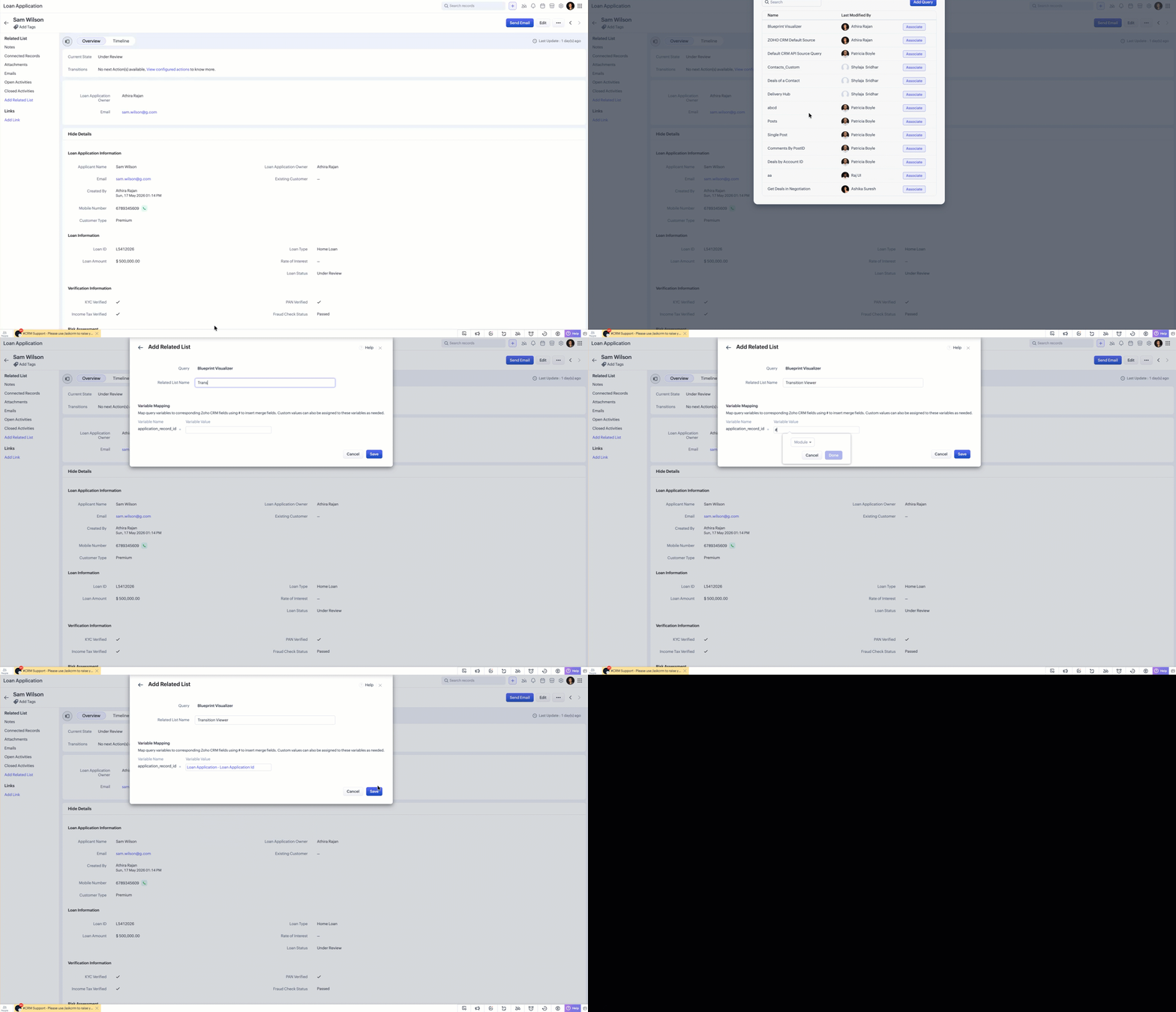
Now the Query results for that record will be visible inside the Related List you created.
The Outcome
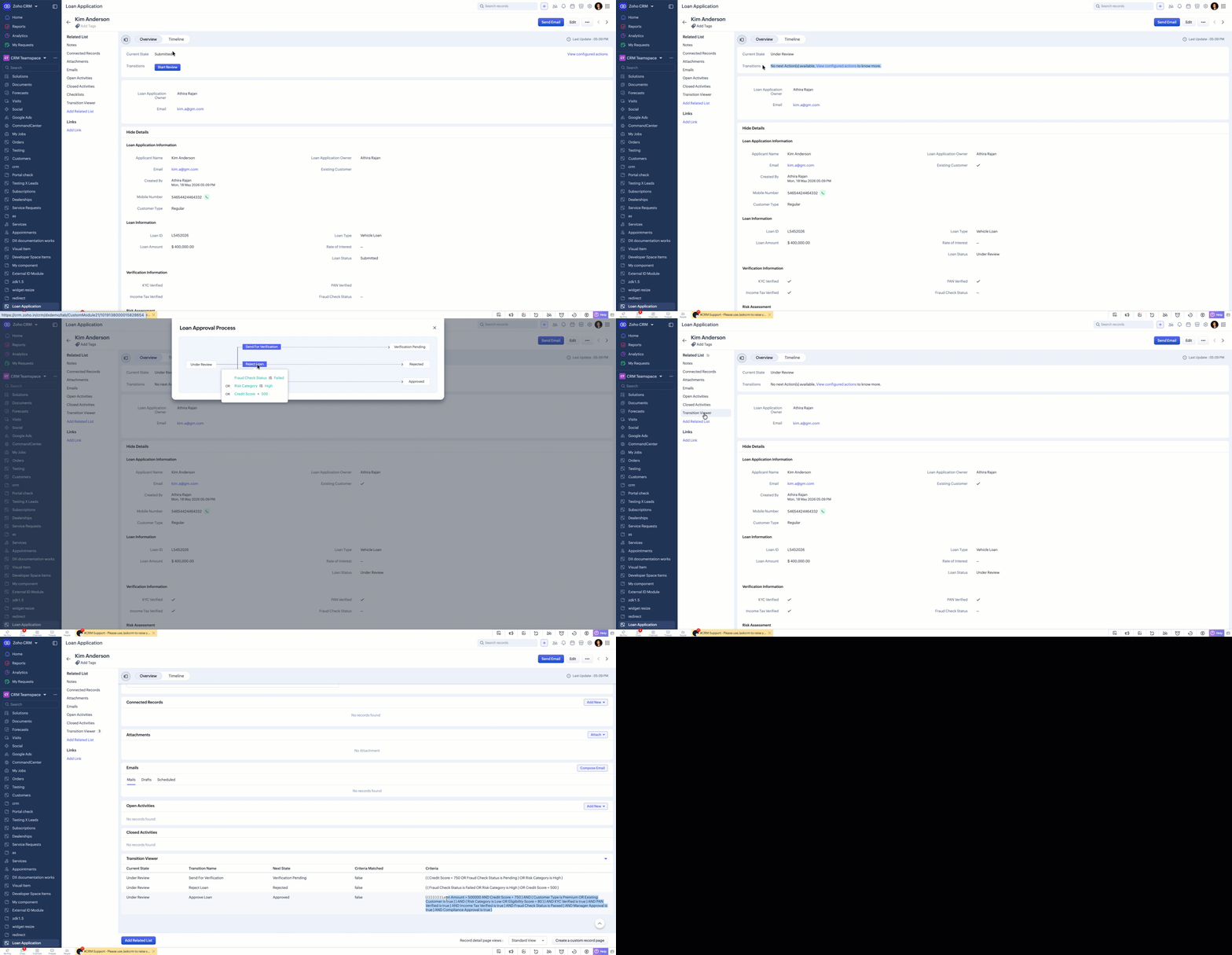
Voila! No more switching between records and Blueprint configuration screens. Users can now visualize complete Blueprint transition logic, including nested AND/OR criteria, directly from the record detail page.
We hope you found this post useful.
Happy Querying !

Previous Kaizen : Kaizen #243: Export Timeline Data from Zoho CRM Deals