Keep Sensitive Customer Data Private with Field Masking in Zoho CRM
Hello CRM community,
Customer records in your CRM are often accessible across multiple teams, but not every team needs visibility into every field. A non-sales team, for instance, has no real need to see a contact's mobile number, and a support agent verifying a caller's identity does not need to see it in full either. With field masking, a user can restrict this, displaying values as asterisks instead of actual data, or showing only partial values such as a mobile number like 9******8621.
What's New
Field Masking gives you granular control over who sees sensitive data in your CRM, and what happens to it when it leaves.
Full or partial masking: Fields can be completely hidden or partially masked, such as showing only the last few digits of a phone number or email Id.
Profile-based access to masked data: Choose which profiles, system-defined or custom, can view the unmasked value. Access can be granted according to need, ensuring only the right people see sensitive data.
Control over masked data shared outside CRM: When exporting data or sharing it through integrations and APIs, you decide whether masked fields go out as masked, unmasked, or restricted entirely.
Uninterrupted workflows: Even when a phone number is masked, users can still place calls directly by clicking the call icon, so day-to-day operations are not affected.
Template-level control: In email and other templates, you can choose whether a masked field appears in its masked or unmasked form, giving you flexibility in customer-facing communication.
Report-level control: When viewing or sharing reports, you can choose whether masked field values appear in their masked or unmasked form.
Use Case
Consider a typical support call where the agent needs to confirm the caller's identity without seeing the complete phone number or policy ID. With field masking:
Sensitive fields like phone numbers, account numbers, or policy IDs are masked by default
Agents see only partial values such as the last 4 digits
They can ask, "Can you confirm the last 4 digits of your registered number?" and proceed with verification
Even with the number masked, agents can still place a call directly by clicking the phone icon next to the field, so day-to-day calling workflows remain unaffected
This balances security with usability, ensuring sensitive data stays protected without slowing down day-to-day operations.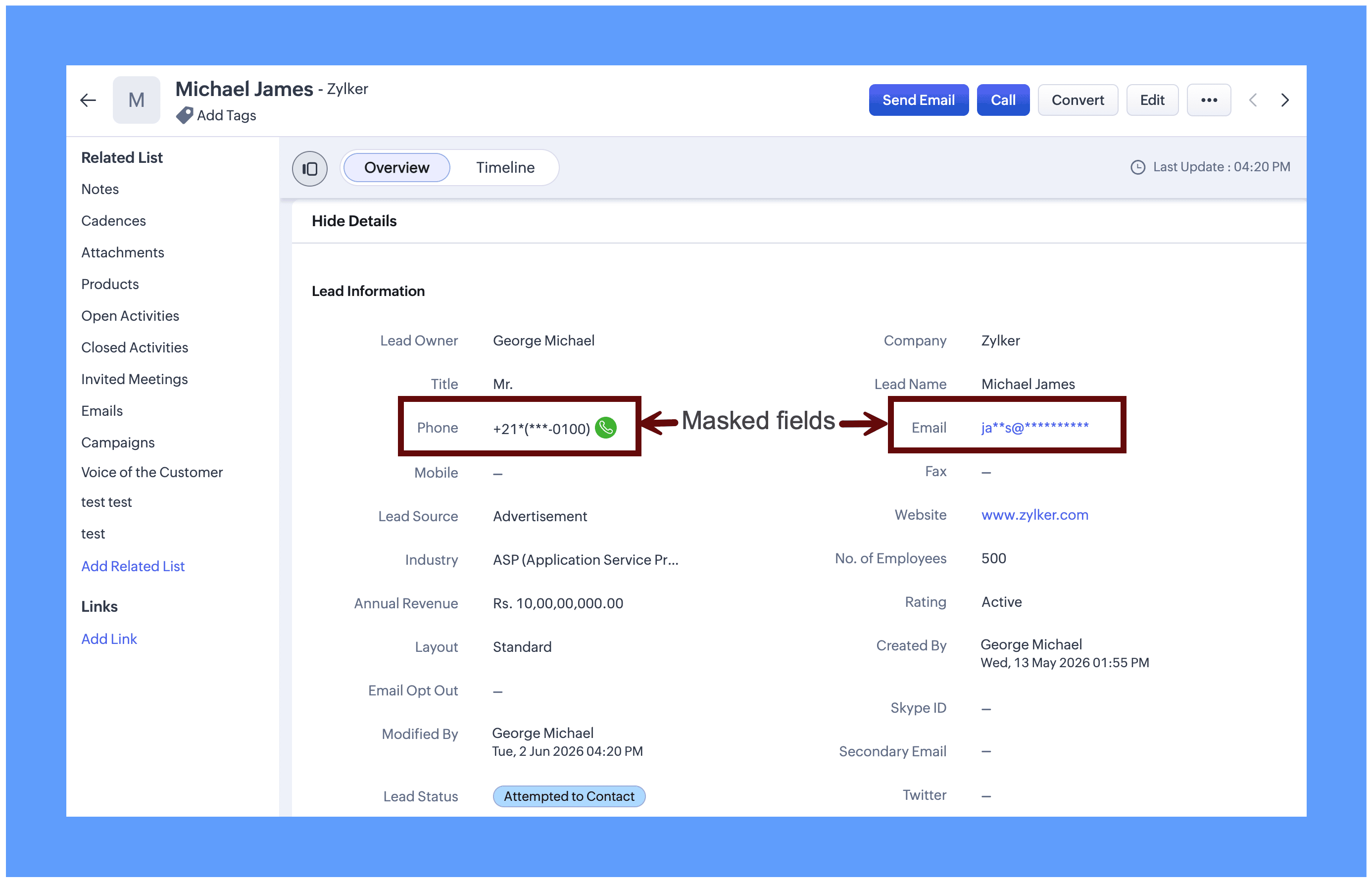
Field masking is equally useful for protecting sensitive data across a range of real-world scenarios: Aadhaar numbers, social security numbers, email addresses, policy numbers, and similar fields. It can be applied to both system-defined fields and custom fields, giving you the flexibility to protect exactly the data that matters to your organization.
Enabling Field masking
Field Masking is enabled in two stages: First you turn the feature on and then you choose which individual fields to mask.
Step 1: After field masking is enabled, you can configure how masked fields behave when data leaves CRM through integrations, APIs, or exports.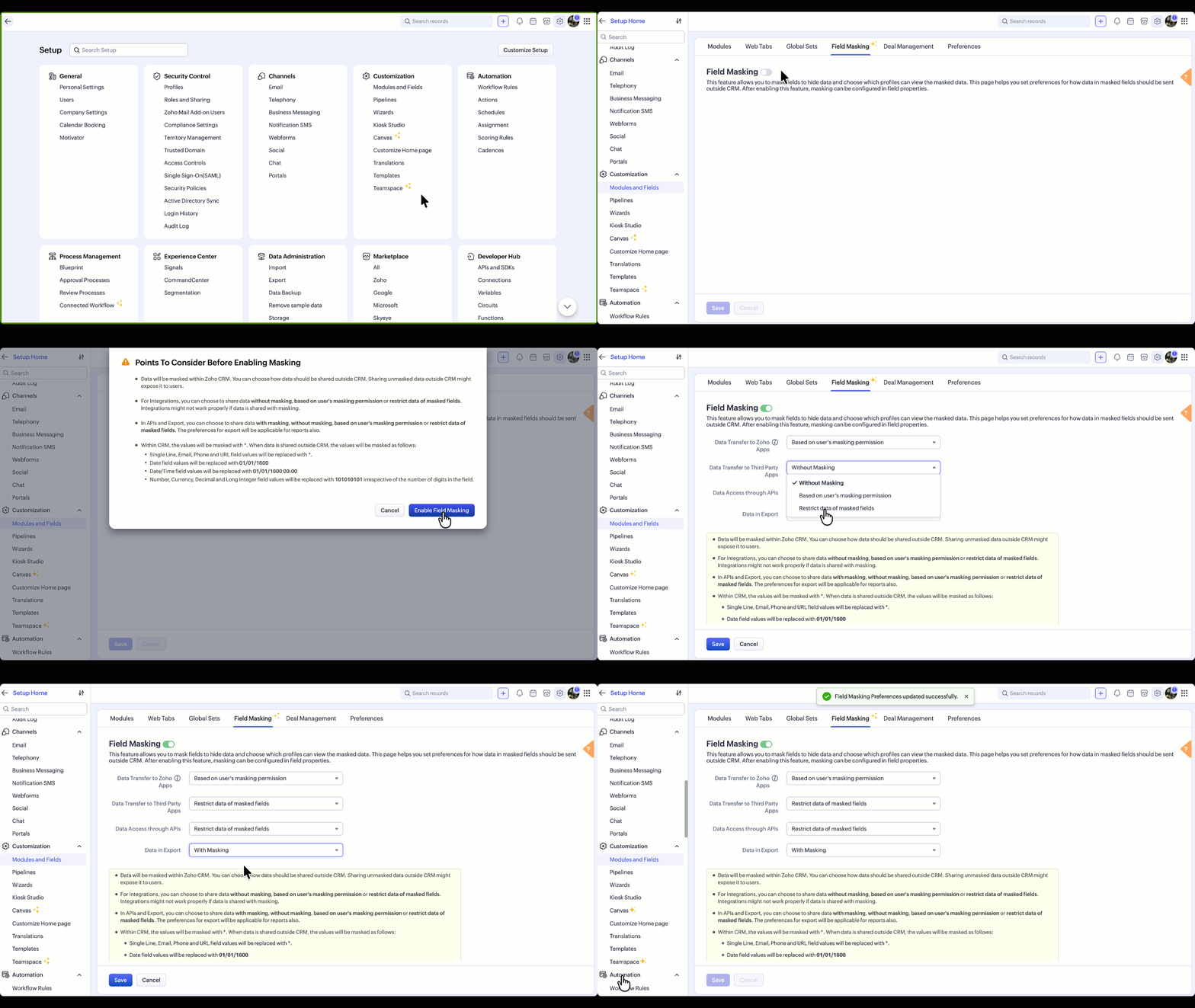
You can update your data sharing preferences anytime from the Field Masking page.
Note: Field Masking can also be enabled in the field properties, which is an alternative way to enable it.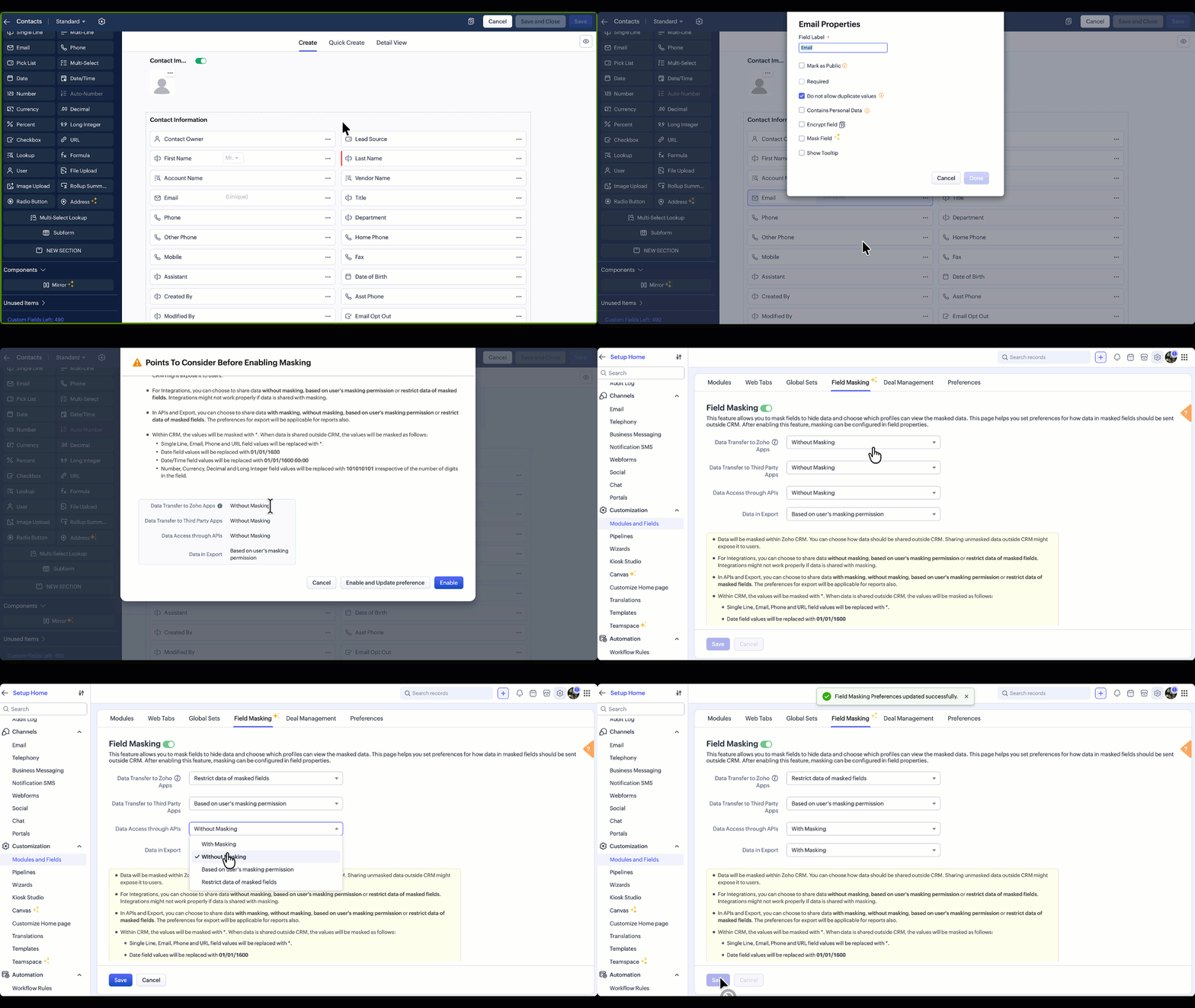
Points to Consider Before Enabling Field Masking
Once enabled, data will be masked within Zoho CRM. However, every time data leaves CRM, whether through an integration, an API call, or an export, you control how masked fields behave at that exit point. For any of these scenarios, three options are available:
Without Masking: The original value is shared as-is. Suitable when the receiving system or user is trusted and needs the complete data.
Based on User's Masking Permission: The masked or unmasked value is shared depending on what that user is allowed to see within CRM. A user who cannot view a phone number in CRM will not receive it in an export or API response either.
Restrict Masked Fields: The field is excluded entirely from the transfer. Useful when there is no legitimate reason for sensitive data to leave CRM at all.
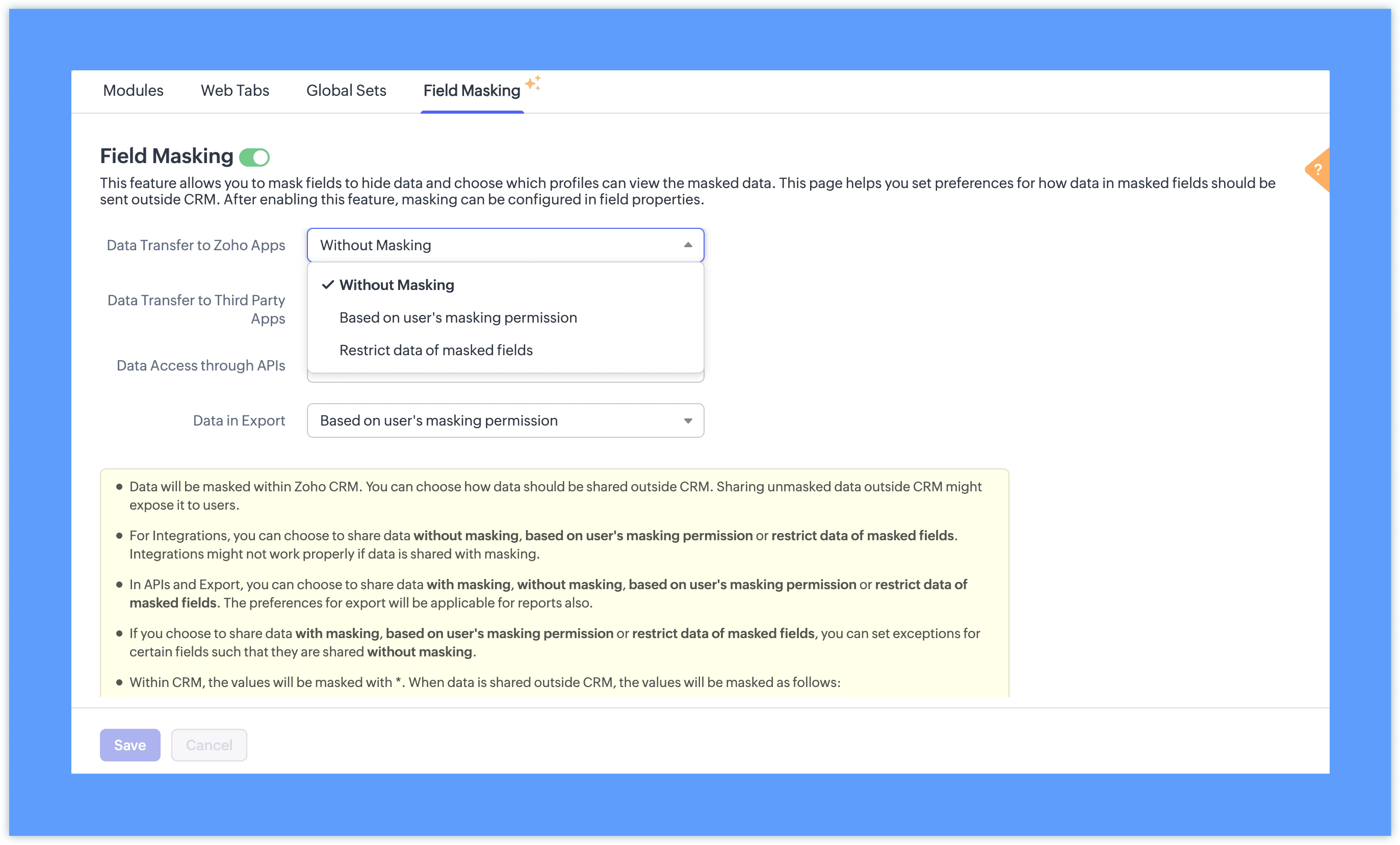
With masking: The masked format (such as 98******21) appears instead of the original value. This option is available only for APIs and Exports, and is useful when sharing data with teams who need to reference records without seeing the underlying values. This is particularly useful when sharing reports with teams who need to reference records without seeing the underlying data.
Note: Setting exceptions for these preferences for specific fields is planned in the future updates.
Step 2: Once field masking is enabled, fields can be masked fully or partially based on your requirements. You can also define which profiles have access to view the unmasked value.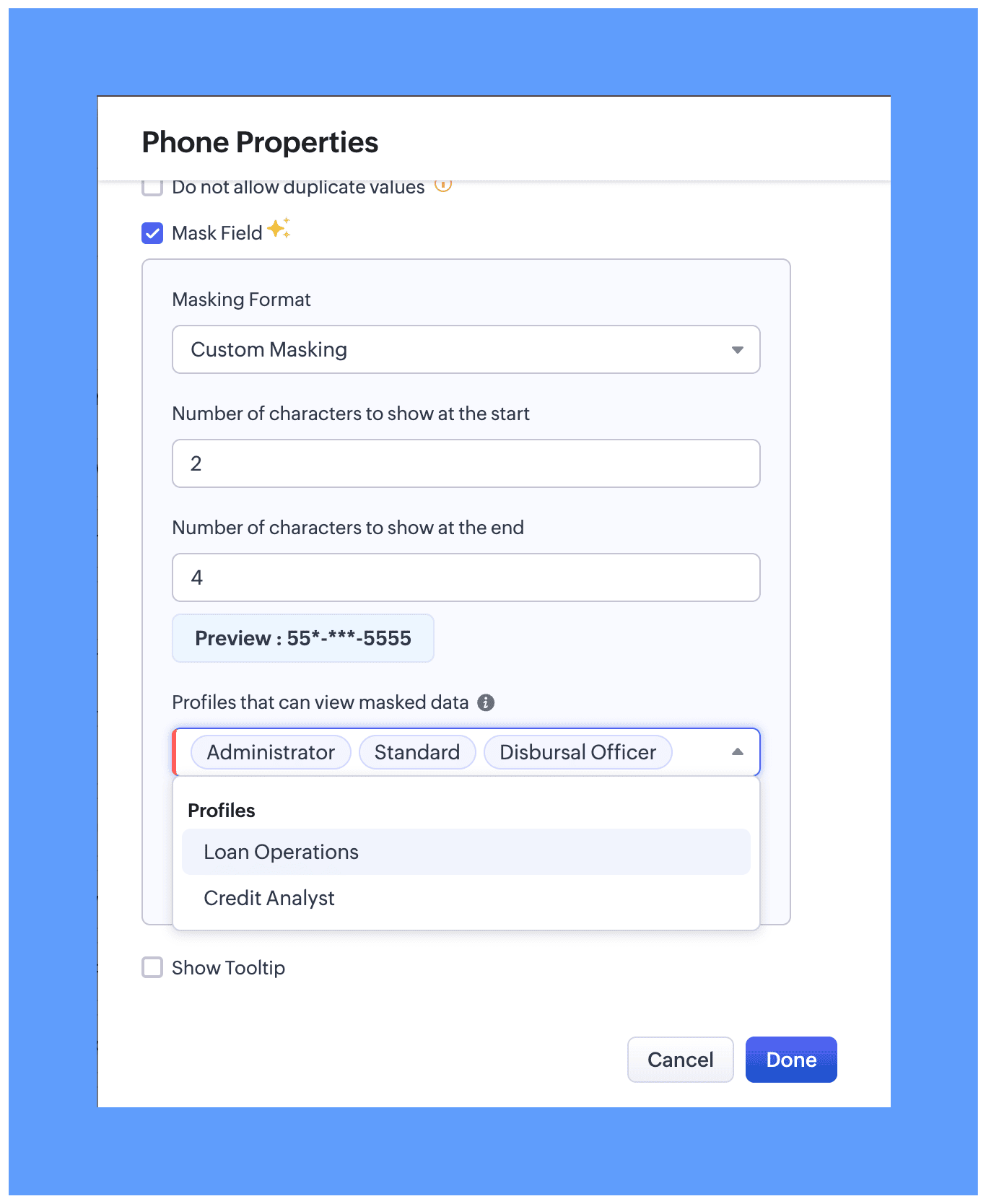
In module layout while editing properties for the preferred field. Two masking types are available:
Full Masking: The entire field value is hidden, for example ********.
Custom Masking: You can choose to mask only the first few characters or only the last few characters of the field value.

While configuring field masking, you can define which users can view the actual unmasked data. All profile types, whether system-defined or custom, are available for selection and will be able to view the unmasked data based on your preference.
For users with permission to view masked data:
An eye icon (👁️) will be displayed next to the field.
Clicking this icon reveals the actual value.
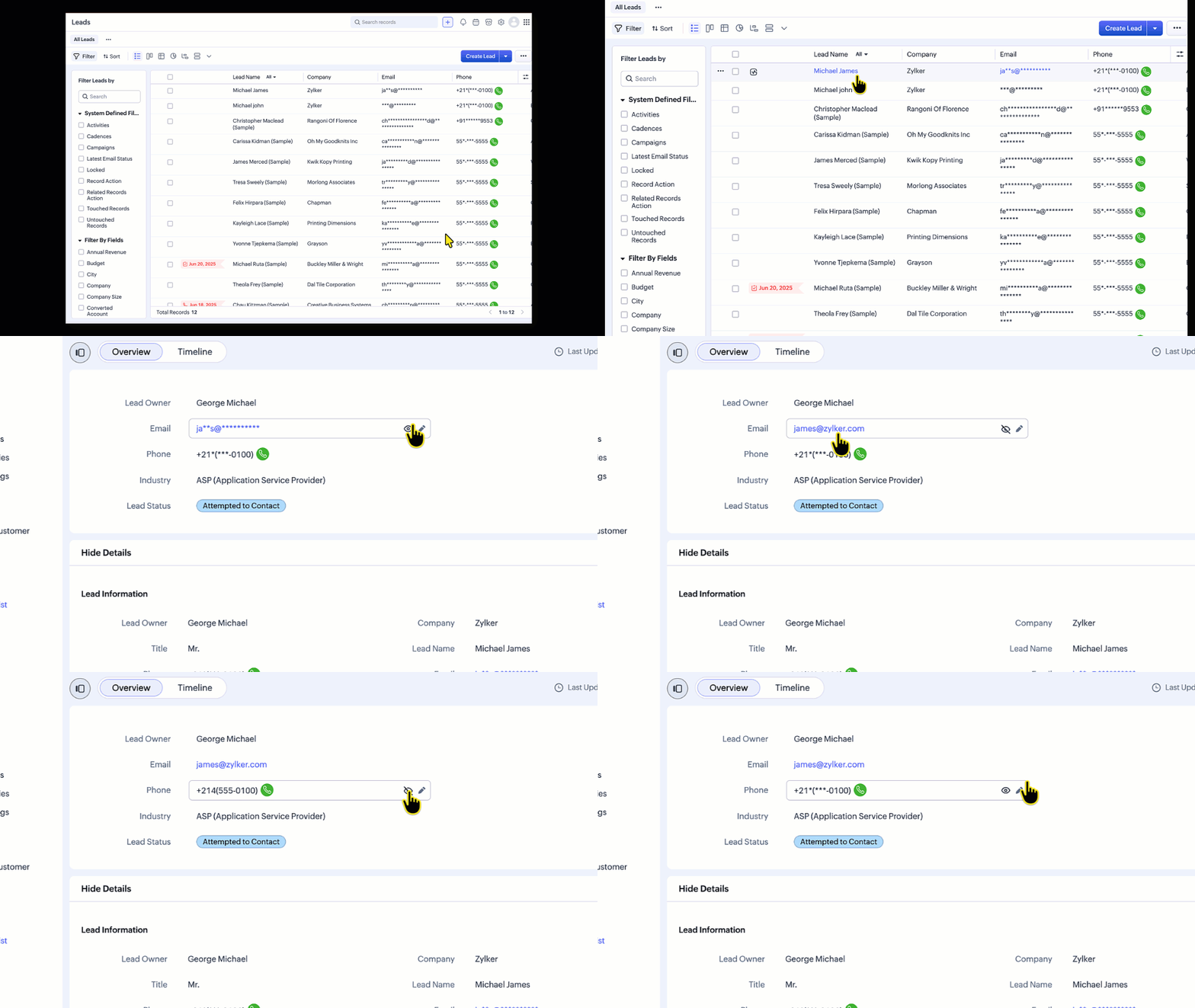
Can place a call directly even without able to view the masked phone number
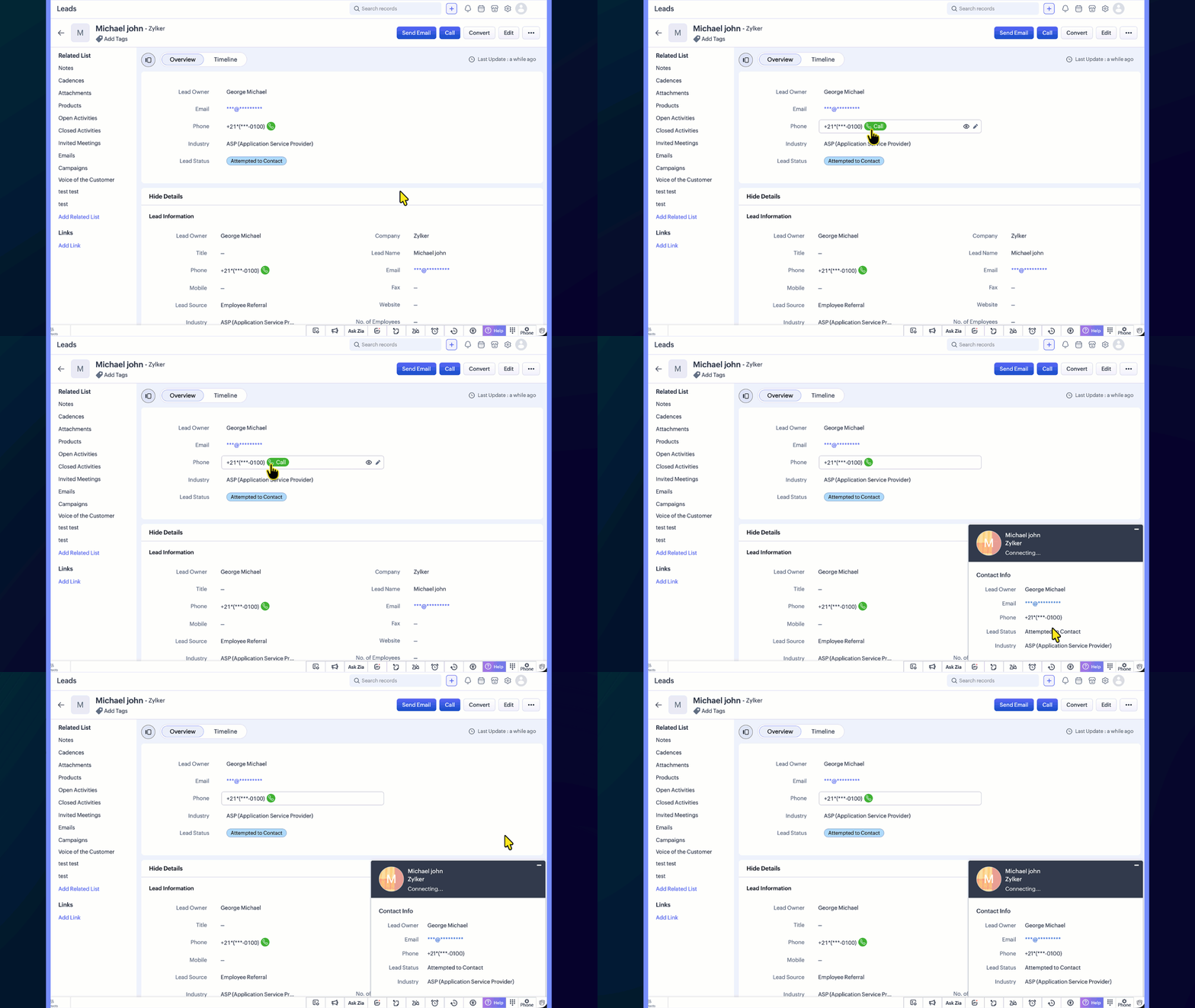
List Views
In list views, the data can be unmasked from the hamburger icon available in the column header.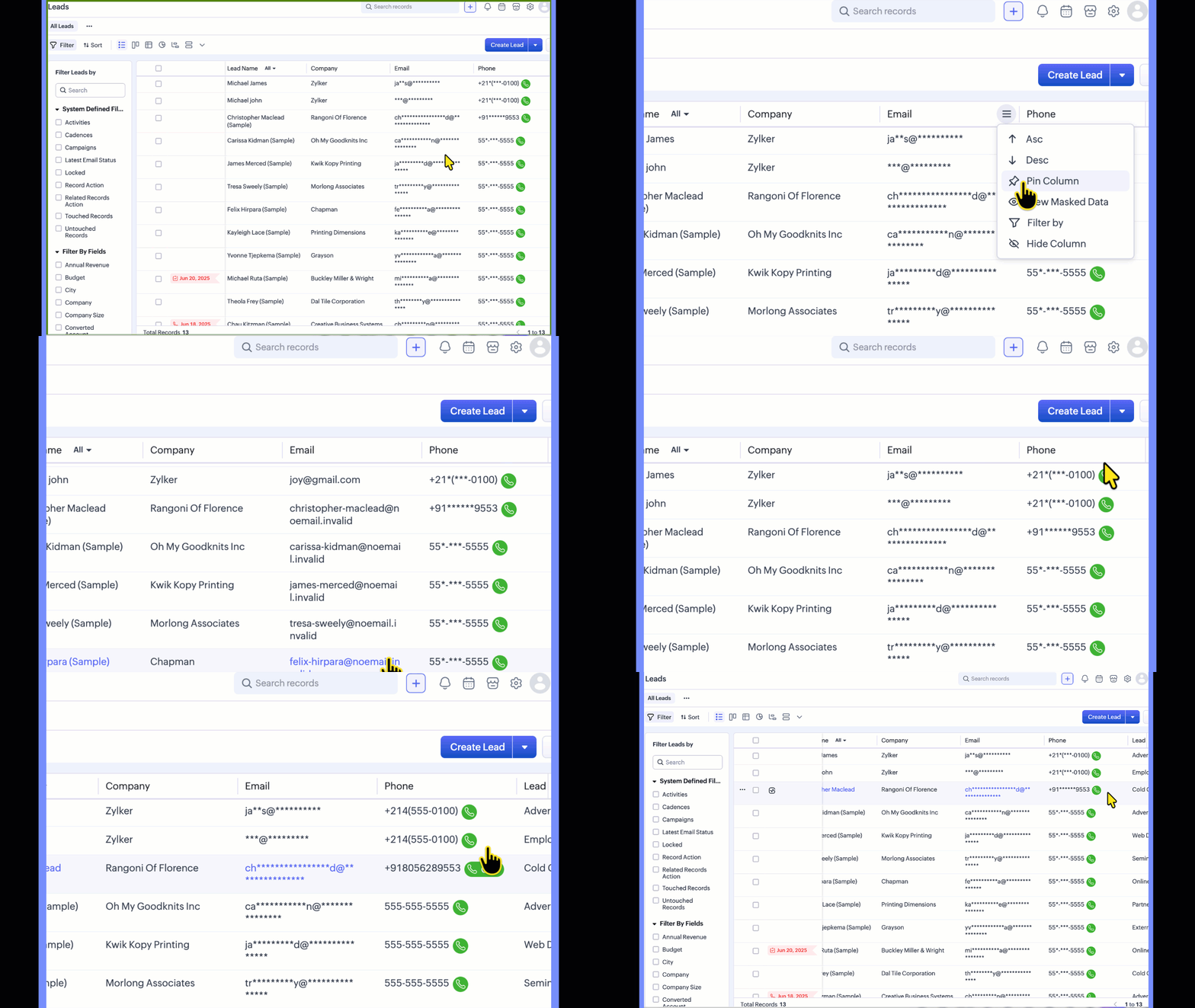
Templates
In templates, the Mail data with Masking preference lets you control how merge field data is shared when mails are sent using the template. This preference applies to all masked fields, regardless of profile permissions.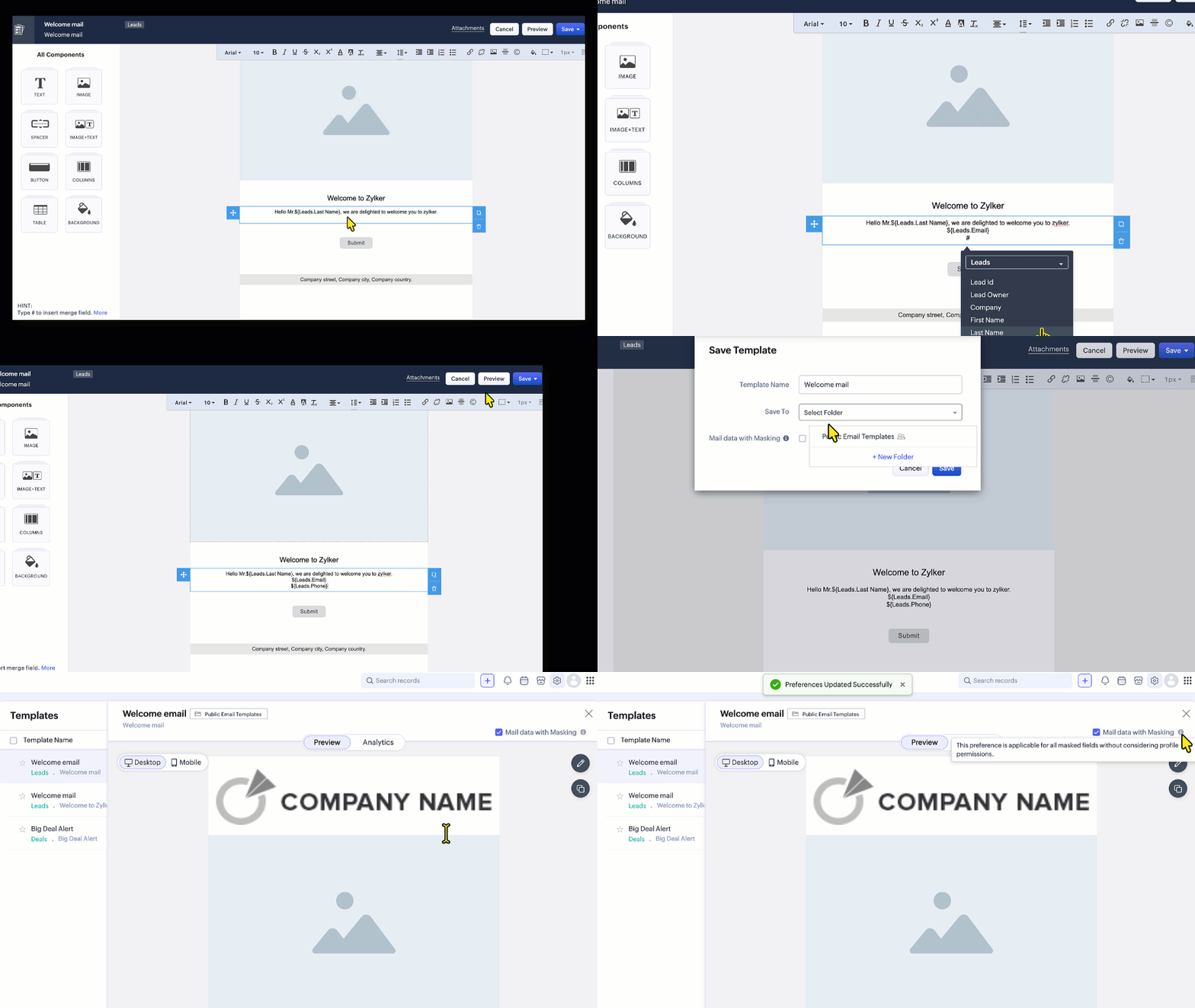
Reports:
When viewing or sharing reports, you can choose whether masked field values appear in their masked or unmasked form.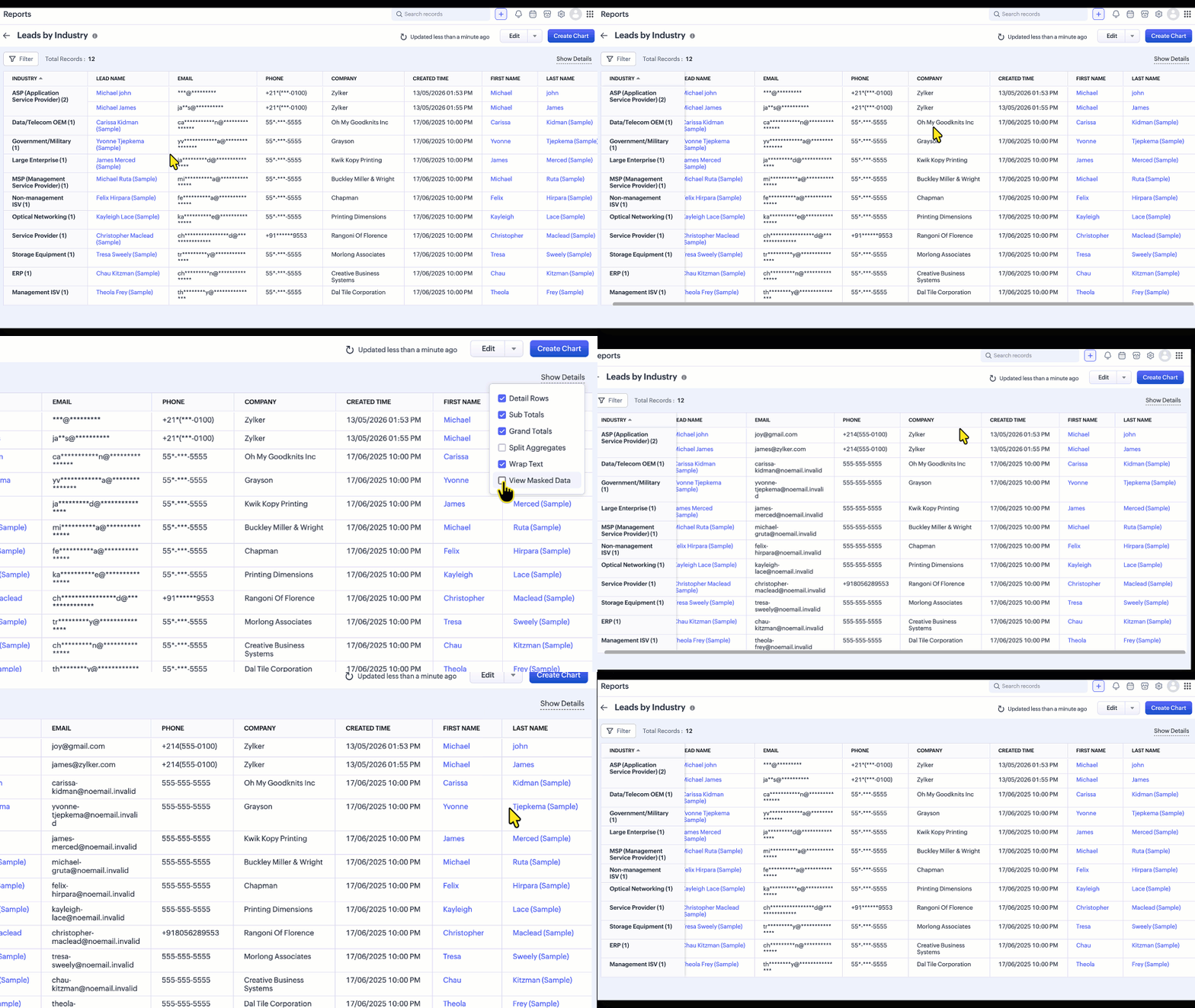
Supported field types
Field Masking can be applied to the following field types:
Single Line, Email, Phone, Date, Date/Time, Number, Currency, Decimal, Long Integer, URL
 Note: Custom Masking is supported for Single Line, Email, and Phone fields.
Areas where field masking is yet to be implemented
The following are the current limitations of Field Masking, including areas where masking is not yet supported (masking is exposed):
Email Views - Emails Related List,Conversation View, SalesInbox, Mail Magnet, Email Reports, Mass Mail Delivery Stats and record preview in composer.
If the From/To field in the Calls module is masked but the number is not associated with a record, the number will be visible when the call is placed.
Signal notification
Zia Features
Mobile App
Note:
Once this feature is enabled for your org, the phone number is not shown in the call subject in calls module, whether or not Field Masking is enabled.**
If masked fields are used in Layout Rules, Validation Rules, Canvas Rules, or Wizard Conditional Rules, the rules may not execute as expected, because they rely on client-side data. A fix that prevents masked fields from being used in these rules is tentatively expected to go live within a week.
Feature Availability
Edition Supported: Enterprise and Ultimate editions of Zoho CRM,
Limits: Up to 10 masked fields per module in the Enterprise edition and up to 20 masked fields per module in the Ultimate edition.
Note: Field Masking is available across all modules except the Users module.