Make Your Workflows Smarter with Zia Agents
Hello, Enterprise Support Community,
Workflow rules can now go beyond predefined actions. Zia Agents can now be invoked directly from workflow rules in Zoho CRM, allowing you to bring contextual, AI powered actions into your automated processes.

Choose a deployed Zia Agent as an action within your workflow rule, define what you want the agent to do, and let it analyze the relevant CRM record when the workflow runs.
Bring Your Agents into Your Workflows
First, create and configure your Zia Agent with the instructions, tools, and connections it needs to complete its task. Once configured, deploy the agent from the Zia Agents page and ensure it is available in Zoho CRM.

When configuring a workflow rule, select Zia Agent as an action. Your deployed and configured agents will be available for selection. If you need to create a new agent, select Create Agent to open the Zia Agents page and configure one.
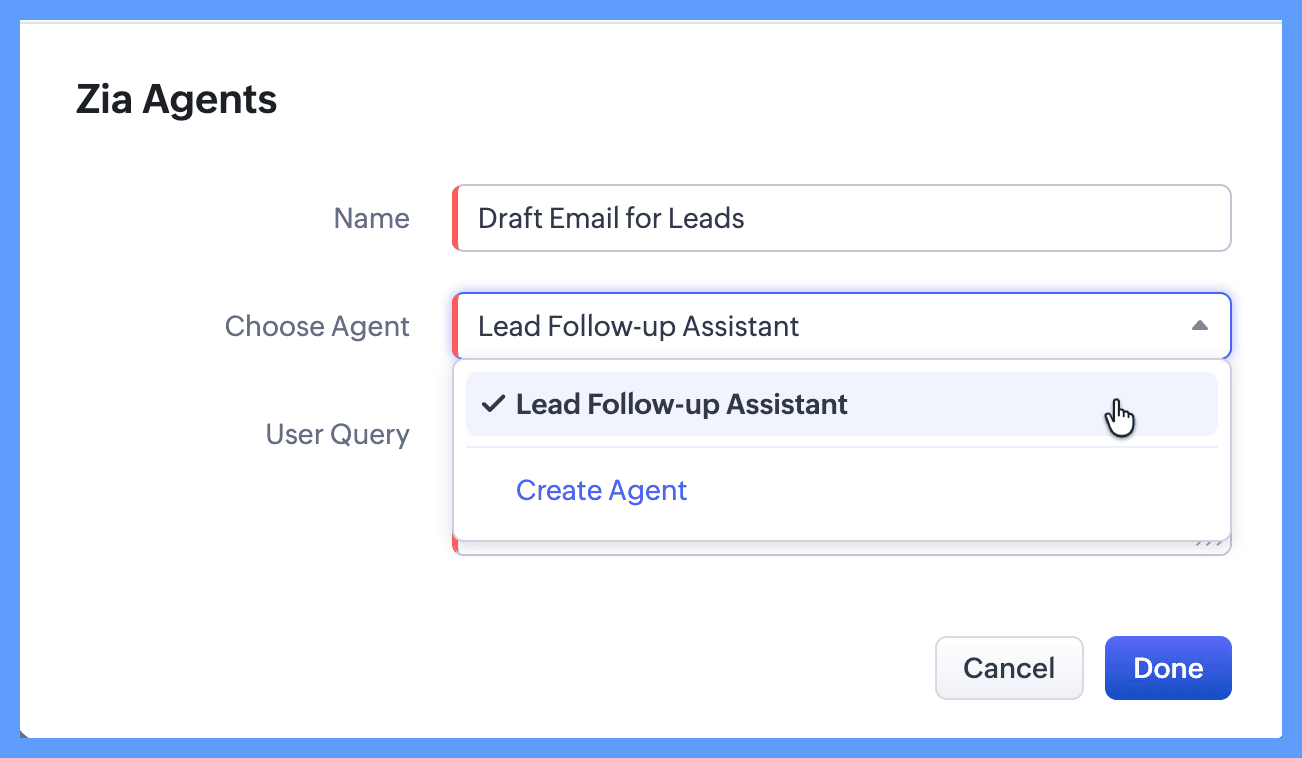
After selecting your agent, define the query you want to send when the workflow runs. You can also use merge fields in the query to include specific information from the CRM record.
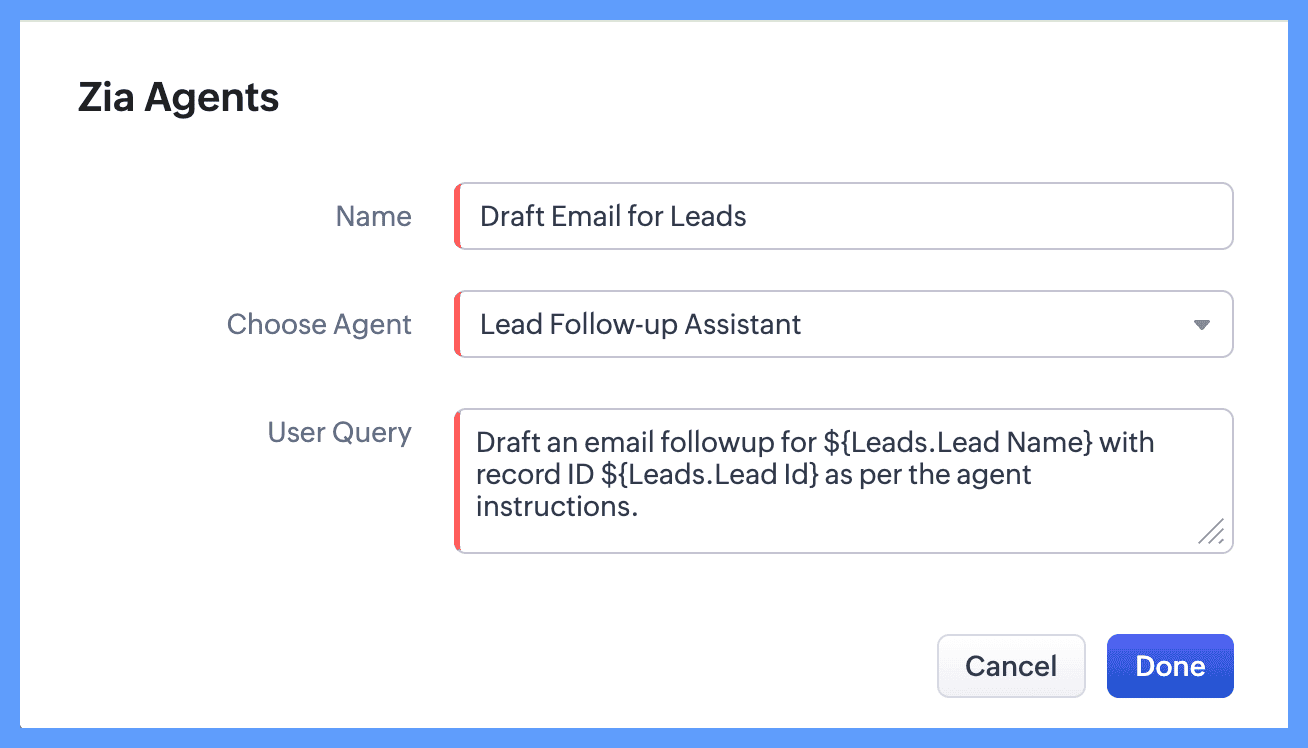
The workflow rule determines when the agent runs and provides the relevant record context. The Zia Agent then uses its configured instructions, tools, and connections to determine how to complete the task.
Example: Personalized Lead Follow Up
For example, when a new Lead is created, a workflow can invoke a Lead Follow Up Agent to review the lead’s information and prepare a personalized follow up email.
For this example, the agent is equipped with tools to retrieve the lead record and create an email draft. This allows the agent to consider information such as the lead’s company, role, requirements, and other available context when creating the email.

Instead of sending the same predefined email to every lead, the agent can tailor the message based on the information available for that specific record.
Once the workflow is activated, the agent automatically creates a personalized email draft whenever a new Lead is created. The generated draft can then be viewed in the Email Drafts section.

How It Works