Malware Processing in Zoho Mail: Block malicious email content before it reaches your users
Malware embedded in emails is one of the most common ways attackers compromise user devices and extract sensitive data. Emails containing hidden tracking elements, executable scripts, or malicious HTML tags can bypass basic spam filters and reach users' inboxes undetected.
Zoho Mail's Malware Processing feature allows administrators to configure spam checks based on specific content types and HTML tags. This ensures that emails carrying potentially harmful content are automatically moved to spam before they reach users.
What is malware processing ?
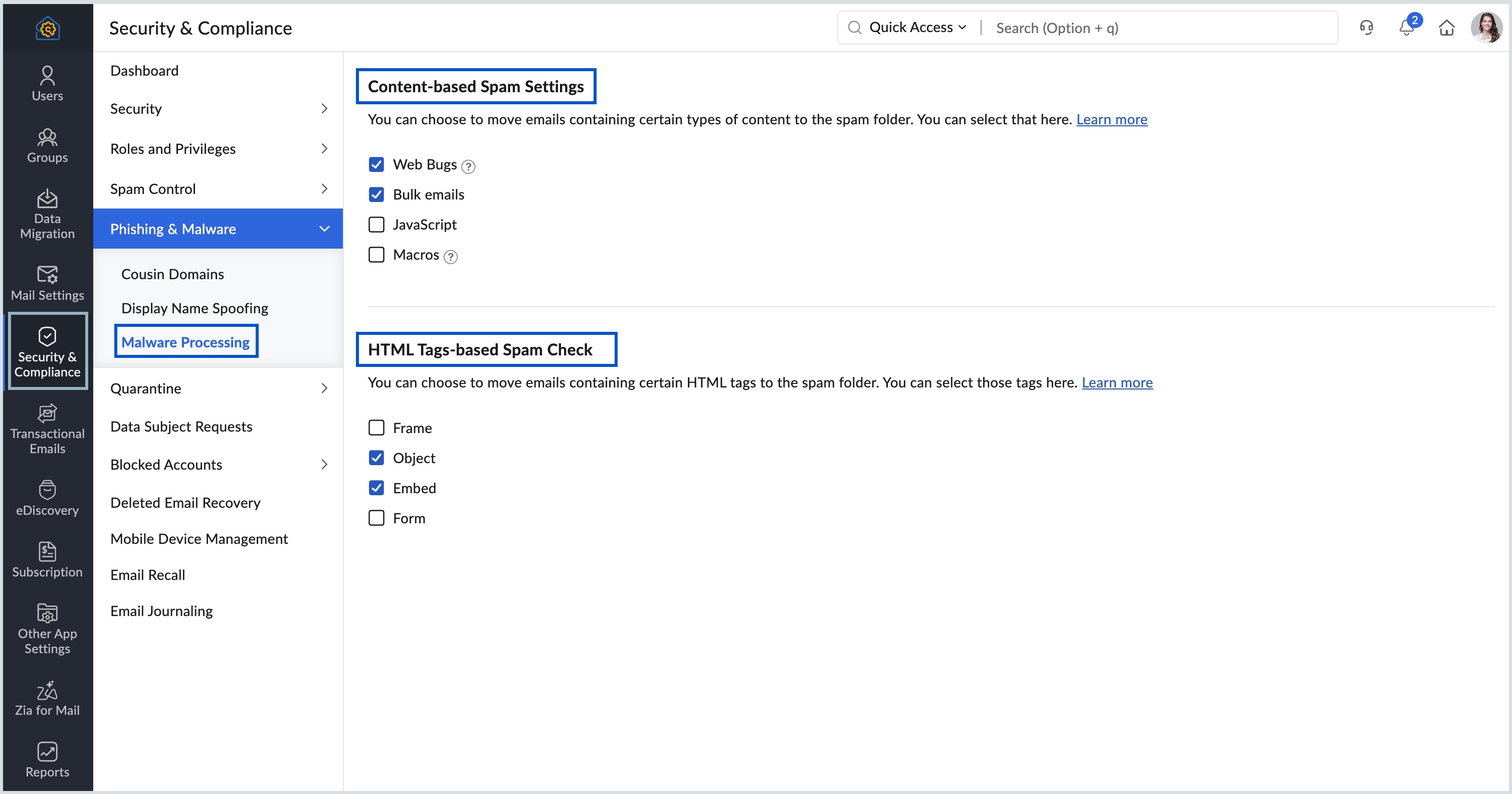
Malware processing is a configuration available in the Zoho Mail Admin Console. It allows administrators to define spam checks based on two categories:
Content-based spam settings
HTML tags-based spam check
Administrators can select specific content types and HTML tags, and any incoming email containing the selected elements will be automatically moved to spam.
How can administrators use malware processing effectively in Zoho Mail Admin Console?
Malware processing in Zoho Mail gives administrators the ability to flag and filter emails based on the type of content or HTML tags they contain, before they reach users' inboxes.
Flag high-risk content types: Select from four content types: Web Bugs, Bulk emails, JavaScript, and Macros to automatically move emails containing these elements to spam.
For example, emails with JavaScript or Macros can execute malicious code on a user's device when opened, making it essential to flag them before delivery.
Flag malicious HTML tags: Select from four HTML tags: Frame, Object, Embed, and Form to automatically move emails containing these tags to spam. These tags are frequently used to embed malicious content or redirect users to phishing sites.
Steps to configure content-based spam settings
Login to the Zoho Mail Admin Console.
Go to the Security & Compliance menu, and select Phishing & Malware.
Select the Malware Processing option.
In the Content-based Spam Settings option, you can see 4 content types (Web Bugs, Bulk emails, JavaScript, Macros) listed.
Select the types that you think might be harmful, and emails containing the content types selected will be moved to spam.
Steps to configure HTML tags-based spam check
Log in to Zoho Mail Admin Console.
Navigate to Security & Compliance in the left pane.
Select Phishing & Malware and click Malware Processing.
Under HTML Tags-Based Spam Check, select the HTML tags (Frame, Object, Embed, or Form) that you want to flag as harmful.
Emails containing the selected HTML tags will be automatically moved to spam.