New Features rolled out on October 7, 2016
Enhancements in User Filters
In continuation with our updates on the user filter feature ( Timeline Filter ), we have once again come up with a list of enhancements to increase its usability.
In this update the following features have been supported:
1. Highlighting applied filters: This feature automatically highlights the user filter that has been applied on your report/dashboard with a subtle green color. This helps you quickly identify the filter that has been applied.

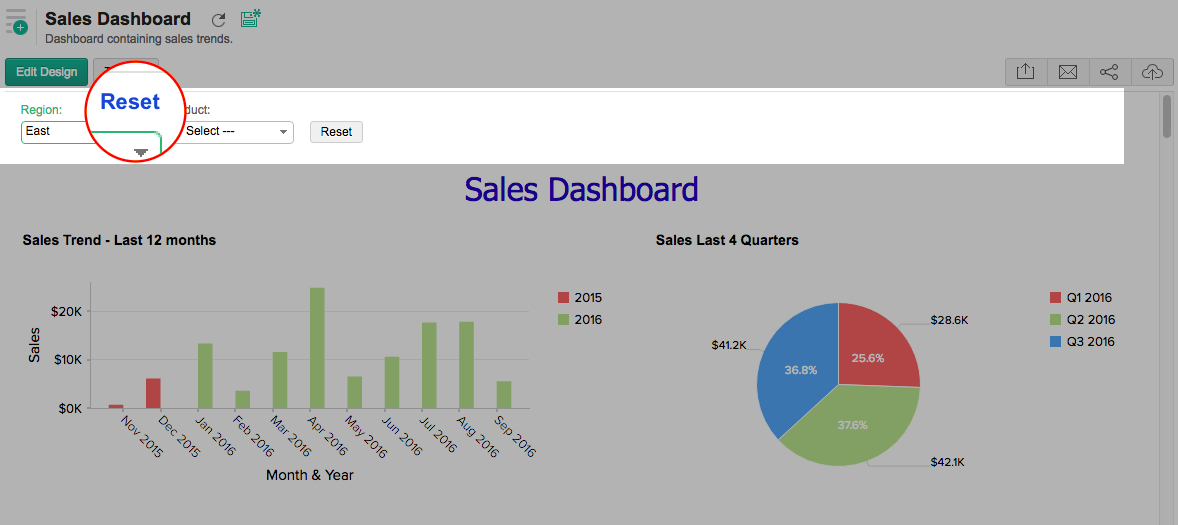
2. Filter Level Reset: You can now reset a particular user filter that has been applied. To reset individual filters, click the Reset link available on the top of the corresponding filter.
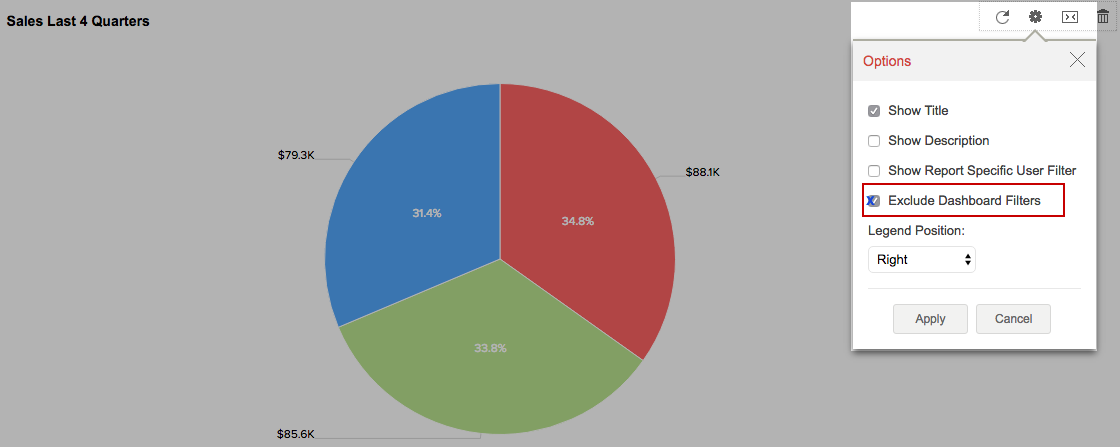
3. Excluding Dashboard Filters: You can now choose to exclude a particular report in a dashboard if you do not want the user filter to be applied on it.
To exclude a report,
- Click the Options icon of the report in the dashboard designer
- Select Exclude Dashboard Filters .
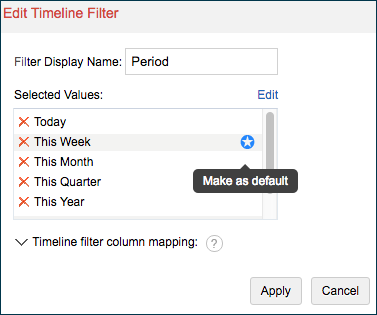
4. Default Value in Timeline Filter: You can now set a default value for the timeline filter too .
To set a value as default,
- Click the Edit icon on your timeline filter
- In the Selected Values list click the Star icon that appears on mouse over to mark the value as default.
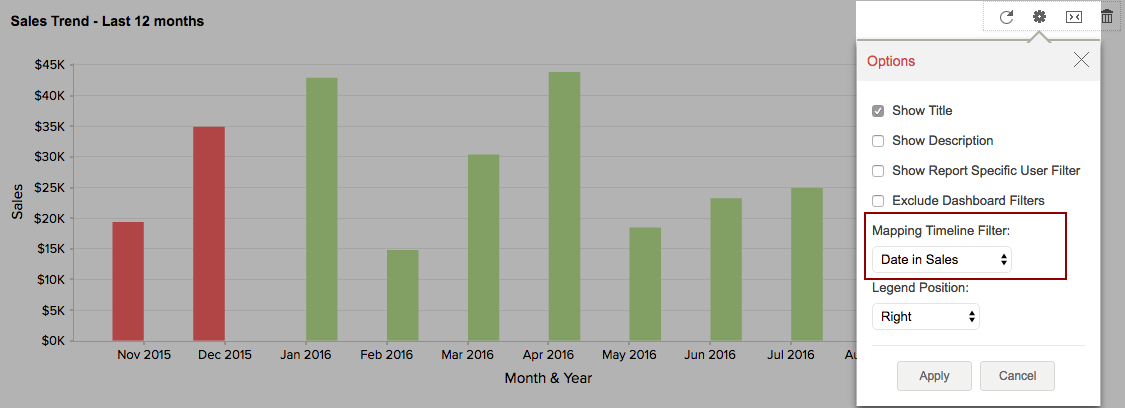
5. Timeline Date Column mapping: You can now map a date column to be used for a timeline filter at a report level.
- C lick the Options icon of the report in the dashboard designer
- Select the date column from the Mapping Timeline Filter drop-down.