New in Office Integrator: Apply conditional formatting to entire rows
Hi users,
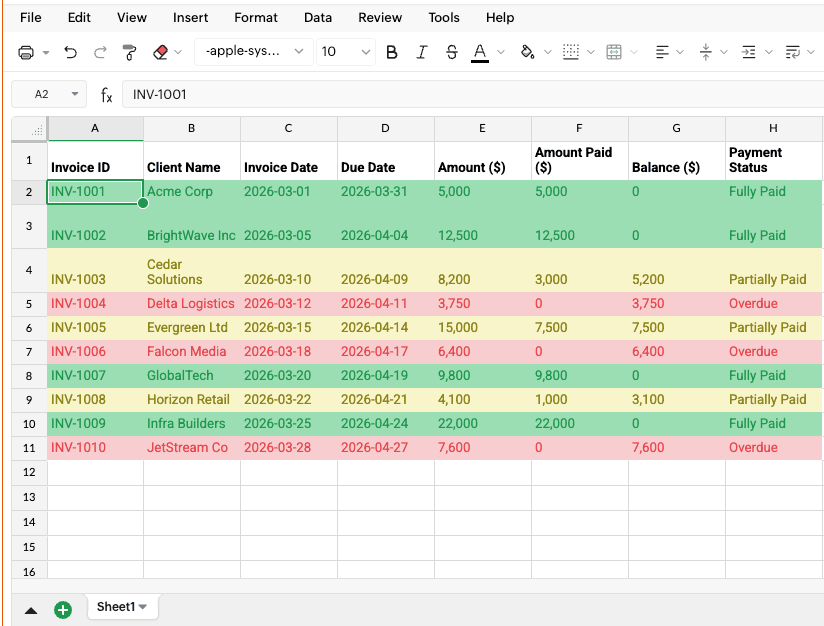
We are pleased to introduce the ability to highlight entire rows based on a cell's value in Zoho Office Integrator's spreadsheet editor. For example, if your finance team tracks invoice payments in a spreadsheet, you can highlight overdue invoices in red, partially paid invoices in yellow, and paid invoices in green—allowing you to visually distinguish rows that meet specific criteria directly from within your web app.
Steps
- Open your spreadsheet.
- Navigate to Format > Conditional Formatting.
- Add your desired condition and choose Apply to Row.
Highlights of the row highlighting capability:
- One-click setup: Apply conditional formatting to multiple rows with a single click. No formulas needed.
- Multiple conditions: Define different conditions with distinct colors to categorize your data at a glance.
- Visual clarity: Instantly spot rows that need attention based on cell values.
Learn more:
Check out the new updates to the spreadsheet editor in Zoho Office Integrator and let us know your feedback at support@zohoofficeapi.com or support@eu.zohoofficeapi.com or in the comments below.
Regards,
The Office Integrator Team