Rich Text Notes in Zoho CRM : Solved via Custom Widget (Workaround)
Hi All Zoho Users & Developers
I am creating this post as a starting the discussion on the Rich Text notes feature in Zoho CRM. Seems this is been open for more than seven years. We, our team has developed a simple workaround via widgets.
Problem:
Despite being introduced in 2005, Zoho CRM still lacks a Rich Text notes feature. Integrating this functionality could significantly enhance usability and productivity for users. Given the importance of comprehensive and visually appealing notes in managing customer relationships, it's surprising this feature hasn't been implemented yet. Its addition could further strengthen Zoho CRM's position in the market.
Innovatively,
despite Zoho CRM lacking a native Rich Text notes feature, our team has devised
a workaround by creating a widget that serves this purpose. This widget fills a
crucial gap, empowering users to format text, embed images, and enhance their
notes within the CRM platform itself. This solution showcases our commitment to
enhancing user experience and addressing their needs proactively. By
integrating this widget seamlessly into Zoho CRM, we're bridging the
functionality gap and offering users a comprehensive solution for managing
customer relationships effectively.
Solution:
Our team has tried developing a workaround by creating a widget that serves this purpose. We believe, this widget will fill a crucial gap atleast for now , empowering users to format text, embed images, and enhance their notes within the CRM platform itself. We still believe there is a lot of improvements to meeting the use case. We call fellow developers to come up with the improvement ideas and suggestions.
Steps to archive this:
1.Node JS Installation LINK
2. Zoho Extension toolkit cli Installation (zet) LINK
3.Creating CRM widget in your local machine (CLI commands)
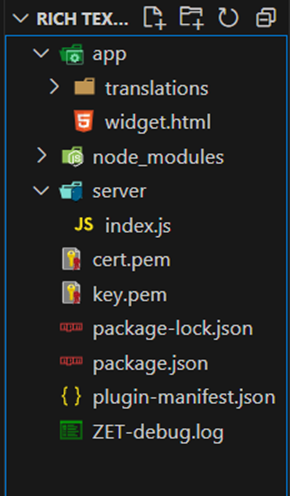
4. Folder Structure as follows
5. Code for "widget.html"
- <!DOCTYPE html>
- <html lang="en">
- <head>
- <meta charset="UTF-8">
- <meta name="viewport" content="width=device-width, initial-scale=1.0">
- <title>To-Do List</title>
- <link rel="stylesheet" href="https://stackpath.bootstrapcdn.com/bootstrap/4.5.2/css/bootstrap.min.css">
- <link rel="stylesheet" href="https://cdnjs.cloudflare.com/ajax/libs/font-awesome/5.15.3/css/all.min.css">
- <style>
- body {
- font-family: Arial, sans-serif;
- margin: 0;
- padding: 0;
- }
- .container {
- max-width: 90%;
- margin: 0 auto;
- padding: 20px;
- }
- #editor-container {
- margin-bottom: 10px;
- }
- #todo-list {
- list-style-type: none;
- padding: 0;
- }
- #todo-list li {
- position: relative;
- display: flex;
- justify-content: space-between;
- align-items: center;
- margin-bottom: 10px;
- padding: 10px;
- background-color: #f5f5f5;
- border-radius: 4px;
- }
- #todo-list li button {
- background-color: transparent;
- color: #555;
- border: none;
- padding: 5px;
- border-radius: 4px;
- cursor: pointer;
- transition: background-color 0.3s;
- }
- #todo-list li button:hover {
- background-color: #ddd;
- }
- </style>
- </head>
- <body>
- <div class="container">
- <ul id="todo-list"></ul>
- <div id="editor-container">
- <div id="toolbar"></div>
- <textarea id="editor"></textarea>
- <div class="button-group mt-2 d-flex justify-content-end">
- <button id="add-todo" class="btn btn-primary mr-2">Save</button>
- <button id="cancel-todo" class="btn btn-danger">Cancel</button>
- </div>
- </div>
- </div>
- <script src="https://live.zwidgets.com/js-sdk/1.2/ZohoEmbededAppSDK.min.js"></script>
- <script src="https://code.jquery.com/jquery-3.5.1.slim.min.js"></script>
- <script src="https://cdn.jsdelivr.net/npm/@popperjs/core@2.5.4/dist/umd/popper.min.js"></script>
- <script src="https://stackpath.bootstrapcdn.com/bootstrap/4.5.2/js/bootstrap.min.js"></script>
- <script src="https://cdn.ckeditor.com/ckeditor5/23.0.0/classic/ckeditor.js"></script>
- <script>
- let editor;
- ClassicEditor
- .create(document.querySelector('#editor'))
- .then(newEditor => {
- editor = newEditor; // Initialize CKEditor
- })
- .catch(error => {
- console.error(error);
- });
- const addTodoButton = document.getElementById('add-todo');
- const cancelTodoButton = document.getElementById('cancel-todo');
- const todoList = document.getElementById('todo-list');
- let todoData = {};
- let recordId;
- let currentEditId = null;
- // Event handler for page load
- ZOHO.embeddedApp.on("PageLoad", function(data) {
- if (data && data.Entity) {
- recordId = data.EntityId;
- console.log("Current Record ID: " + recordId);
- // Fetch the record data from Zoho CRM
- ZOHO.CRM.API.getRecord({
- Entity: "Leads",
- approved: "both",
- RecordID: recordId
- })
- .then(function(data) {
- const description = data.data[0].Description;
- if (description) {
- todoData = JSON.parse(description); // Parse the stored to-do list
- } else {
- todoData = {};
- }
- // Clear the todoList
- todoList.innerHTML = '';
- // Add each todo item
- for (const [id, item] of Object.entries(todoData)) {
- addTodoItemToList(id, item.data);
- }
- })
- .catch(function(error) {
- console.error('Error fetching description:', error);
- });
- addTodoButton.addEventListener('click', saveTodo);
- cancelTodoButton.addEventListener('click', cancelTodo);
- }
- });
- // Function to add a to-do item to the list
- function addTodoItemToList(id, data) {
- const li = document.createElement('li');
- li.setAttribute('data-id', id);
- const todoContent = document.createElement('div');
- todoContent.innerHTML = data; // Set the content of the to-do item
- li.appendChild(todoContent);
- li.appendChild(createButtonsContainer('fa-pencil-alt', 'fa-trash-alt'));
- todoList.appendChild(li);
- addEventListeners(li, id);
- }
- // Function to edit a to-do item
- function editTodoItem(id, data) {
- editor.setData(data); // Set the editor data to the selected to-do item's data
- currentEditId = id;
- addTodoButton.textContent = 'Update Todo';
- }
- // Function to save a to-do item
- function saveTodo() {
- const todoText = editor.getData();
- if (todoText.trim() !== '') {
- if (currentEditId) {
- // Update existing item
- todoData[currentEditId] = {
- data: todoText
- };
- const li = document.querySelector(`[data-id='${currentEditId}']`);
- li.innerHTML = '';
- const todoContent = document.createElement('div');
- todoContent.innerHTML = todoText;
- li.appendChild(todoContent);
- li.appendChild(createButtonsContainer('fa-pencil-alt', 'fa-trash-alt'));
- addEventListeners(li, currentEditId);
- currentEditId = null;
- addTodoButton.textContent = 'Save';
- } else {
- // Add new item
- const uniqueId = 'id' + new Date().getTime();
- todoData[uniqueId] = {
- data: todoText
- };
- addTodoItemToList(uniqueId, todoText);
- }
- editor.setData(''); // Clear the editor content
- updateRecord(recordId, todoData); // Update the record in Zoho CRM
- }
- }
- // Function to cancel editing or adding a to-do item
- function cancelTodo() {
- editor.setData(''); // Clear the editor content
- currentEditId = null;
- addTodoButton.textContent = 'Save';
- }
- // Function to create buttons for editing and deleting
- function createButtonsContainer(editIcon, deleteIcon) {
- const container = document.createElement('div');
- const editButton = document.createElement('button');
- editButton.classList.add('edit', 'btn', 'btn-secondary', 'mr-1');
- editButton.innerHTML = `<i class="fas ${editIcon}"></i>`;
- editButton.setAttribute('data-toggle', 'tooltip');
- editButton.setAttribute('data-placement', 'top');
- editButton.setAttribute('title', 'Edit');
- const deleteButton = document.createElement('button');
- deleteButton.classList.add('delete', 'btn', 'btn-danger');
- deleteButton.innerHTML = `<i class="fas ${deleteIcon}"></i>`;
- deleteButton.setAttribute('data-toggle', 'tooltip');
- deleteButton.setAttribute('data-placement', 'top');
- deleteButton.setAttribute('title', 'Delete');
- container.appendChild(editButton);
- container.appendChild(deleteButton);
- return container;
- }
- // Function to add event listeners to the edit and delete buttons
- function addEventListeners(li, id) {
- const deleteButton = li.querySelector('.delete');
- deleteButton.addEventListener('click', () => {
- deleteTodoItem(id);
- });
- const editButton = li.querySelector('.edit');
- editButton.addEventListener('click', () => {
- editTodoItem(id, todoData[id].data);
- });
- }
- // Function to delete a to-do item
- function deleteTodoItem(id) {
- delete todoData[id];
- const liElement = document.querySelector(`[data-id='${id}']`);
- if (liElement) {
- liElement.remove();
- }
- updateRecord(recordId, todoData); // Update the record in Zoho CRM
- }
- // Function to update the record in Zoho CRM
- function updateRecord(recordId, data) {
- var config = {
- Entity: "Leads",
- APIData: {
- "id": recordId,
- "Description": JSON.stringify(data),
- },
- Trigger: ["workflow"]
- };
- ZOHO.CRM.API.updateRecord(config)
- .then(function(data) {
- console.log('Description updated:', data);
- })
- .catch(function(error) {
- console.error('Error updating description:', error);
- });
- }
- // Initialize the Zoho Embedded App
- ZOHO.embeddedApp.init();
- </script>
- </body>
- </html>
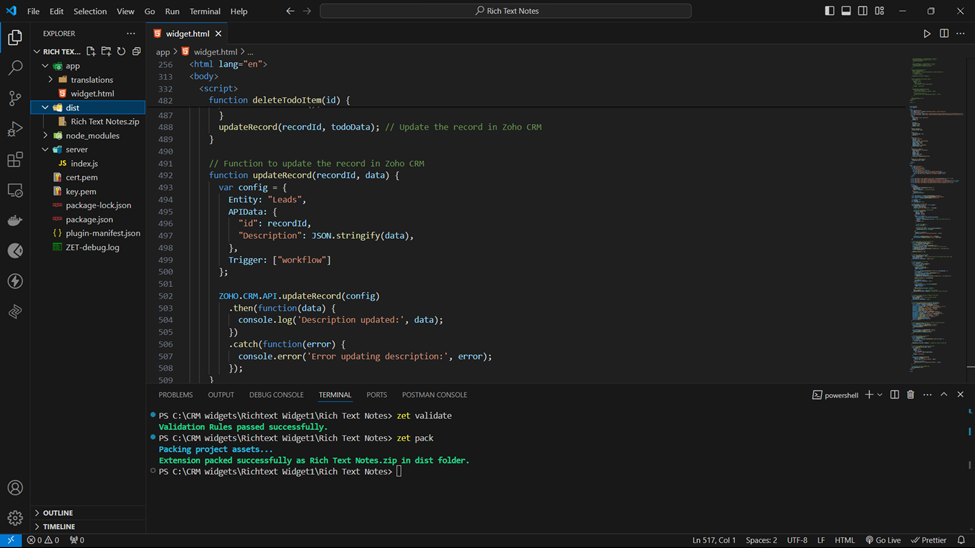
6.Pack the widget
Once you execute the commands "zet validate" and "zet pack", a "dist" folder will be created within the folder structure, containing the zipped file.
7.Create Widget in Zoho CRM
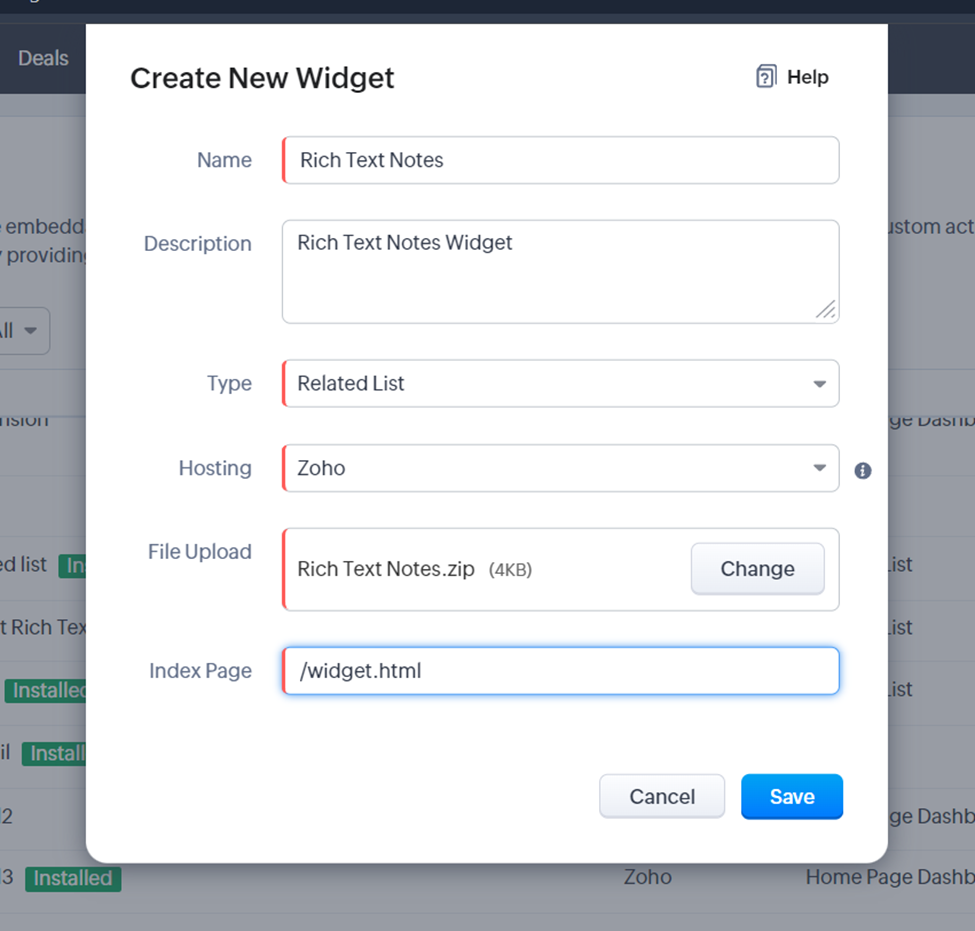
• Settings > Developer Hub > Widgets > Create New Widget
• Select the type as related list
• Select the hosting as zoho(we are using internal hosting here)
• Select the zip file from the dict folder.
• Set the index pages as “/widget.html”
• Click save
8. Execution
Select Add Related List from the left tabs
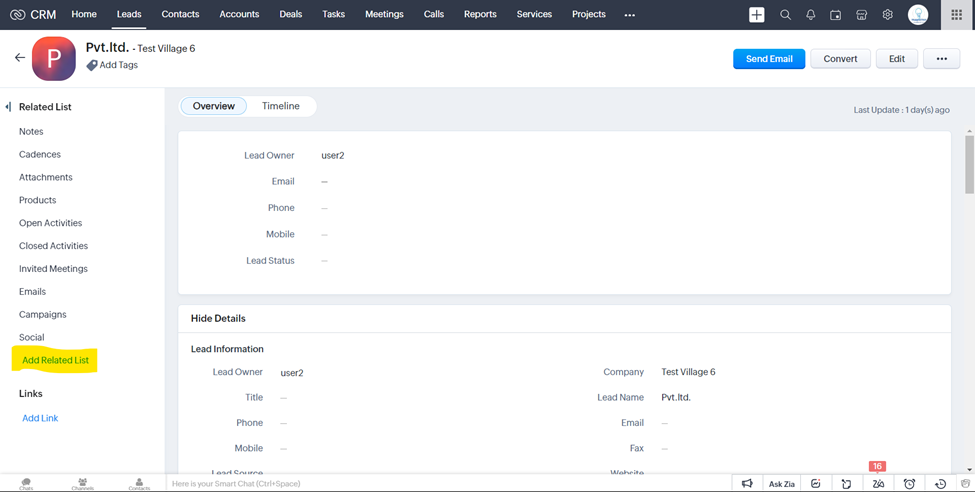
Select the widget from the pop up
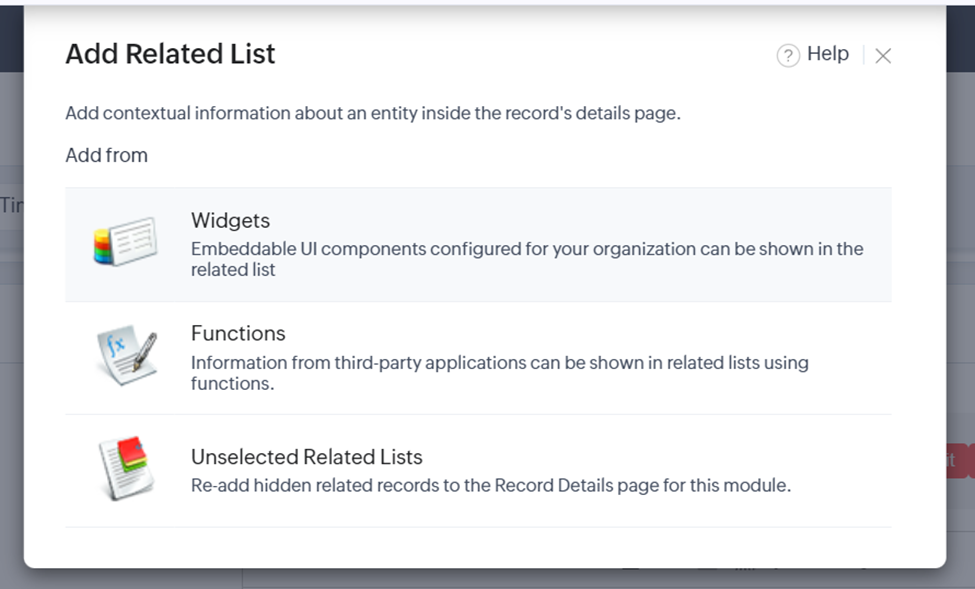
Click install the widget you have added
then you will get this interface in Leads Module
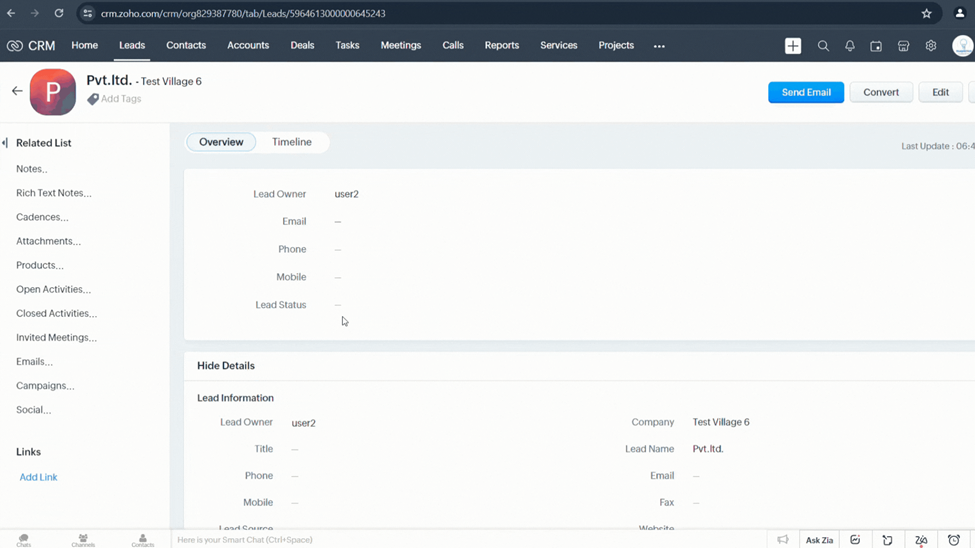
Hope this helps upto some level. Looking forward for improvements and suggestions.
Regards
Vigneshwaran Kalaivanan
Certified Zoho CRM & Creator Developer
TraqMetrix Solutions LLP - Zoho Authorized Partner
 +919944486228
Regards
Vigneshwaran Kalaivanan
Certified Zoho CRM & Creator Developer
TraqMetrix Solutions LLP - Zoho Authorized Partner
+919944486228