SAML authentication in Zoho Mail: Simplify and secure your organization's login management
Managing login credentials across multiple web applications can be challenging for organizations with a large number of users. Without a centralized authentication system, users are required to maintain separate passwords for each application, increasing the risk of weak passwords and unauthorized access.
Zoho Mail's SAML Authentication feature addresses this by allowing administrators to configure SAML using the URLs and public key provided by their chosen Identity Provider. This simplifies login management and provides a secure and unified authentication experience for Zoho Mail users.
What is SAML authentication in Zoho Mail?
SAML, which stands for Security Assertion Markup Language, is an XML-based framework for exchanging user authentication and attribute information across different domains and services. It enables Single Sign-On (SSO), allowing users to access multiple web applications with a single set of credentials.
When a user attempts to log in, they are redirected to the Identity Provider for validation, and upon successful authentication, access to Zoho Mail is granted automatically.
How does SAML Authentication work in Zoho Mail?
Once SAML Authentication is configured in the Zoho Mail Admin Console, the login process works as follows:
The user accesses the custom URL configured for their domain.
They are redirected to the SAML login page of the configured Identity Provider.
The Identity Provider validates the user's credentials.
Upon successful validation, the Identity Provider sends an encrypted response to Zoho Mail.
Zoho Mail decodes the response and initiates the user session if the authentication is successful.
How can administrators use SAML authentication effectively in Zoho Mail?
Centralized login management: Users access Zoho Mail using the same credentials they use for their Identity Provider, eliminating the need for separate passwords.
Secure authentication process: User credentials are validated by the Identity Provider, and an encrypted response is sent to Zoho Mail to confirm authentication, ensuring that only verified users gain access.
Simplified access control: Access to Zoho Mail is automatically revoked when a user's Identity Provider account is deactivated, reducing the risk of unauthorized access.
Steps to set up SAML Authentication in Zoho Mail
Before configuring SAML Authentication, ensure the following prerequisites are completed:
Add and verify your domain in Zoho Mail Admin Console.
Create users and email accounts for your organization.
Configure a custom URL for your domain.
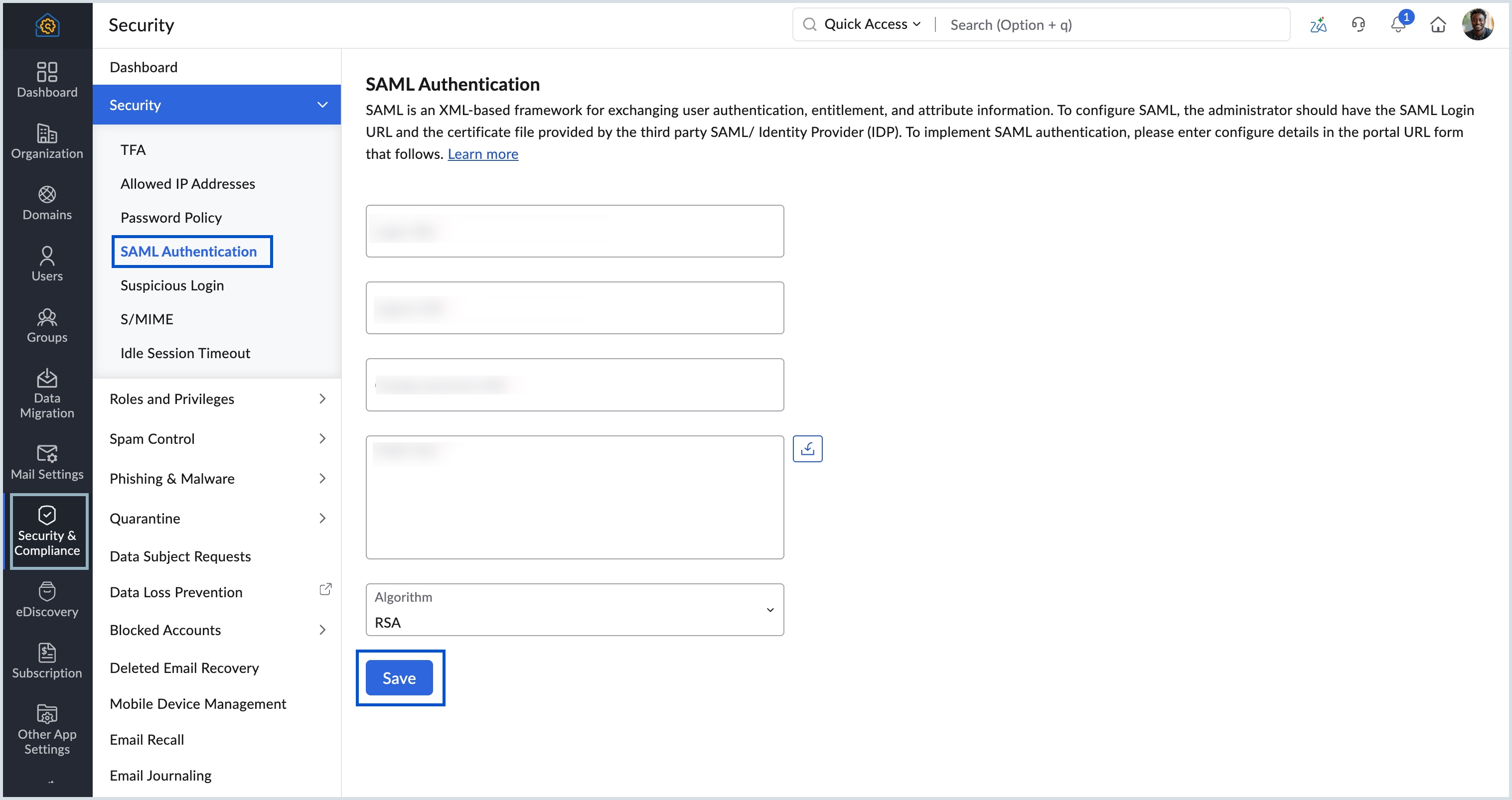
Once the prerequisites are in place, follow these steps to configure SAML authentication:
Log in to Zoho Mail Admin Console.
Navigate to Security and Compliance in the left pane.
Click Security and go to SAML Authentication.
Enter the Login URL, Logout URL, and Change Password URL provided by your Identity Provider.
Upload the public key file provided by your Identity Provider.
Click Save to complete the configuration.