User Fields in Zoho Recruit | Collaborate with Multiple Owners on Records
Why we built this
Availability
Available for | Profile Permissions | Only users with Manage Customization permission can create or edit User fields. |
Editions | ||
Plans | Enterprise (Including Zoho One and People plus) | |
Modules | All modules, except a few like Referrals, Tasks, Events, Calls, Offers, Submissions, and Reviews. |
What’s new
User Fields allow you to associate one or more users with a record as co-owners. Based on the access level you choose, these users can view, update, or manage record details while the primary owner remains unchanged.
Types of User Fields
Single User Field
- Up to 5 single user fields per module
- Ideal for one-to-one collaboration
- Candidate Owner
- Account Manager
A recruiter owns a candidate record but wants a colleague to track updates and follow up. Adding them through a Single User Field enables collaboration without changing ownership.
Multiple User Field
Assign multiple users (up to 10) to the same record.
Only 1 multiple-user field per module
Ideal for team-based hiring efforts
Examples
Assign Recruiter
Use case
In a hiring drive with multiple recruiters working on the same role, a Multiple User Field ensures everyone can view progress, add notes, and stay in sync.
- For every User Field, you can decide:
- Whether shared users can access the record at all
- What level of access they get: Read Only, Read / Write, Full Access

Even if a user is added through a User Field, they can delete a record only if their profile allows delete permission.
User Field access does not override the delete rights set in the user’s profile.
Adding a User Field
- Log in to Zoho Recruit with admin rights.
- Go to Setup → Customization → Modules.
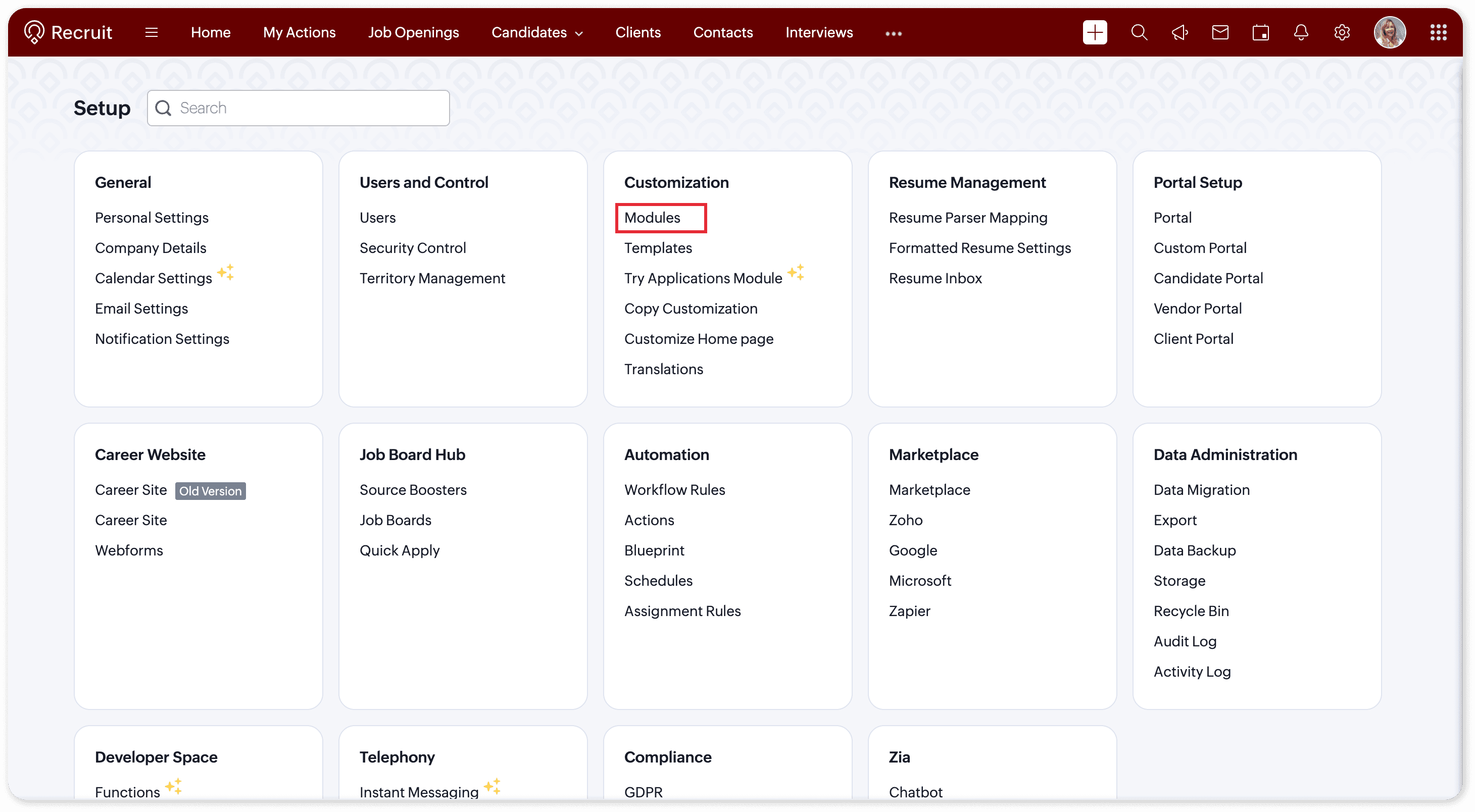
- Select the module where you want to add the field (like Candidates or Job Openings).
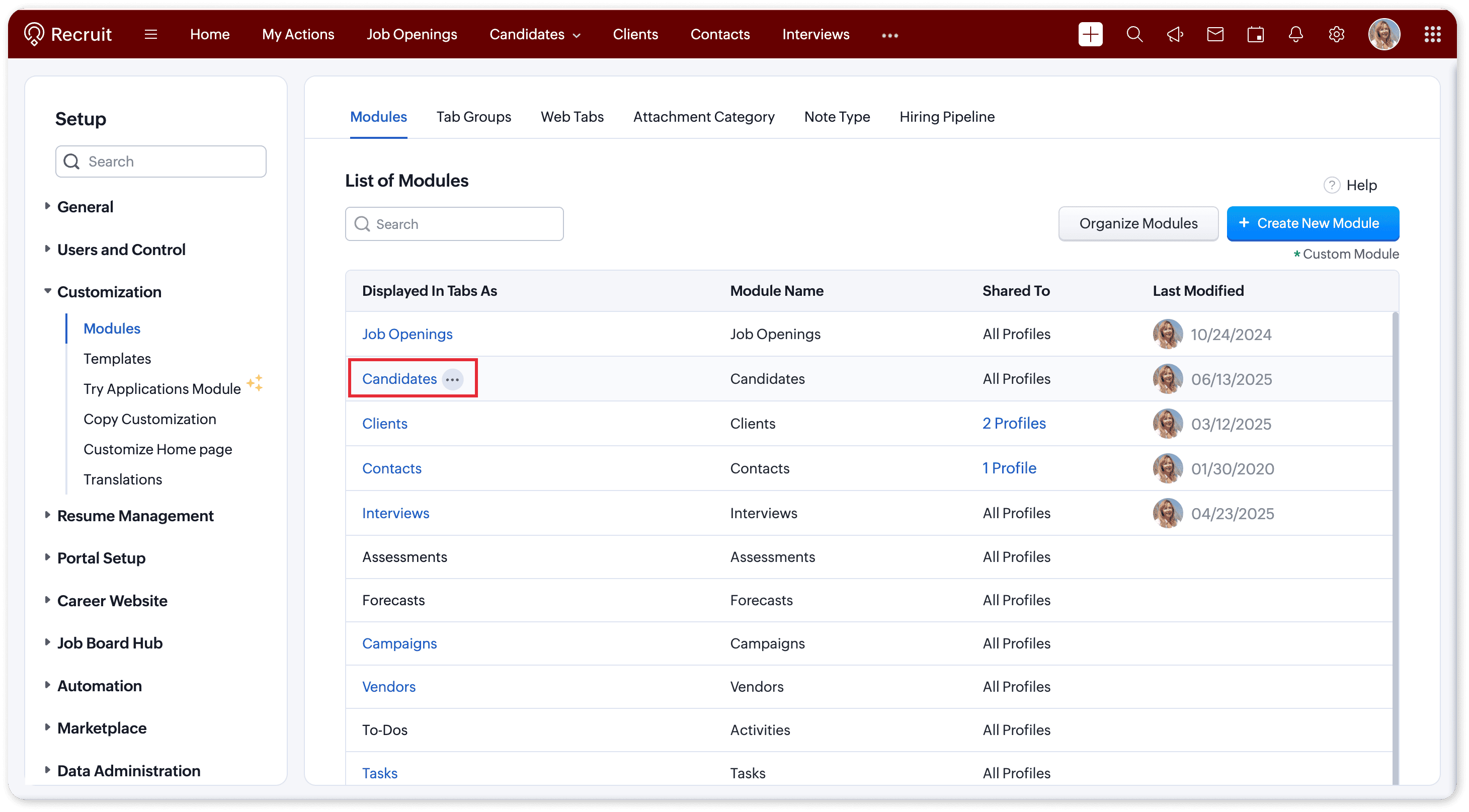
- The Layout Editor opens. From the New Fields tray, drag and drop User Field into your layout.
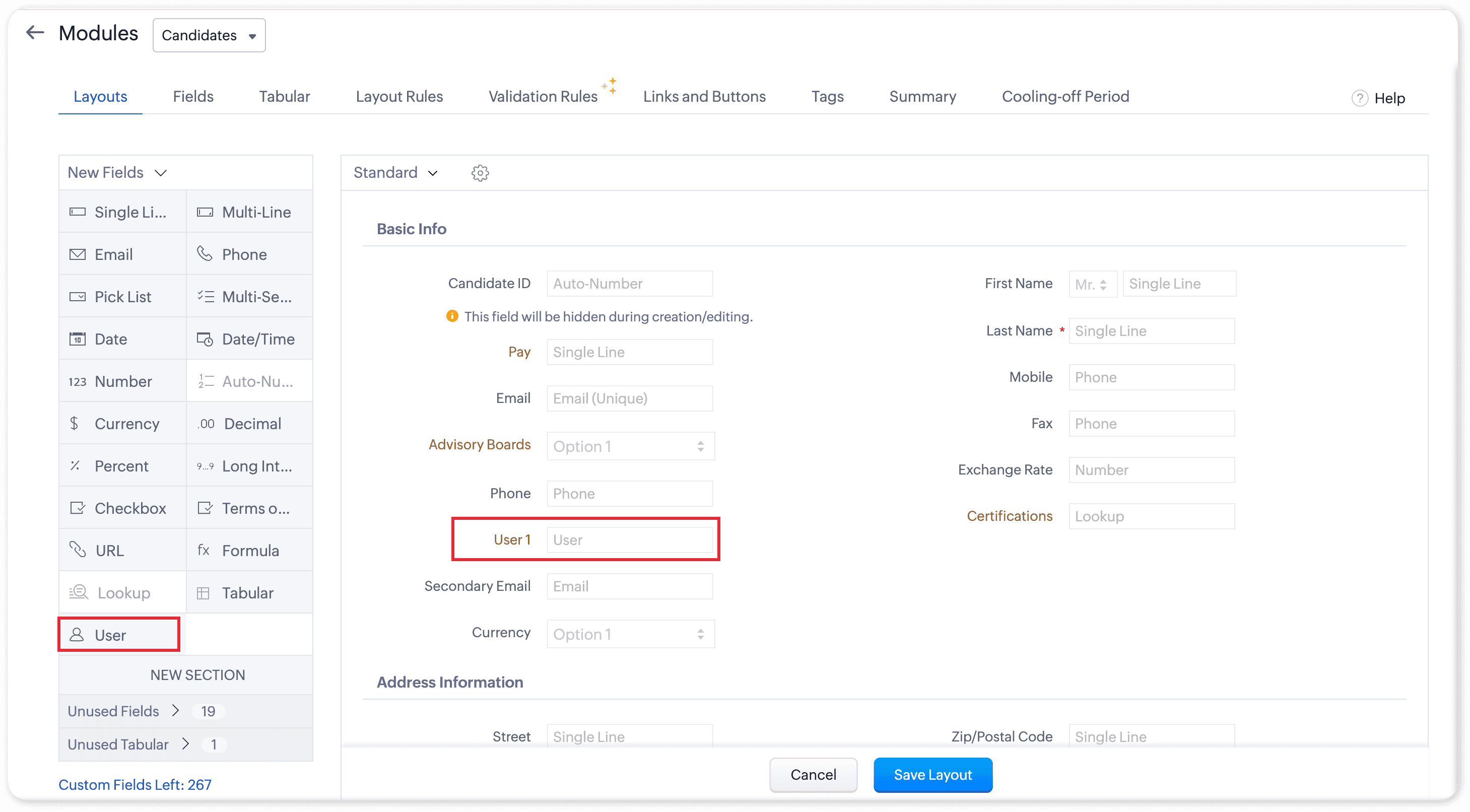
- Give the field a name — for example: Secondary Owner, Interviewer, or Recruiter.
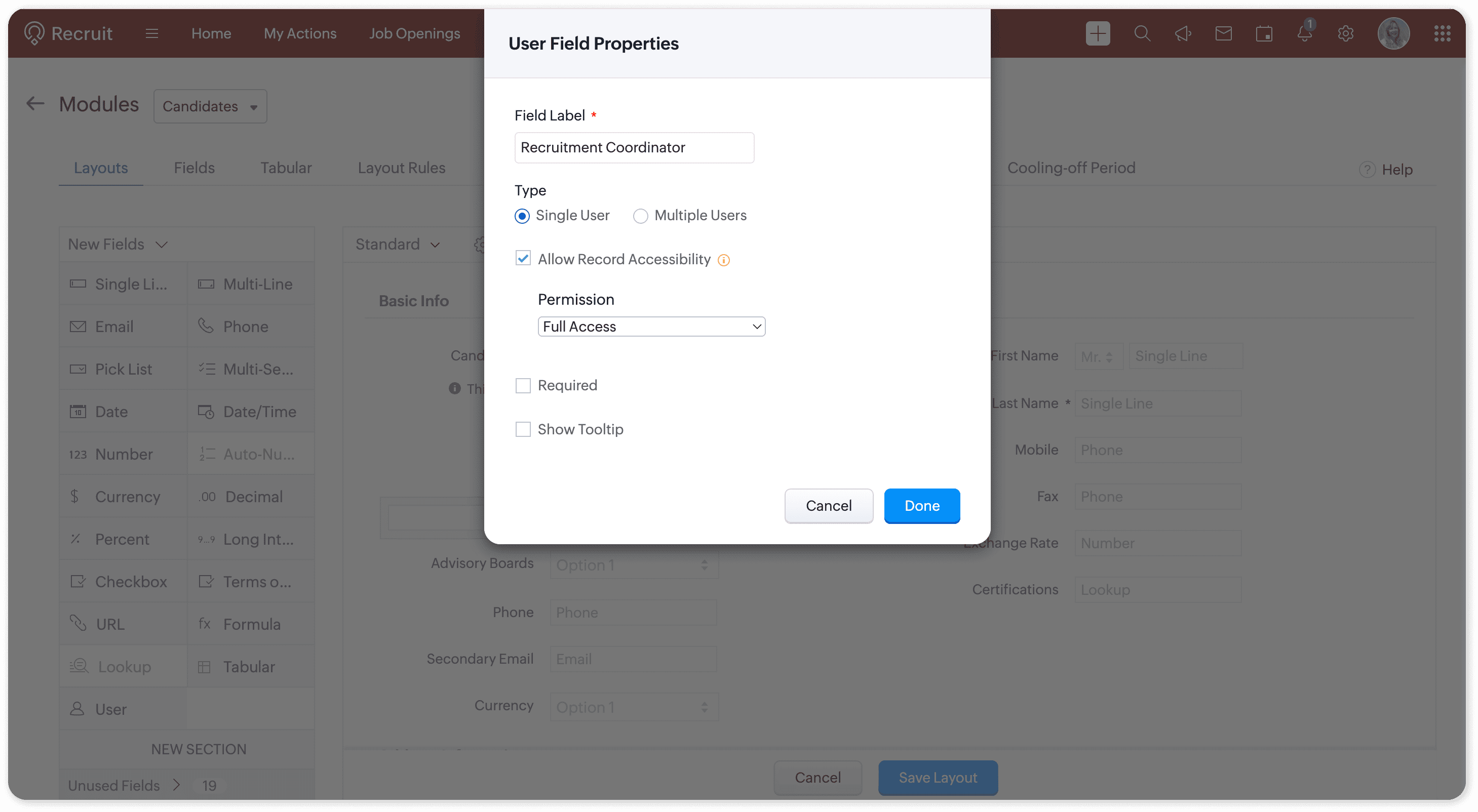
- Choose the field type:
Single User - You can add up to 5 single user fields in a module.
Multiple Users - You can add only 1 multi-user field in a module that can include up to 10 users. - Turn on or off Allow Record Accessibility, depending on whether you want users to have access to the shared records.
- Set the level of access for the shared users:
Read Only: Can only view the record.
Read/Write: Can view and edit, but not delete.
Full Access: Can view, edit, and delete. - Click Done and Save Layout.
- Once created, you can assign users:
From the record page
From list views using mass update
While creating or editing records
Via Quick Create
Through APIs (Create / Update Record)
Useful Quick Comparison: Single vs Multiple Fields
Feature | Single User Field | Multiple User Field |
How many can you add | Up to 5 fields per module | 1 field per module |
Users per field | 1 user | Up to 10 users |
Examples | Candidate Owner, Account Manager | Assign recruiter |
Access control | Yes (Read / Read-Write / Full Access) | Yes (Read / Read-Write / Full Access) |
👉 User Fields - Help Documentation
Tell us what you think
Team Zoho Recruit