Smart Alerts: Protect users with configurable email alerts
Email-based threats are becoming harder to identify and manage. Administrators need proactive ways to protect users from phishing, fraud, and policy violations. Standard filters can block emails, but blocking alone isn't always the most effective response. Sometimes, alerting users directly is a better approach. This keeps them informed without disrupting email flow.
Smart Alerts let administrators configure warning messages and disclaimers for incoming and outgoing emails based on conditions set.
What are Smart Alerts?
Smart Alerts are condition-based alerts that are triggered when an email matches the criteria set by the administrator. When a match is found, the configured action is applied.
Alerts can be set up for a specific user, a group of users, or the entire organization.
Why does this matter for admins?
Flag suspicious emails: Show a warning banner when emails arrive from outside the organization or from flagged senders.
Guard against phishing and fraud: Alert users when an email matches conditions linked to deceptive or fraudulent content.
Add outgoing disclaimers: Automatically include legal or policy disclaimers on emails sent by specific users, groups, or the whole organization.
Target the right users: Apply alerts to selected users or groups, and exclude specific users where needed.
Set alert priority: Control the order in which alerts are processed so the most important ones are evaluated first.
Steps to configure Smart Alerts
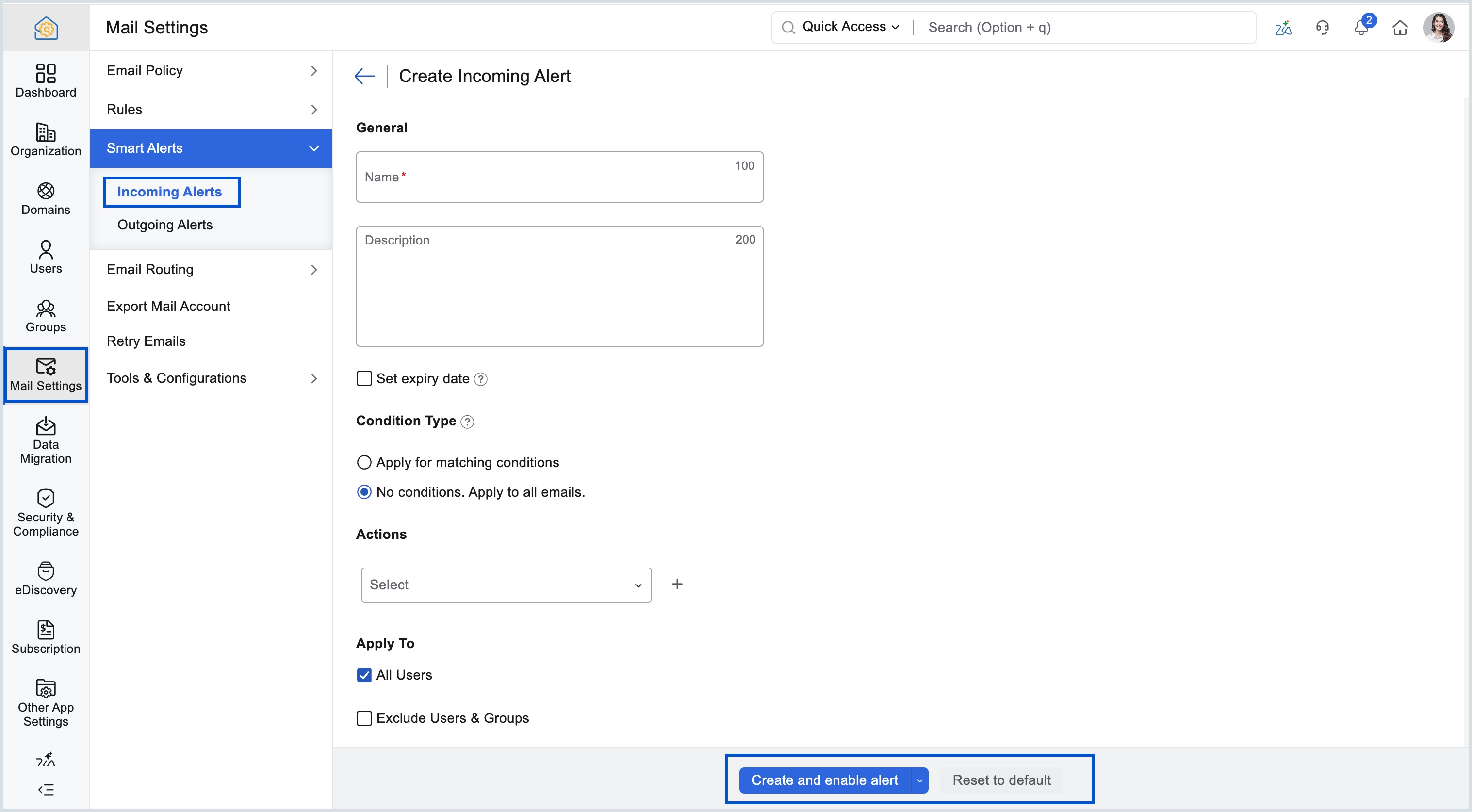
Log in to Zoho Mail Admin Console and select Mail Settings on the left pane.
Navigate to Smart Alerts and select Incoming/Outgoing Alerts.
Click Create Now or select the Create button from the top menu, if there are any existing alerts.
Provide an Alert Name and an optional Alert Description.
Specify an Expiry date if needed.
Select the Condition Type as Apply for matching conditions/ No Conditions. Apply to all emails.
Select one or more Conditions, the Operating parameter and the corresponding Action.
Select the users, to whom you want to apply the alert from the Apply To section.
Select the users you want to add to the list and click Submit. You can also remove a user from the list by clicking the Delete icon next to the user.
Review your alert and select either Create alert or Create and enable alert.
Learn more about Smart Alerts in Zoho Mail Admin Console.