Spam Quarantine: Manage suspicious emails in Zoho Mail
When an email is quarantined by spam processing, it need not always be blocked right away. Some emails may be marked incorrectly, or may need to be reviewed before a final decision is made.
The Spam Quarantine feature in the Zoho Mail Admin Console gives administrators a dedicated space to review, approve, or reject such emails before they reach your users.
What is spam quarantine in Zoho Mail?
Spam Quarantine in the Zoho Mail Admin Console holds emails flagged by your organization's spam processing rules. Both incoming and outgoing emails can be quarantined. Instead of being delivered or blocked automatically, these emails are placed in a quarantine queue where administrators can review and take action.
Incoming emails may be quarantined due to SPF, DKIM, or DMARC failures, DNSBL flags, block-listed addresses or domains, cousin domain detection, display name spoofing, or organization-level rules. Outgoing emails can be quarantined based on content patterns, attachment type or size, blocked users or recipients, and more.
How can administrators use spam quarantine effectively?
The quarantine section gives administrators full control over what gets delivered and what gets blocked, without missing legitimate emails that were incorrectly flagged.
Review and act on flagged emails: Open any quarantined email, review its content and headers, and choose to deliver or deny it based on your assessment.
Use deliver and deny actions strategically: The Deliver & Add option adds the sender to the allowed list after delivery, while Deny & Add blocks the sender going forward. Use Deny & Notify to inform the sender that their email has been rejected.
Monitor outgoing emails: Outgoing Quarantine helps prevent data loss and policy violations by holding suspicious outbound emails for review before they leave the organization.
Set up quarantine notifications: Configure alerts so that the relevant administrators are notified whenever an email is quarantined, along with the sender, subject, and reason for quarantine.
Assign self moderators: Allow specific users to approve quarantined emails addressed to them, reducing the load on administrators for individual-level quarantine decisions.
Steps to access and manage quarantined emails
Log in to the Zoho Mail Admin Console.
Navigate to Security & Compliance in the left pane.
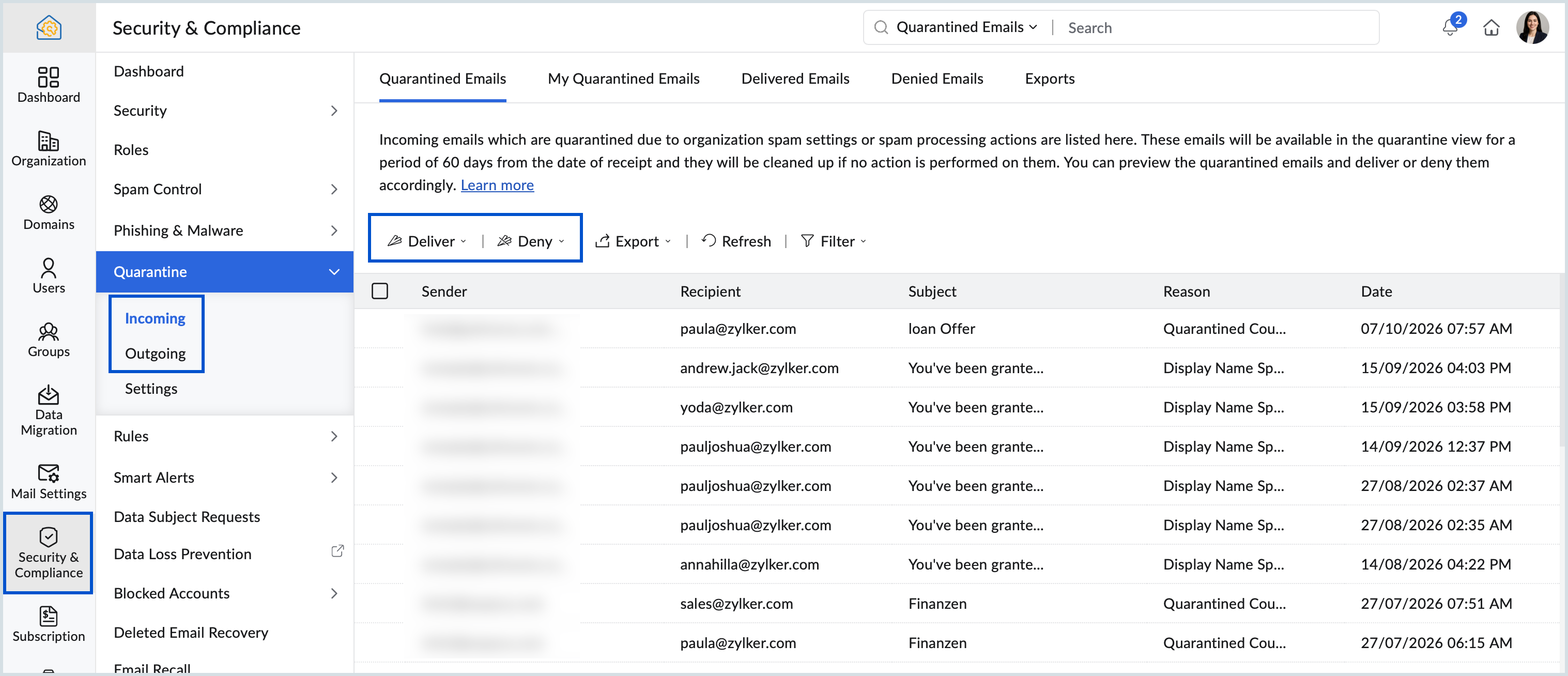
Select Incoming or Outgoing under Quarantine based on the emails you want to review.
Choose from Quarantined Emails, Delivered Emails, Denied Emails, or Exports. For incoming emails, you will also see a My Quarantined Emails tab listing emails addressed specifically to you.
Click on an email to view its content and headers.
Select Deliver or Deny and choose the appropriate action from the dropdown.
Steps to set up quarantine notifications
Log in to the Zoho Mail Admin Console.
Navigate to Security & Compliance and select Quarantine.
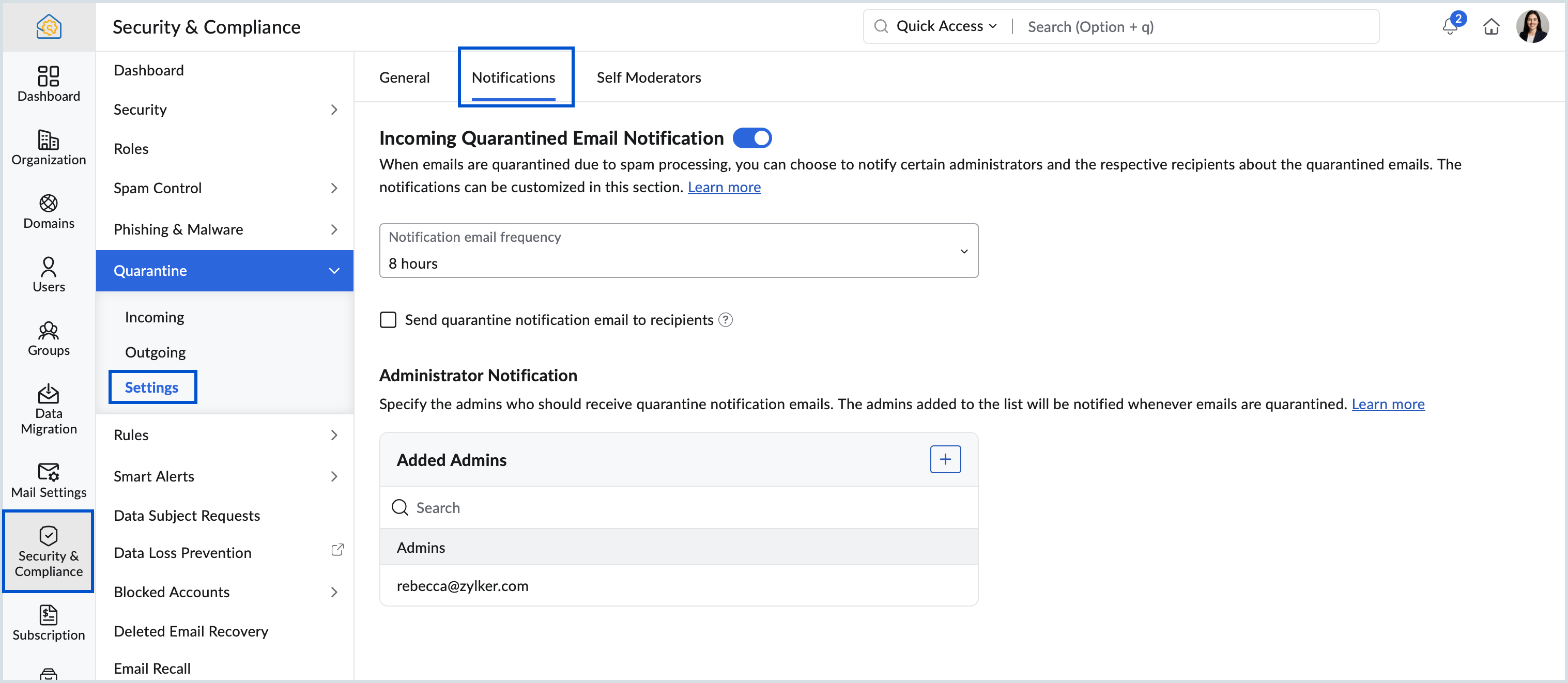
Go to Settings and select the Notifications tab.
Turn on Incoming Email Notification.
Set the notification frequency from the dropdown.
Check the box to send quarantine notifications to the email recipients, if needed.
Under Administrator Notification, add the administrators who should be notified.
Quarantined emails in the My Quarantined Emails section are available for 60 days. If no action is taken, they are automatically removed.
The Deliver partially option is available only for emails with multiple recipients and does not appear when multiple emails are selected at once.
The Deny & Notify option applies to one email at a time and does not appear when multiple emails are selected.
If an administrator denies an email before a self moderator takes action, the self moderator cannot approve it later.
Outgoing Quarantine is available only for paid plans. To enable it for your organization, contact support@zohomail.com