Tip #75- Exploring Technician Console: Power Options- 'Insider Insights'
Hello Zoho Assist Community!
Welcome to the very first community post of June, and we are kicking things off with a feature that gives technicians complete control over a remote machine without ever leaving their session: Power Options.
What are Power Options?
Power Options in Zoho Assist give technicians direct control over the power state of a remote machine during a session. Accessible from the Technician Console, the feature covers six actions, each designed for a specific situation a technician actually encounters in the field.
Start a remote support session and navigate to the Technician Console. Click on Tools in the left sidebar and select Power Options from the dropdown menu. 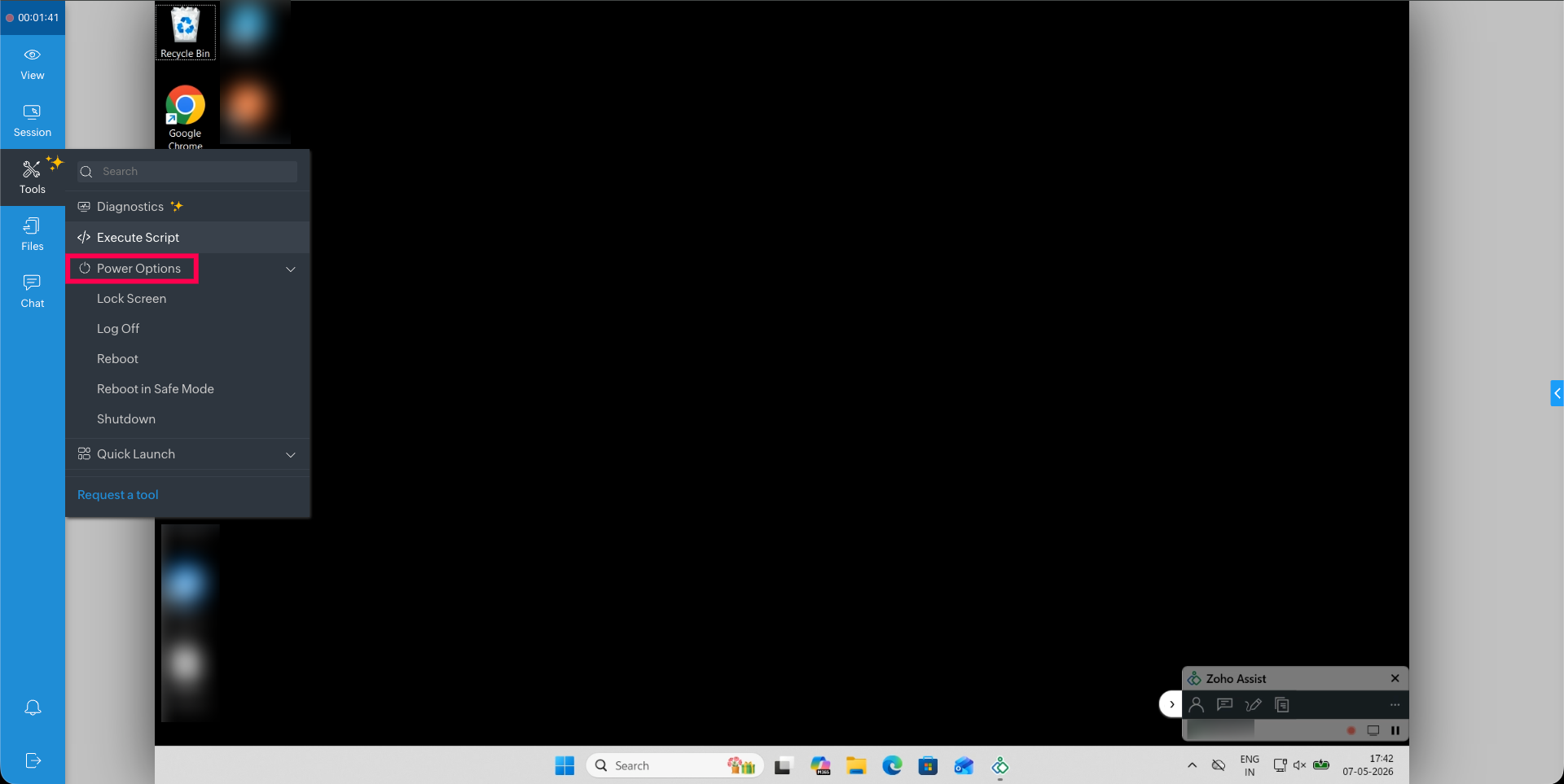
From here you can access the below listed power options:
Shutdown — Turn off the remote computer completely. You have just finished end-of-day maintenance on an office PC. No one is coming back to that desk tonight. Rather than leaving the machine running, you shut it down directly from the console. Power saved, job done.
Restart — You have just finished configuring a Windows machine and the changes need a restart to take effect. Instead of asking the user to reboot manually, you trigger it directly from the Technician Console. Once the machine comes back up, the session reconnects automatically, no new session ID, no fresh invite, no rejoining. You are right back in, ready to confirm everything applied correctly.
Log Off — Sign out the current user from the remote machine. A user is running into profile-related errors that are affecting their session. A full reboot is not necessary — logging them off and back in is enough to reset the environment and clear the issue cleanly.
Lock — Lock the remote screen without ending the session. You have resolved the issue, but the user has stepped away from their desk. Rather than leaving the machine open and accessible, you lock the screen to keep it secure until they return. The session stays active on your end, but the display is protected on theirs.
Sleep — Put the remote device into low-power mode. The machine is idle and will not be needed for a short while. Rather than leaving it running at full power, you put it to sleep to conserve energy. It is ready to wake the moment it is needed again.
Hibernate — Save the current state and power off the system. A user wants to pick up exactly where they left off after a break. You hibernate the machine once the session is complete, preserving every open window and application in its current state. When they return, everything is right where they left it.
The next time you finish a session and the machine still needs attention — a restart pending, a screen to lock, a system to shut down — you do not need to ask. Just open Power Options and handle it yourself.
Which of these actions do you find yourself using most often during remote sessions? Have Power Options changed the way you wrap up support calls? Share your experience in the comments below!
For questions or support, reach out to us at support@zohoassist.com. We are always happy to help!