Tip #76- Exploring Technician Console: Quick Launch- 'Insider Insights'
Hello Zoho Assist Community!
Welcome back to our Technician Console series. Last time we explored Power Options, and this time we are turning the spotlight on a feature that quietly saves you dozens of clicks in every session by getting you exactly where you need to be on the remote machine, instantly: Quick Launch.
What is Quick Launch?
Quick Launch in Zoho Assist gives technicians one-click access to the system tools and locations they reach for most during a session, without having to hunt through menus on an unfamiliar remote machine. Accessible from the Technician Console, it puts a long list of utilities a single click away. Start a remote support session and navigate to the Technician Console. Click on Tools in the left sidebar and select Quick Launch from the dropdown menu.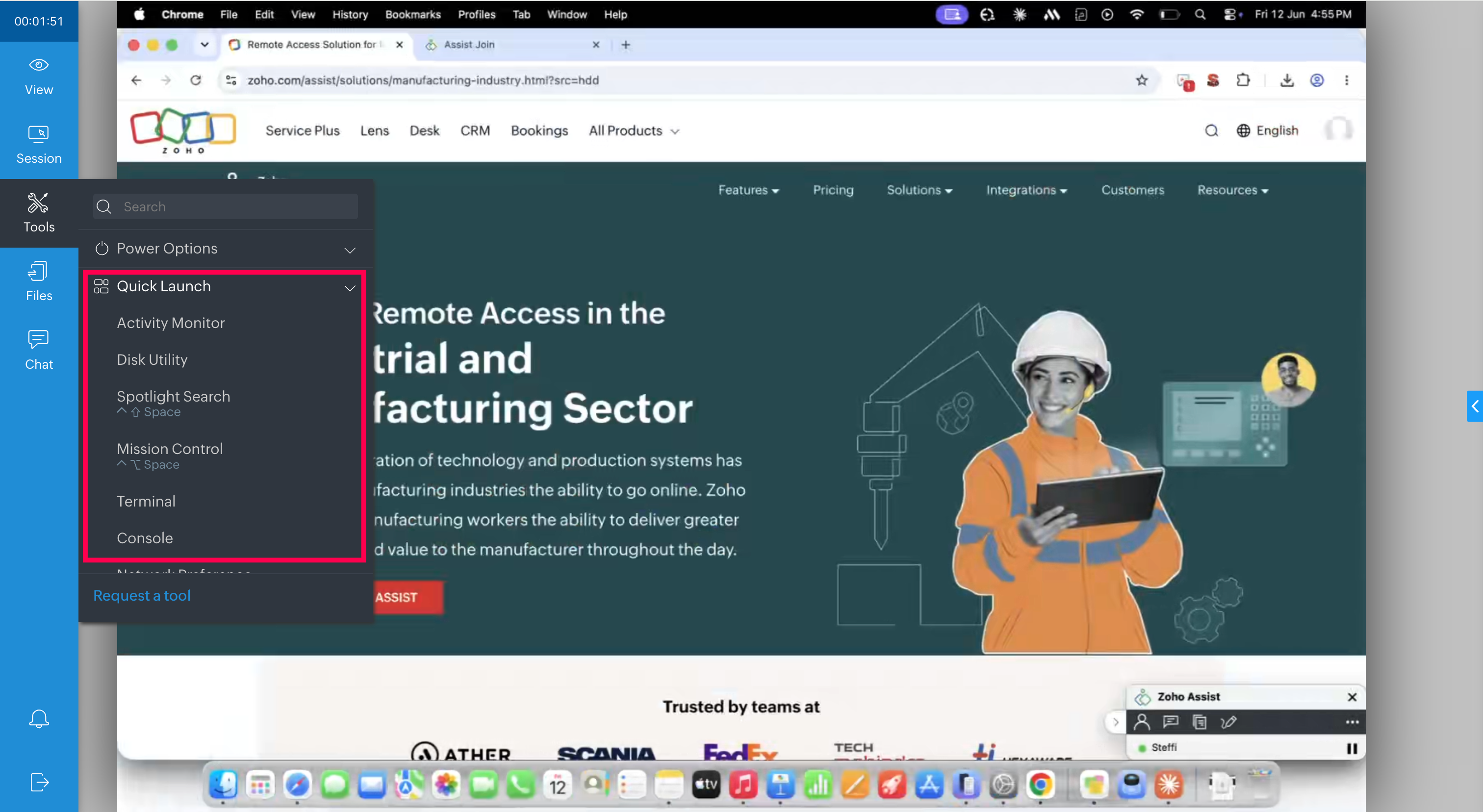
Here's what you can open in one click.
System tools and diagnostics — A customer's machine is crawling and you need answers fast. One click into Task Manager shows you the process eating their CPU; another into Event Viewer surfaces the errors behind a recurring crash; Command Prompt and Services let you confirm and restart what needs restarting, all without leaving the session. Also in this group: Device Manager, Performance Monitor, Computer Management, Registry, System Registry, Control Panel, and System Properties.
Files and navigation — Need to track down a stray file or check what's eating up space? Explorer and File System Management drop you straight into the remote machine's folders, no detours.
Software management — A misbehaving app needs to come off before a clean reinstall. Add/Remove Programs lets you uninstall it directly, instead of screen-sharing the customer through the process themselves.
Network — Connectivity is the problem and you need to pin it down. Network Connection lets you check the adapter and settings, while NS Lookup helps you confirm whether DNS is resolving the way it should.
Security and policy — Locking down a machine or pushing a policy change? Firewall, Local Security Policy, and Group Policy Editor are right there when you need to adjust rules or apply organizational settings.
Display — Resolution or scaling looking off on the remote end? Display Settings gets you there in a single step.
On a Mac? — Quick Launch surfaces the essentials here too: Activity Monitor and Console for spotting what's misbehaving, Disk Utility for storage and repair, Terminal for command-line work, plus Mission Control and Spotlight Search to move around quickly.
The next time a session calls for a quick check under the hood — a tool to open, a program to remove, a setting to tweak — you don't need to navigate the remote machine the long way or walk the customer through it. Just open Quick Launch and go straight to what you need.
Which Quick Launch shortcut do you find yourself using most during remote sessions? Has it changed how quickly you move through a support call? Share your experience in the comments below!
For questions or support, reach out to us at support@zohoassist.com. We are always happy to help!