Tip #79- Exploring Technician Console: Session Details- 'Insider Insights'
Exploring Technician Console: Session Details- 'Insider Insights'
Hello Zoho Assist Community!
Welcome back to our Technician Console series. This week we're looking at a panel that keeps everything you need to know about a session in one place: Session Details.
Picture starting a support session and needing the basics at a glance, who's in the session, what kind it is, and exactly which machine you're connected to. Instead of asking the customer or digging around, you open the Session Info panel and it's all right there.
Note: Session Details is currently supported for Windows OS remote devices only.
What is Session Details?
The Session Info panel gives you complete details about an ongoing session. From a single place, you can find key session information, manage participants, and view remote device details. To open it during an active session, click the right arrow icon in the Technician Console.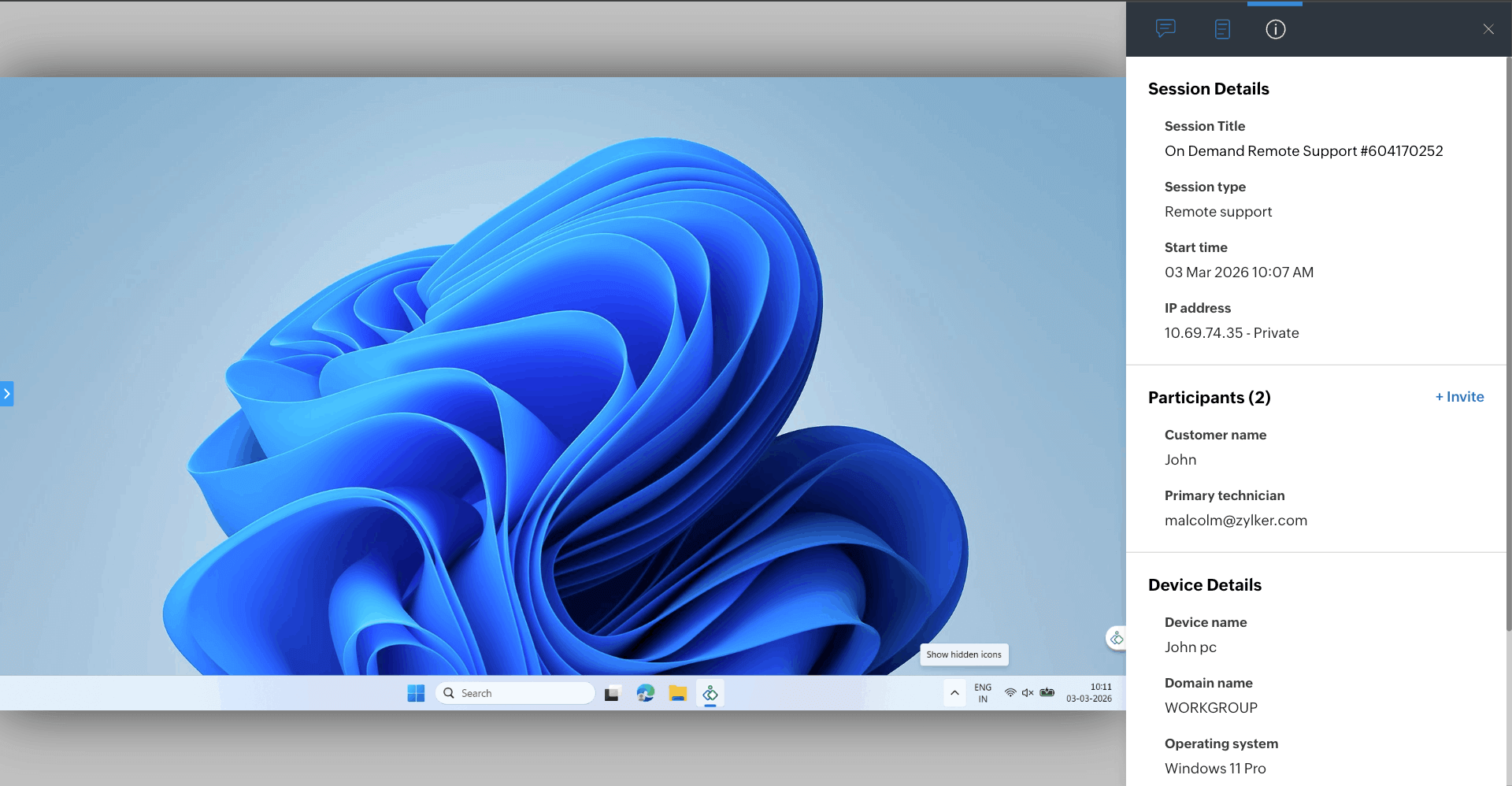
Session Info
This section covers the session essentials:
Session Title: the name given to the session. You can edit it mid-session by clicking the edit icon.
Session Type: whether it's an Unattended Access or a Remote Support session.
Start Time: the exact time the session began.
IP Address: the IP address of the connected remote device.
Participants
See everyone in the session at a glance, the Primary Technician, any Secondary Technicians, and the Customer (for Remote Support sessions).
Need a second pair of eyes? To invite another technician during an active session, click the Invite Tech icon, enter their email address, and once they accept, they'll join as a secondary technician.
Control Access (Unattended Sessions)
For unattended sessions, control is managed carefully. External technicians don't have control access by default. If one requests control, the primary technician sees a prompt to approve it, and once granted, the technician gains control of the device. The primary technician can revoke that access at any time during the session.
Device Details
Get the full picture of the remote machine, including its operating system, device name, domain name, device model, processor details, and last boot time.
Why it helps
Everything in one place: confirm the session, the people, and the device without leaving the console.
Smarter troubleshooting: device info like last boot time and OS gives you context before you dig in.
Secure collaboration: invite technicians and stay in full control of who can access the device.
The next time you connect, take a second to open the Session Info panel. Knowing exactly who, what, and where before you begin sets up a smoother, faster support call.
Which detail in this panel do you check first when you join a session? Share it in the comments below!
For questions or support, reach out to us at support@zohoassist.com. We're always happy to help!