Tip #86 – Keep every session detail where it belongs with Session Notes – 'Insider Insights'
Hello Zoho Assist Community!
During a remote support session, a lot happens fast. You spot something worth following up on, the customer mentions a recurring issue, or you make a configuration change you want to flag for later. Most of that context lives in your head while the session is running, and the moment it ends, the next one begins.
Session Notes gives you a place to capture exactly that. Not a full session recording, but your own observations, quick analysis, things to check later, or anything worth remembering about how a case unfolded. A personal record that stays attached to the session and is there whenever you or your admin needs to go back to it.
That's where Session Notes comes in.
What are Session Notes?
Session Notes lets technicians store crucial information, case history, and comments at the end of every remote support or unattended access session. Notes can be created, edited, and updated at any time, and are accessible to both technicians and administrators for auditing and future reference. They can also be downloaded as a CSV file whenever needed.
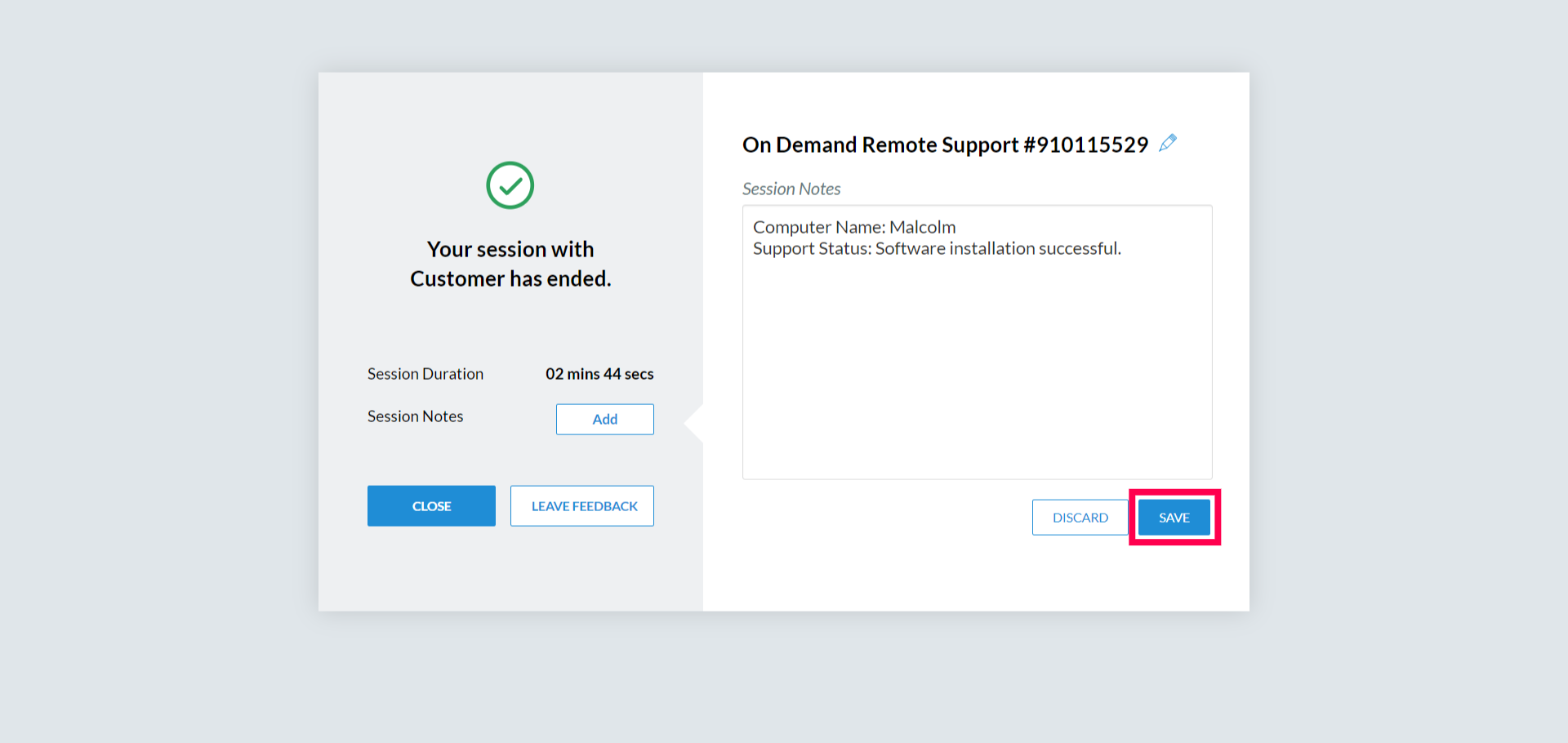
Adding a session note
At the end of a session, an end session dialog will appear. Click Add Session Note, enter the session name, add your notes, and click Save. That's all it takes to capture what happened before closing out.
Additionally, you can start adding Session Notes right from within an active session by clicking the blue arrow on the right side of the session window. 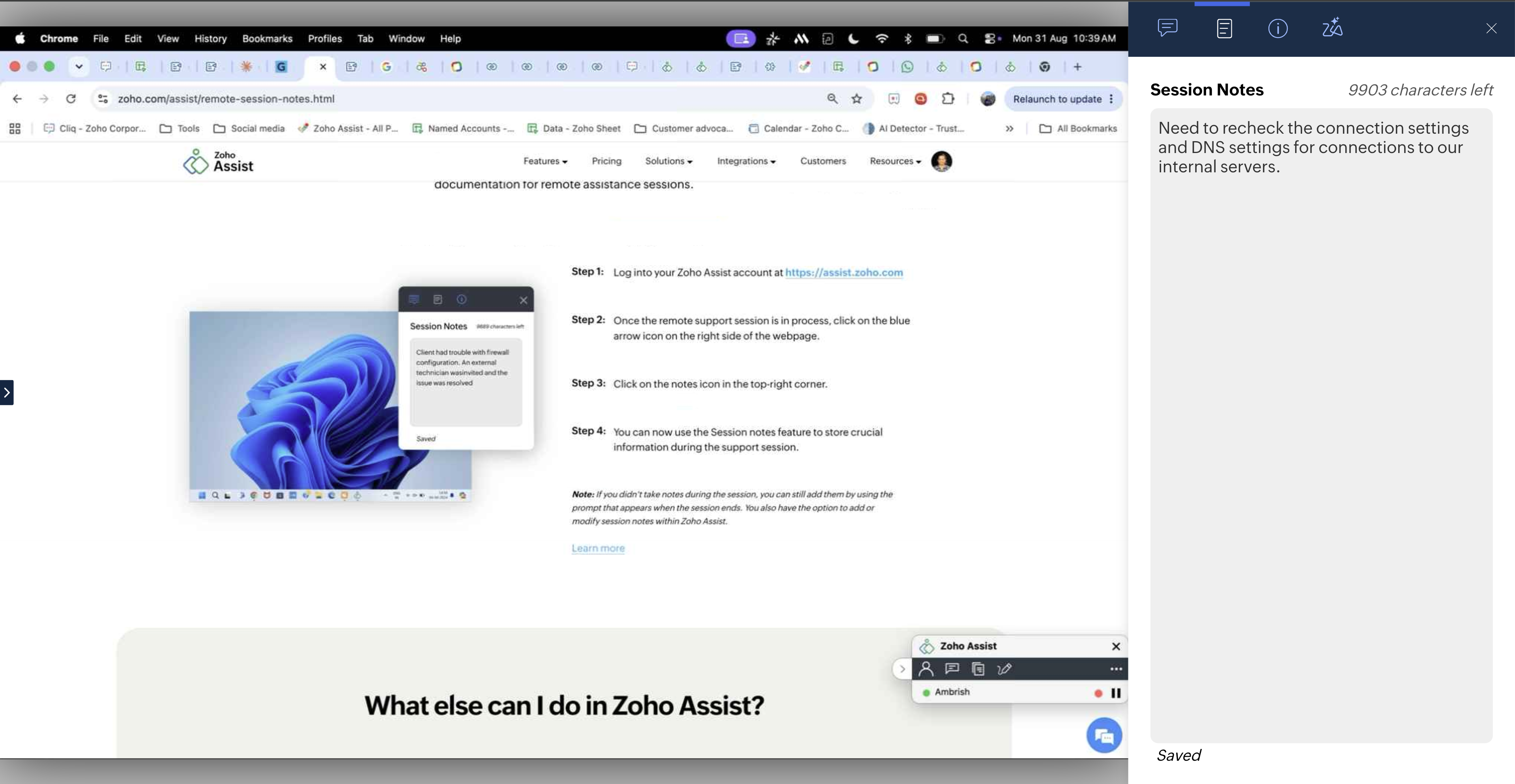
Adding or editing notes for a closed session
Missed adding a note right after the session? No problem. Go to Reports > Custom Reports, click View Notes next to the relevant session, make your edits or additions, and click Save to update.
Downloading session notes
Navigate to Reports, click View Report next to the session, select Session Notes from the left panel, and click Download to save the notes as a CSV file.
Whether your team uses session notes for internal audits, tracking recurring issues, or simply keeping a record of what was done, it's a straightforward habit that pays off every time a past session becomes relevant again.
Have you been using Session Notes in your workflow? We'd love to hear how your team is putting them to use. Share your experience in the comments below!
For help or questions, reach out to us at support@zohoassist.com. We're always happy to help!