Tip #92 – Organize your support operations with Departments – ‘Insider Insights’
Hello Zoho Assist Community!
As a support team grows, so does the complexity. Different customers, different products, technicians spread across regions, and each group needing its own way of working. When everyone operates from a single shared space, requests get mixed up, the wrong technicians pick up the wrong issues, and keeping workflows consistent becomes a daily challenge.
What if each team, product line, or customer group could have its own dedicated space within the same Zoho Assist account?
That’s exactly what Departments make possible.
What are Departments?
Departments let you organize your support teams by customer organization, product, geographic location, or workgroup. Each department can have its own technicians, configurations, email templates, and contacts. Incoming requests are routed to the right group of technicians, which means faster responses and more accurate resolutions.
Adding a department
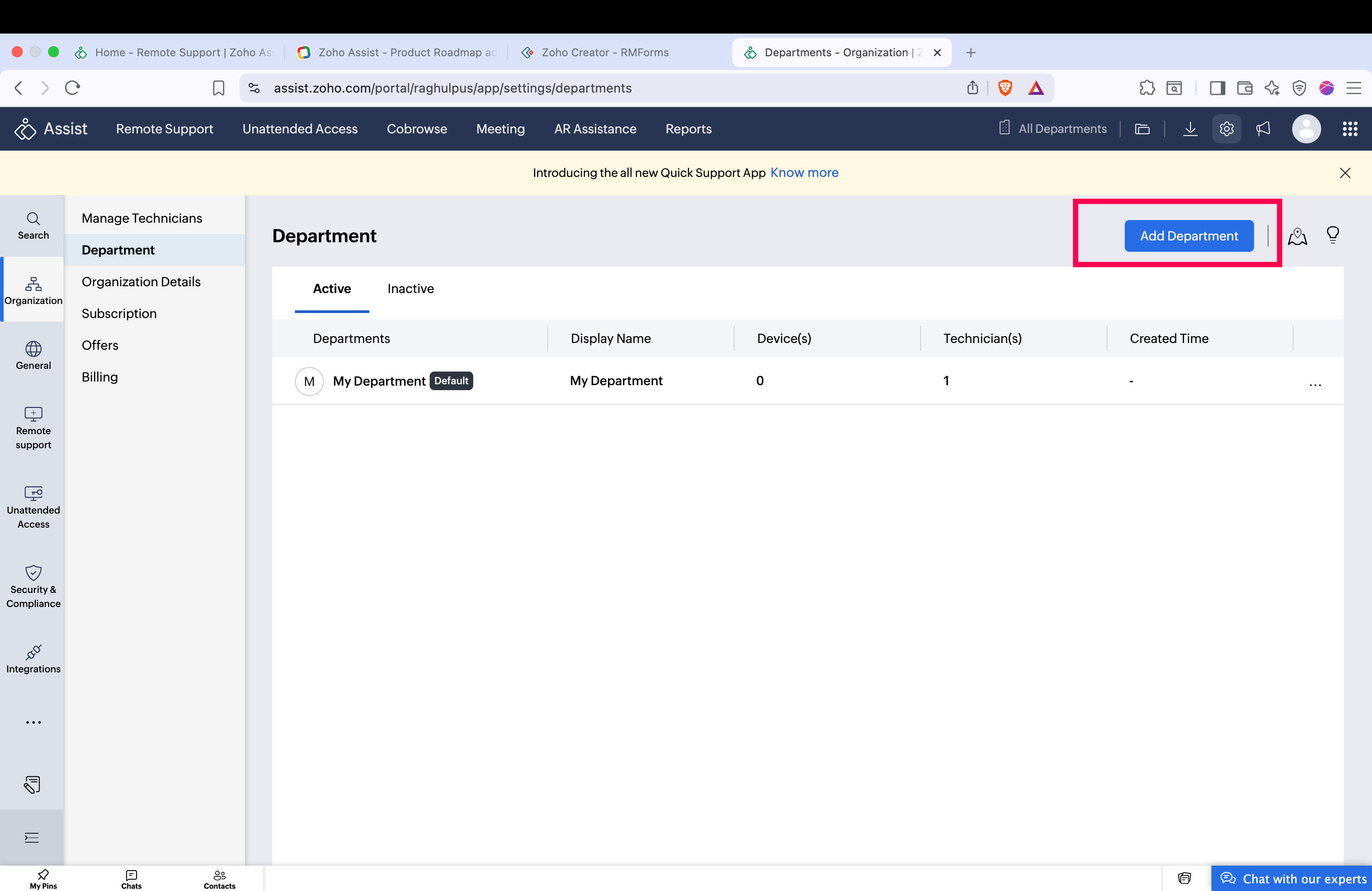
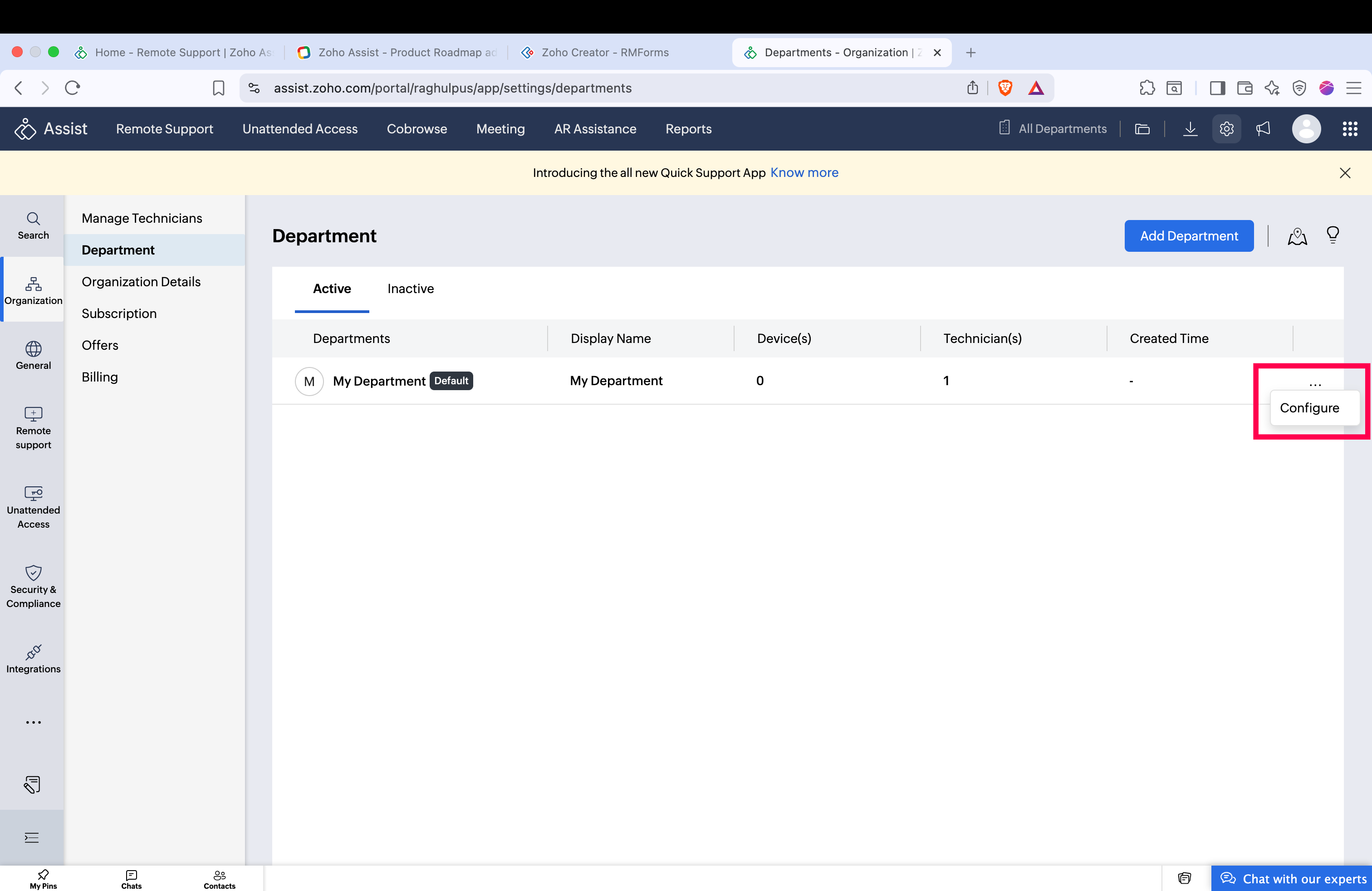
Navigate to Settings > Organization > Departments and click Add Department. Enter the department name, display name, and description. Click Add Technician to assign at least one technician, click Done, and then click Configure to set up the department further.
To switch between departments, click Departments in the top toolbar and select the one you need using its display name.
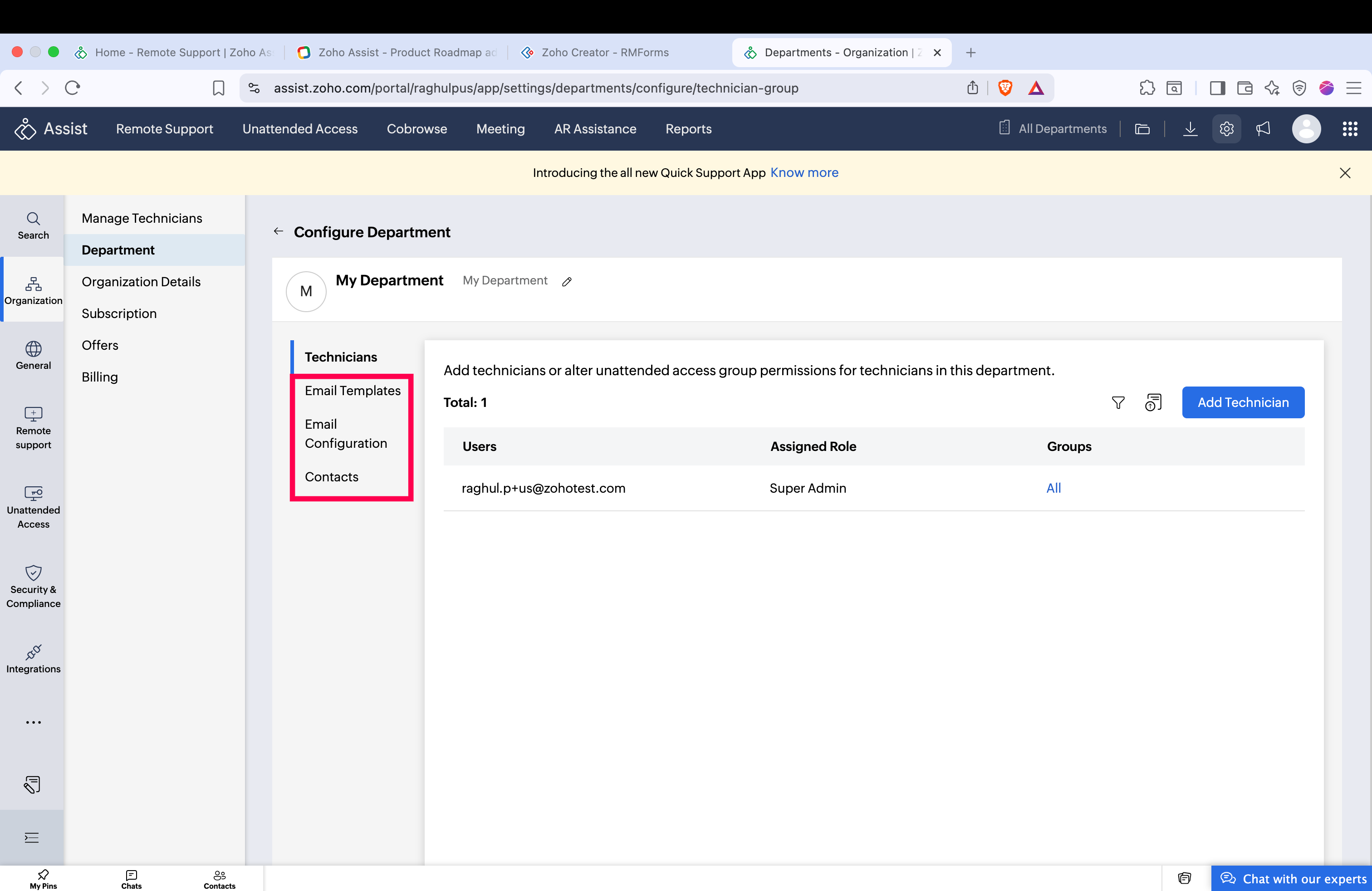
To customize a department, click Configure beside the department and choose from: Email Templates, Email Configuration and Contacts.
You can also Enable or Disable a department by navigating to Settings > Organization > Departments, choose Active or Inactive beside the department, and click to enable or disable it.
Whether you support multiple customer organizations, manage products across regions, or simply want cleaner separation between workgroups, Departments keep every team organized and every request in the right place.
Have you set up Departments in your Zoho Assist account? We’d love to hear how you’ve structured them for your team. Share your experience in the comments below!
For help or questions, reach out to us at support@zohoassist.com. We’re always happy to help!