Tip #94 – Resolve Zendesk tickets faster with remote support from Zoho Assist – 'Insider Insights'
Hello Zoho Assist Community!
A customer raises a Zendesk ticket about an issue that's hard to explain and even harder to fix over messages. The agent asks for screenshots, the customer sends a few, and the replies go back and forth across hours. The ticket stays open, the customer's frustration grows, and a problem that could be solved in minutes drags on for days.
Some tickets simply can't be resolved by text alone. They need someone to see the screen and fix the issue directly.
That's exactly what the Zendesk integration with Zoho Assist makes possible.
What is the Zendesk integration?
The integration lets agents start remote support and screen sharing sessions directly from a Zendesk ticket, with no switching between tools. It works on both Windows and macOS, so you can support customers anywhere in the world and resolve tickets right where you manage them. Agents can troubleshoot remotely, update the ticket status at the end of each session, and access session details such as duration, start and end time, and notes in reports.
Getting set up
Start in Zoho Assist by going to Settings > Integrations > Apps, clicking Configure under Zendesk, entering your sub-domain, and clicking Install. Sign in with your Zendesk credentials to enable the integration.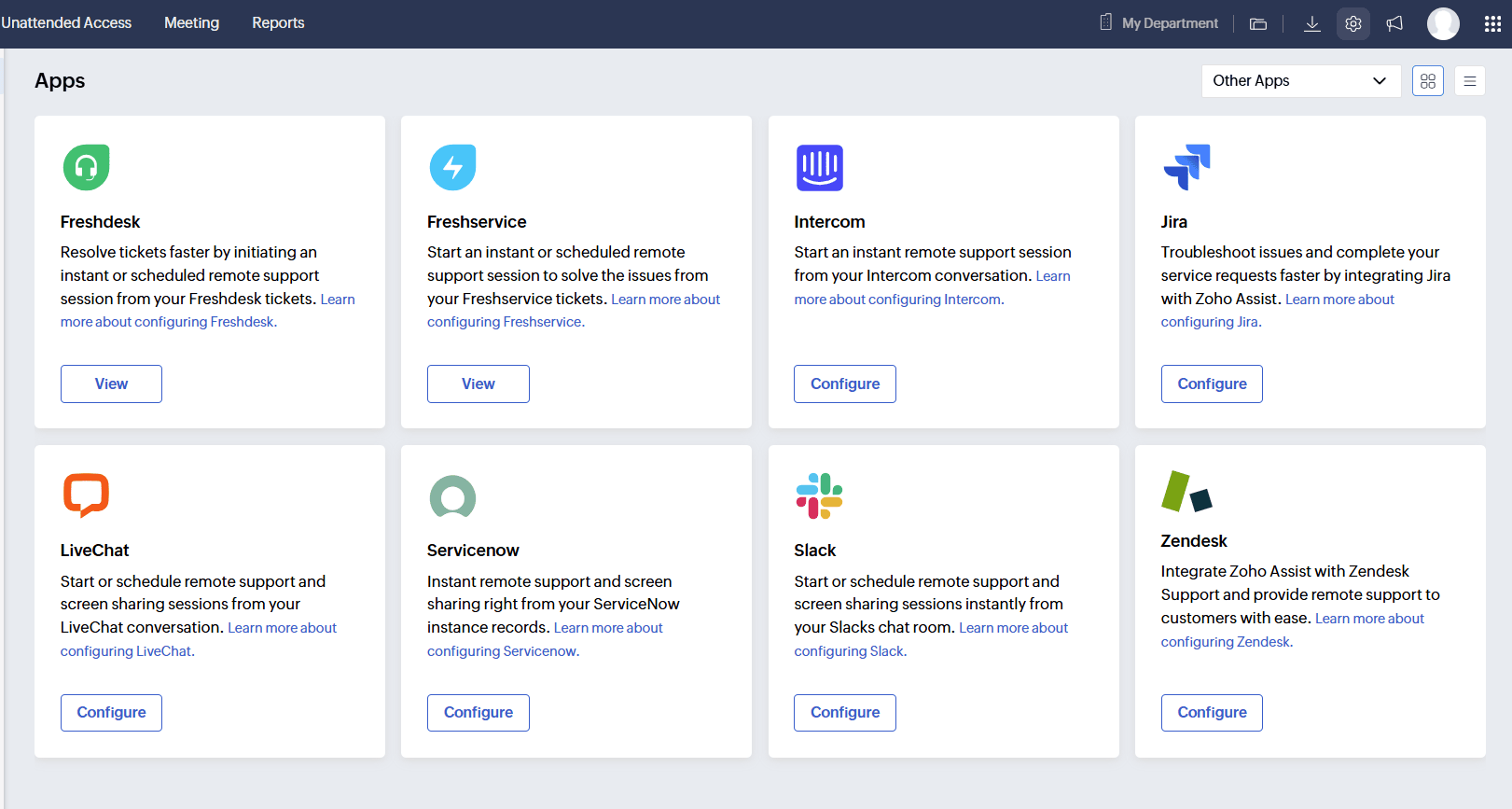
Next, head to Zendesk. Open a ticket, click Explore Zendesk Marketplace, search for Zoho Assist – Remote Support App, and install it. Then refresh the app pane and click Login under Zoho Assist to sign in, or sign up if you're new.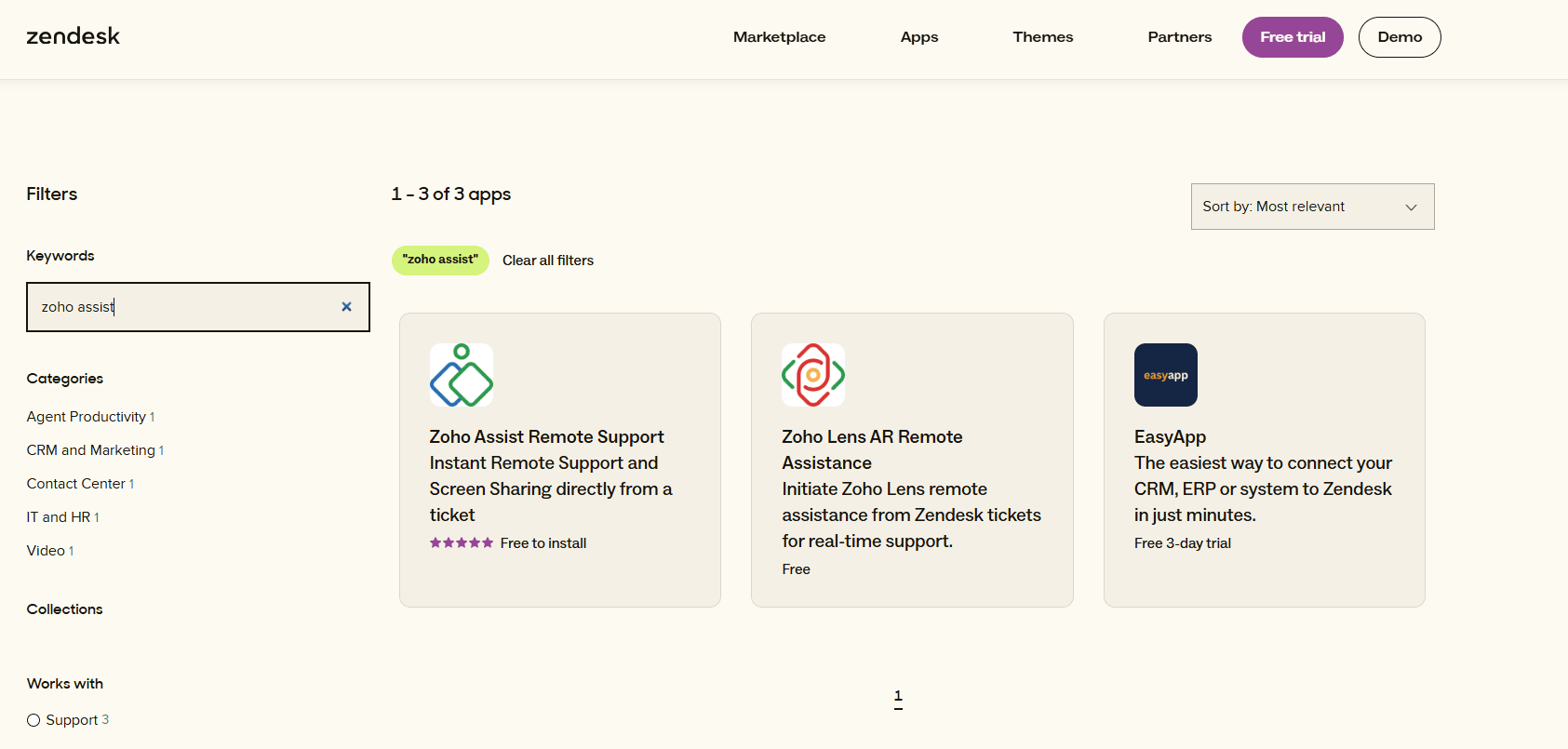
From session to resolution
Once set up, everything happens from the ticket itself. Click Start Session and share the joining link with the customer. When they join, you can view their remote screen and begin troubleshooting.
When the issue is fixed, click End Session, select the ticket status, add an internal note or public reply, and click Save & End Now. The ticket is updated without any extra steps.
Afterwards, the session key, duration, start and end time, and notes appear in the ticket's comment box. Click Show More to open the detailed report.
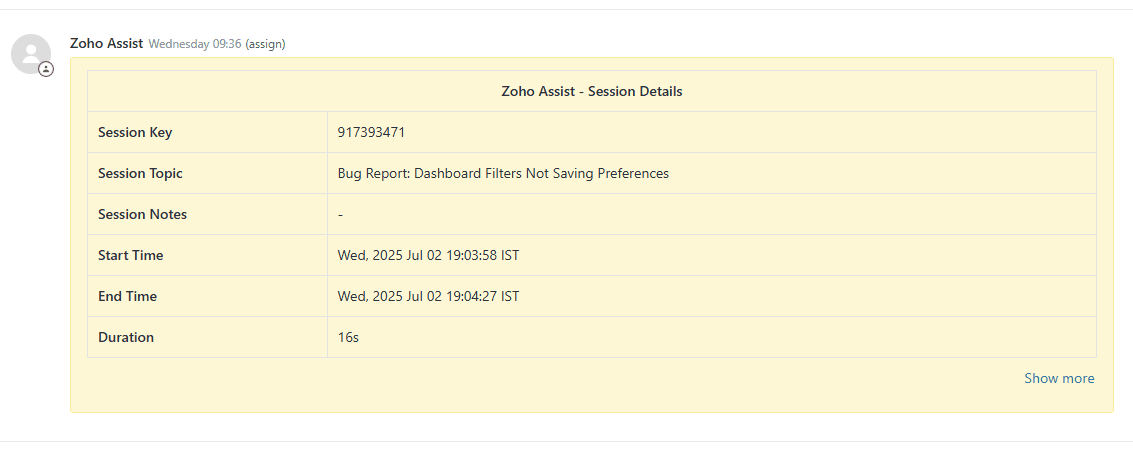
 Note:
Note:The integration supports both Windows and macOS.
Session details are logged automatically under the corresponding Zendesk ticket.
Whether your team handles a few tickets a day or a high-volume queue, starting a session from the ticket itself keeps the whole resolution in one place, from first response to final status update.
Have you set up the Zendesk integration with Zoho Assist? We'd love to hear how it's working for your team. Share your experience in the comments below!
For help or questions, reach out to us at support@zohoassist.com. We're always happy to help!