Weekly Tips: Folder Sharing Simplified with Zoho Mail
Let's say your team is working on a project that requires gathering numerous inputs via email. Your team lead, who manages the project, receives a flood of emails containing critical information. Instead of forwarding each email individually—which can be time-consuming and messy—wouldn't it be easier to share them all at once?
With Zoho Mail’s Folder Sharing feature, you can share all the emails in a folder in an instance.
Folder Delegation
Folder sharing in Zoho Mail helps you share an entire folder of emails with your organization members. The users with whom you have shared the folder can view the emails and comment on them. Only the custom folders can be shared. The folder sharing option is not available for the default folders such as inbox and archive folders. There are three levels of permissions (read, write, and write with email address delegation) available while sharing custom folders.
How to Share Folders:
- Log into your Zoho Mail account.
- Navigate to the folder you wish to share with others.
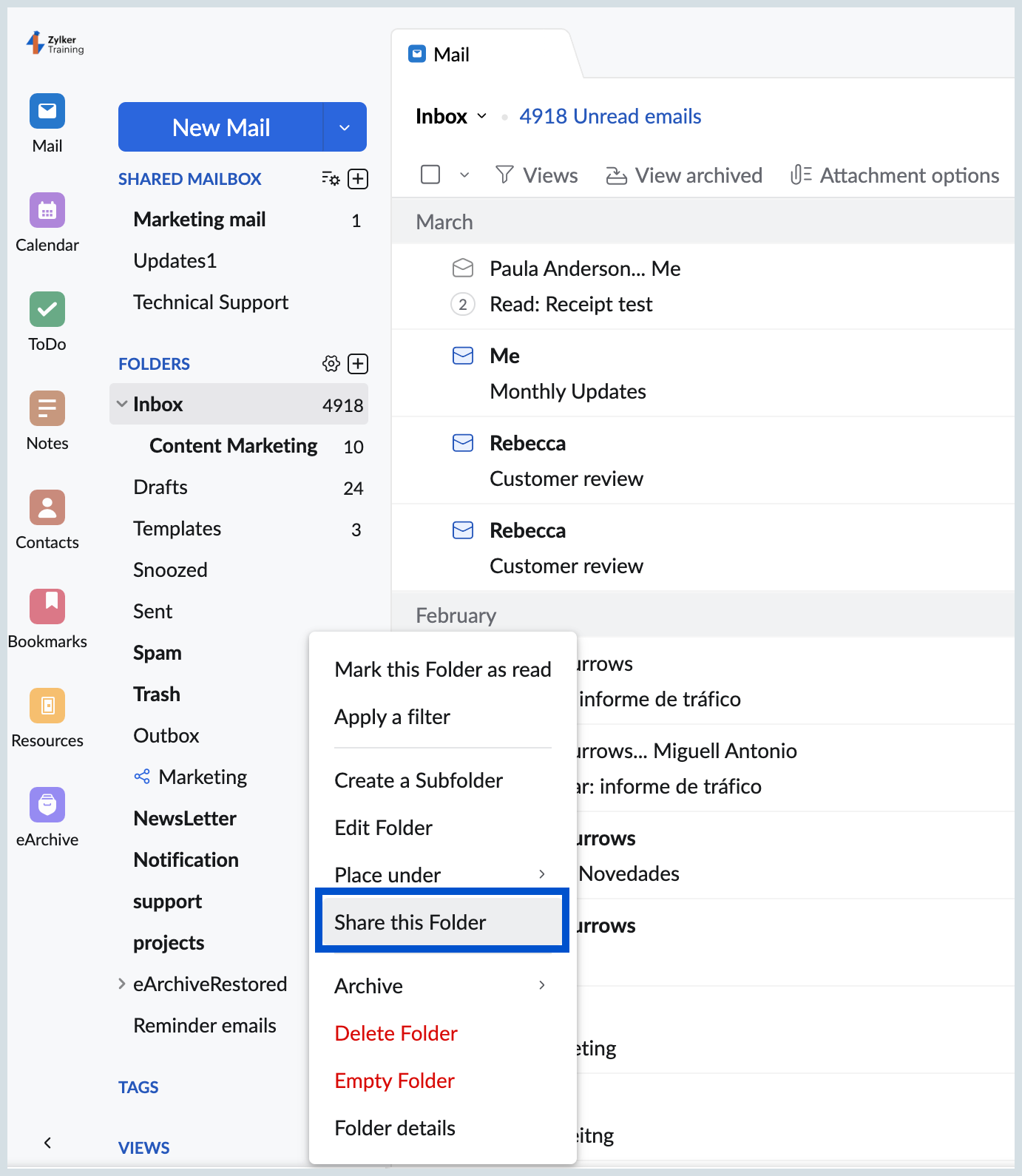
- Right-click on the folder listing available in the left pane.
- Click on the Share this folder option.
- In the Share folder pop-up, enter the user's email addresses. You can also choose to either provide only Read access or Write access.
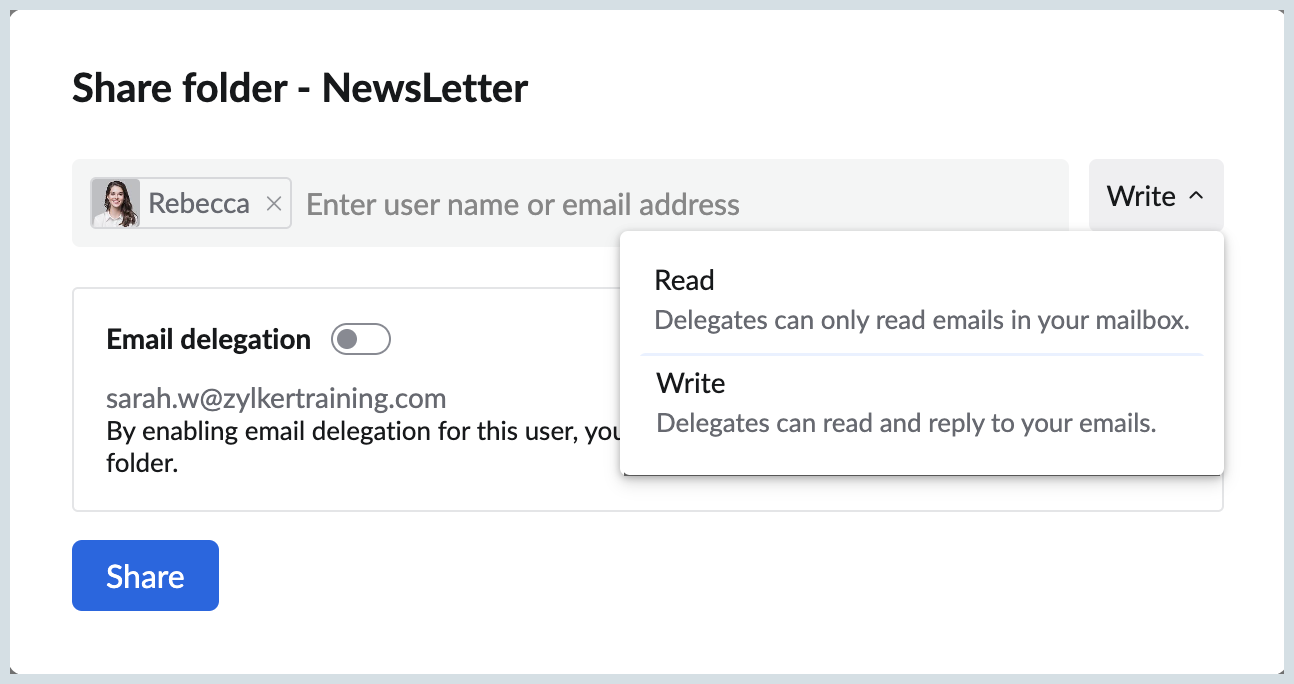
- If you have provided Read access, the other users will only be able to view the emails in the folder.
- If Write permission is provided, the user will be able to read, comment, and further respond or reply to the emails on your behalf. Delegation allows the user to reply to the emails in the folder on your behalf, with a chosen email address.
No more endless email forwarding—just share a folder and keep your team in the loop.