Weekly Tips: Take Control Of Your Inbox with Mark as Spam Option
Receiving emails that instantly feel suspicious, irrelevant, or just plain unwanted has become part of our everyday lives now. Whether it is an unexpected marketing email, an unfamiliar sender, or an uninvited message, we all face the frustration of having our inboxes cluttered with such content. Instead of letting these emails accumulate and cause unnecessary stress, it is important to know how to handle them efficiently and take back control over your inbox.
Here's Zoho Mail's Mark as spam feature, a simple yet powerful tool that helps to manage unwanted emails.
Mark as spam
Instead of letting unwanted junk emails sit in your inbox or worrying about them coming back, you can simply Mark it as spam. Once marked, the email gets filtered out, and future messages from that sender are automatically routed to your spam folder, saving you from unnecessary interruptions. Whether it is a persistent subscription or a one-off email that feels off, this allows you to take immediate action and declutter your inbox with just one click.
How to Mark an email as spam
- Log into your Zoho Mail account.
- Navigate to the email you want to mark as spam.
- In the email preview pane, click the drop-down menu located on the right side, just below the email header.
- Click on the Mark as spam option to mark it as spam or simply use keyboard shortcuts(Shift+1) to move the email to spam.
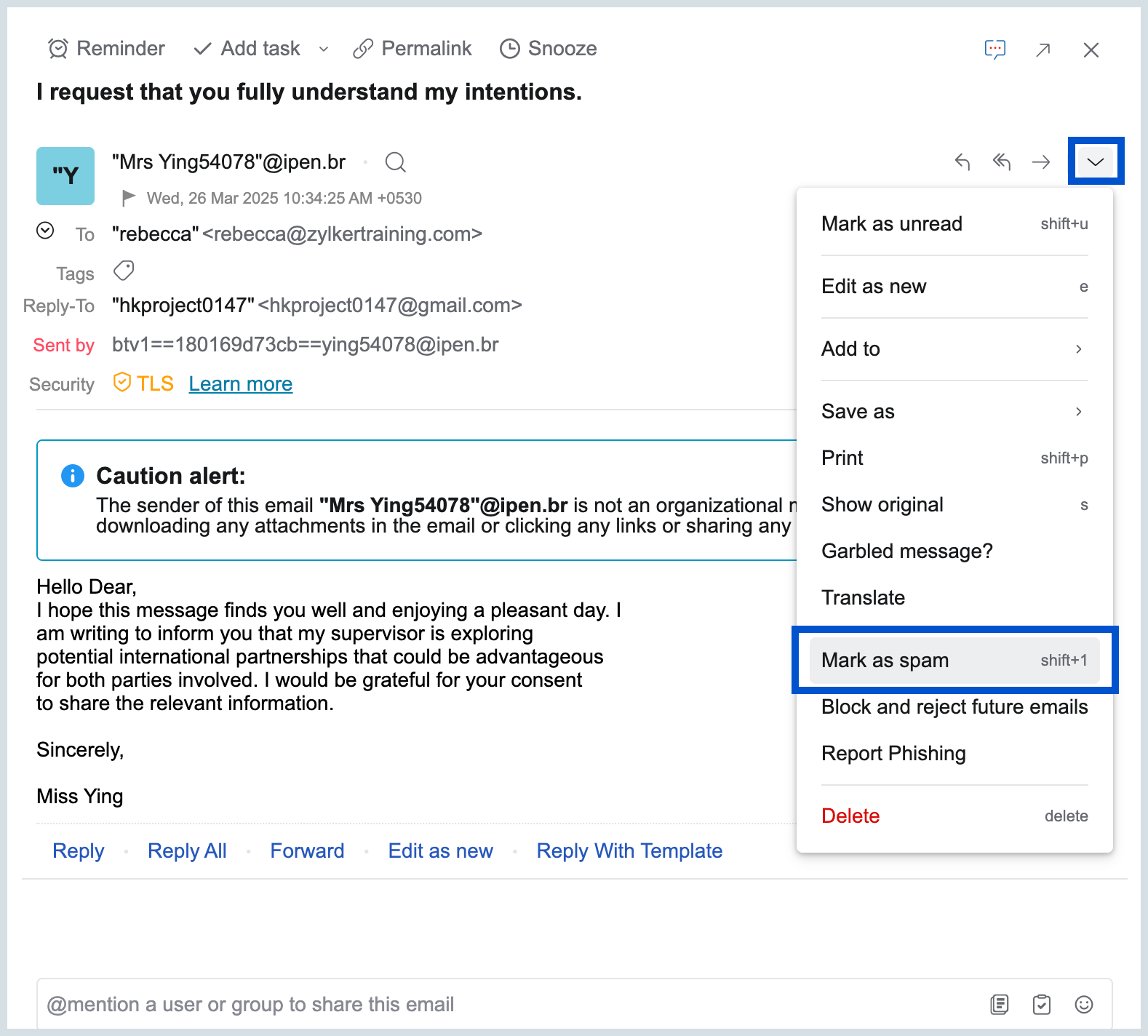
- You can also easily mark multiple emails as spam at once by selecting them from your email listing and clicking the Mark as Spam option in the header.
Stay Spam free with Zoho Mail!