What's New in Zoho Billing | October 2026
Subscriptions
On Demand Subscriptions for Items

Import Price List IDs with Subscription Details
Enhanced Subscription Details Page in the Customer Portal
- Summary Card: Shows the subscription status, plan details, add-ons count, relevant date, trial days (if applicable), amount, and billing period.
- Billing Details and Usage Records Tabs: Let customers switch between billing details and usage records without opening an overlay.
- Usage Summary: Shows used and total units, with usage status: Unused (0%), Low Balance (80% and above), or Fully Used (100%).
- Usage Records Filters: Allow switching between Detailed and Aggregated views and filtering by billing period, custom date range, created period, status, and add-ons.


Usage and Invoicing
Attach Usage Statements to Invoice Emails

To enable this, go to Settings > Billing Preferences > Usage Billing and select Include usage statement when invoices are emailed.
Track Progress Invoices by Amount for Service Items (Early Access)
Note: This feature is currently in Early Access. Reach out to support@zohobilling.com to have it enabled for your organisation.Recognize Revenue Upon Service Completion (Early Access)
Time Tracking
Log Time for a Service Without a Project
Billable time can now be logged against a customer and a service without associating the time entry with a project. This enhancement lets you track service-related work independently, even when it isn't managed as a project.
When you log time without a project:
The Customer field appears above Project in the Log Time form, and Project Name is no longer mandatory.
The Service Name field displays your sales service items.
This gives you greater flexibility in tracking billable work, simplifies time entry for standalone services, and ensures that service-related hours are accurately recorded for invoicing without requiring you to create or maintain a project.
To log time without a project, go to Time Tracking > Timesheet, create a timesheet record, select a customer and service, and leave Project Name empty.
Reports
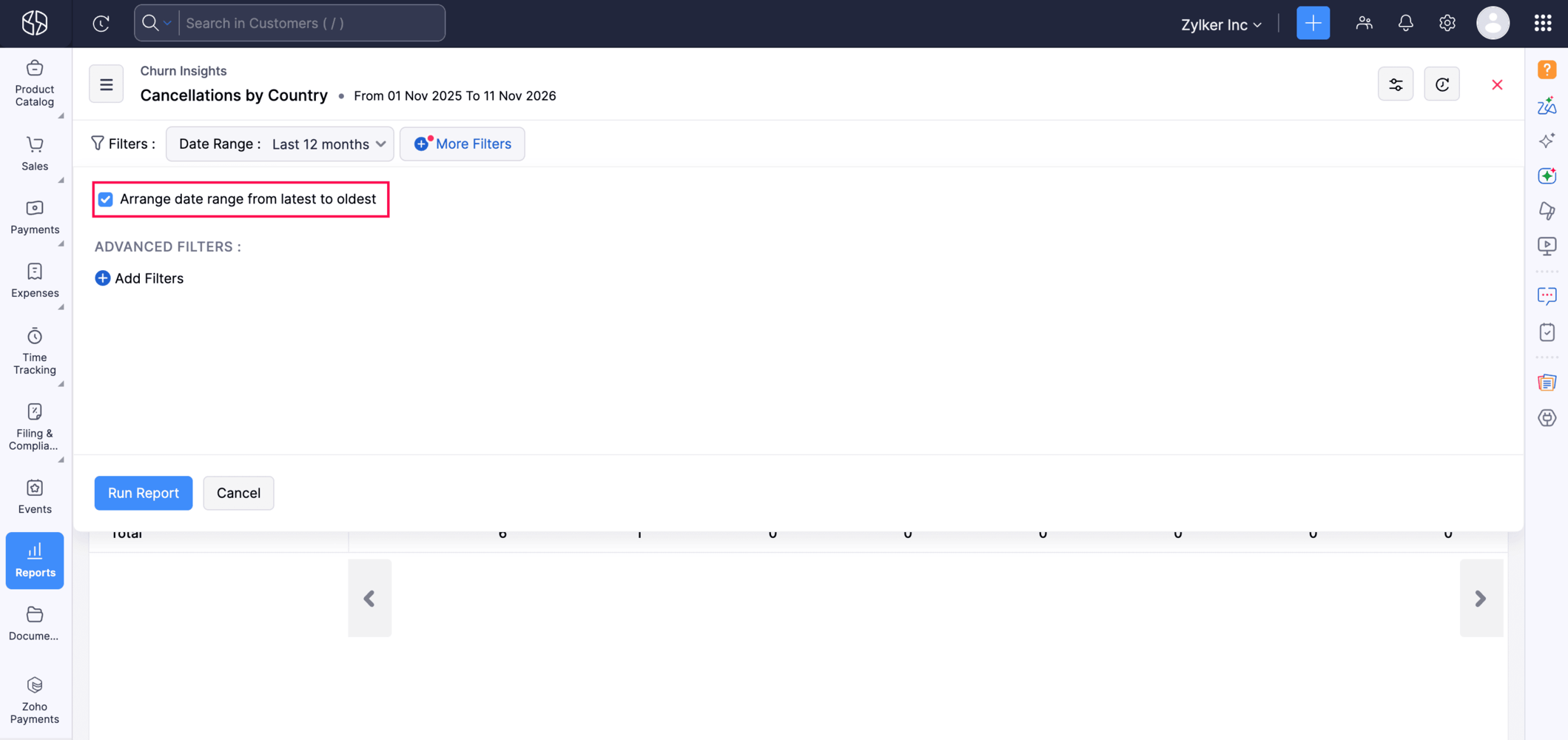
View Recent Data First in Reports
View Churn Reasons in Voluntary Churn Reports
View the reasons customers provide when voluntarily cancelling their subscriptions in the Voluntary Churn (Enterprise Edition) report. Analysing this feedback helps you identify recurring concerns, recognise patterns in cancellation behaviour, and understand which areas of your product or service may need improvement.
To view this report, go to Reports > Churn Insights > Voluntary Churn (Enterprise Edition).
Taxes and Compliance
Configure When TDS Is Applied to Sales (Global Edition)
- Both: Apply TDS when transactions are recorded and when payments are received.
- When the transaction is recorded: Apply TDS to transactions such as invoices.
- When payment is received (sales): Apply TDS when you receive payments from customers.

Filter Reports by GSTIN (India Edition)

To do this, open either report, Go to Reports > Taxes > Tax Summary or Receivable Details and click More Filters and select GSTIN under Advanced Filters. Choose one or more GSTINs and click Run Report.
Try these updates now and share your thoughts in the comments! You can also visit the What's New timeline for bite-sized information about our previous feature updates and enhancements. If you need any assistance, feel free to reach out at support@zohobilling.com. Best regards, The Zoho Billing Team