Zoho Projects Coming to CRM Teamspaces

Hello all,
You are probably already familiar with Teamspaces, the dedicated workspaces where teams organize the CRM modules they rely on and collaborate on records tied to their specific function or initiative.
While modules help teams manage operational data, many teams also work on projects that involve planning, coordination, and task execution. Previously, these projects were managed outside of the Teamspace environment, typically through Zoho Projects and accessed from individual record contexts such as Accounts or Contacts.
To extend the scope of collaboration within Teamspaces, projects can now be brought directly into a Teamspace. This allows teams to work on their ongoing projects alongside the modules already present in their workspace. This enhancement helps teams manage both record-based work and project-based collaboration within a single workspace, improving coordination and overall team productivity.
Know more about Teamspaces and Project Integration in Zoho CRM.
Why bring Zoho Projects into Teamspaces?
With this enhancement, teams can now bring projects directly into their Teamspace, making them accessible alongside the modules already present in the space.
This helps teams:
Access project work from their shared Teamspace
Collaborate on tasks without switching between multiple views
Keep project execution aligned with CRM records and team activities
Organize both internal and customer-related initiatives within the same workspace
When would teams use Projects in a Teamspace?
Projects become especially useful in Teamspaces where teams already manage operational modules and need a structured way to track execution and collaboration.
Marketing Teamspace:
A marketing Teamspace may include modules such as Campaigns, Case Studies, Influencer Outreach, and Customer Feedback.
Projects can be used to manage campaign execution and related activities. For example:
Product Launch Campaign – Tracks tasks such as campaign planning, content creation, ad deployment, and partner outreach.
Customer Case Study Initiative – Coordinates activities like customer outreach, content drafting, and publication schedules.
These projects allow the team to manage campaign records while tracking execution progress within the same workspace.
Customer Delivery Teamspace:
Customer-facing teams often manage modules such as Accounts, Deals, Case Studies, and Customer Feedback.
Projects can help coordinate customer onboarding or implementation work. For example:
Customer Implementation Project – Tracks setup activities, milestone completion, and delivery timelines for a customer.
Customer Onboarding Project – Manages onboarding tasks such as configuration, training sessions, and adoption monitoring.
This enables delivery teams to monitor milestones and collaborate on project tasks alongside the relevant customer records.
When working with a key customer on implementation or onboarding activities, the team can bring the related customer project into their Teamspace. This allows the delivery team to monitor milestones and collaborate on project tasks alongside the relevant customer records.
Types of projects supported
Projects added to a Teamspace can fall into two categories.
Client Projects : Client projects are projects that are already associated with CRM accounts or contacts.
Within a Teamspace:
Existing client projects can be brought into the space
Teams can monitor project progress directly from their workspace.
The project continues to remain associated with the related CRM records.
This helps teams working with key customers track ongoing implementation or delivery projects without repeatedly navigating to individual records.
Internal Projects : Internal projects are projects that are not associated with any external client or CRM record. They are created purely for collaboration among CRM users within the team. These projects are typically used to plan and track internal initiatives such as feature development, documentation updates, campaign planning, or operational improvements.
Example: Sales Enablement Teamspace
A Sales Enablement Teamspace may include modules such as Leads, Deals, Sales Collateral, and Customer Feedback.
In addition to managing sales records, the team may work on several internal initiatives that require structured coordination. For example:
Sales Playbook Development – Organizes the creation and updates of sales scripts, pitch decks, and competitive positioning guides.
Quarterly Sales Training Program – Plans internal training sessions, certification programs, and onboarding materials for new sales representatives.
Lead Qualification Framework Update – Tracks improvements to lead scoring rules and qualification guidelines used by the sales team.
By creating these internal projects within the Teamspace, the team can coordinate training, documentation, and process improvements while working alongside their CRM data.
How Projects work inside a Teamspace
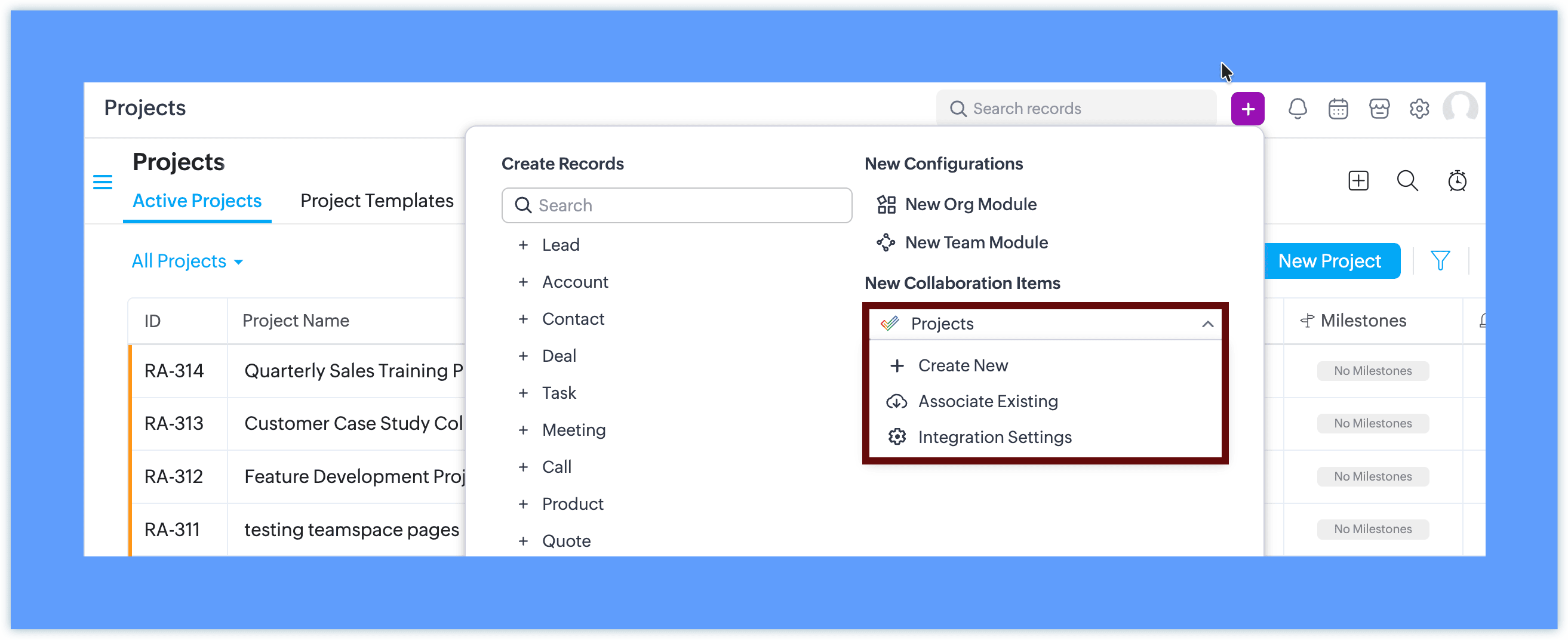
Create a new project directly from the Teamspace
Bring an existing project into the Teamspace
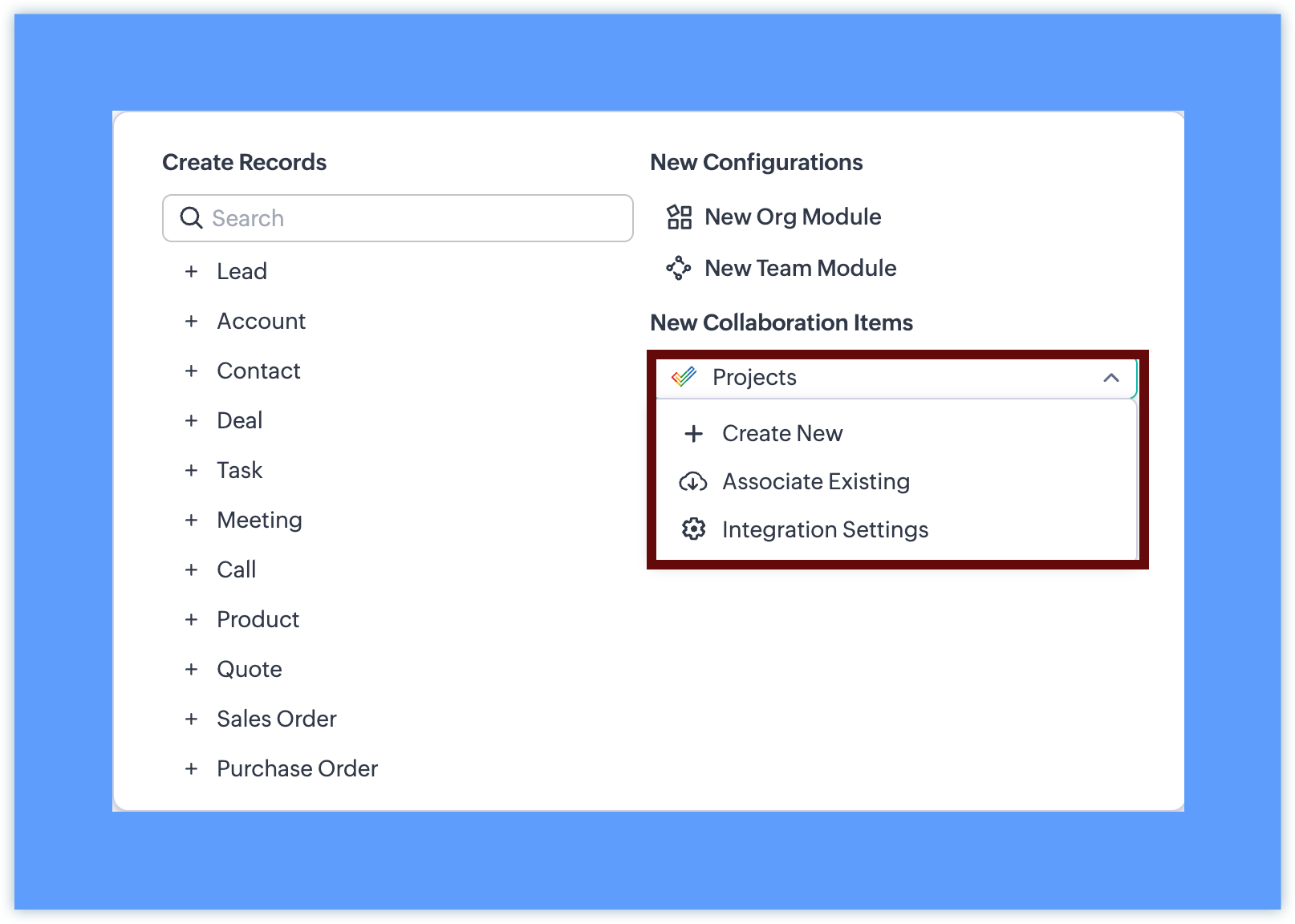
Once a project is added:
Once added, the project appears in the Teamspace navigation panel. Projects can be placed inside any folder within the Teamspace, alongside modules or other projects.
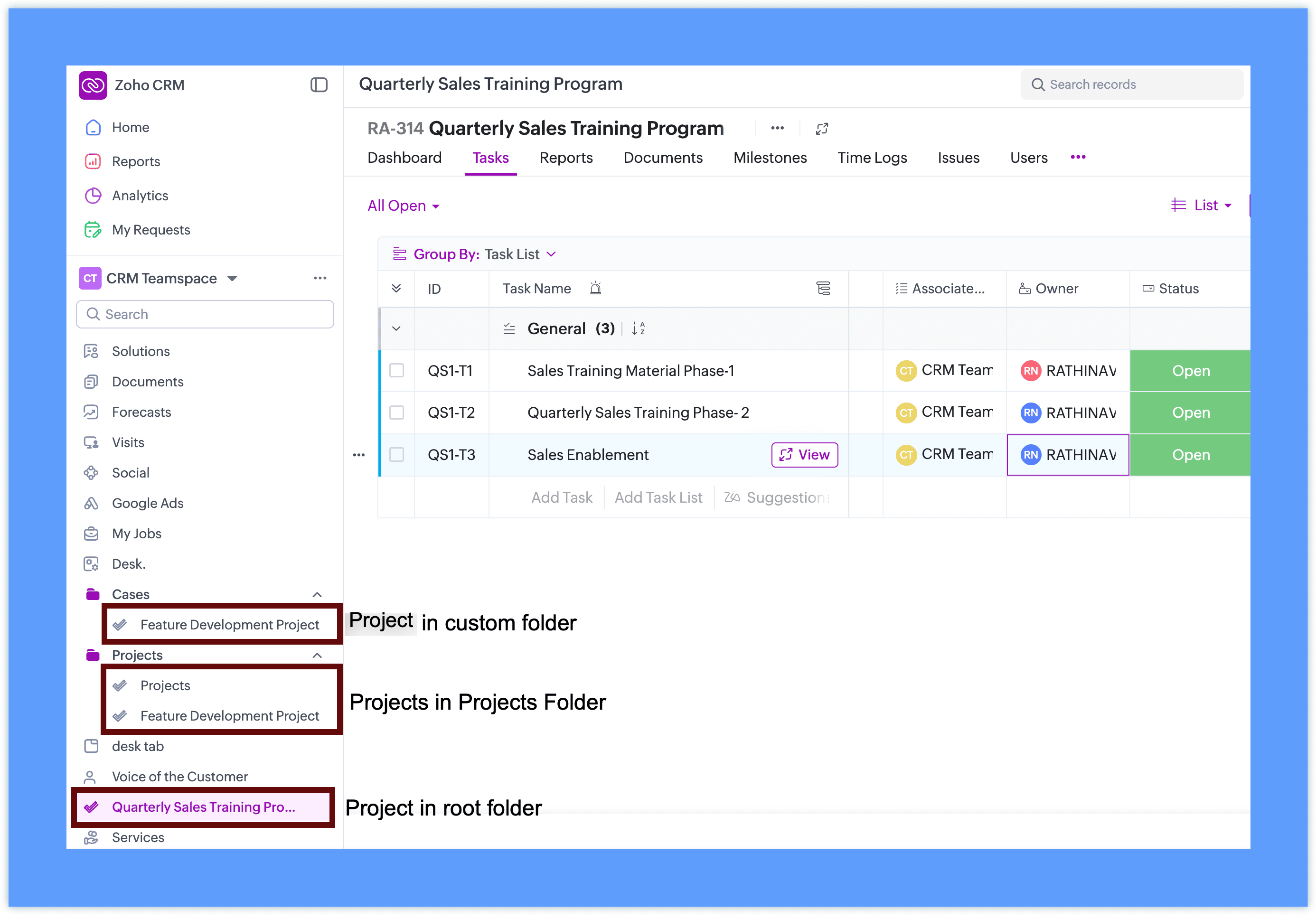
Team members can open and work on the project without leaving CRM
The project interface is displayed within the Teamspace using the Zoho Projects view
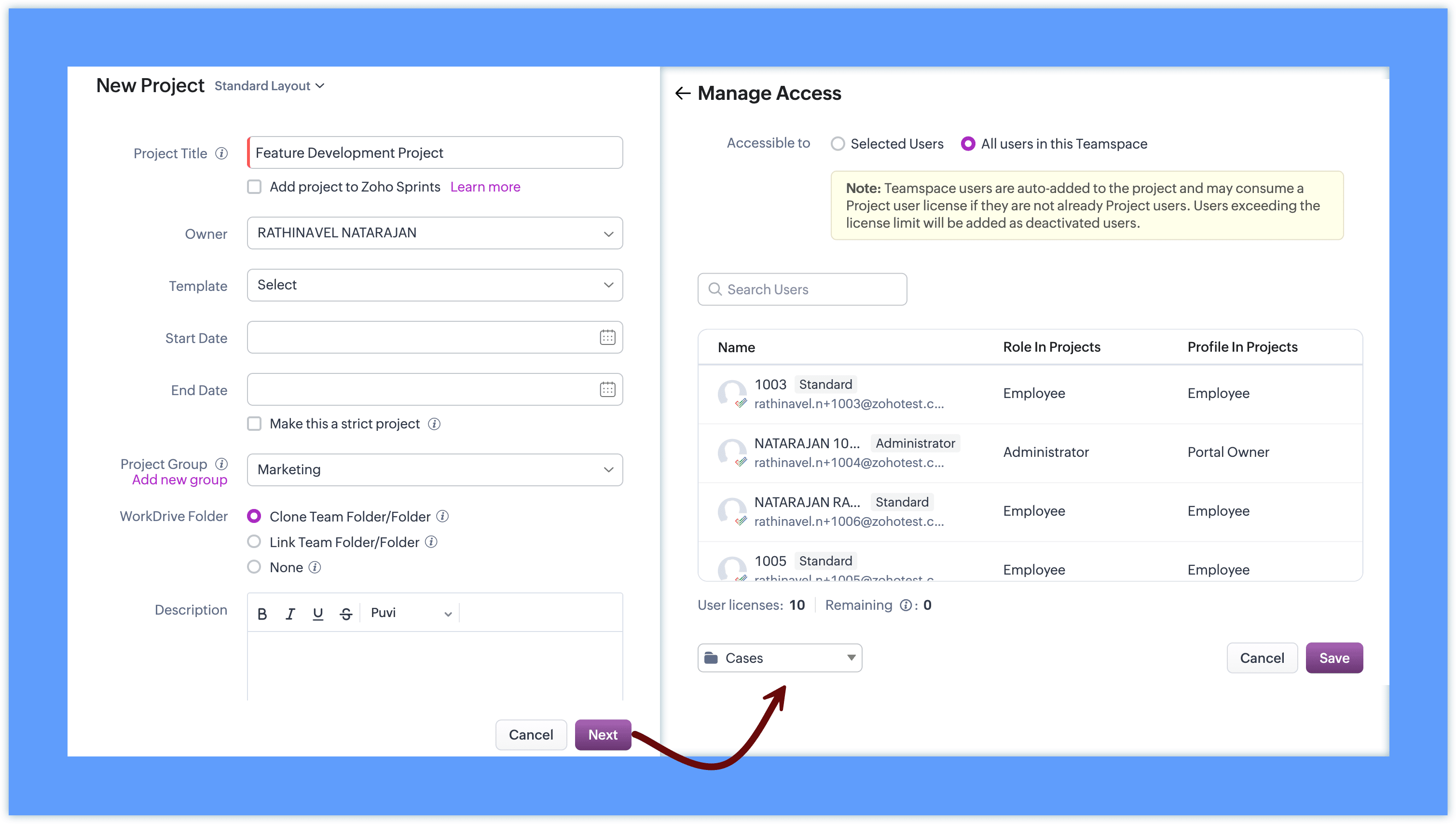
This allows teams to work with familiar project capabilities while accessing them directly from their workspace.
Project behavior inside CRM
Projects added to Teamspaces continue to follow the existing Zoho Projects behavior.
Projects remain managed through Zoho Projects
CRM surfaces the project interface inside the Teamspace
Client projects retain their association with CRM records
Internal projects can be created without selecting a client
This ensures that teams can continue using the same project functionality while accessing it within their Teamspace.
Access and collaboration
To add projects to a Teamspace, integration with Zoho Projects is required. If it is not already configured, you can set it up directly from the Teamspace in a single step.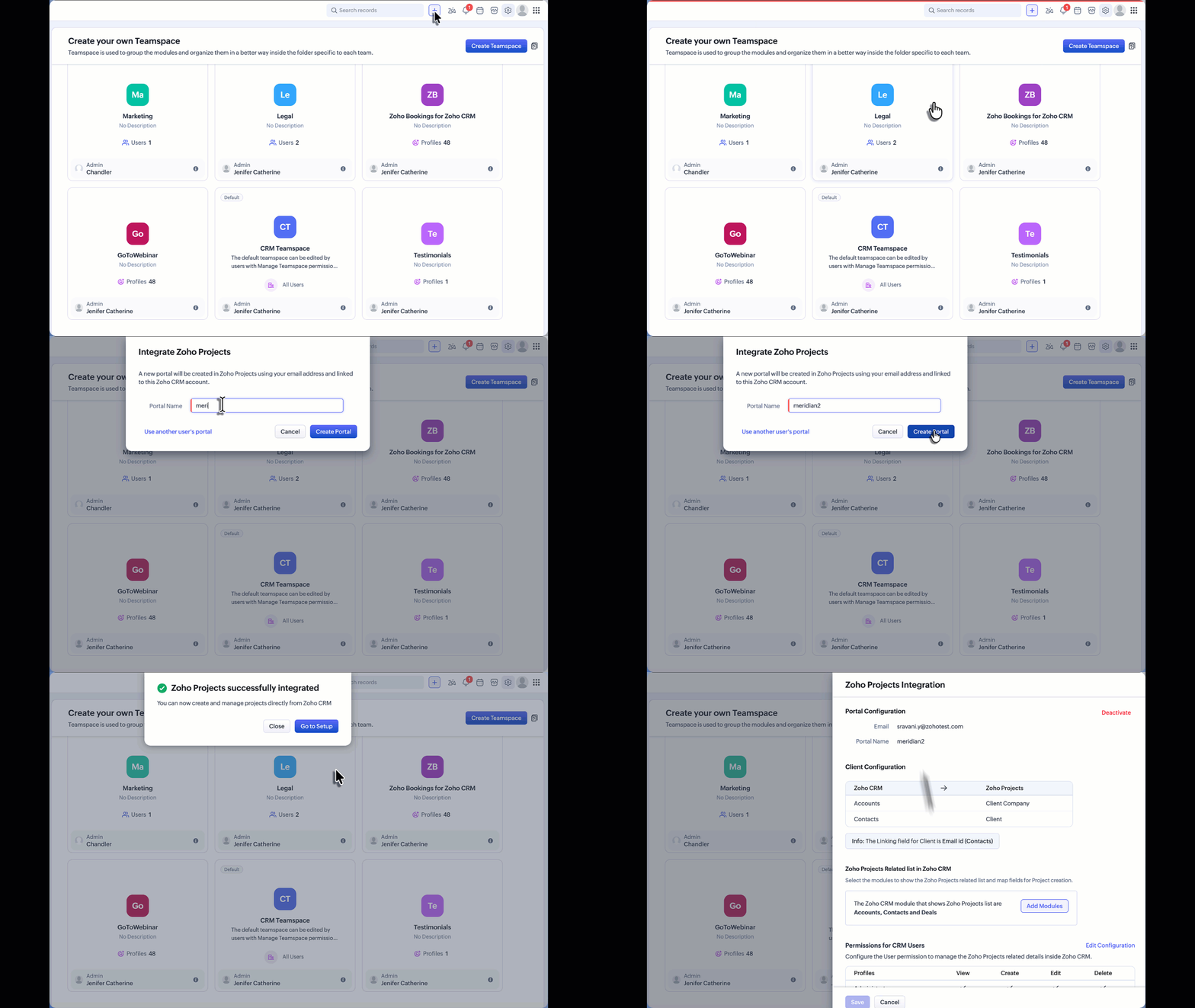
For detailed instructions on the complete setup and how Zoho Projects works, refer to the Zoho Projects integration help documentation. If Zoho Projects is available for the CRM account:
Users can create or associate projects within the Teamspace.
Project visibility follows Zoho Projects user access permissions.
Team members can collaborate on tasks and monitor project progress directly from the Teamspace.
Additional Notes:
User Access: Project user access depends on the number of available user licenses in Zoho Projects. If the license limit has been reached, Teamspace users will be added as inactive users in Zoho Projects. These users can be activated later once additional licenses are available through subscription.
Updated Project UI: The Create Project and Associate Project interfaces accessed from the Accounts or Contacts related list have also been updated to align with the new Teamspace project UI. This ensures a consistent project creation and association experience across CRM.