Manage Custom Role
Zoho Analytics provides a set of pre-defined roles to meet different needs. However, these pre-defined roles may not meet your specific requirements. To overcome this, Zoho Analytics allows you to create your own custom roles to suit your specific requirements. This allows you to bundle only the permissions that are required for each job and assign these appropriate custom roles to users who would need them.
Creating Custom Role
1. What is a Custom Role?
Custom roles are account level roles that can be defined with a customized set of permissions for your users. You can define fine-grained permissions for each custom role you create, based on your specific needs.
Users associated to these custom roles inherit all the defined permissions over the workspaces shared with them.
2. Why do I need a Custom Role?
Custom Roles are user defined roles, which grant very specific permissions you have specifically set. Following are a few key features of Custom Roles.
With custom role, you can avoid over granting permissions the user should not have that are bundled in the pre-defined role. You can define fine-grained permissions that are necessary for a specific role.
You need not explicitly share the view each time to grant access. Users associated with a custom role get access to all the views of the specified entity.
A custom role can also allow you to grant permission for users to create basic or advanced reports without an admin privilege.
3. Who can avail this option?
Customers in Premium plan and above get access to custom roles.
The Account Administrator and the Organization Administrator can create and manage custom roles.
4. How to create a custom role?
5. How many roles can be created in an organization?
You can create any number of roles in your organization. You can assign multiple roles to a user. Licensing will be calculated only by the number of users and not by the number or roles assigned to them.
6. What happens if I downgrade?
In case you downgrade your plan, all the users with custom role will be set as Shared Users. These users will be restored to their custom roles once you upgrade again.
7. What types of roles can be created using Custom Role?
The type of role is primarily set by the entities you select in the Access Permission section. The following are the basic types.
- Dashboard Consumers - Selecting the Dashboards permission gives view only access to all the dashboards in the shared workspace. This is best suitable for a user such as a CEO, who views all the dashboards for analysis but does not work with reports or data.
- Basic Reports Creator - Selecting the Reports and Dashboards permission allows users in this role to create basic reports and dashboards in the shared workspace.
- Advanced Report Creator - Selecting the Data, Reports and Dashboards permission grants access to data manipulation operations such as creating query tables and formulas. It also allows a user to create advanced reports which are over query tables and use formula columns and aggregate formulas. This user can also add and manage data in the shared workspace.
8. How is a custom role with Dashboard permission different from a Viewer?
Custom role with Dashboard permission grants view only access to all the Dashboards in the shared Workspace. These users can access all the existing Dashboards and new Dashboards, which may be created subsequently. You can further refine the other permissions for these users over the dashboards.
Viewers can access the Dashboards that are explicitly shared to them. Any new Dashboards created will not be accessible until they are shared to them.
9. How is a custom role different from Users?
Shared User gets a view only access to the reports and dashboards that are explicitly shared to them. In case of Tables, they can add and modify data. They cannot create any reports or modify the view design in the Organization.
Custom roles allow you to grant access to all the views of the selected entity. You need not share them manually. You can also allow them to create and modify design for the views without granting Admin privilege.
10. How is a custom role different from Workspace Administrator?
A Workspace Administrator has all privileges over the shared Workspace, except deleting or renaming the Workspace, and backing up the Workspace. This grants over permission that they do not need.
Custom role allows you to grant the only permission that are necessary for the user.
Associating Users
1. How to associate user to the custom role?
Note: You can assign different roles to a user for each workspaces. Licensing will be calculated only by the number of users in your organization and not by the number or roles assigned to them.
2. How to change an existing user to custom role?
You can change the existing user to custom role from the Manage Users tab of the Organization Settings. Follow the below steps to assign custom role to an existing user.
- Open the Manage Users tab of the Organization Settings.
- Click the User/Multiple Role link for the user who you want to assign a custom role.
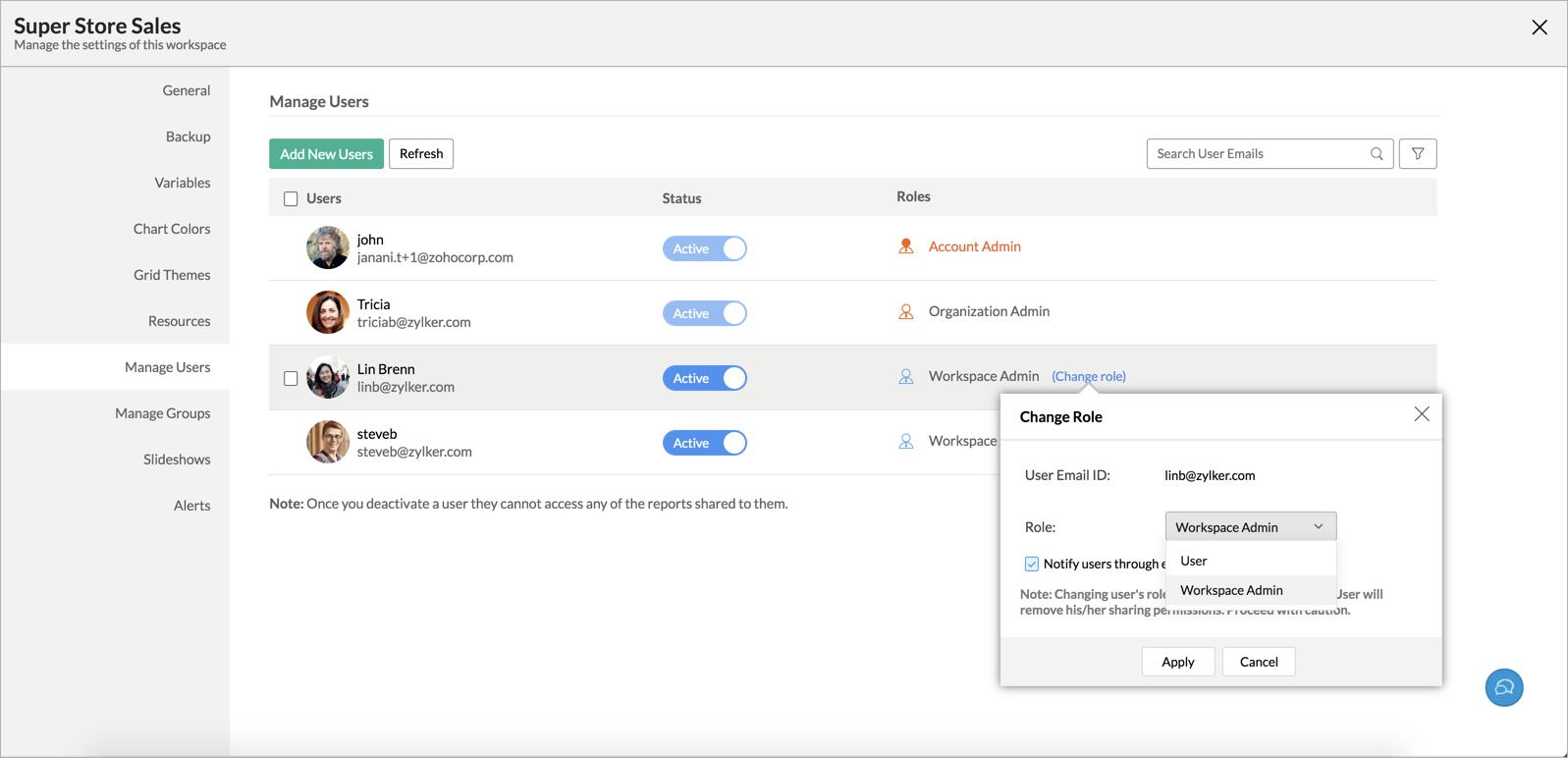
- In the dialog that opens, all shared workspaces will be listed. Click the Change Role link for the corresponding workspace.
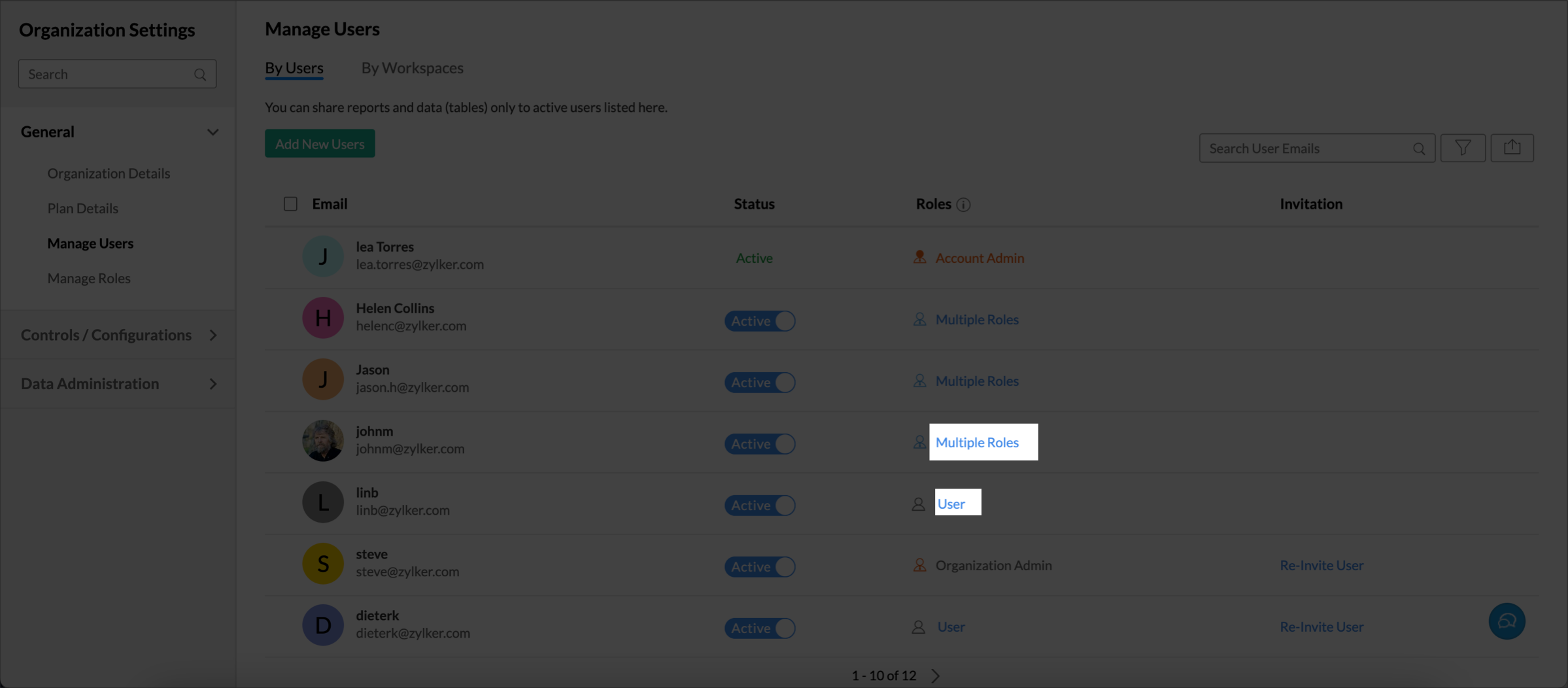
- Select the new role and click Apply.
You can also change the role from the Manage Users tab of the Workspace Settings page.
3. How to change an existing viewer to custom role?
To change an existing viewer to custom role, you need to change them as Users and then assign the custom role.
Follow the below steps to change the role to User.
- Open the Manage Users tab under Organization Settings.
- Hover over the user, who you want to change the role.
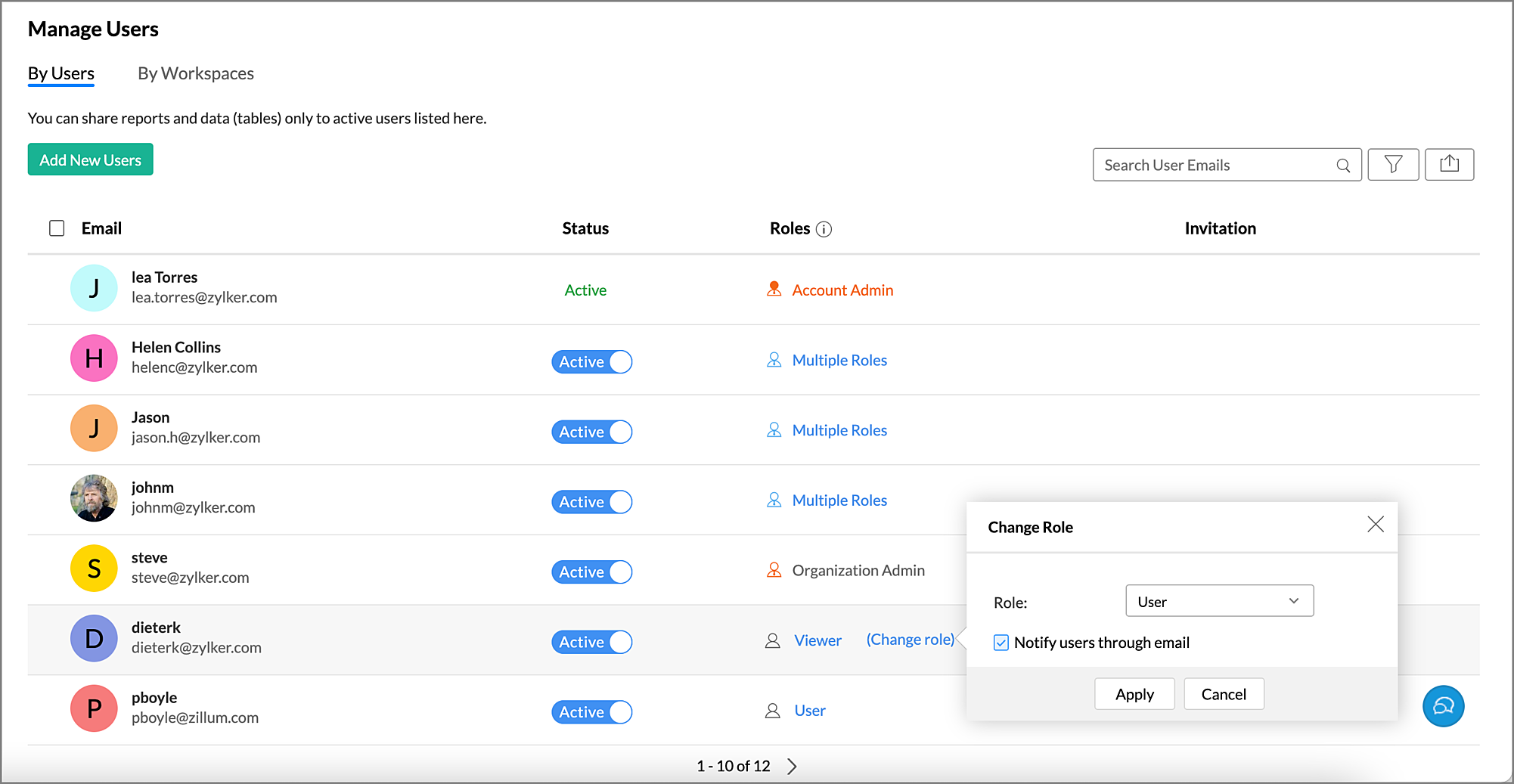
- Click the Change Role link.
- Set the Role as User.
- Click Apply.
Now you can change the user to Custom Role as specified in the above question.
4. How to change an existing Organization Adminstrator to Custom Role?
To change an Organization Administrator to a custom role, you need to change them as a User, and then assign the custom role.
Follow the below steps to change the role to User.
- Open the Manage Users tab under Organization Settings.
- Hover over the user for whom you want to change role.
- Click the Change Role link.
- Set the Role as User.
- Click Apply.
Now you can change the user to Custom Role as specified in the above question.
Manage Custom Roles
1. How to manage Custom Roles?
The Account Administrator and the Organization Administrators can manage custom roles from the Organization Settings page.
Follow the below steps to manage all roles in your organization.
- Click the Organization Settings icon on the top right of your account.
- The Organization Settings page will open. Open the Manage Roles tab.
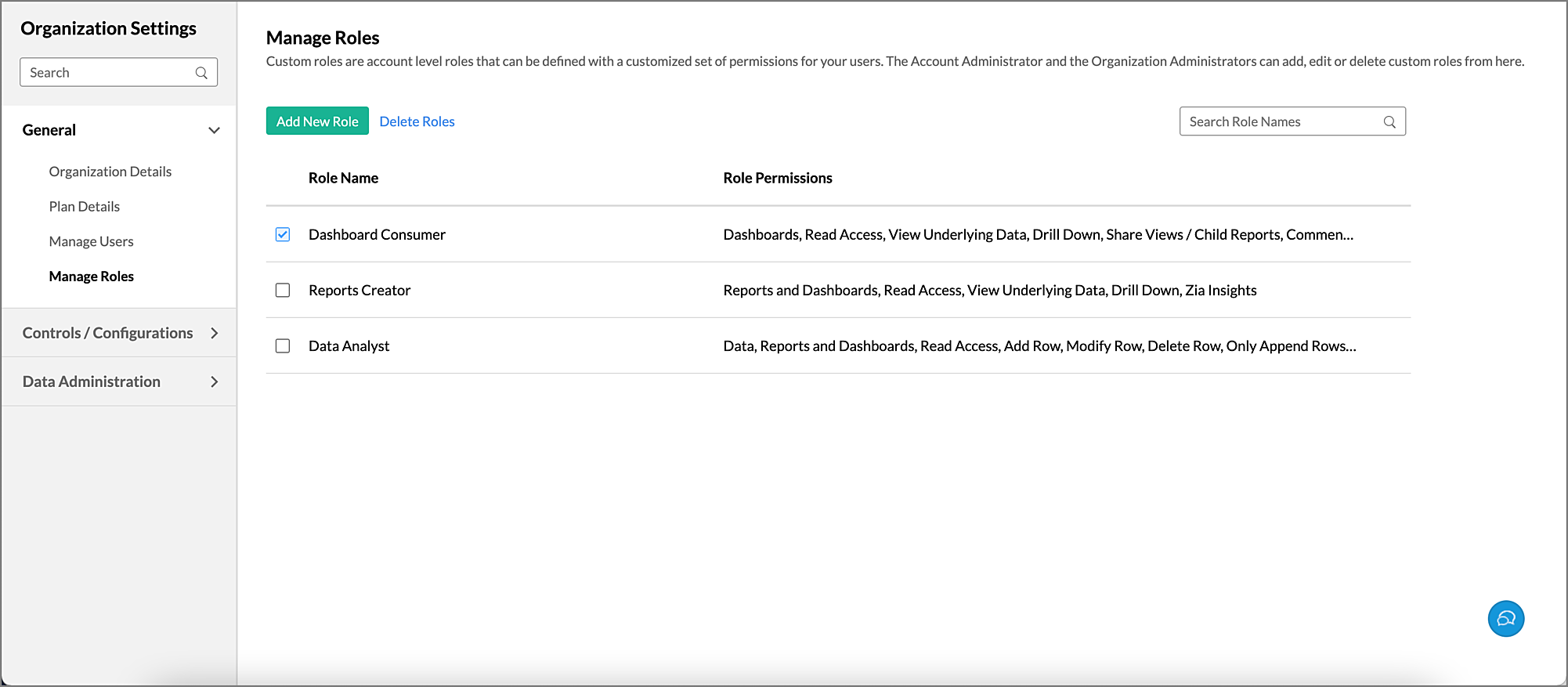
- All the custom roles will be listed here with their corresponding role permissions. You can edit or delete roles as needed.
2. How to edit a role?
Follow the below steps to edit the roles in your organization.
- Open the Organization Settings page.
- Open the Manage Roles tab.
- All the custom roles will be listed here alone with the role permission.
- Hover over the role you want to edit.
- A contextual Edit icon will appear. Click it.
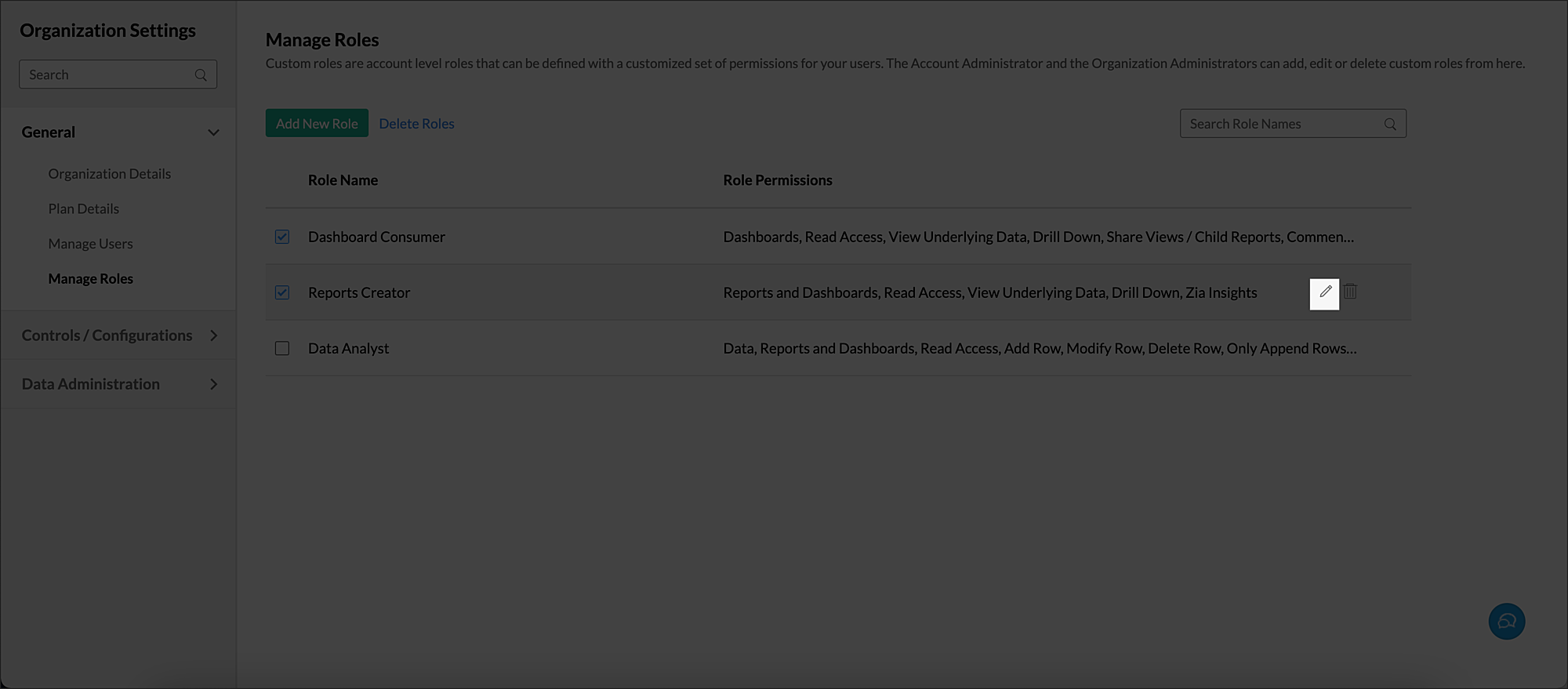
- The Edit Role dialog will open. Modify the settings as needed.
3. How do I delete a custom role?
Follow the below steps to delete roles.
- Open the Manage Roles tab, under the Organization Settings page.
- Select the role or roles you want to delete.
- Click the Delete Roles link.
- An Alert Message to confirm the action will be displayed.
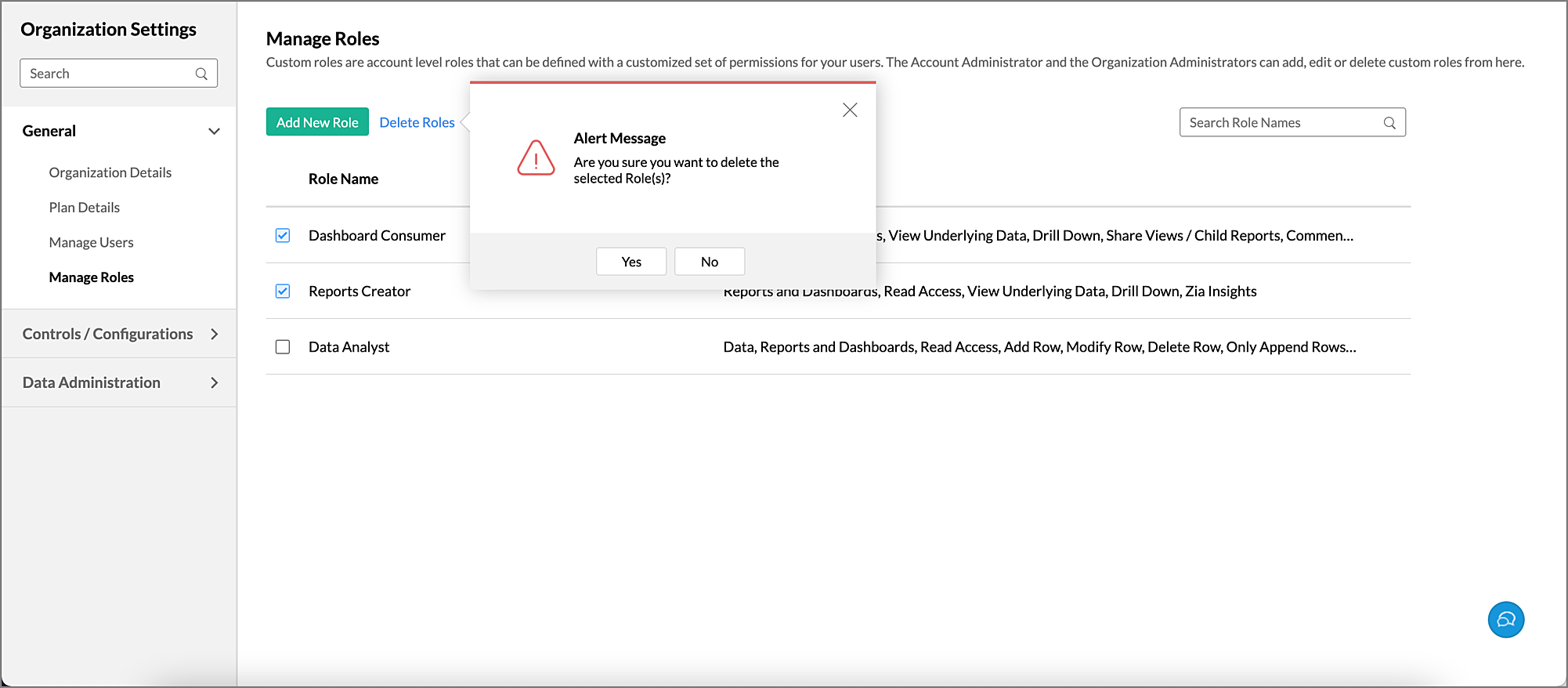
- Click Yes to delete the roles.
You can also delete a role using the Delete icon that appears on hovering the mouse over the role.